Samsung Data Migration to 850 EVO SSD Safely [Secure Boot]
Quick Navigation:
- Samsung Data Migration Software & 850 EVO SSD
- Samsung 850 EVO Data Migration Failed
- Reliable Samsung SSD 850 EVO Data Migration Software
- Samsung 850 EVO Data Migration Tutorial
- Conclusion
Samsung Data Migration Software & 850 EVO SSD
The Samsung 850 EVO is the top-selling SSD drive for mainstream desktop PCs and laptops, offering high performance and endurance. It's available in various capacities, including 120GB, 250GB, 500GB, 1TB, 2TB, and 4TB, and comes in three form factors: 2.5 inch, mSATA, and M.2.
Samsung Data Migration software is designed for Samsung SSDs, including 850 Series, and allows data migration from one hard drive to another, making it useful for upgrading hard drives, including migrating data from one 850 EVO to another.
Samsung 850 EVO Data Migration Failed
Unfortunately, you may encounter Samsung 850 EVO data migration errors when using Samsung Data Migration Software on your Windows computer, resulting in a failed migration process.
- You may get a warning that Samsung Data Migration cloning failed because the target disk has been disconnected when trying to clone a hard drive (HDD) to a new Samsung 850 EVO 250GB SSD drive.
- To resolve the cloning progress of Samsung Data Migration getting stuck at 0% or 99% when cloning a 1GB HDD to a 1GB Samsung 850 EVO SATA SSD in Windows 10, try the following: Disconnect the Samsung 850 EVO SSD, restart your computer, and then reconnect the SSD. This may resolve the issue. If not, try cloning the data to a different SSD or HDD to see if the problem persists.
To realize Samsung Data Migration to 850 EVO without losing data when Samsung Data Migration is not working, you can try using a third-party software like Qiling Disk Master. These tools can help you clone or migrate your data from the old drive to the new 850 EVO drive, ensuring that all your files, programs, and settings are transferred safely and without data loss.
Reliable Samsung SSD 850 EVO Data Migration Software
Besides Samsung Data Migration, there's the powerful Samsung SSD 850 EVO data migration software, Qiling Disk Master Standard, which can also help you finish the job and provides more flexible functions.
- The software provides a seamless solution to migrate data to a Samsung 850 EVO SSD drive, ensuring that all data, including the operating system, installed programs, user documents, and settings, are transferred without any loss.
- You can clone a larger HDD to a smaller SSD, or a smaller SSD to a larger SSD, using the intelligent clone feature.
- This software offers an option called "SSD Alignment" that can enhance SSD performance and prolong its lifespan by improving read and write speeds.
Qiling Disk Master Standard can be applied to any manufacturer's SSDs, not just Qiling, and can also be used for data migration on Samsung SSDs like the 860 EVO, or any other SSDs, with detailed steps available in the next part.
Samsung 850 EVO Data Migration Tutorial
To transfer data from an old Samsung phone to a new one, download and install the Samsung data migration software - Qiling Disk Master Standard. Once installed, run the software to its main window.
Here are the steps to perform Samsung 850 EVO data migration:
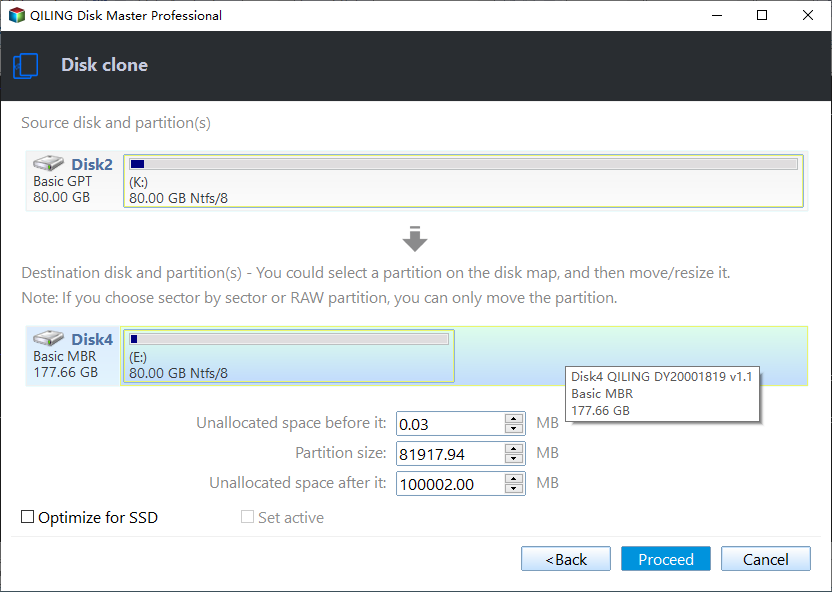
1. To migrate data from an old Samsung SSD to a new 850 EVO SSD, select the "Disk Clone" option at the "Tools and utilities" tab in the home interface of Samsung Data Migration.

2. The original hard drive (HDD) is chosen as the source disk to clone.

3. Select Samsung 850 EVO SSD drive as the destination disk.

4. Check the SSD Alignment option, then click Proceed To clone a hard drive to a Samsung 850 EVO SSD, you can easily do so by using a cloning software, then replace the hard drive with the SSD and set the SSD as the first boot disk in the BIOS settings.
★Notes:
✍If you choose "Sector by sector clone", it will clone every sector on your old hard drive, including unused ones, which can be time-consuming and take up a lot of storage space.
✍Edit Partitions: Checking this option allows you to adjust the partition size and location on the destination disk while cloning a smaller disk to a larger disk to fully use the storage space on the destination.
✍If you only have one hard drive slot in your laptop, you can back up your original hard drive, then restore your data to a Samsung 850 EVO SSD.
✍Besides, Qiling Disk Master Professional can clone an OS to a Samsung 850 EVO SSD or restore it to different hardware.
Conclusion
The Samsung 850 EVO data migration process can be easily completed with the free software Qiling Disk Master Standard, which allows you to migrate data to the Samsung 850 EVO SSD with minimal effort.
A comprehensive backup tool that offers system backup, disk/partition/file backup, and can assist in backing up a new SSD.
Related Articles
- The Best Free Samsung SSD 860 Clone Software
- How Do You Start Samsung SSD Data Migration without Cable
- How Do You Replace Hard Drive with Samsung EVO 850 SSD in Windows
- How to Format EFI System Partition as FAT32? Your Guide Here 2023
There are ways to change the EFI partition to a FAT32 file system, but many users face the challenge of formatting - Free Download Disk Cloning Software for Windows 10 & 11
This guide explains Free Download Disk Cloning Software for Windows 10 & 11 with clear steps, key checks, and practical tips. - How to Install a Second Hard Drive Windows 10 | Detailed Tutorial
This tutorial will guide you through the process of installing a second hard drive on a Windows 10 desktop and laptop, covering different interfaces, and ensure successful recognition. It will also provide a simple method to migrate Windows 10 to the second hard drive.
Products
Articles & Tutorials
- Data Recovery
- Data Backup
- File Recovery
- File Backup
- File synchronize
- System Backup and Restore
- Disk and Partition Clone
- Technical articles
- Disk Master Help
- Windows Deleted File and Disk Recovery Tutorials
- Windows File and Data Recovery Tutorials
- More Windows Tutorials for Install, Security, Files, and PC Tips
- Windows Boot, Repair, and Recovery Environment Tutorials
- Windows Backup Tutorials
- Windows Restore Tutorials
- Windows Clone and Migration Tutorials
- Windows Server Backup, Recovery, and Management Tutorials
- Windows Disk, Partition, and Storage Management Tutorials