How to Clone HDD to M.2 SSD Step by Step (Bootable)
Overview for replacing HDD with M.2 SSD
M.2 is a small form factor for SSDs that resembles a stick of gum, allowing them to be added to laptops with limited space for traditional SSDs.
M.2 SSDs are not always faster, as they can use either SATA or PCIe interface. There are both SATA and NVMe based SSDs available, with the latter offering improved performance for those with a generous budget.
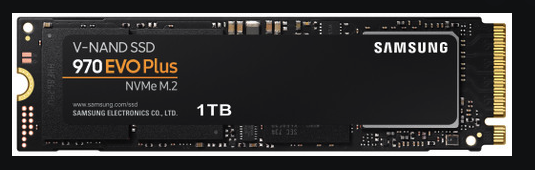
Upgrading from a hard drive to an M.2 SSD can significantly boost a computer's boot and read/write speed, aligning with the trend of technological development.
You can directly clone your Windows 10/11 from HDDs to M.2 SSDs without reinstalling, preserving the old data and OS, and avoiding boot errors.
Essential tool for M.2 SSD migration
Cloning Windows 11/10 and all files from a hard disk drive (HDD) to a solid-state drive (M.2 SSD) can be easily achieved through disk cloning. This method allows for a seamless transfer of the operating system, programs, and data to the new SSD, making it a convenient and efficient way to upgrade or replace the storage device.
- Important preparations before cloning HDD to M.2 SSD
- Best HDD to M.2 SSD cloning software to suit different cases
- How to clone HDD/SSD to M.2 SSD (step by step)
Important preparations before cloning HDD to M.2 SSD
Before purchasing or replacing an M.2 SSD, you'll need to consider a few things, such as the type of M.2 slot your computer has (e.g.
#1. Make sure your computer is compatible with M.2 SSDs.
To install this new SSD, first locate the M.2 interface on your motherboard, which is a horizontal slot about an inch wide labeled "PCIe" or "SATA" or both. You'll need to get a matching M.2 SSD that's compatible with your motherboard's interface, as PCIe devices won't work with SATA and vice versa.
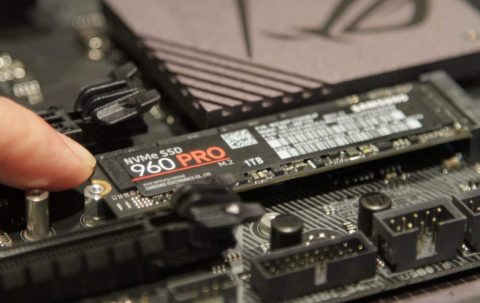
#2. Make sure the motherboard supports booting from M.2 SSD.
Booting from an NVMe PCIe SSD is only supported on systems that support UEFI, and M.2 NVMe SSDs can only boot in UEFI mode.
#3. Make sure the M.2 SSD has the right partition style.
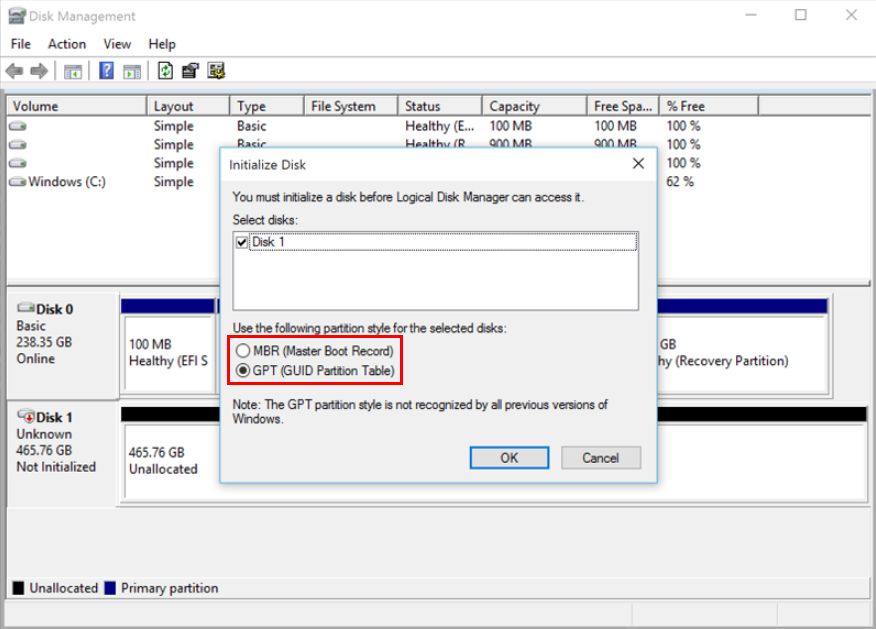
Each disk partition must have a compatible partition style (GPT or MBR) to enable Windows to access its data. The partition style must also match the boot mode, either MBR/Legacy BIOS or GPT/UEFI, to ensure proper Windows booting.
If you bought an M.2 NVMe SSD, it should be partitioned to GPT to support UEFI boot. However, for M.2 SATA SSDs, there are no strict requirements, but GPT is still recommended, especially for modern computers and operating systems like Windows 11.
To check the partition style, open the Run window by pressing Win + R, type "diskmgmt.msc", and hit OK to open disk management. Then, right-click the disk and select "Properties" and look for the "Volume" section, where you can check the "Partition style".
After deleting all volumes from the disk, you can change the partition style to convert from MBR to GPT. *Note: This is a shortened version of the original text.

#4. Make sure the M.2 SSD can be detected by Windows.
If you've added a brand new disk to your PC and it's not showing up in File Explorer, you might need to initialize it first. This process is usually automatic, but sometimes it might not happen on its own.
To initialize a disk, launch Disk Management, right-click the disk you want to initialize, and click "Initialize Disk". If the disk is listed as "Offline", first right-click it and select "Online".
#5. Pick an effective tool to help you clone HDD to M.2 SSD.
Windows does not come with cloning functionality, so you may need a third-party M.2 cloner to assist with the process.
When choosing a disk cloning tool, consider factors such as whether it supports MBR/GPT disks, cloning between disks of different sizes, and utilizing SSD performance to its fullest potential. This will ensure that your selection meets your specific needs and provides the desired outcome.
Best HDD to M.2 SSD cloning software to suit different cases
To copy a hard drive to an M.2 solid state drive, a reliable and powerful cloning software is required. I recommend using Qiling Disk Master Professional, which offers advanced capabilities for this task.
🔹Clone disks of different sizes: Qiling's intelligent-sector cloning allows cloning a larger HDD to a smaller SSD, and also enables editing partition size to make full use of the disk space when the target drive is larger.
🔹Support MBR/GPT disks: Clone the source disk to the target disk, which can be of the same partition style (MBR to MBR or GPT to GPT) or different (MBR to GPT or GPT to MBR) without conversion, and there's also an option to manually convert the partition style of the target disk to match the source disk.
🔹Flexible cloning options: Besides the full Disk Clone, you can also choose to System Clone for just OS migration or Partition Clone for selective partition cloning. Additionally, you can opt for a sector-by-sector clone or align partitions to optimize the use of the target SSD.
🔹Fully compatible: It works perfectly with Windows 11, 10, 8.1/8, 7, Vista, XP, and all their editions. For Windows Server, consider the specialized Server edition.
Download the free trial of this software to experience its powerful cloning features firsthand.
The Trial version has clone features for demonstration purposes only, and a full upgrade is required for full functionality.
Video Tutorial of Cloning Windows 10/11 from HDD to M.2 SSD:
I will also introduce the steps of cloning OS and files from HDD to M.2 SSD in detail with screenshots. This will provide a clear guide on how to successfully transfer the operating system and all files from the traditional hard drive disk (HDD) to the modern solid-state drive (M.
How to clone HDD/SSD to M.2 SSD (step by step)
To clone an HDD to an M.2 SSD, first connect the M.2 SSD to your computer and ensure it's recognized by Windows. Then, follow these steps: use a cloning software such as Qiling Disk Master to create a sector-by-sector copy of the HDD to the M.2 SSD. The software will handle the cloning process, which may take several hours depending on the size of the HDD. Once the cloning is complete, remove the original HDD and use the cloned M.
This software clones only used sectors to target disk by default, allowing you to clone a larger HDD to a smaller SSD, as long as the target disk has enough space to hold all the data on the source disk.
Steps to clone hard drive to M.2 SSD:
Step 1. Launch the software, click "Clone" and select "Disk Clone". If you want to clone only OS, select "System Clone".

Step 2. Select the original hard drive as source disk and select the M.2 SSD as the destination disk successively.
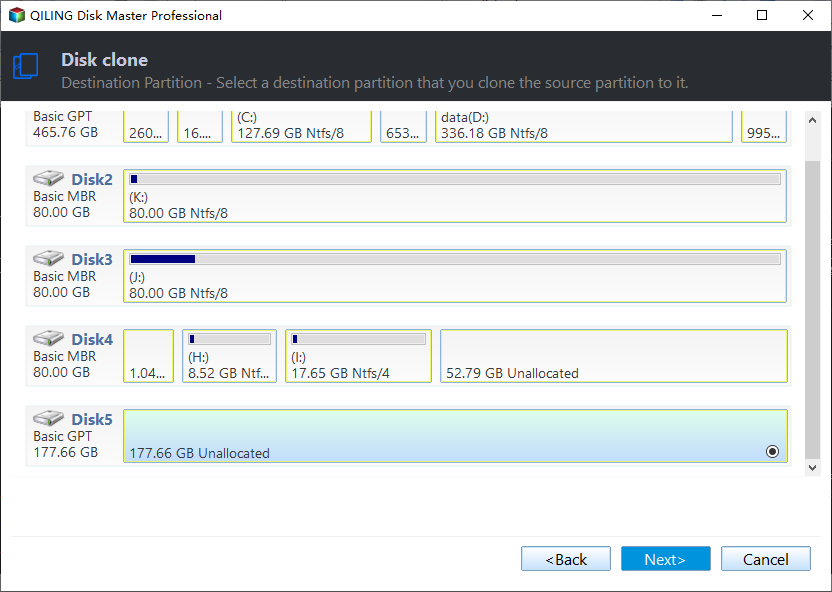
Step 3. The user is prompted to click on "SSD Alignment" to optimize the reading and writing speed of the destination SSD, and then click on "Proceed" to initiate the cloning process from the HDD to the M.2 SSD.

✎Optional options:
Sector By Sector Clone: Qiling Disk Master will only copy used sectors by default to save space. If you want to copy all sectors indiscriminately, please check this option. This is especially necessary when cloning a disk with a system reserved recovery partition to ensure the recovery partition works on the target SSD.
Edit Partitions: To utilize the full space of a larger M.2 SSD when cloning a smaller disk to it, you can edit partitions using specific options, which are not compatible with the Sector By Sector Clone method.
- Copy without resizing partitions: It will not resize the partition size.
- Add unused space to all partitions: Reallocate the unallocated space on the target disk to each partition in order to fully utilize the available storage capacity. This process ensures that the free space is distributed evenly among the partitions, allowing for optimal use of the disk's total capacity.
- Manually adjust partition size: To extend unallocated space to any partition on the destination disk, you can follow these steps:
- Convert the destination disk...: To ensure a successful Windows 10 installation on a target disk, it's recommended to convert its partition style to match the source disk. This involves changing the target disk's partition style from MBR (Master Boot Record) to GPT (GUID Partition Table) or vice versa, depending on the source disk's partition style.
How to boot from the cloned M.2 SSD
After cloning, shut down the computer to replace the hard drive with an M.2 SSD. Restarting the computer should then boot into Windows properly, completing the process.
If your old HDD is partitioned with MBR and your cloned drive is an M.2 NVMe SSD partitioned with GPT, you'll need to access your BIOS settings during startup and switch the boot mode from Legacy BIOS to UEFI.
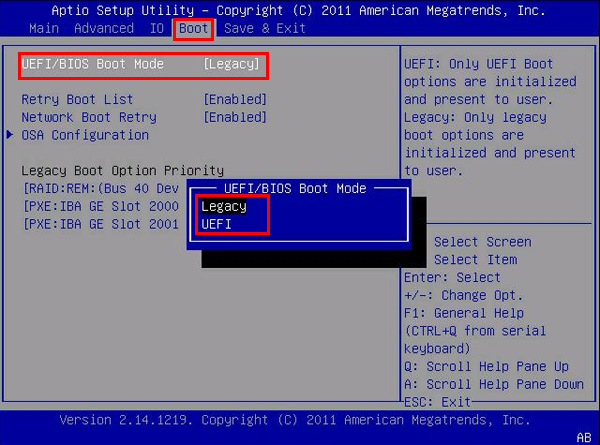
To avoid Windows booting from the wrong disk, ensure the M.2 SSD is set as the first boot option in BIOS, and connect the old hard drive for secondary storage. This way, you can utilize the old hard drive for extra storage without risking Windows booting from it instead of the M.
Frequently asked questions about HDD to M.2 SSD cloning
Q1. How long does it take to clone an HDD to an M.2 SSD?
The time it takes to clone an HDD to an M.2 SSD depends on the amount of data being transferred, the cloning method used, and the read and write speeds of the computer system and the hard disk.
Cloning a disk can take anywhere from 10 minutes to an hour, depending on the amount of data. If you have a large amount of data to clone, such as 2TB, it may take several hours. To minimize the cloning time, it's a good idea to remove unnecessary files and apps from your source disk beforehand, making the data as lean as possible. This will help you avoid spending too much time cloning.
Q2. Does adding M.2 NVMe drives disable SATA ports?
M.2 NVMe drives can disable SATA ports on some motherboards, as they share PCIe lanes, so it's best to check the motherboard manual to see if any SATA ports are disabled when using an M.2 NVMe drive.
Q3. Are M.2 and NVMe the same?
M.2 is a physical form factor for SSDs, while NVMe is the interface that allows SSDs to connect to the motherboard and communicate with the CPU, and they work together.
Q4. How long does M.2 SSD last compared to HDD?
M.2 SSDs are estimated to last around 10 years, compared to 3-5 years for HDDs.
Q5. Can you use M.2 SSD and HDD together?
Modern motherboards can accommodate both SSDs and HDDs simultaneously, with SSDs connected to the M.2 PCIe slot and HDDs placed in bays. However, using the M.2 slot may disable one or two SATA ports, but not all of them.
Final Words
You may have learned how to clone a hard drive to an M.2 SSD after reading this article. Replacing an old hard drive with an SSD is highly recommended for better performance. With Qiling Disk Master, you can easily clone any type or brand of hard drive or upgrade an M.2 SSD without reinstalling Windows.
Related Articles
- Safely Clone an M.2 SSD to Larger M.2 SSD in 5 Simple Steps
- How to Migrate Windows 10 to M.2 SSD without Reinstalling?
- How to Clone NVMe to NVME SSD in Windows (2 Ways)?
- Factory Reset ASUS Laptop F9 Not Working [Why & How to Fix]🔥
If you're an ASUS user, you probably know the F9 key is the quickest method for a factory reset. Sometimes, you might face a - Fixed: Transcend SSD Scope Not Working for System Clone
This guide explains Fixed: Transcend SSD Scope Not Working for System Clone with clear steps, key checks, and practical tips. - Best Tool for Transferring C Drive to SSD in Windows 10/8/7
It is a wise choice to transfer C drive to SSD from HDD since SSD comes with better speed and performance. Here we will teach how to move C drive to a new SSD drive and make it bootable as well.
Products
Articles & Tutorials
- Data Recovery
- Data Backup
- File Recovery
- File Backup
- File synchronize
- System Backup and Restore
- Disk and Partition Clone
- Technical articles
- Disk Master Help
- Windows Deleted File and Disk Recovery Tutorials
- Windows File and Data Recovery Tutorials
- More Windows Tutorials for Install, Security, Files, and PC Tips
- Windows Boot, Repair, and Recovery Environment Tutorials
- Windows Backup Tutorials
- Windows Restore Tutorials
- Windows Clone and Migration Tutorials
- Windows Server Backup, Recovery, and Management Tutorials
- Windows Disk, Partition, and Storage Management Tutorials