Safely Clone M.2 SSD to Larger M.2 SSD in 4 Simple Steps
Quick Navigation:
- Can I Clone M.2 SSD to Larger M.2 SSD?
- Preparations for Cloning M.2 SSD to Larger M.2 SSD
- 1. Check your disk slot
- 2. Get a right M.2 SSD
- 3. Install New M.2 SSD
- 4. Initial M.2 SSD in Disk Management
- Best M.2 SSD Cloner - Qiling Disk Master
- Step-by-Step Guide to Clone SSD to M.2 SSD in Windows 11
- How to Boot from Cloned Larger M.2 SSD
- Frequently Asked Questions About Cloning M.2 SSD
- Summing Up
The M.2 SSD, previously known as the Next Generation Form Factor (NGFF), offers a smaller size, faster transfer speed, and higher power efficiency compared to standard SATA SSDs. This makes it an increasingly popular storage device, particularly among gamers, and well-suited for modern ultraportable devices like laptops, Ultrabooks, and tablets, with capacities reaching up to 8TB.
To clone a smaller M.2 SSD to a larger one, you'll need to use a cloning software to copy the contents of the smaller drive to the larger one, ensuring a seamless transition and preservation of data. This process typically involves selecting the source and target drives, initiating the cloning process, and verifying the completion of the operation to ensure a successful transfer. It's a straightforward and efficient method to upgrade your storage capacity and maintain your existing data and system configurations.
Can I Clone M.2 SSD to Larger M.2 SSD?
To clone your M.2 SSD to a larger M.2 SSD, you can use a cloning software such as Qiling Disk Master. These tools allow you to create an exact copy of your original SSD, including the OS, to the new larger M.2 SSD. This process is relatively straightforward and doesn't require any technical expertise, making it a great option for those who want to simplify their storage setup. Simply connect the new M.2 SSD to your system, run the cloning software, and follow the on-screen instructions to complete the process.
- Question from Reddit
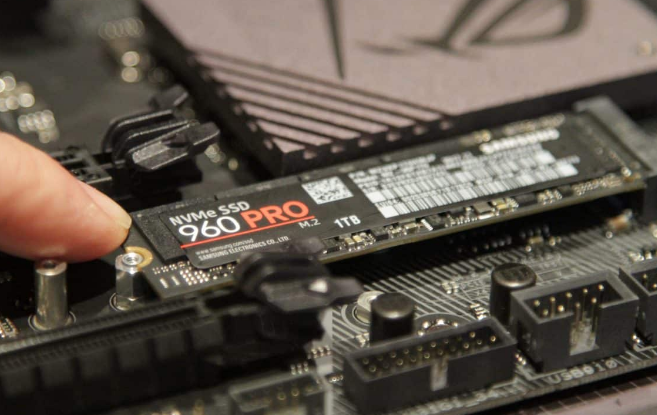
You can successfully clone an M.2 SSD to a larger one and boot it up, as long as you're well-prepared and use reliable disk cloning software. With the right tools and a bit of effort, you can transfer your data and operating system to a larger M.2 SSD, making it a great option for upgrading your storage capacity.
Preparations for Cloning M.2 SSD to Larger M.2 SSD
Cloning an M.2 SSD to a larger one can significantly boost computer performance and provide more space, such as shorter boot times. Before doing so, users need to prepare by making sure the new drive is compatible with their system and has enough space to hold the cloned data.
1. Check your disk slot
Check the M.2 SSD slot number and types in your computer case using a screwdriver, as most M.2 SSDs use SATA or PCIe interfaces.
2. Get a right M.2 SSD
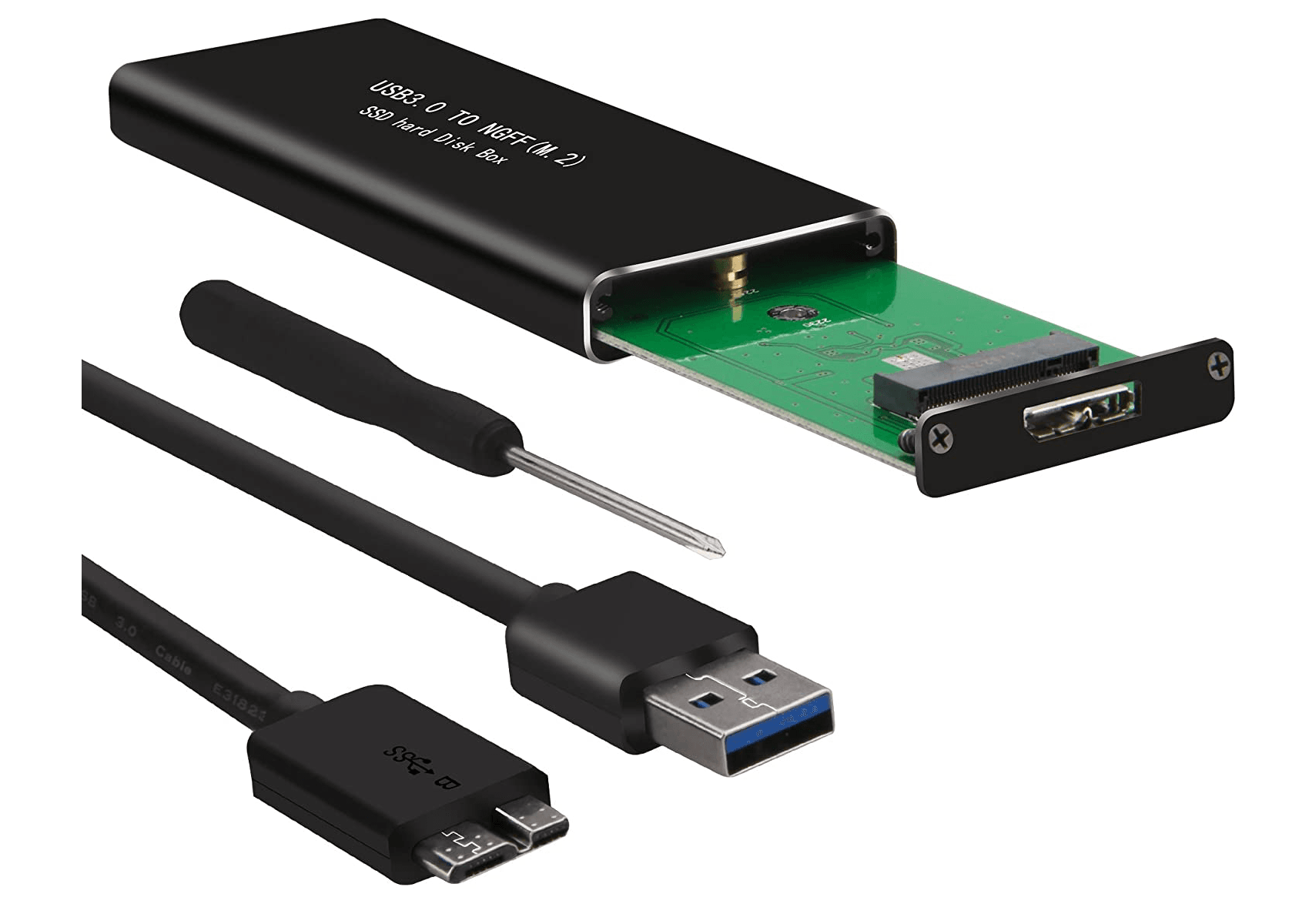
New M.2 SSDs are typically the same length as the SSD slot they're meant to fit into. They often come in larger capacities, such as double or triple the size of smaller M.2 SSDs. If your computer only has one M.2 slot, you may need to purchase a separate M.2 enclosure or adapter to install the new drive.
3. Install New M.2 SSD
To install a new M.2 SSD disk, you need to either disconnect the battery or cut off the power supply to the motherboard. This is a safety precaution to prevent any potential damage or data loss during the installation process.
Situation 1: For a laptop or desktop with only one slot: To make your M.2 SSD work, you need to put it in an M.2 enclosure or use an M.2 adapter to connect it to your computer, then restart your computer.
Situation 2: For a computer with two M.2 SSD slots:
💻To install an M.2 SSD on a laptop, open the laptop's M.2 slot, slide the SSD into the slot, secure it, and reassemble the laptop.

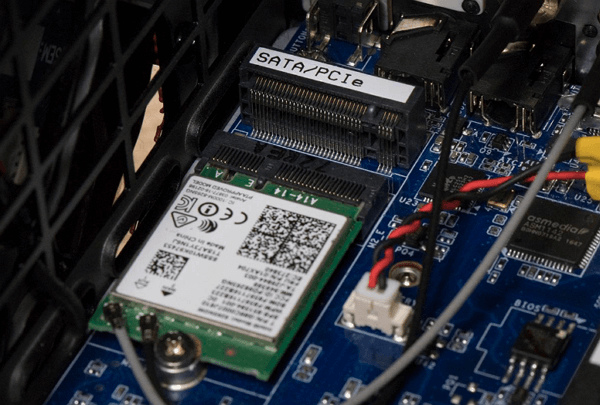
🖥To install an M.2 SSD on a desktop, open the host cover and locate the M.2 connector, which is usually labeled as SATA/PCIe. Then, insert the M.2 SSD into the slot and secure it tightly with screws.
4. Initial M.2 SSD in Disk Management
Before writing any data to the new SSD, it needs to be initialized, and you can choose to format it with either MBR or GPT partition style, depending on the disk type of your smaller SSD.
- Type "diskmgmt.msc" in the search box and select "Run as administrator" to open the Disk Management console.
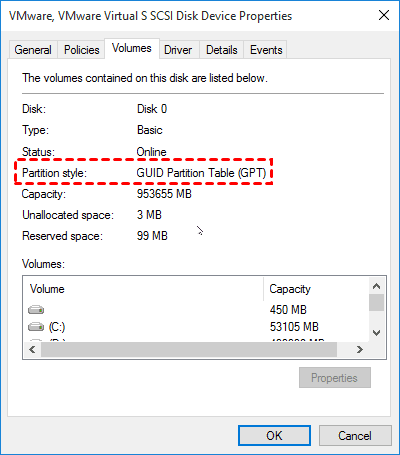
- Locate and right-To check if an M.2 SSD is MBR or GPT, click the smaller M.2 SSD and select Properties. Then, check if it is MBR or GPT.
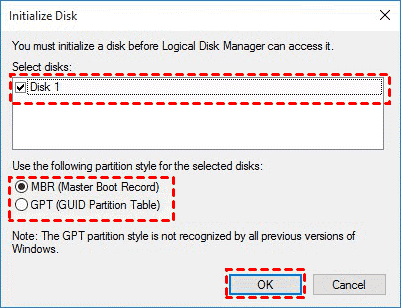
- Then, right-click larger M.2 SSD and select Initialize Disk.
- You need to select the same partition style (MBR or GPT) for both your smaller SSD and the larger one. This means choosing the same option when prompted during the cloning process.
Best M.2 SSD Cloner - Qiling Disk Master
Whether you want to clone an M.2 SATA SSD or an M.2 PCIe SSD, the Qiling Disk Master Professional is a specialist M.2 SSD cloner that can help and ensure a secure boot.
 Qiling Disk Master
- Clone a smaller M.2 SSD to a larger one, including Windows OS, installed programs, and personal files, without reinstalling Windows.
- The Edit Partitions feature allows resizing the larger M.2 SSD to ensure it shows its full capacity.
- The feature of SSD Alignment in a system is able to enhance the performance of M.2 SSDs by accelerating them.
- To clone an SSD with different sizes, you need to resize the partition on the destination drive to match the size of the source drive. This process involves creating a new partition on the destination drive that is the same size as the source drive, and then copying the data from the source drive to the new partition.
- All brands of M.2 SSDs, including Samsung, Crucial, SanDisk, WD, and others, can be cloned using various software tools and methods. This allows users to create an exact copy of their existing SSD, which can be useful for upgrading or replacing a drive, or for creating a backup.
Qiling Disk Master Professional offers a 30-day free trial, but the clone features can only be demonstrated during this time and require an upgrade to the full edition to be used.
Step-by-Step Guide to Clone SSD to M.2 SSD in Windows 11
Here is the step-by-step guide to safely clone SSD to M.2 SSD in Windows 11/10/8/7. Also, you can use it to move Windows 10/11 from HDD to M.2 SSD and other operating systems.
★ Note: If you have data on the destination M.2 disk, it will be erased during the cloning process. Please back up your files before cloning the M.2 SSD.
Video tutorial:
Graphic Tutorial:
Step 1To clone the best M.2 SSD, use Qiling Disk Master Professional. Select the "Clone" option and then "Disk Clone" to start the cloning process.

- To move the operating system to a new M.2 SSD, use the System Clone feature instead of Clone Disk. This is because System Clone is specifically designed to clone the operating system to a new SSD, taking into account the unique requirements of the operating system, such as the boot order and partition table.
Step 2. Select the smaller M.2 SSD as the source disk and hit Next to continue. This will allow the cloning process to proceed with the smaller SSD as the source, which is necessary for the cloning process to work correctly.

Step 3. To upgrade the storage capacity of your computer, choose the larger M.2 SSD as the target disk, and then press Next to continue.

Step 4. To utilize the full capacity of a larger M.2 SSD, click on "Edit Partitions" and choose either "Add unused space to all partitions" or "Add unused space to all partitions", both of which enable the drive to show its full capacity.
- Copy without resizing partitions: Don't check this option if you're cloning a smaller disk to a larger one, as it will leave unallocated space. If space is left, consider merging it with an existing partition, like C drive, or creating a new partition to store data separately.
- Add unused space to all partitions: The backup software is selected by default to help you make full use of storage space on the larger destination drive.
- Manually adjust partition size: you can resize each partition based on your needs.
- Convert the destination disk from MBR/GPT to GPT/MBR: When cloning an MBR disk to a GPT disk or vice versa, you can use this option to ensure both disks have the same partition style.
Step 5. To speed up the cloning process for an M.2 SSD, tick the "SSD Alignment" box, then press "Proceed" to safely clone the M.2 SSD to a larger M.2 SSD in Windows 11, or alternatively in Windows 10, 8, 7, and other versions.

- The Sector by sector clone feature allows you to clone all sectors of the source M.2 SSD, even if they are blank or bad, which takes longer. It's recommended not to check this option unless the disk is encrypted.
- For server users using Windows Server 2003, 2008, 2012, 2016, 2019 (including R2), SBS 2003, 2008, or 2011, Qiling Disk Master Server is required.
Cloning a small amount of data on the source M.2 SSD drive takes only a short time, but the process time increases with the size of the data on the source drive, as it depends on the transfer speed of both the M.2 SSD and the data size.
💕Tip on how to clone M.2 SSD with only one slot:
- To backup an M.2 SSD with the Disk Backup feature in Qiling Disk Master, start by launching the software, selecting the Disk Backup option, choosing the source M.2 SSD, specifying a destination path, and clicking Start Backup to initiate the process.
- To replace the smaller M.2 SSD with a larger one, you'll need to use a screwdriver. First, shut down your computer and unplug the power cord.
- Select the disk backup option and restore the image to the larger M.2 SSD.
For detailed steps (with screenshot), please refer to how to upgrade laptop drive via backup and restore.
How to Boot from Cloned Larger M.2 SSD
To boot correctly from the cloned larger M.2 SSD after cloning M.2 to M.2, ensure that the cloned SSD is recognized by the motherboard and the BIOS is set to prioritize it as the primary boot device. This can usually be done by entering the BIOS settings during boot-up and selecting the cloned M.
- For the computer that has only one M.2 slot: shut down your computer, remove the old M.2 SSD, and replace it with the newly cloned larger M.2 SSD, boot from the cloned M.2 SSD.
- For the computer that has more than one M.2 slot: To resolve the issue, restart your computer and repeatedly press a specific key (usually F2, F10, F12, ESC, or DEL) to access the BIOS or UEFI settings. Then, change the boot priority to the larger cloned M.2 drive. This should allow your computer to boot from the cloned drive instead of the original one.
To ensure the M.2 SSD drive is securely fastened in your machine, replace the mounting screws that came with the drive or use the ones provided with your machine's case. This will prevent any accidental dislodging or damage to the drive during use.
Frequently Asked Questions About Cloning M.2 SSD
1. How do I clone NVMe SSD to another NVMe SSD?
To clone an M2 disk to another, you'll need reliable disk cloning software that supports NVMe SSD disks. Qiling Disk Master Professional is a great option for this task.
2. Is M.2 faster than SATA SSD?
The transfer speed of SATA SSD is up to 600MB/s, while M.2 SSD can vary from 1000MB/s to 2000MB/s, depending on the bus and protocol it supports.
3. Is NVMe and M.2 the same?
NVMe is an interface protocol that is primarily used for M.2 form factor, while M.2 is a type of internally mounted expansion card that directly connects to the motherboard using an M.2 connector slot.
Summing Up
To clone an M.2 SSD to another M.2 SSD safely, first ensure the new drive is compatible with your motherboard and install it correctly. Then, use a powerful M.2 cloner like Qiling Disk Master Professional to clone the disk, ensuring a smooth boot-up without any issues.
This software can clone all types of SSDs to another one, including NVMe M.2, M.2 PCIe, and Samsung M.2, allowing you to clone Windows 10 to an NVMe SSD, among other options.
Related Articles
- Free Samsung Migration Software for Windows 11/10/8/7
- Best M.2 NVMe SSD Duplicator for Windows
- Best Free M.2 SSD Cloner - Qiling Disk Master to Clone M2 SSD
- 4 Ways to Factory Reset ASUS Laptop Without Password
Learn the key steps, checks, and practical tips for this related guide. - Move Windows Server from HDD to SSD without Reinstalling System
Here comes the best way to move Windows Server 2003, 2008, 2012, 2016, 2019, SBS or Home Server 2011 to SSD and boot the system from successfully. - How to Clone Windows Server 2012 (R2) to SSD?
To clone Windows Server 2012 (R2) to SSD without losing data, you can turn to disk cloning software, Qiling Disk Master Server.
Products
Articles & Tutorials
- Data Recovery
- Data Backup
- File Recovery
- File Backup
- File synchronize
- System Backup and Restore
- Disk and Partition Clone
- Technical articles
- Disk Master Help
- Windows Deleted File and Disk Recovery Tutorials
- Windows File and Data Recovery Tutorials
- More Windows Tutorials for Install, Security, Files, and PC Tips
- Windows Boot, Repair, and Recovery Environment Tutorials
- Windows Backup Tutorials
- Windows Restore Tutorials
- Windows Clone and Migration Tutorials
- Windows Server Backup, Recovery, and Management Tutorials
- Windows Disk, Partition, and Storage Management Tutorials