Partition Alignment: What It Is and How to Align SSD
What does partition alignment mean?
Partition alignment is the proper alignment of partitions to the boundaries of a data storage device, such as a hard disk or solid state drive, to ensure ideal performance during data access, which can improve performance by 10-30% or more.
The Windows installer knows how to handle partition alignment properly, and it will do so when you install Windows on an SSD or get a computer with an SSD. However, if you're installing Windows on an existing SSD, you may need to manually align the partition to ensure optimal performance. If you clone an HDD to an SSD or replace HDD with SSD, the cloning software may not align the partition for you, resulting in a misaligned partition. You may find SSD boot slow after cloning or restoring.
A typical mechanical hard drive starts its first partition after 63 empty blocks, while a solid-state drive starts after 64 empty blocks. If the disk is not aligned, the physical sectors and clusters will be shifted, requiring two physical 4K sectors to be read for a file in one cluster.

- Note:
- A cluster is the smallest unit of disk space that can be allocated to hold a file, and it can only contain data from one file, regardless of the file's size.
When should I use partition alignment?
Learning about partition alignment can be beneficial for disk performance. However, incorrect alignment can have the opposite effect, slowing down performance. There are certain situations where using partition alignment is recommended.
- Migrate system, disk, partition under the old version of Windows: The operating systems that do not support this feature include Windows XP, Windows Server 2003, Windows 2000, etc. They do not have automatic partition alignment.
- SSD slow boot after cloning or restoring: In this case, the Windows installer does not align the partition for you, and you need to do it manually.
How do I know if my partition is aligned?
If you find your SSD boot slow after cloning or restoring, you can check if it's aligned in the System Information. Below are the steps:
Step 1. Press Win + R to open the Run window, input msinfo32 and hit OK.
Step 2. Go to Components > Storage > Disks, find your SSD and the Partition Starting Offset.
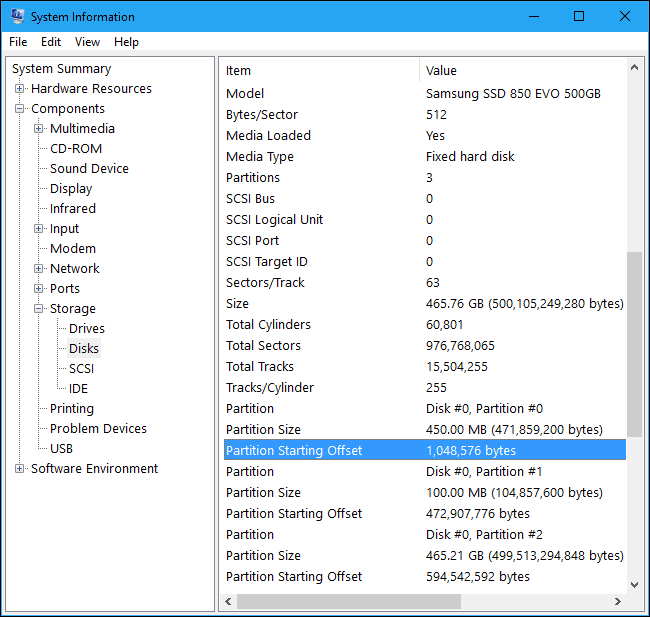
Step 3. To check if an SSD partition is aligned, divide the partition's starting offset by 4096. If the result is an integer, the partition is correctly aligned. If you get a fractional number, the partition is misaligned.
If your SSD isn't aligned correctly, you can choose to align it during the clone or restore process. This feature is usually an option in the software you use, and it will automatically align sectors for the partition or hard disk if you select the 'aligned sector' option, making the process easier and ensuring proper SSD alignment.
How to perform SSD Alignment during Clone or Restore process
To perform SSD alignment during a clone or restore process, you can use a software that supports both operations, such as Qiling Disk Master Professional, which can clone a partition or hard drive to an SSD and restore an image to an SSD, ensuring the disk remains bootable.
This software is only compatible with Windows 11/8/10/7/XP/Vista. If you are a server user, you may want to try Qiling Disk Master Server instead.
Situation 1: Align sector while performing clone
The SSD Alignment is applicable to Partition Clone, System Clone, and Disk Clone. You can select one of them based on the items you want to backup and the target disk's space. Here's an example using Partition Clone.
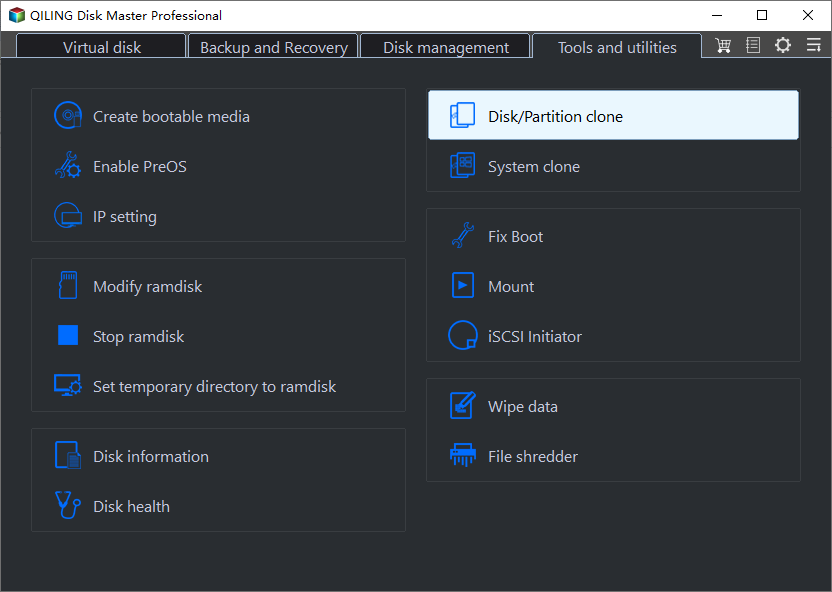
Step 1. Launch the software, choose Partition Clone under the Tools and utilities tab.
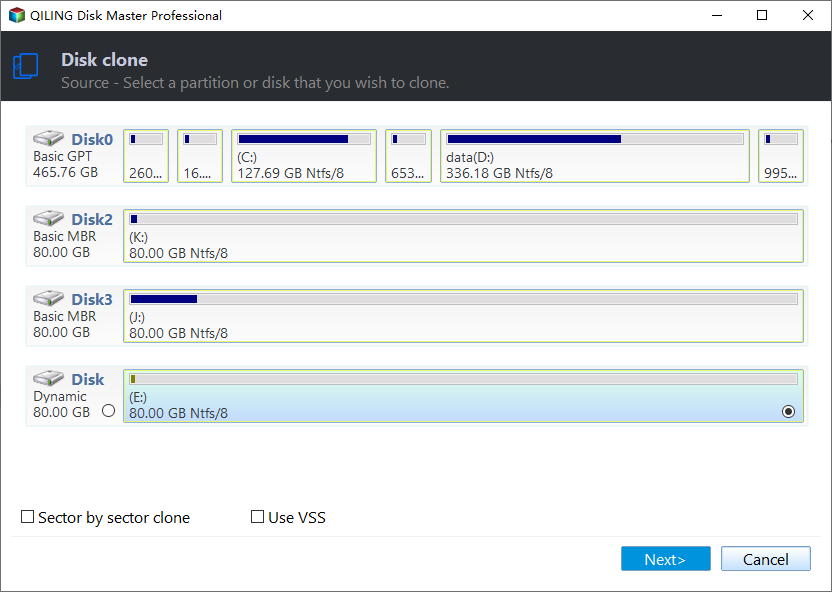
Step 2. Select a partition from the list, such as the E partition, and click Next to proceed.
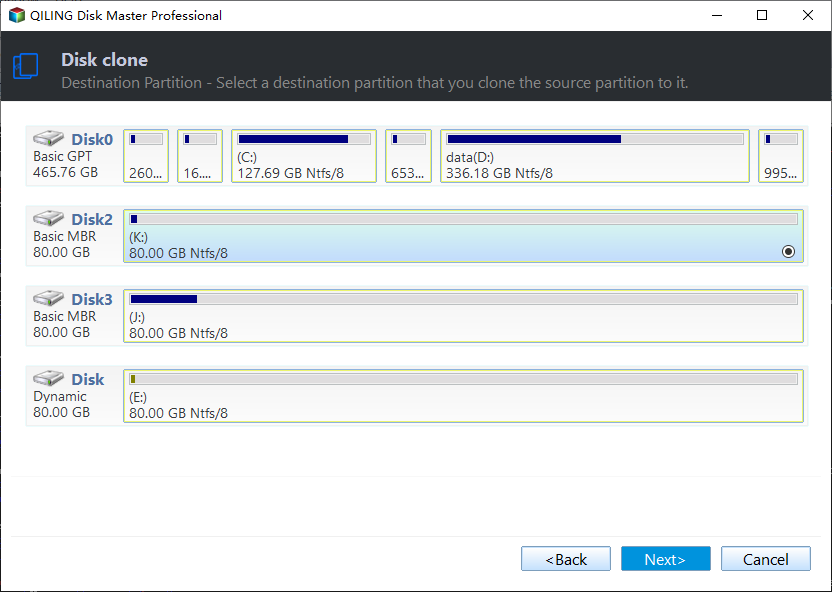
Step 3. Select a destination partition, such as Disk1, and click Next to proceed.
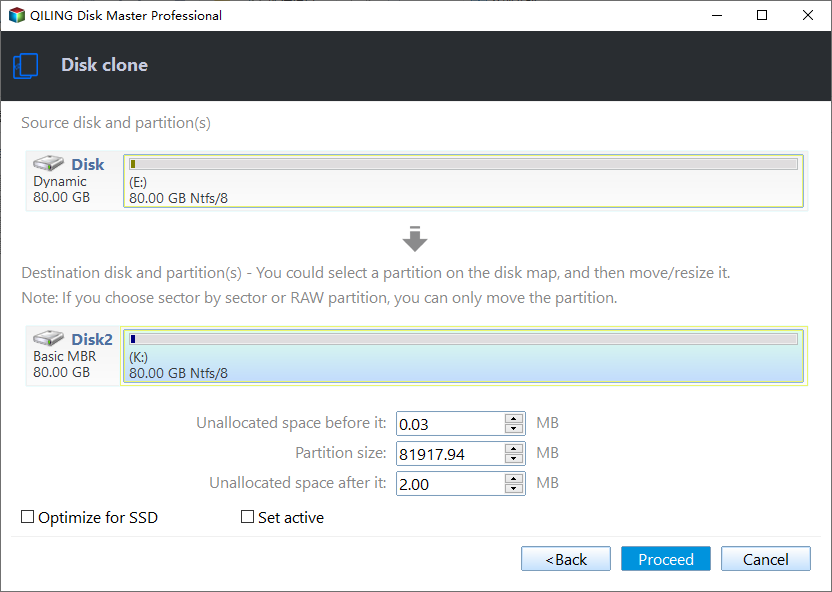
Step 4. To align the SSD during the cloning process, select the SSD Alignment option and click Proceed. This will ensure the partition is correctly aligned on the new drive.
Situation 2: Align sector while performing restore
Step 1. After launching the software, click on the "Restore" tab and then select "Task" to view the backup list.
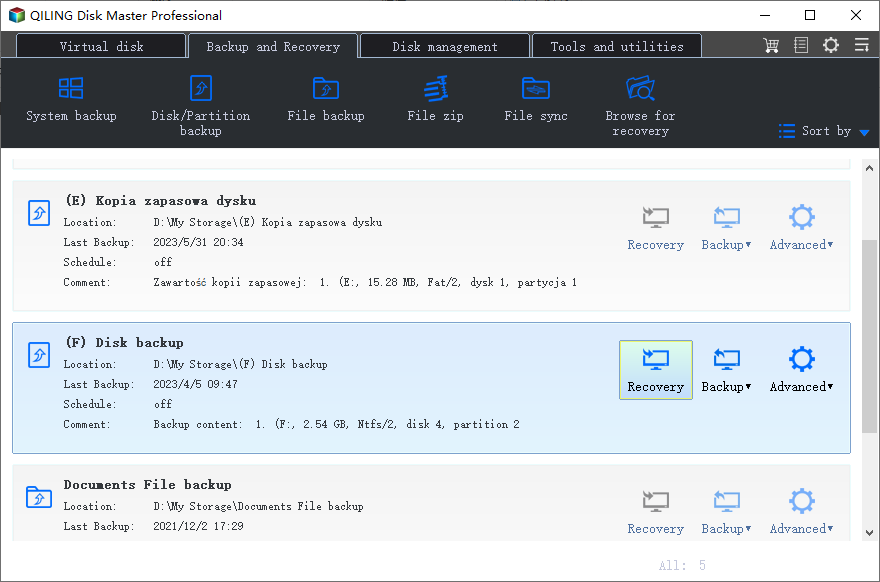
Step 2. To restore your data, select the backup image and the items you want to restore, and then click "Next" in each step.
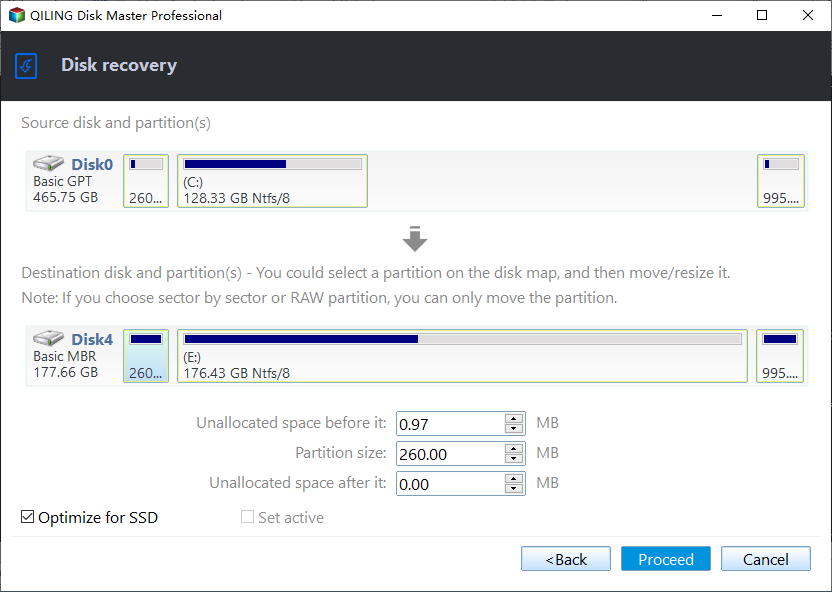
Step 3. In the Operation Summary window, tick "SSD Alignment" and click 'Proceed' to automatically perform 4k alignment.
Summary
You can easily fix SSD slow boot after cloning or restoring with the help of software like Qiling Disk Master Professional, which offers complete backup and restore or clone features. Its SSD Alignment tool uses 4k alignments to automatically align partitions, helping to resolve slow boot issues.
This software allows for advanced features such as editing partitions, making full use of disk space on the destination disk, and converting the destination disk from GPT to MBR without losing data, making it suitable for migrating MBR HDD to GPT SSD.
Related Articles
- How to Partition a Hard Drive in Windows 7 Without Formatting?
Learn how to partition a hard drive in Windows 7 with free partition software for Windows. Which can extend system drive or resize partition without data loss. - Quickly Partition an External Hard Drive with Free Partition Assistant
Partitioning an external hard drive becomes a common question. This article is structured on how to partition an external hard drive with partition assistant. - How to Fix My Documents Folder Missing in Windows 7?
If you don't know how to fix the My Documents folder missing problem in Windows 7/8/10/11, please continue to read this article and learn the reasons and different solutions to it. - Set Windows 10 Backup Encryption to Protect Data Easily
This guide explains Set Windows 10 Backup Encryption to Protect Data Easily with clear steps, key checks, and practical tips. - How to Find and Change USB Serial Number in Windows 11/10?
You can quickly change the USB serial number in Windows 10/8/7 using Qiling Disk Master Professional. - Fix the problem: CHKDSK Reports RAW
Learn how to recover RAW file system when CHKDSK reports RAW with the error message "the type of file system is RAW. Chkdsk is not available for RAW drives".
Products
Articles & Tutorials
- Data Recovery
- Data Backup
- File Recovery
- File Backup
- File synchronize
- System Backup and Restore
- Disk and Partition Clone
- Technical articles
- Disk Master Help
- Windows Deleted File and Disk Recovery Tutorials
- Windows File and Data Recovery Tutorials
- More Windows Tutorials for Install, Security, Files, and PC Tips
- Windows Boot, Repair, and Recovery Environment Tutorials
- Windows Backup Tutorials
- Windows Restore Tutorials
- Windows Clone and Migration Tutorials
- Windows Server Backup, Recovery, and Management Tutorials
- Windows Disk, Partition, and Storage Management Tutorials