Best M.2 NVMe SSD Cloner - Qiling Disk Master
Quick Navigation:
- About M.2 solid state drive (SSD)
- Why clone M.2 SSD to M.2 SSD drive?
- The best M.2 NVMe SSD cloner - Qiling Disk Master
- How to clone M.2 SSD to M.2 SSD in Windows 11/10/8/7
- #1. Preparations before cloning M.2 SSD
- #2. Steps to clone M.2 SSD to larger M.2 SSD
- How to boot from the cloned M.2 SSD
- In the end
About M.2 solid state drive (SSD)
M.2 SSD is a type of solid-state drive that uses the M.2 form factor, designed for small devices like laptops, ultrabooks, and tablets. It has features such as.
- Has a smaller size, higher performance, and lower consumption.
- The capacity is up to 8TB.
- More flexible to use with many board size options.
- Support PCIe, SATA, and USB interfaces.
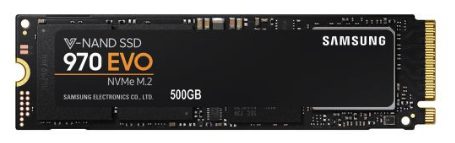
🌟 How to choose a fast M.2 SSD
The four types of M.2 SSD disks are M.2 NVMe SSD, M.2 SATA SSD, 2.5'' SATA SSD, and 2.5'' SATA HDD, with M.2 NVMe SSD being the fastest in terms of read/write speed.
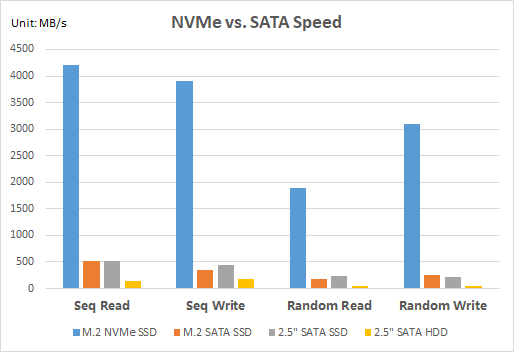
As you see, M.2 NVMe SSD gets a big win.
Why clone M.2 SSD to M.2 SSD drive?
Here are the 3 main reasons to clone an M.2 SSD to another M.2 SSD in one paragraph: Cloning an M.2 SSD to another M.
💿 Get larger capacity. Typically, brand computers install an M.2 SSD drive as the boot disk, but it will eventually fill up after long-term use. To expand disk space, you may want to clone the M.2 SSD to a larger M.2 SSD drive, providing more storage capacity.
🏆 Get better performance. Your computer's performance may degrade over time due to storage space limitations, necessitating the upgrade to a larger M.2 SSD to maintain smooth operation.
🔧 Replace the damaged disk. If your hard drive is failing due to viruses, hardware issues, or disk corruption, cloning the failing drive to prevent data loss and replacing it with a new one may be the best solution.
The best M.2 NVMe SSD cloner - Qiling Disk Master
With numerous M.2 drive duplicators available online, it can be challenging to determine the best one. However, I highly recommend trying Qiling Disk Master Professional, a M.2 clone software that stands out with its advantages.
◑ Clone your HDD, SSD, or MBR/GPT disk with Disk Clone, even to a smaller one, and ensure a secure boot after cloning M.2 to M.2. You can also copy a particular partition via Partition Clone.
◑ Improve the performance of the M.2 SSD disk and its lifespan with the powerful feature "SSD Alignment".
◑ Clone and resize larger M.2 SSD To resolve the issue of a cloned SSD not showing its full capacity, use the "Edit Partitions" feature. This allows you to adjust the partition table to match the original drive's layout, ensuring the cloned drive displays its complete capacity.
◑ This software supports cloning all branded M.2 SSD disks, including WD, Samsung, SanDisk, and others, and is compatible with various disk types such as PCIe, NVMe, and SATA.
◑ This software supports all Windows PC operating systems, including Windows 11, 10, 8.1, 8, 7, Vista, and XP, covering all their editions, both 32-bit and 64-bit.
How to clone M.2 SSD to M.2 SSD in Windows 11/10/8/7
Cloning an SSD to an M.2 SSD can be achieved with the help of a best M.2 SSD cloner. The process involves two main parts: the first part includes preparing the source and target drives, and the second part involves using the cloner to transfer the data from the source SSD to the M.2 SSD.
#1. Preparations before cloning M.2 SSD
1️⃣ Your Windows computer installed the smaller M.2 SSD.
Check if your computer has one more M.2 slot, usually labeled with "PCIe", "SATA", or both. If it only has one, prepare an M.2 clone adapter or enclosure.
3️⃣Install the new M.2 SSD. To install an M.2 SSD, simply slide it into the slot (if your computer has two slots) and screw it in tightly. If your computer only has one slot, you'll need to connect the M.2 SSD to the slot using an adapter or enclosure, and then plug it into a USB port.

In the BIOS settings, set the PCI Express X4_3 Slot Bandwidth to "M.2 Mode" and the Storage Boot Option Control to UEFI, so the computer recognizes the M.2 SSD as a new storage device.
5️⃣ Initialize new M.2 SSD in Disk Management. To prepare the new M.2 SSD for use, right-click it and select Initialize Disk, choosing either MBR or GPT partition style and confirming both disks use the same style.
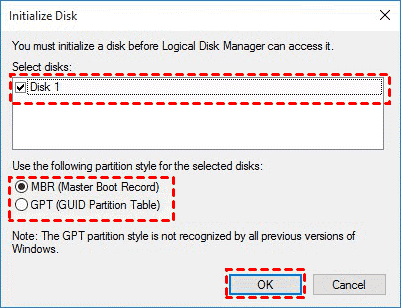
You can download the M.2 drive duplicator, Qiling Disk Master Professional, for free.
The Clone feature in the trial version can only be demonstrated, and to clone an M.2 SSD and boot from it, you need to upgrade to the full version of Qiling Disk Master Professional.
#2. Steps to clone M.2 SSD to larger M.2 SSD
To clone an M.2 SSD to a larger one using an M.2 cloner in Windows 11/10/8/7, follow these steps. First, ensure the M.2 cloner is compatible with your system and the target M.
1. After installing the M.2 SSD cloning software Qiling Disk Master, open it to enter its main interface. From there, select "Clone" and then "Disk Clone" to proceed with the cloning process.

Note:You can clone Windows 10 operating system to an M.2 SSD using the System Clone feature.
2. Choose the smaller M.2 SSD drive as the source disk to clone, and proceed to the next step.

3. Select the larger M.2 SSD as the destination disk, and go Next.

4. Tick SSD Alignment to optimize the performance for M.2 SSD disk and click Proceed to perform M.2 clone safely with M.2 SSD cloner.

Clonezilla can be used to clone a disk sector by sector or clone it partition by partition, the former one is more accurate but may cause issues with the partition table, while the latter one is more practical and resolves two potential issues during the cloning process.
#1: The cloned drive not show full capacity.
To prevent an exact copy of the source disk when cloning, try the following options from the start. By default, all cloning software makes an exact copy unless you change the partition size. You can try to change the partition size while cloning to avoid this.
👉 Copy without resizing partitions: It will not resize the partition size.
👉 Add unused space to all partitions: It will reallocate the unallocated space to each partition of the target disk, appropriately for the disk size.
👉 Manually adjust partition size: You can extend unallocated space to any partition on the destination disk you want.
#2: The cloned drive not bootable after cloning.
The main reason for this issue is that the destination and source disks have different partition styles, and you didn't convert them to the same style before cloning. To resolve this, simply check if you need to convert the destination disk from MBR to GPT or vice versa, depending on their respective partition styles.
Both MBR (Master Boot Record) and GPT (Guid Partition Table) are two different disk types for data storage, and their properties can be checked in Disk Management. The steps to check the disk type are as follows:
- To open the Disk Management window, press the Windows key + R to open the Run window, then type "diskmgmt.msc" and click "OK".
- Then, right-To clone a disk, click on the disk you want to clone and select "Properties" in the pop-up window.
- The Properties window shows the Volume tab with the partition style confirmed as either MBR (Master Boot Record) or GPT (GUID Partition Table) in one paragraph.

- If the source and destination disk partition types are different, you can convert the disk partition type using the Edit Partition option, either from MBR to GPT or vice versa.
★Tips:
👉 You can also choose to back up an M.2 SSD to an external hard drive, then restore the disk image to a larger M.2 SSD. If the drive isn't bootable, you'll need a WinPE bootable media or a recovery environment created by Qiling Disk Master.
👉 This M.2 NVMe SSD cloner can be used to clone various types of SSDs, including M.2 NVMe SSDs, PCIe SSDs, and NVMe to NVMe SSDs. It also supports cloning Windows 10 to an NVMe SSD, as well as cloning an M.2 SATA SSD to an M.2 NVMe SSD.
How to boot from the cloned M.2 SSD
After cloning an M.2 SSD to another M.2 SSD, you may need to boot from the cloned drive. If you're unsure how to make it happen, follow these steps to get your system up and running from the cloned drive.
1. Remove the mounting screw from the M.2 slot and take out the old M.2 SSD
2. Insert the new M.2 SSD into the slot on the motherboard, making sure it aligns with the notch on the SSD. This notch is used to prevent the drive from being installed incorrectly, which could damage the drive or the motherboard.
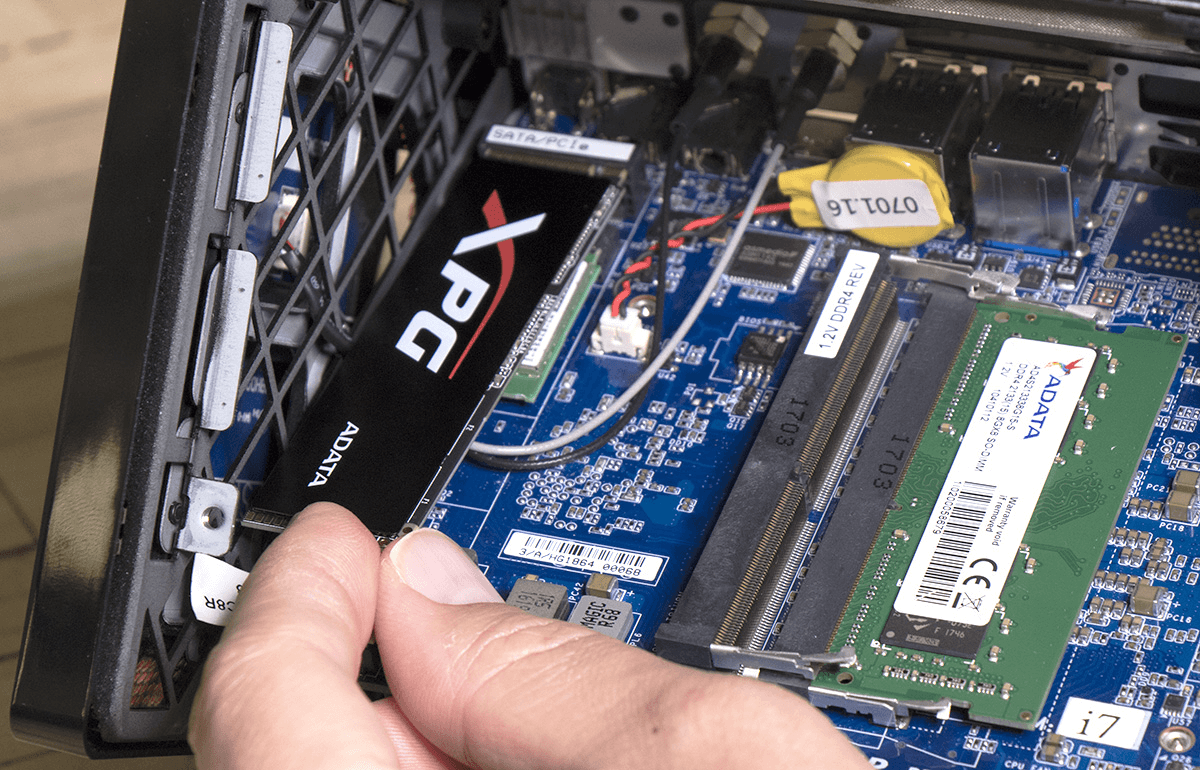
3. Secure the M.2 SSD with the mounting screw removed earlier. Then, replace the back panel.
4. To access the BIOS, start your computer and press the specified key in the initial screen, such as F2 or ESC, to enter the BIOS settings.
5. Make sure the PCI Express X4_3 Slot Bandwidth is set to M.2 mode and the Storage Boot Option Control is set to UEFI. Save the changes and exit the BIOS.
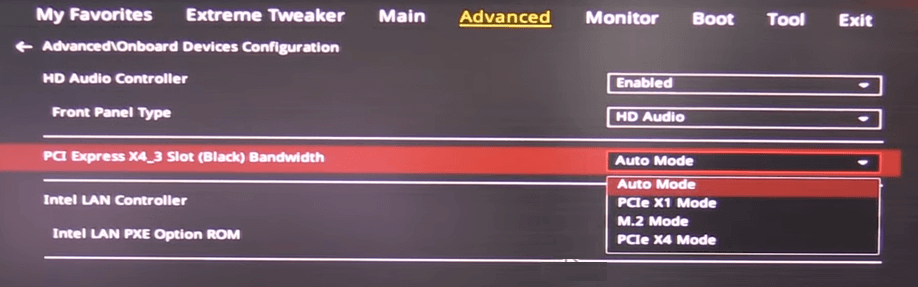
Now, you can boot from the cloned M.2 SSD drive and use your computer as normal.
In the end
To clone an M.2 SSD to another M.2 SSD with ease, use a reliable M.2 SSD cloner like Qiling Disk Master, which can clone a hard drive with a secure boot and also enhance computer performance. Additionally, you can adjust the partition size of the destination disk and resolve issues where the cloned hard drive displays incorrect size.
To protect unlimited PCs and Servers, consider using Qiling Disk Master Technician Plus, which offers advanced features such as a command line utility for backup, restore, and clone operations, OS migration to SSD, and restoring to dissimilar hardware computers, as well as automatically deleting old backup images when the backup number to retain is exceeded.
Related Articles
- How to Migrate Windows 10 to M.2 SSD without Reinstalling
- How to Clone NVMe to NVME SSD in Windows (2 Ways)
- Clone HDD to M.2 SSD with Quick and Easy Way
- Safely Clone an M.2 SSD to A Larger M.2 SSD in 5 Simple Steps
- 5 Steps to Clone M.2 PCIe (NVMe) SSD in Windows 10, 8, 7
- Migrate OS from One SSD to Another with Professional Software
This article will show you how to migrate os in Windows from one SSD to another in a convenient and fast way.
Products
Articles & Tutorials
- Data Recovery
- Data Backup
- File Recovery
- File Backup
- File synchronize
- System Backup and Restore
- Disk and Partition Clone
- Technical articles
- Disk Master Help
- Windows Deleted File and Disk Recovery Tutorials
- Windows File and Data Recovery Tutorials
- More Windows Tutorials for Install, Security, Files, and PC Tips
- Windows Boot, Repair, and Recovery Environment Tutorials
- Windows Backup Tutorials
- Windows Restore Tutorials
- Windows Clone and Migration Tutorials
- Windows Server Backup, Recovery, and Management Tutorials
- Windows Disk, Partition, and Storage Management Tutorials