Clone M.2 PCIe (NVMe) SSD in Windows 10 or 11 (5 Steps)
Quick Navigation:
- How to Clone PCIe NVMe SSD
- Does Your Motherboard Support PCIe Slot?
- Best M.2 PCIe NVMe SSD Cloner - Qiling Disk Master Professional
- Step-by-Step Guide to Clone M.2 PCIe NVMe SSD
- 1. Preparations:
- 2. Steps to Clone PCIe SSD to Larger SSD without Reinstalling
- 3. How to boot from the cloned M.2 PCIe SSD
- How to clone M.2 SSD with only one slot
- Summing Up
How to Clone PCIe NVMe SSD
You can clone your 250GB PCIe NVMe SSD to a larger one without reinstalling Windows and applications by using a cloning software like Qiling Disk Master. These tools will create an exact copy of your existing SSD, including the operating system, applications, and files, to a new larger SSD. This way, you can upgrade your storage capacity without losing any data or having to reinstall everything.
M.2 SSDs use various computer bus interfaces, including PCIe, SATA, and USB. The M.2 PCIe SSD, in particular, utilizes NVME, making it significantly faster than other SSDs. As a result, many users opt for it as their system drive. However, as storage space is consumed over time, users may need to clone their PCIe SSD to a larger one.
To avoid reinstalling Windows and losing customized settings, installed programs, and personal data, you can use powerful SSD cloning software like Qiling Disk Master Professional to clone your existing Windows installation to a new SSD, giving you a fresh version of the operating system with all your settings and programs intact.
Does Your Motherboard Support PCIe Slot?
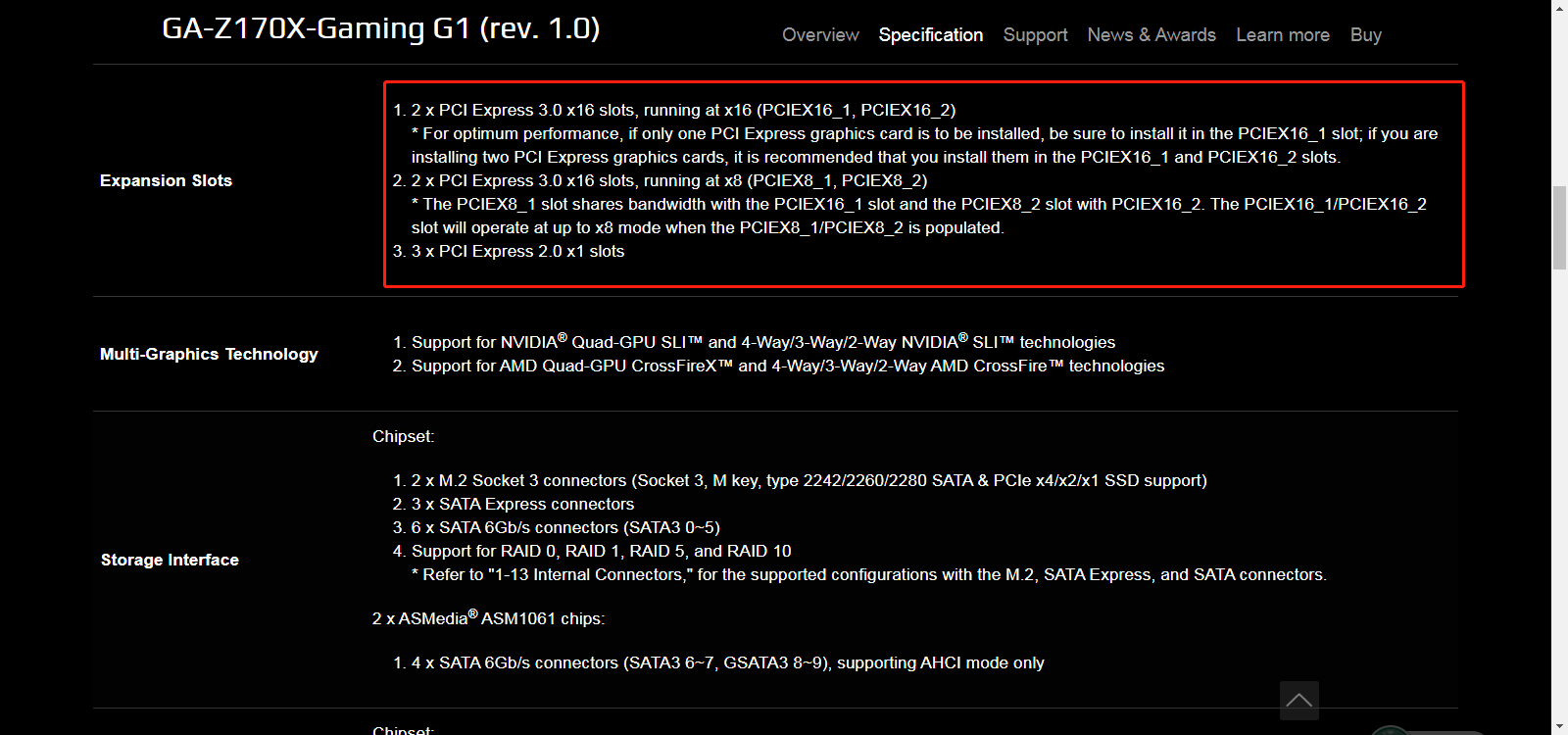
Before cloning a PCIe SSD, ensure your motherboard has a PCIe slot. You can check the motherboard's specifications by consulting the manufacturer or searching online for your model, which should indicate whether it supports PCIe slots.
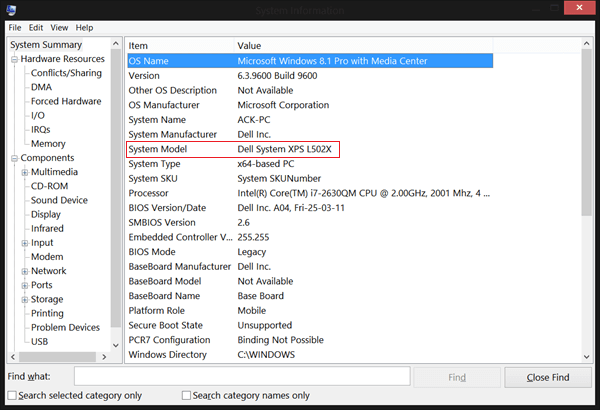
Here is the way to find your motherboard model:
- Press the Win + R key combination, and hit Enter.
- To access the System Information window, type msinfo32 in the Command Prompt and press Enter. This will display detailed information about your computer's hardware, software, and system settings.
- To find the motherboard model, go to System Summary and System Model. The value for System Model is the motherboard model.
Best M.2 PCIe NVMe SSD Cloner - Qiling Disk Master Professional
Cloning a PCIe M.2 SSD to another one is a complex task, but using the best SSD cloning software, Qiling Disk Master Professional, can make it safe and efficient in Windows XP, Vista, 7, 8, 8.1, and 10/11. This software allows you to transfer everything, including the Windows operating system, installed programs, personal documents, and other settings, using its Disk Clone feature.
- clone PCIe SSD to a larger one without unallocated space left.
- clone only used sectors When upgrading to a smaller PCIe SSD, you can clone your old SSD to the new one, but you'll need to resize the cloned SSD to fit the smaller capacity. This ensures the cloned SSD won't be larger than the new one, avoiding the issue of the cloned SSD not booting due to its size exceeding the new SSD's capacity. This process requires a cloning software that can resize the cloned SSD to fit the smaller capacity of the new PCIe SSD.
- Clone PCIe SSD from MBR disk to GPT or GPT to MBR with a secure boot.
- improve SSD disk performance, such as reading & writing speed.
- You can clone a PCIe SSD from one brand to another, such as from a Samsung PCIe SSD to a SanDisk PCIe SSD, or from a WD PCIe SSD to a Seagate PCIe SSD, or from a Intel PCIe SSD to a different brand PCIe SSD, and vice versa. This process allows you to upgrade or replace your existing PCIe SSD with a new one from a different brand, while preserving your data and settings.
Before cloning a PCIe SSD, it's recommended to download and test the cloning software on your computer to ensure it meets your requirements and works smoothly. This step allows you to familiarize yourself with the software and identify any potential issues before actually cloning your drive.
Step-by-Step Guide to Clone M.2 PCIe NVMe SSD
To clone a PCIe SSD using Qiling Disk Master Standard, you'll need to prepare a larger M.2 PCIe SSD to hold the cloned data, as the cloning process will fail without it. With this in place, you can proceed with the cloning process using the software.
1. Preparations:
1️⃣ A new larger M.2 PCIe NVMe SSD that your computer supports.
2️⃣USB to PCIe M.2 adapter. If your computer has only one M.2 slot, you can still clone an M.2 SSD using a USB-to-M.
3️⃣ Anti-static wrist strap The use of a grounding strap or wrist strap to discharge static electricity from the body can help reduce the risk of electrostatic damage to the system, and it's a cost-effective solution.
4️⃣ Screwdriver. To remove the M.2 PCIe NVMe SSD, you need to unscrew the screws that are holding it in place.
5️⃣Check the disk partition style (MBR or GPT) of both disks. To ensure a secure boot, please make sure both PCIe SSDs use the same partition style, either Legacy BIOS for MBR or UEFI mode for GPT.
The overall steps:
- To open the Disk Management window, press the Windows key + R to open the Run dialog box, type "diskmgmt.msc" and press Enter.
- Then, right-To clone a disk, click on the disk you want to clone and select the "Properties" option in the pop-up window.
- Go to the Volume tab and confirm the partition style, which can be MBR (Master Boot Record) or GPT (GUID Partition Table).

- If the destination disk is still in MBR format, the PCIe SSD can be cloned without converting the partition style. However, if the destination disk is in GPT format, the MBR partition style needs to be converted to GPT in Disk Management or during the cloning process.
2. Steps to Clone PCIe SSD to Larger SSD without Reinstalling
The detailed steps to clone a PCIe M.2 SSD are listed below. For server users, you can try using Qiling Disk Master Server or Technician Plus edition.
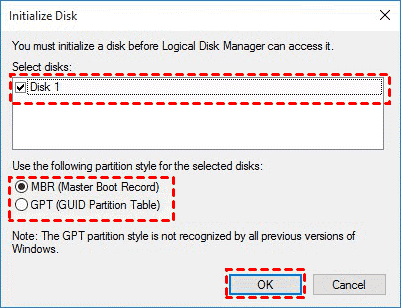
Step 1. Connect the larger M.2 PCIe NVMe SSD to your computer via a USB to PCIe M.2 adapter, and initialize the SSD in Disk Management if it's not already done. Verify that the SSD can be detected.
- Go to Disk Management, right-click larger PCIe SSD, and select Initialize Disk.
- To ensure compatibility, select the same MBR or GPT disk partition style as the original PCIe SSD and click OK. This ensures that the new PCIe SSD is formatted with the same partition style as the original, maintaining compatibility and functionality.
Step 2. Launch SSD cloning software - Qiling Disk Master Professional after installing, click Clone -> Disk Clone on the main window.

Step 3. Choose the original smaller M.2 PCIe NVMe SSD as the source disk, then hit Next.

Step 4. Select the larger M.2 PCIe NVMe SSD as the destination location to save all the files from the source PCIe SSD, then press Next.
The destination PCIe SSD drive will be completely replaced after the cloning process, so any files previously saved on the destination disk should be backed up before proceeding.

Step 5. To optimize the performance for M.2 PCIe NVMe SSD drives, tick the SSD Alignment option. Additionally, click Edit Partitions to adjust the partition size on the destination disk, where you have three options, and convert disk types (MBR or GPT). After making these adjustments, click Proceed to clone the PCIe SSD to a larger PCIe SSD.
- Copy without resizing partitions: It will not resize the partition size.
- Add unused space to all partitions: The command will redistribute the unused space on the target disk to each partition, taking into account the disk's total capacity.
- Manually adjust partition size: The feature allows you to extend unallocated space to any partition on the destination disk you want.
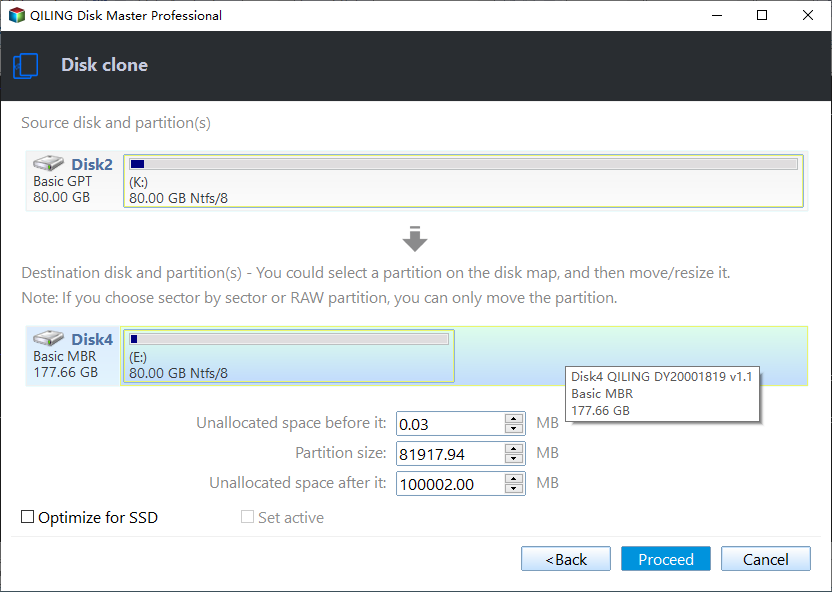
The cloning process of a PCIe SSD to a larger PCIe SSD may take around 30 minutes, depending on the size of the data on the source M.2 PCIe SSD.
3. How to boot from the cloned M.2 PCIe SSD
1️⃣ If you cloned M.2 SSD with only one slot:
- Then use the anti-Carefully remove the original PCIe SSD drive using the static wrist strap and a screwdriver.
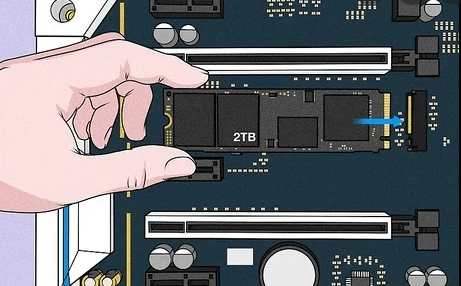
- Place the larger M.2 PCIe NVMe SSD drive into the SSD slot.
- Boot your computer from the larger M.2 PCIe NVMe SSD.
2️⃣ If you cloned M.2 SSD with more than one slot:
- Restart your computer to enter BIOS.
- To change the boot order and make the larger M.2 PCIe NVMe SSD the first boot device, enter the BIOS settings by pressing the designated key (usually F2, F12, or Del) as the computer starts up. Locate the boot order settings in the BIOS menu and select the larger M.
- Restart to boot from the cloned M.2 PCIe NVMe SSD.
If you clone an MBR disk to a GPT disk, you'll need to switch the boot mode from Legacy to UEFI to make the cloned GPT disk bootable. Conversely, if you clone a GPT disk to an MBR disk, you may need to switch the boot mode from UEFI to Legacy.
How to clone M.2 SSD with only one slot
To clone an M.2 SSD with only one slot, you can use a USB to PCIe M.2 adapter to connect the M.2 SSD to your computer, then use cloning software to copy the contents of the M.2 SSD to a new storage device. If you don't have such an adapter, you can use a SATA disk or USB to SATA adapter as a middleman to connect the M.2 SSD to your computer, and then clone the M.
1. Connect your SATA disk via USB to SATA adapter, and ensure it's recognized by the system.
2. To clone an M.2 SSD to a SATA disk, launch the Qiling Disk Master Professional software, which is a clone of MVME, and then use its Disk Clone feature to perform the cloning operation.
3. Shut down your computer completely and swap the old and new M.2 SSD disk.
4. After cloning your SATA disk, restart your computer, change the cloned SATA disk as the first boot option, and boot from it.
5. Launch the MVME clone software - Qiling Disk Master Standard, and use the Disk Clone feature to clone the SATA disk to an NVME SSD.
Summing Up
Qiling Disk Master Professional is a reliable SSD cloning software that can clone PCIe SSD in Windows 10 or 11. It boasts advanced features like SSD Alignment, Edit Partitions, and Intelligent cloning, making it a reliable choice. Additionally, it supports a wide range of SSD brands, including Intel, Samsung, WD, Kingston, Crucial, Toshiba, and more.
This cloning software still supports "System Clone" to clone the OS only and "Partition Clone" to clone specific partitions and data on them, meeting various cloning needs. If you have these needs, download this popular cloning software to start your cloning process.
Related Articles
- Clone NVMe SSD to a Larger One in Laptop or Desktop
- How to Clone Windows 10 to NVMe SSD (Step by Step Guide)
- Safely Clone an M.2 SSD to Larger M.2 SSD in 5 Simple Steps
- How to Migrate Windows 10 to M.2 SSD without Reinstalling
- How to Clone SSD in Windows 7 Easily for Free
Learn the key steps, checks, and practical tips for this related guide. - How to Clone Windows 7 Partition to the Same Drive
Use this guide for How to Clone Windows 7 Partition to the Same Drive, with cloning or migration steps, boot checks, and tips to keep data safe during the move.
Products
Articles & Tutorials
- Data Recovery
- Data Backup
- File Recovery
- File Backup
- File synchronize
- System Backup and Restore
- Disk and Partition Clone
- Technical articles
- Disk Master Help
- Windows Deleted File and Disk Recovery Tutorials
- Windows File and Data Recovery Tutorials
- More Windows Tutorials for Install, Security, Files, and PC Tips
- Windows Boot, Repair, and Recovery Environment Tutorials
- Windows Backup Tutorials
- Windows Restore Tutorials
- Windows Clone and Migration Tutorials
- Windows Server Backup, Recovery, and Management Tutorials
- Windows Disk, Partition, and Storage Management Tutorials