How to Clone NVMe SSD Even with Single Slot [Full Guide]
Why clone NVMe SSD to another drive
NVMe (Non-You're looking to upgrade your NVMe SSD to a larger one, likely due to running out of space after installing many apps and games, and wanting to maintain your computer's speed.
Cloning an NVMe SSD is a better option than backing up and restoring data, as it preserves the operating system and installed applications without requiring a reinstall. However, Windows does not have a built-in cloning feature, so a specialized NVMe SSD clone software is required to accomplish this task.
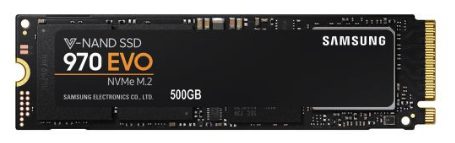
The essential tool for cloning NVMe SSD
Windows OS has a built-in tool to create a system image that can be restored to another drive, but the process is time-consuming and prone to errors. Additionally, specific conditions must be met, such as the target disk being formatted with NTFS and being the same size or larger than the source disk.
To efficiently clone an NVMe SSD, a professional NVMe SSD cloner is required, as it is not available in the Windows native system, but can be the best option to transfer all data to or from an NVMe drive without reinstalling.
When choosing an NVMe SSD cloning tool, consider whether the following criteria are met: there are several alternatives on the market, and you should look for a tool that meets your needs.
▶ Support cloning NVMe to larger NVMe or smaller SSD
Replacing an NVMe SSD with a larger one is a common scenario, especially after experiencing its high performance. However, cloning to a smaller SSD is also possible. When choosing a cloner, it's essential to select one that supports cloning disks of different sizes.
▶▶ Support cloning bootable GPT disks
Since booting from NVMe PCIe SSDs is only supported on UEFI-based systems, an NVMe drive must be partitioned with GPT to support UEFI booting, and the NVMe cloner must support cloning GPT system disks.
The best NVMe SSD cloning tool is Qiling Disk Master Professional, which allows users to clone NVMe SSDs with high efficiency and speed, making it an ideal choice for those who need to transfer data from one NVMe SSD to another. This tool supports various NVMe SSD models and can clone data in a matter of minutes, ensuring that users can quickly and easily transfer their important files and programs to a new drive.
| 💿Cloning options | It gives you options to clone entire disk, selected partitions or only operating system. |
| 🔎Partition styles | It supports both MBR and GPT You can clone a GPT disk to an MBR disk or vice versa without needing to convert it, and also manage data and system disks separately. |
| 💾Different sizes | With the intelligent-sector With the advanced partition editing capabilities, you can easily clone an NVMe drive to a larger drive or a smaller drive, making it a convenient solution for upgrading or downsizing storage needs. |
| 💱Disk interfaces | It supports all types disk interfaces, including SATA, mSATA, U.2, M.2 and PCIe. |
To clone an NVMe SSD, you can use software like Qiling Disk Master. These programs allow you to create a bit-for-bit copy of your SSD, including the operating system, programs, and data.
The cloning feature in the free trial is for demonstration purposes only, and users must upgrade to access its full functionality.
What if there is only one NVMe slot in a laptop
Q: How to clone M.2 NVMe to larger NVMe with single slot in computer?
My laptop has a single slot Nvme m2 ssd, i would like to clone this to the newly bought larger Nvme m.2 ssd. How can I do this? Is there any option to do it without adapter?
If you have a single M.2 PCIe slot, cloning an NVMe SSD can be more complicated, especially if your computer has limited storage options, such as laptops with only one PCIe slot. In this case, you might need to consider alternative cloning methods or use a USB enclosure to connect the source drive, which can be slower and more inconvenient. However, if you have a desktop with a spare PCIe slot, you can simply use it to connect the second drive and clone the NVMe SSD without any issues. The key is to have a spare slot or an alternative connection method to make the cloning process smoother.
>> If you still want to migrate your system and data via disk cloning, you'll need an M.2 SSD to USB adapter or an M.2 NVMe SSD enclosure to connect the second drive.
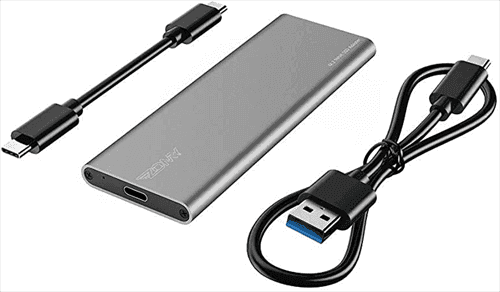
>> If you don't have an adapter, you may need to create a full disk image of the old NVMe SSD and restore it to the newer drive, which can be done using Qiling Disk Master, a tool that provides a bootable backup and restore feature with better compatibility and easier operation. This allows you to move Windows to another drive securely.
I will illustrate both the methods below:
- How to clone NVMe SSD with extra slot or adapter
- How to clone M.2 NVMe SSD with only one slot in laptop
How to clone NVMe SSD with extra slot or adapter
Disk cloning is the easiest way to migrate an NVMe SSD, as it directly duplicates the OS and all files from the source NVMe to the target drive, eliminating the need for backup and restore. This method can be used to clone an NVMe SSD to a larger NVMe SSD.
Preparations of NVMe SSD cloning
To ensure the success of cloning an NVMe SSD, consider the following tips before you start: ensure the source and target SSDs are identical in terms of capacity and interface type, use a reliable and compatible cloning software, disconnect any unnecessary peripherals and power cables, and perform a thorough system shutdown before initiating the cloning process. By following these guidelines, you can minimize the risk of errors and ensure a smooth cloning experience.
- Install the new SSD or connect it via an adapter or enclosure, ensuring it can be detected by the system.
- Before starting the NVMe SSD replication, make sure to back up any important data on the target SSD as the replication process will overwrite all data on the target drive.
- To ensure optimal performance and compatibility, update the firmware of your NVMe SSDs to the latest version before cloning.
- Cloning a large dataset can be a time-consuming process, so be sure to allocate sufficient time to complete it without interruptions.
Step 1. Launch the tool to clone M.2 NVMe SSD
Navigate to the main interface of the NVMe SSD clone software, select "Clone" and then choose "Disk Clone" or "System Clone" depending on your needs.

Step 2. Specify the source NVMe SSD and then the target one
Select the NVMe SSD you want to clone as the source drive, and choose the SSD you want to migrate everything to as the destination drive.

Step 3. Confirm the operation and start NVMe cloning
To further improve the performance of the target NVMe SSD, at the Operation Summary screen, tick the "SSD Alignment" option and click "Proceed" to execute the operation.

👉 Copy without resizing partitions: It will not resize the partition size.
👉 Add unused space to all partitionsThe unallocated space on the target disk can be reallocated to each partition by using a disk management tool, such as Disk Management in Windows or Disk Utility in macOS, to resize and adjust the partition sizes to utilize the available unallocated space. This process allows for a more efficient use of the disk space, potentially increasing storage capacity and improving overall system performance.
👉 Manually adjust partition sizeExtend the unallocated space to any partition on the target disk as desired.
👉 Convert the destination disk from MBR to GPTThis feature enables the conversion of the partition style (MBR/GPT) of the target disk to match the source disk, ensuring compatibility and proper booting.
If some apps prevent Qiling Disk Master from accessing the source drive, then it will clone NVMe drive under Restart mode, otherwise it will finish within Windows without requiring a reboot.
After cloning, verify that all data has been successfully transferred to the new NVMe SSD and that the drive is functioning properly.
The process of cloning a hard drive or solid-state drive (SSD) to a newer model, such as from SATA to NVMe, is the same regardless of the specific drive types involved. This includes cloning an M.2 SSD, cloning Windows 7 to an NVMe SSD, cloning a SATA SSD to an NVMe SSD, and more.
💬Tips:
• The cloning method will only copy used sectors by default, allowing for cloning a larger NVMe drive to a smaller one. However, if you want to clone all sectors of the NVMe SSD without discrimination, you can select the "Sector By Sector Clone" option.
• For server users, Qiling Disk Master Server is a suitable option, supporting server systems from 2003 to 2022.
• For users unfamiliar with partition style, note that MBR and GPT are two different disk types for data storage, with NVMe SSDs typically partitioned with GPT. To check the partition style, you can follow these steps:
To check if a disk is MBR or GPT, open the Run window by pressing Win + R, type "diskmgmt.msc" and hit OK, open Disk Management, right-click the disk and select Properties, and then click on the Volume tab. The partition style, which can be Master Boot Record (MBR) or GUID Partition Table (GPT), will be displayed.

Video tutorial of cloning NVMe SSD to NVMe
How to clone M.2 NVMe SSD with only one slot in laptop
If your computer has only one M.2 NVMe slot and you don't have an adapter, you can create an image backup of your current NVMe SSD and then restore it to the new drive.
In the following guide, I will complete the entire process via Qiling Disk Master, which is also a backup and restore tool for Windows.
Step 1. Launch the software and create a system image
Open Qiling Disk Master and click on "Backup" then "Disk Backup". Follow the wizard to create a disk image of the NVMe SSD, or choose "System Backup" to transfer only the OS. Save the backup on a removable device or network location.

Step 2. Create a bootable media to start the computer into WinPE
When the backup is done, click "Tools" > "Create bootable media" to make a bootable media that can boot your computer into WinPE.
To perform system recovery on a new NVMe disk, ensure it does not have an operating system installed. This is crucial for a successful recovery process.

Step 3. Replace the old NVMe SSD with the new one
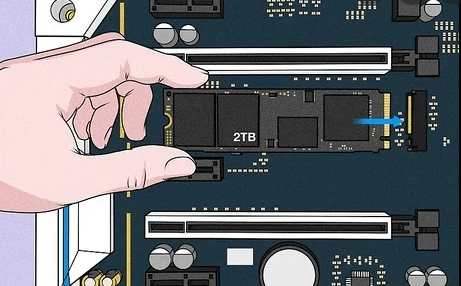
Shutdown the PC, plug out the power cable and other cables. Detach the screws to remove the battery and back panel, so as to take out the old disk. Install the new NVMe SSD, and assemble the back panel again.
Step 4. Launch Qiling Disk Master from WinPE via the bootable media
To create a bootable USB, connect the USB to your computer, restart it, and at startup, press a specific key (like F2, ESC) to enter the BIOS. Then, navigate to the "Boot" tab and set the USB device as the first boot option.
Wait patiently and it will load Qiling Disk Master automatically.
Step 5. Use restore feature to transfer NVMe SSD with only one slot
To restore the disk backup to the new NVMe disk, click on "Restore" and then select the image file that was created. Follow the wizard to complete the restoration process.

When the cloning process is complete, you can boot your computer from the new NVMe SSD. To do this, remove the bootable media and change the boot order in your computer's BIOS to prioritize the new SSD. This will allow your computer to load its operating system and programs from the new drive.
How to boot from the cloned NVMe drive
When the NVMe cloning is complete, all your data should be transferred to the target drive, then shut down the PC and replace the old NVMe SSD with the new one.
Boot your computer from the cloned NVMe SSD, which should be the only connected drive at the moment, to verify that it is bootable and functioning normally.
After cloning, you can keep the old drive connected as a secondary drive by selecting the cloned new drive as the first boot option in the BIOS settings at startup, and if it boots into Windows normally, the cloning is successful. You can then decide what to do with the old drive, such as wiping it and keeping it for storage.

If you're still having issues with your startup, you may want to check out the article on making a cloned drive bootable for further assistance.
Some other tools for Cloning NVMe SSDs
Here are the top-rated software options for NVMe SSD cloning:
Macrium Reflect: Macrium Reflect is a reliable and feature-rich cloning software that supports NVMe SSD cloning and provides options for differential and incremental backups, making it ideal for personal and professional use.
Clonezilla: Clonezilla is an open-source cloning tool that offers a cost-effective solution for NVMe SSD cloning, with disk-to-disk and partition-to-partition cloning capabilities, but has a steeper learning curve.

Acronis True Image: Acronis True Image is a powerful backup and cloning solution that supports NVMe SSD cloning, offering features such as disk imaging, system migration, and incremental backups. This tool ensures a seamless cloning experience with its reliable performance and robust security measures.
DriveClone: DriveClone is a cloning software that offers excellent compatibility with NVMe SSDs, providing a range of cloning options, including sector-by-sector cloning and intelligent cloning, which efficiently uses storage space, and is user-friendly, making it a popular choice among both novice and experienced users.
NVMe SSD cloning FAQ
Can I clone my NVMe SSD to a larger drive?
Cloning your NVMe SSD will not affect its performance or lifespan. The cloning process creates a bit-for-bit copy of the original drive, so the cloned drive will have the same performance characteristics as the original.
Can I clone my NVMe SSD to a different brand/model?
Do I need to reinstall the operating system after cloning?
Can I clone my NVMe SSD to an external drive?
Wrap up
Cloning an NVMe SSD to another NVMe SSD using disk cloning software is a reliable way to upgrade to a larger drive or boost performance, ensuring the system and data integrity.
To clone an NVMe SSD with only one slot, you can use the backup and restore feature, which can achieve the same effect as cloning, but requires restoring the image before booting Windows. Additionally, if you need to restore the system image to different hardware, you can use the "Universal Restore" feature to ensure the computer is bootable after restoration.
Related Articles
- How to Clone NVMe to NVMe SSD in Windows (2 Ways)?
You got two easy ways to clone NVMe SSD to NVMe SSD successfully in different situations, including cloning via only one slot. - How to Clone Windows 10 to NVMe SSD? (Step by Step Guide)
NVMe SSDs can be the perfect upgrade for your Windows 10/11 system and it is now easier than ever to clone Windows 10/11 OS to NVMe drive with a few simple steps. - Free Samsung M.2 SSD Migration Software for Windows 10/8/7
You will get the best Samsung M.2 SSD migration software for Windows 11, 10, 8, 7 and learn how to clone hard drive with it step by step. - How to Clone SATA SSD/HDD to NVMe SSD with Secure Boot?
You will learn more about SATA vs NVMe in this article and how to clone SATA drive to NVMe SSD without boot issues. - Tutorial: Install Windows 10 on SSD from USB or HDD (Video Attached)
This guide explains Tutorial: Install Windows 10 on SSD from USB or HDD (Video Attached) with clear steps, key checks, and practical tips. - How to Make Cloned Drive Bootable in Windows 11/10 [5 Tips]
If you are confused by how to make cloned drive bootable in Windows 10, 8, 7, this article may help you to solve this problem with detailed guidance.
Products
Articles & Tutorials
- Data Recovery
- Data Backup
- File Recovery
- File Backup
- File synchronize
- System Backup and Restore
- Disk and Partition Clone
- Technical articles
- Disk Master Help
- Windows Deleted File and Disk Recovery Tutorials
- Windows File and Data Recovery Tutorials
- More Windows Tutorials for Install, Security, Files, and PC Tips
- Windows Boot, Repair, and Recovery Environment Tutorials
- Windows Backup Tutorials
- Windows Restore Tutorials
- Windows Clone and Migration Tutorials
- Windows Server Backup, Recovery, and Management Tutorials
- Windows Disk, Partition, and Storage Management Tutorials