How to Install Windows 10 on SSD Easily and Successfully
Recently, SSDs are at a discount, and so, I bought a 1TB one in our local digital store. I had heard that to install Windows 10 on SSD can enhance the performance of the PC, so I decided to do that. However, I am a complete novice. So, where should I start?
| 📃 Page includes | |
| ☛💡 Why install Windows 10 on SSD? | |
| ☛🔧 How to install Windows 10 on SSD | Solution 1: Install Windows 10 on SSD without losing data |
| Solution 2: Perform SSD install Windows 10 (data loss) | |
| ☛🤷♂️ Common issues about installing Windows on SSD | |
| ☛📌 Conclusion | |
| ☛✨ FAQs about how to install Windows 10 on SSD | |
Why install Windows 10 on SSD?
A Solid State Drive (SSD) is a fast storage device that uses flash memory to store data persistently, unlike traditional Hard Disk Drives (HDDs) that use spinning disks. This design makes SSDs significantly faster at reading and writing data, making them a popular choice for applications that require quick access to information.
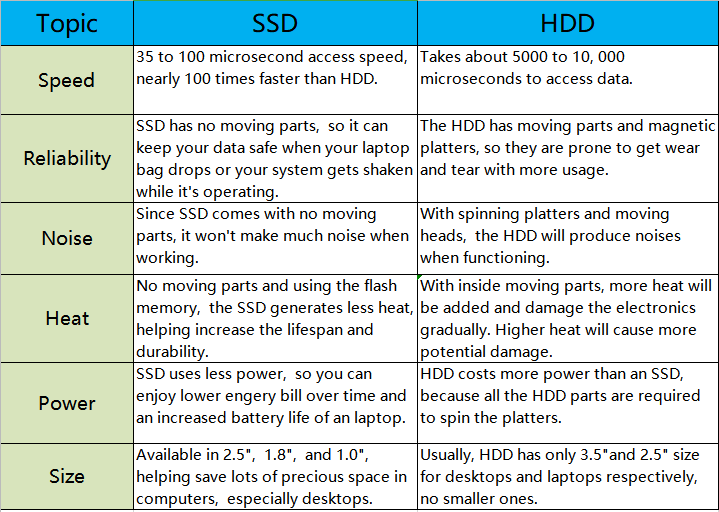
SSDs offer several advantages over HDDs, including improved safety and durability due to the absence of moving parts, making them more resistant to shock and vibration, and quieter operation. Additionally, their compact size can help save valuable space in computer cases. These benefits make SSDs a popular choice among Windows users, who often prefer to install Windows 10 on a new SSD.
The table highlights the advantages of SSDs, including their ability to improve system performance, provide faster loading times, and increase storage capacity. Additionally, SSDs are more energy-efficient, generate less heat, and are more durable than traditional hard disk drives.
2 ways to install Windows 10 on SSD
Before we begin, we'll show you two ways to install Windows 10 on an SSD. You can take your time to review both methods. Additionally, we've listed some preparations for you to consider beforehand.
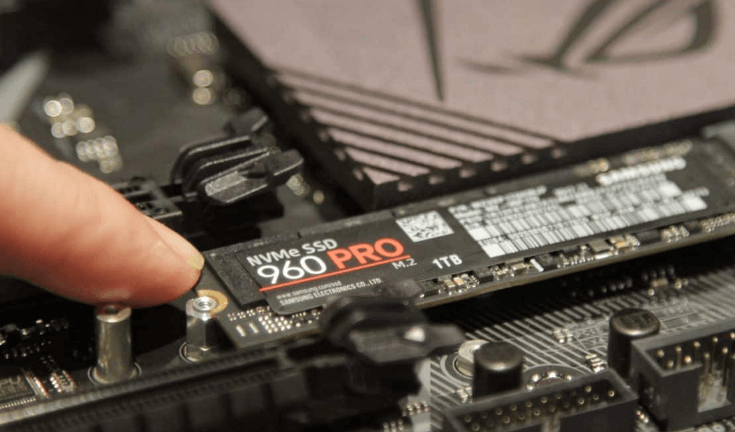
1. Install the SSD appropriately on your PC using a SATA connection cable or an SSD slot, ensuring it is securely fastened in place.
2. Before installing or migrating Windows to your SSD, make sure to format it according to Windows specifications. This involves formatting the SSD as either Master Boot Record (MBR) or GUID Partition Table (GPT), as required by Windows.
3. If your personal data is stored on the SSD, back it up to another drive.
Solution 1: Install Windows 10 on SSD without losing data
It's recommended to use reliable operating system migration software to help with the process, especially if you're not familiar with PC, rather than attempting the manual method which can be risky.
You can use a tool like Qiling Backup to clone your current Windows installation to the SSD, or use the built-in Windows feature to transfer the installation to the new drive. This way, you can keep your current settings, installed programs, and files, and simply move the installation to the faster SSD. No need for a separate installation media or reinstalling everything.
To migrate your Windows 10 operating system from an old hard drive (HDD) to a new solid-state drive (SSD), you can use third-party software to transfer the OS to the new drive without reinstalling it. A recommended tool for this process is Qiling Disk Master Professional, which allows you to migrate Windows 10 between MBR and GPT disks with ease, and also offers additional features such as cloning hard drives, partitions, and wiping disk.
Warning:
If you migrate your operating system from a Master Boot Record (MBR) to a GUID Partition Table (GPT) or vice versa, you'll need to switch the boot mode from Legacy BIOS to UEFI or from UEFI to Legacy BIOS, respectively, to ensure the OS boots properly.
Step 1. Connect your new SSD to your PC.
Install and launch Qiling Disk Master Professional, then click on the "Clone" and "Migrate OS" options in the toolbar.

Step 2. Choose target space.
To free up space on your SSD, select a piece of unallocated space on your target SSD. Then, hit "Next".

Step 3. Adjust partition size.
Here, you're able to customize the size of the partition on the destination disk. After it's done, hit "Next".

Step 4. Apply your operation.
After returning to the main interface, click Proceed to start the migration.

Step 5. Reboot your computer.
After completing the cloning process, you should boot your computer from the destination SSD.
If you want to transfer all data from the old drive to the new SSD, consider using the disk clone feature.
Solution 2: Perform SSD clean install Windows 10 (data loss)
Some users prefer to install Windows 10 from a CD, but with the decline of CD drives in modern computers, especially laptops, a USB installation media has become a more practical alternative. This is not only because USBs are more portable, but also because they provide a safer storage option, as CDs can be scratched and damaged, compromising the data on them.
To create a Windows 10 installation USB drive, you'll put the Windows 10 installation file onto a USB flash drive, effectively turning it into a portable installation drive.
Step 1. Create a Windows 10 installation USB
If you have a prepared installation USB, you can skip Part 1 and proceed to Part 2. Otherwise, you'll need to create one using Microsoft's media creation tool.
1. The media creation tool is a free tool from Microsoft that allows you to download and create installation media for Windows 10. To use it, download the tool from the official Microsoft website, and then run it as an administrator.
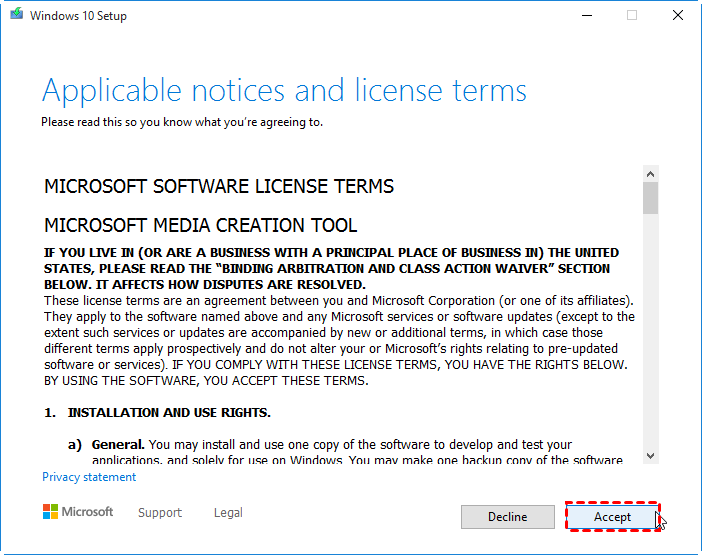
2. Hit "Accept" in the "Applicable notices and license terms" window.
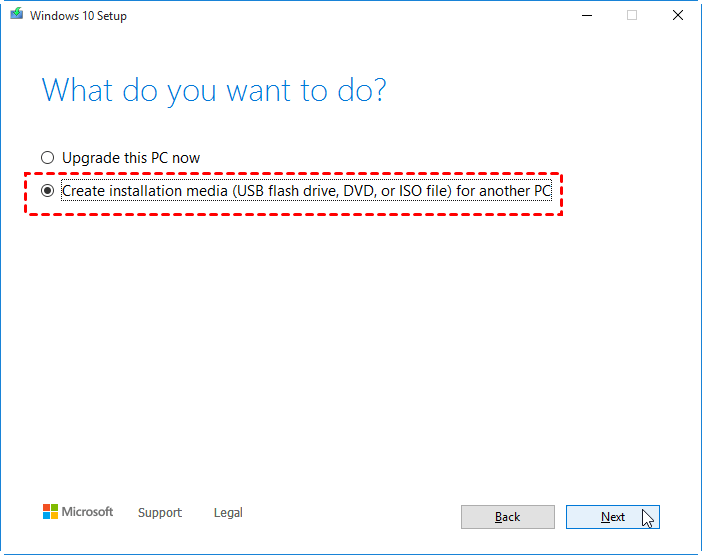
3. Tick "Create installation media for another PC" and hit "Next".
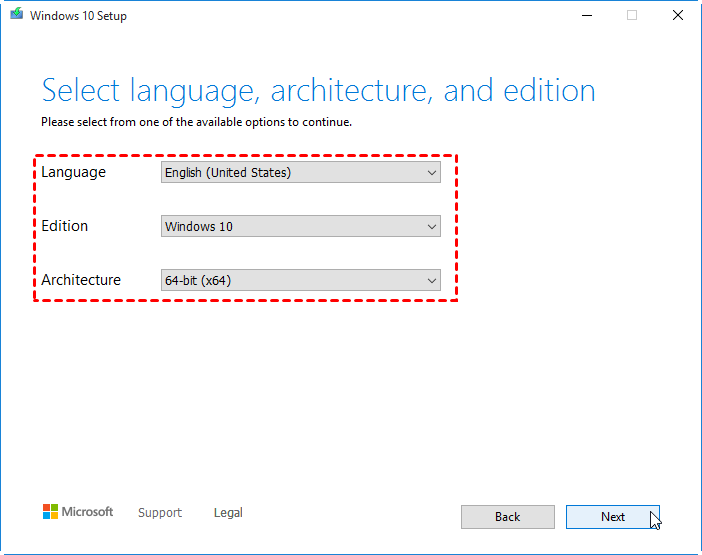
4. Select language, architecture, and edition and click on "Next".
5. Tick "USB flash drive" and hit "Next".
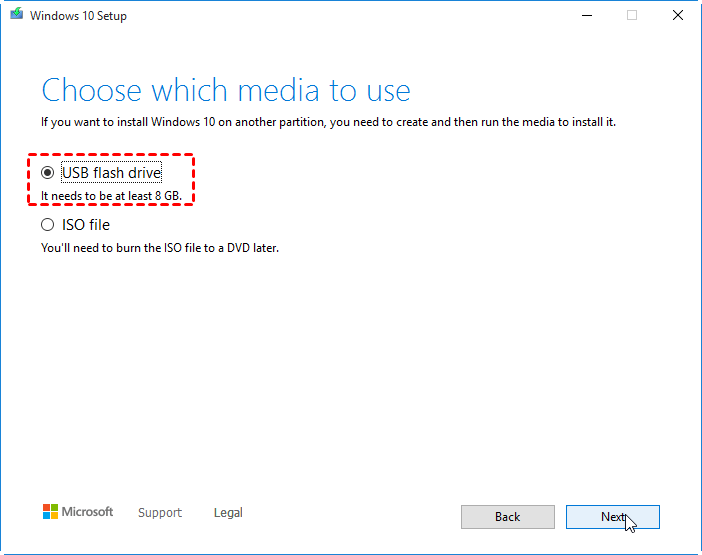
To install Windows 10 successfully, it's essential to use a USB flash drive with sufficient storage space. Specifically, the drive should have a minimum capacity of 8 GB.
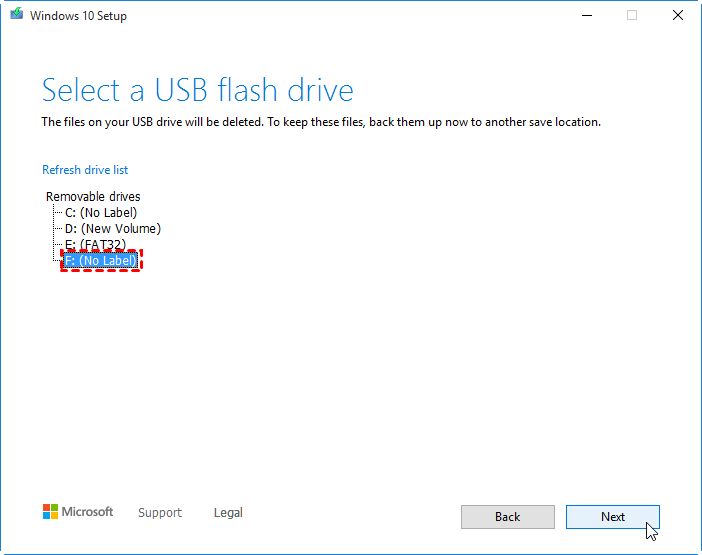
6. Choose your prepared USB flash drive from the list of "Removable drives" and then click "Next".
7. To create a Windows 10 installation media, you would first download the Windows 10 media creation tool, run it, select the language, architecture, and edition of Windows 10 you want to install, then choose the option to create an installation media for another PC. The tool will then download the necessary files and create a bootable USB drive or CD/DVD with Windows 10 installed, which can be used to install Windows 10 on another device.
Step 2. Boot the PC from the USB drive
1. Shut down the machine and install a Solid-State Drive (SSD) on the computer.
2. Then, plug the prepared USB flash drive to the PC.
3. To boot your computer, press and hold the BIOS key (usually F2, Del, F12, or a specific key depending on the manufacturer) as soon as the computer is turned on, and hold it until the BIOS screen appears.
4. To set the installation USB as the first boot device in BIOS, follow these steps: Navigate to the Boot Manager section within the BIOS settings. From there, select the installation USB as the first boot device.
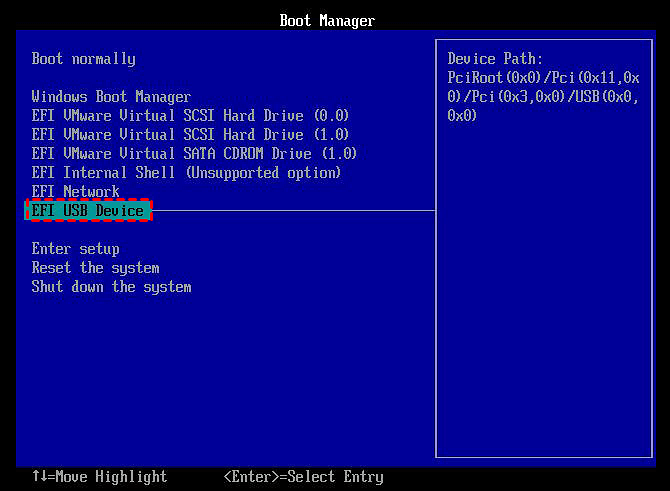
5. Save the settings and exit BIOS mode. Your PC will then boot from the installation USB drive.
Step 3. Start installing Win 10 on SSD from bootable USB
1. When the computer boots again, you'll enter Windows Setup. There, select language, time and currency format, and keyboard or input method. Click Next to continue.
2. Click on "Install Now".
3. To activate Windows 10, you must enter your product key. If you don't have one, just click on "I don't have a product key" and you can still finish the installation.
4. Select your desired Windows 10 edition from the list.
5. Tick "I accept the license terms" and hit "Next".
6. Select the custom installation.
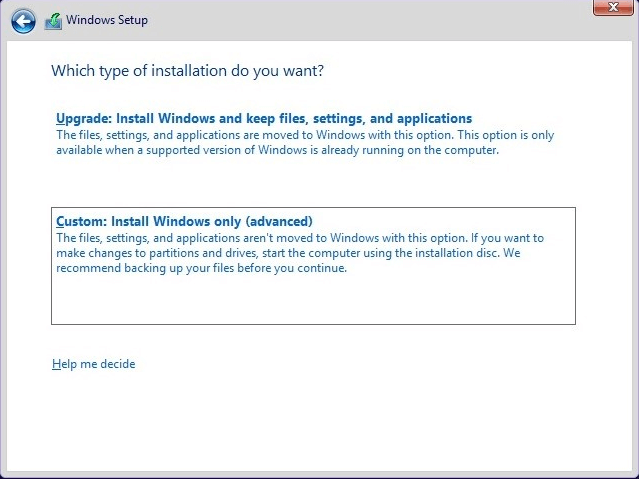
7. Select the SSD drive where you want to install the OS and hit "Next".
8. Now, Windows 10 is being installed. Just wait the installation to be completed.
9. When it's finished, your PC will be rebooted again.
10. After Windows 10 restarts, quickly press and hold the BIOS key to enter the BIOS settings. From there, select your SSD drive as the primary boot device.
11. After Windows 10 reboots, select a region and confirm by clicking "Yes". Then, on the next page, choose your keyboard layout and click "Yes" again.
Step 4. Finish the set.
To complete the setup of your computer, follow the onscreen guide and answer the questions appearing on the screen. You will also need to set up an account to log in to Windows 10, with the option to choose either a Microsoft account or a local offline account.
After a few minutes, Windows 10 will automatically log you onto the desktop. Once logged in, you can install any desired drivers to optimize your PC's performance.
Common issues about installing Windows on SSD
In Windows 10 installation, two common issues may arise. Firstly, you might encounter problems with the installation process itself, which could be due to various factors such as corrupted system files, outdated drivers, or incompatible hardware. Secondly, you may experience issues with the activation process, which could be caused by a mismatch between the Windows 10 version and the product key, or a problem with the activation server. To resolve these issues, you can try running the System File Checker (SFC) to scan and replace corrupted system files, update your drivers to the latest version, and ensure that your hardware is compatible with Windows 10.
Error 1. Can’t install Windows 10 on SSD
When trying to install Windows 10 on a new SSD, you may encounter errors like "Windows cannot be installed to this disk. The selected disk is of the GPT partition style" or "Windows cannot be installed to this disk. The selected disk has an MBR partition table." This can be resolved by converting the disk style to match the Windows installation requirements using a tool like Qiling Disk Master Professional.
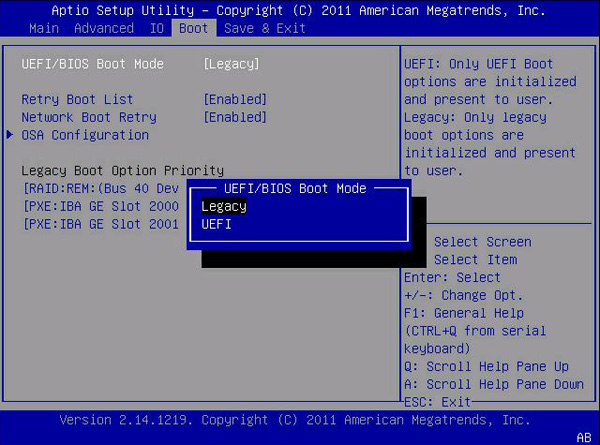
If your PC is showing an error and has a motherboard that supports Legacy + UEFI/CMS boot, you can try enabling UEFI boot mode in the BIOS to potentially resolve the issue.
1. To enter the BIOS, reboot the PC and hold the function key while it is booting up.
2. To change the boot mode to UEFI, navigate to the Boot tab using the arrow keys on your keyboard, select "UEFI/BIOS Boot Mode" and choose "UEFI", then press "ENTER".
Error 2. SSD won't boot after Windows 10 installation
Some computer owners have reported issues with booting from their new SSD after installing Windows 10 on it. This problem can be caused by several factors, including the SSD not being set as the first boot device, the system partition not being active, or the Master Boot Record (MBR) of the cloned SSD being damaged. To resolve the issue, users can try setting the SSD as the first boot device in the BIOS, making the system partition active, and rebuilding the MBR of the SSD.
Conclusion
Installing Windows 10 on an SSD can be a bit challenging without a clear guide. This tutorial has attempted to break down each step in a detailed manner, aiming to provide a comprehensive understanding of the process. As a result, you should now be able to perform these operations independently.
If you plan to install Windows Server on an SSD with Qiling Disk Master, please switch to Qiling Disk Master Server, which is specifically designed for users of Windows Server 2022, 2019, 2016, 2012(R2), 2008(R), and 2003.
FAQs about how to install Windows 10 on SSD
What are the benefits of installing Windows 10 on an SSD?
Installing Windows 10 on an SSD can greatly enhance your computer's performance by providing faster boot times, quicker application loading, and improved overall system responsiveness.
What are the system requirements for installing Windows 10 on an SSD?
Windows 10 requires a compatible CPU, sufficient RAM, and enough storage space on your SSD to accommodate the operating system, regardless of whether you're using an SSD or a traditional hard drive.
Can I clone my existing Windows installation to an SSD?
You can clone your existing Windows installation to an SSD using software like Qiling Disk Master, but a clean installation is recommended for better performance.
How do I ensure my SSD is recognized by the Windows 10 installer?
In the BIOS/UEFI settings, make sure that your SSD is set as the primary boot device. This ensures that the Windows 10 installer recognizes and uses your SSD as the installation destination.
Are there any specific settings or drivers I need to configure for optimal SSD performance after installation?
Windows 10 can automatically detect and optimize SSDs, but to ensure the best performance, check and enable TRIM support, and make sure you have the latest SSD firmware and motherboard drivers.
Related Articles
- Best Way to Migrate Hard Drive to SSD in Windows 10/8/7
This guide explains Best Way to Migrate Hard Drive to SSD in Windows 10/8/7 with clear steps, key checks, and practical tips. - SSD Optimization Tips for Windows 10 You May Want to Know
This guide explains SSD Optimization Tips for Windows 10 You May Want to Know with clear steps, key checks, and practical tips. - Fix SSD Slow Boot on Windows 10 with 8 Effective Methods
This article tells you how to fix SSD slow boot on Windows 10. 8 methods are provided. Try them individually and get your computer back to normal. - [Tutorial] Downgrade Windows 11 to Windows 10
You can downgrade from Windows 11 to a previous version of Windows, like Windows 10, if you don't like Windows 11 after you upgrade the OS to it. - Easy Way to Clone System Disk to SSD with Secure Boot
By cloning system disk to SSD, you can avoid the reinstallation of Windows and other apps if you need to replace your current system hard drive. - How to Clone Toshiba Hard Drive to SSD with Secure Boot
To clone Toshiba hard drive to SSD, you can find a right software to easily achieve. Here, we recommend you Qiling Disk Master, which helps to clone Toshiba hard drive within four simple steps.
Products
Articles & Tutorials
- Data Recovery
- Data Backup
- File Recovery
- File Backup
- File synchronize
- System Backup and Restore
- Disk and Partition Clone
- Technical articles
- Disk Master Help
- Windows Deleted File and Disk Recovery Tutorials
- Windows File and Data Recovery Tutorials
- More Windows Tutorials for Install, Security, Files, and PC Tips
- Windows Boot, Repair, and Recovery Environment Tutorials
- Windows Backup Tutorials
- Windows Restore Tutorials
- Windows Clone and Migration Tutorials
- Windows Server Backup, Recovery, and Management Tutorials
- Windows Disk, Partition, and Storage Management Tutorials