Best Hard Disk Cloning Software Free Download for Windows 7/8/10
Quick Navigation:
- Why You Need Hard Disk Cloning Software
- Hard Disk Cloning Software Free Download for Windows 7/8/10/11
- How to clone Hard Disk in Windows with Backup and Restore (free)
- Backup hard disk in Windows 7/8/10
- Restore the disk image to new disk
- How to Clone Hard Disk in Windows 7/8/10 via Disk Clone (easily)
- How to boot from the cloned hard disk?
- Verdict
Why You Need Hard Disk Cloning Software
Disk cloning is different from disk imaging in that it creates an exact copy of a hard drive that can be accessed and used directly. This process is useful in various situations, such as when you need to transfer an operating system and all installed programs to a new computer, or when you want to create a backup of your system that can be easily restored in case of a failure.
☛ Upgrade hard drive If you want more storage space and better performance, replacing your hard drive with a new one is the simplest solution. However, if you don't want to reinstall Windows or lose any important data, you can use disk cloning software to migrate your existing hard drive to a larger or faster solid-state drive (SSD), or even upgrade to a larger SSD. This way, you can keep your operating system, programs, and files intact, and enjoy the benefits of a faster and more spacious storage device.
☛ Backup hard drive To ensure your data's safety, you can use hard disk cloning software to create a backup of all your data, protecting against system errors and hardware failures.
However, there's none built-in utility can do this in Windows 7/8/10/11, so you may need the help of a 3rd party tool. In the following article, I will provide a hard disk cloning software and the free download for your reference.
Hard Disk Cloning Software Free Download for Windows 7/8/10/11
When cloning a hard disk to another HDD or SSD, the most important thing is to ensure that the target drive has enough free space to accommodate the entire contents of the source drive, including all files, folders, and operating system. This is because a successful clone will replicate every single byte of data from the source drive to the target drive, so it's crucial to have enough space to store the entire clone.
Considering the operating system transfer, cloning the hard disk, and potential size differences between the target and source disks are key factors to take into account.
A reliable disk cloning tool can alleviate worries about data loss and computer compatibility, efficiently working on all types of hard drives and computers. Qiling Disk Master Standard, a free software, is a recommendable option due to its high compatibility and powerful cloning features.
✍ Clone hard disk with its backup and restore features (Standard version)
Qiling Disk Master Standard is the best free disk partition clone software, allowing you to clone disk partitions with its Disk Backup and Disk Restore features. This can breathe new life into your computer by giving it a new HDD with a bigger capacity or an SSD with higher performance.
◆ The Disk Backup feature will backup everything on the disk, including the operating system, boot-related partitions, and other data you don't want to lose, such as installed programs and personal files.
◆ The Disk Restore feature allows you to restore a backup image to a new disk, which can be larger or smaller, and also enables you to improve SSD disk performance and adjust partition size if the target disk is larger.
◆ The Disk Clone feature of the free Standard edition allows you to clone data disks without a system installed, and even clone a larger disk to a smaller one using intelligent-sector technology.
✍ Clone hard disk with its disk clone fearure (Professional version)
In addition to the backup and restore method to clone the hard disk, there is an easier way to make a bootable clone of your source disk. Qiling Disk Master Professional offers you a powerful disk clone/system clone feature that saves time and makes the clone task secure, allowing the target disk to boot. This method has several advantages.
◆ The software has no brand restrictions and is compatible with Windows 11/10/8.1/8/7/XP/Vista, allowing you to clone HDD or SSD with a Windows installation, and the cloned disk is bootable.
◆ Clonezilla copies only used sectors by default, allowing users to clone larger drives to smaller ones, but also offers an option to create an intact copy of all sectors with the sector-by-sector option.
◆ There's an option to optimize the target SSD, which can align it and thereby accelerate its writing and reading speed.
◆ The operation is straightforward and intuitive, with a user-friendly interface that makes it easy to figure out how to use it. Additionally, the cloning speed is quite fast, making the process efficient and convenient.
To clone a hard drive in Windows 7/8/10/11, you can use a free disk cloning software that allows you to create an exact copy of your hard drive. This software can be downloaded and used to clone the entire hard drive, including the operating system, programs, and data, onto a new hard drive. The cloning process is straightforward and can be completed in a few simple steps.
How to clone Hard Disk in Windows with Backup and Restore (free)
The completely free Qiling Disk Master Standard can be used to achieve this method, which will be illustrated in 2 parts - System Backup and Restore.
Backup hard disk in Windows 7/8/10
Step 1. Select Backup -> Disk Backup, or System Backup to create an image of your system partition.

Step 2. Click the + Add Disk button to select the system disk you want to clone, then click the folder-shaped button to select the destination disk to store the disk image file.

♪ To schedule a backup, click on "Schedule Backup" and select the frequency of the backup, which can be daily, weekly, monthly, or triggered by a USB being plugged in. The last two options are only available in the paid versions of the software. This allows users to automate their backup tasks and ensure their data is regularly saved.
♪ You can enable options to set email notification, choose the compression level for the backup image file, and select between intelligent sector backup and sector-by-sector backup, among other things.
Step 3. Confirm your settings and click Proceed to perform disk backup.
Restore the disk image to new disk
Now that you have the disk image in hand, you can easily restore the backup image to the new disk drive and boot from it securely for free.
Step 1. To recover a disk, open the freeware and click "Restore" and "Select Task". If the image file is not in the list box, click "Select Image File" to browse for it. Connect the external drive containing the system image and a new SSD to the target computer. The external drive should contain the system image, and the new SSD will be the target for the disk recovery.

Step 2. In the next interface, select a backup image from the list and click "Next".

Step 3. You can choose to restore the entire disk or restore a partition in the disk.
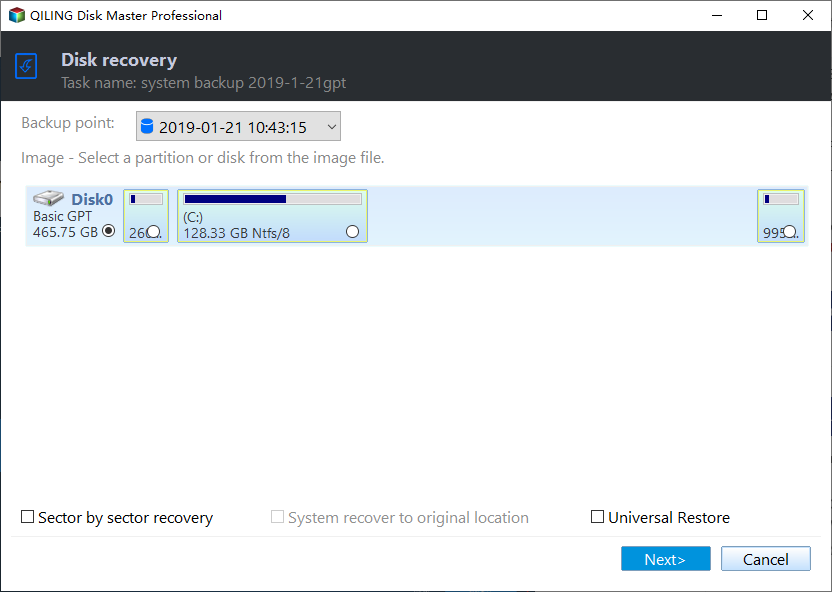
Step 4. The source disk and the destination disks will be listed, and after confirming the operations, click "Proceed" to continue.
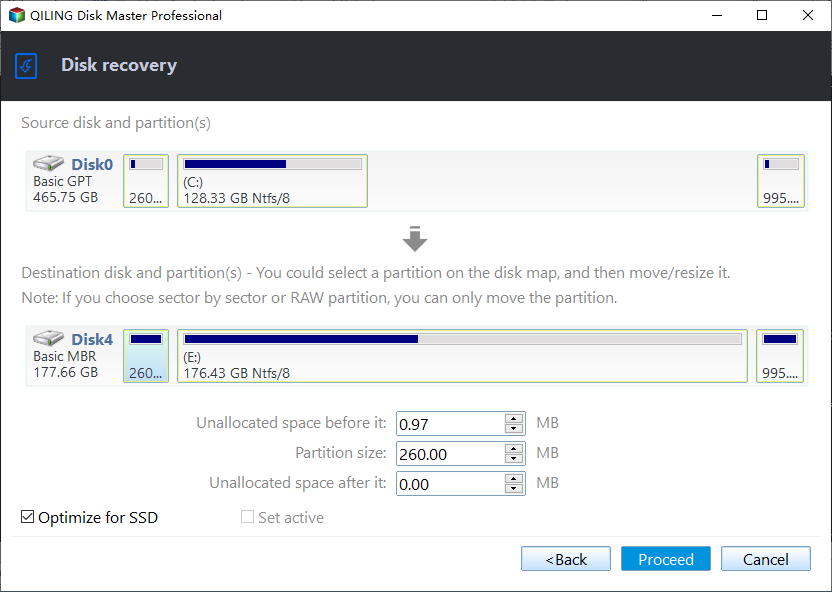
After completing the restore process, click "Finish" and you'll have a precise copy of your current PC's Windows OS and configuration.
*Tip: This software allows you to restore backup images to dissimilar hardware after upgrading to higher versions, enabling you to restore a disk image from one computer to another with different hardware using this software.
How to Clone Hard Disk in Windows 7/8/10 via Disk Clone (easily)
To clone a disk with backup and restore features using Qiling Disk Master Standard, follow these steps. The process is free, but if you prefer a faster and easier way, you can upgrade to the Pro edition for enhanced cloning capabilities. The steps involve backing up data, creating a bootable disk, cloning the disk, and restoring data, all of which can be completed using the Standard edition. However, the Pro edition offers a more streamlined cloning process.
To perform disk migration with the best hard drive cloning software in Windows 7, 8, 10, you'll need to prepare by ensuring the target hard drive is at least the same size as the source drive, or larger, and that it's formatted with the same file system. You should also back up any important data from the source drive, as the cloning process will overwrite the target drive.
◉ Clear the hard drive you want to clone by deleting unwanted files and uninstalling unnecessary apps. This will ensure a smooth cloning process and prevent any potential issues that may arise from duplicate files or conflicting software.
◉ Connect the target HDD or SSD to the PC, either directly if there's a free drive bay, or using a SATA-to-USB adapter if the bay is occupied.
◉ If you're about to clone a disk, make sure to back up any important data on the target disk first, as the cloning process will overwrite it.
◉ Download HDD and SSD clone software, then install it.
How to clone hard disk in Windows 7/8/10:
1. Launch the software, go to the Clone tab and select Disk Clone. You can also clone individual partition(s) as needed.

2. Select the source disk you want to clone and click Next.

3. Select the destination disk and click Next to continue.

4. Confirm the operation and Proceed.

Tips:
- To clone a dynamic disk, you can use System Clone to copy the system volume and Partition Clone to copy other data volumes.
- If you want to transfer a system to another computer, create a system image using System Backup and select the Universal Restore option to enable dissimilar hardware restore.
How to boot from the cloned hard disk?
After cloning the hard drive, you can shut down the computer and replace the source drive with the cloned target drive. This will allow the PC to boot from the new drive automatically, making the cloning process complete.
If you want to keep the old hard drive as a secondary storage, restart your computer, enter BIOS, make the cloned hard drive the first boot option, and save the settings to exit.
If the boot is successful, you can also wipe the old hard drive to free up more storage space, which can be done through the Disk Wipe feature in the Tools tab of Qiling Disk Master.

Verdict
Qiling Disk Master is a handy tool for replacing old hard drives with larger HDDs or new SSDs. This hard disk cloning software can be freely downloaded for Windows 7/8/10, and it can complete the data migration task with a high success rate, ensuring the cloned disk is bootable.
Qiling Disk Master is a software that allows for disk cloning, backup, and synchronization, enabling users to clone disks, backup systems regularly, deploy system images to other computers, perform bare metal backups and restores, and provide continuous data protection with real-time sync capabilities.
Related Articles
- The Best Free HDD Cloning software for Windows 10
- Best Free SSD Cloning Software for Windows 10/8/7
- Quick Fix: Cloned SSD Won’t Boot in Windows 10/8/7
- Best Free Disk Imaging Software for Windows 7 – Download Here!
- Clone Hard Drive to Larger Drive Safely and Easily
With Qiling Disk Master Professional, you can easily clone hard drive to larger drive in Windows 11, 10, 8, 7 and you don't need to reinstall Windows operating system and other applications from scratch. - How to Clone Hard Drive to SanDisk SSD in Windows 10/11
This post introduces the best SanDisk cloing software that can help you clone hard drive to SanDisk SSD in Windows 11, 10, 8, 7 efficiently.
Products
Articles & Tutorials
- Data Recovery
- Data Backup
- File Recovery
- File Backup
- File synchronize
- System Backup and Restore
- Disk and Partition Clone
- Technical articles
- Disk Master Help
- Windows Deleted File and Disk Recovery Tutorials
- Windows File and Data Recovery Tutorials
- More Windows Tutorials for Install, Security, Files, and PC Tips
- Windows Boot, Repair, and Recovery Environment Tutorials
- Windows Backup Tutorials
- Windows Restore Tutorials
- Windows Clone and Migration Tutorials
- Windows Server Backup, Recovery, and Management Tutorials
- Windows Disk, Partition, and Storage Management Tutorials