Fastest Way to Clone a Hard Drive in Windows 11/10 (4 Steps)
Quick Navigation:
- Need help: What's the fastest way to clone HDD to SSD?
- Best disk cloning software to clone a hard drive
- How to clone a hard drive in Windows 10/11 (fastest and easiest)
- Your turn
Need help: What's the fastest way to clone HDD to SSD?
"I am currently using a USB boot disk with third-party backup software and a USB-to-SATA cable, it takes about 1.5 to 2 hours on average to clone a 600 gb hdd to a 120 gb SSD. On occasion this can spike up to 4 hours or more."
I understand your concern about the slow cloning process. Cloning drives can be a time-consuming process, especially when dealing with a large number of machines. One possible reason for the delay is the amount of data being transferred, which can be significant. To speed up the process, you might consider using a more efficient cloning tool or method, such as using a dedicated cloning software or a hardware-based cloning solution. Additionally, checking the system resources and disk usage on the machines being cloned might also help identify any bottlenecks. If you're still experiencing issues, you may want to consider cloning the drives in parallel or using a more powerful machine to handle the task.
The speed at which a hard drive can be cloned depends on the amount of data being transferred and the reading and writing speeds of both the source and target disks.
You can choose to clone only used sectors on the source disk instead of all sectors, and this article will introduce a software that helps you clone hard drive safely.
Best disk cloning software to clone a hard drive
If you're looking to upgrade your computer by replacing your hard drive with another one, either an HDD or SSD, you'll need a reliable disk cloning software to make the process smooth and efficient. I highly recommend using Qiling Disk Master Professional to clone your hard drive, allowing you to complete the entire process quickly and easily.
✪ Multiple clone modes
Qiling Disk Master supports three types of cloning: disk clone, system clone, and partition clone. The first two methods allow you to clone everything needed to start Windows, including the operating system, system reserved partition, recovery partition, and more.
To make an exact copy of the original hard drive, you could use "Disk Clone", while "System Clone" is used to migrate only the OS, requiring less time and disk space.
✪ Advanced clone settings
You can use it to clone only used sectors or all sectors of the source disk with different cloning modes, maximize the performance of an SSD disk, and make full use of unallocated space after cloning.
✪ Easy operations
The software has a simple and user-friendly interface that allows even novice users to operate like a professional, making it an easy way to clone a hard drive.
How to clone a hard drive in Windows 10/11 (fastest and easiest)
Here you will use "Disk Clone" feature in Qiling Disk Master Professional to clone hard drive safely in Windows 10/11. But this way is also applicable to Windows 8.1/8/7/XP/Vista. Before that, you need to make some preparations, such as backing up important data on the source disk and ensuring the target disk has enough free space to accommodate the cloned data. Then, you can launch Qiling Disk Master Professional, select the source and target disks, and follow the on-screen instructions to complete the cloning process.
|
💾 Prepare a target disk |
The storage device can be either a hard disk drive (HDD) or a solid-state drive (SSD). If it has not been initialized, you should initialize it using the Windows Disk Management feature. |
|
🛠 Install the HDD or SSD |
If you're using a laptop, you'll still need a USB-to-SATA cable to connect for cloning. |
|
✅ Check the capacity |
Ensure the target disk has enough space to hold all the data from the original disk. If not, free up space on the old disk by deleting unnecessary files. |
|
📂 Backup crucial data |
Please create a file backup of any important data on the target disk before proceeding, as the target disk will be overwritten. |
Download and install Qiling Disk Master Professional, the fastest cloning software, on your Windows PC. If you're using a Server OS, download Qiling Disk Master Server instead.
To clone a hard drive, start by ensuring both the source and target drives are connected to your computer. Next, choose a cloning software or tool, such as Qiling Disk Master, and follow the on-screen instructions to select the source drive and choose a destination for the cloned drive.
Step 1. Launch Qiling Disk Master, and then you will see its deep-blue main page. Click "Clone" -> "Disk Clone" subsequently.

Notes:
✩ You can clone a large hard drive to a smaller SSD as long as the used space on the old disk is smaller than or equal to the new one, otherwise, you can clone only the OS with the "System Clone" feature.
✩ You can clone MBR to GPT disk and vice versa without boot issues.
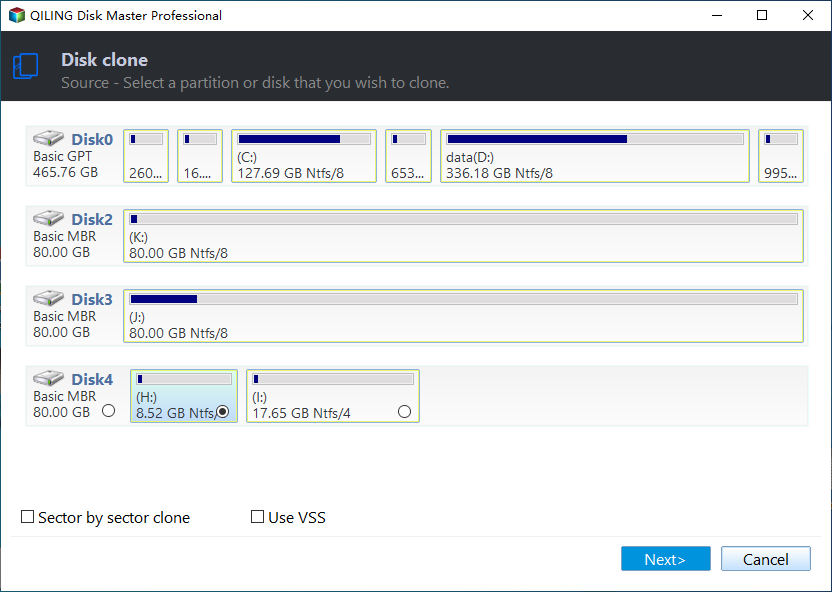
Step 2. Choose the old hard drive you can want to clone, and click Next.
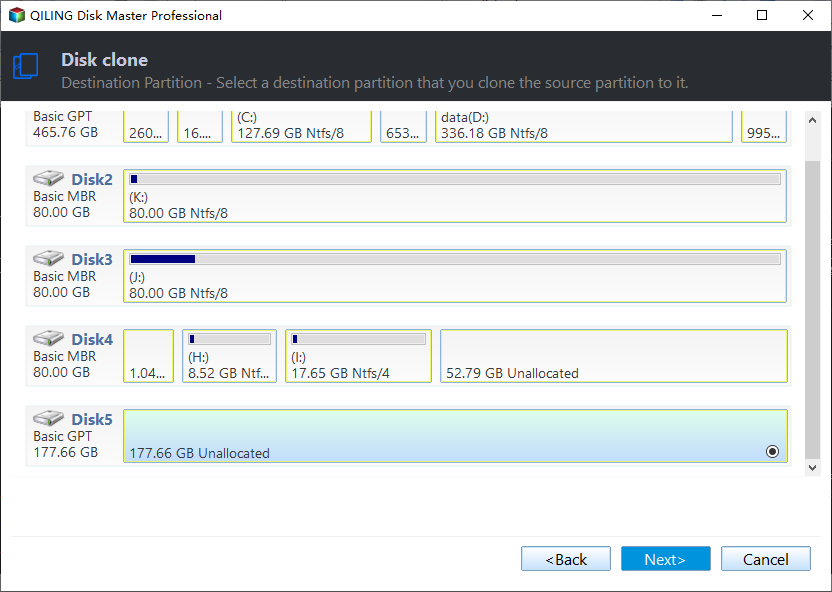
Step 3. Choose the new hard drive or SSD you want to clone to, and click Next.
Step 4. If the target disk is an SSD, select the "SSD Alignment" option to enhance its reading and writing speed. Then, click "Proceed" to execute the task.
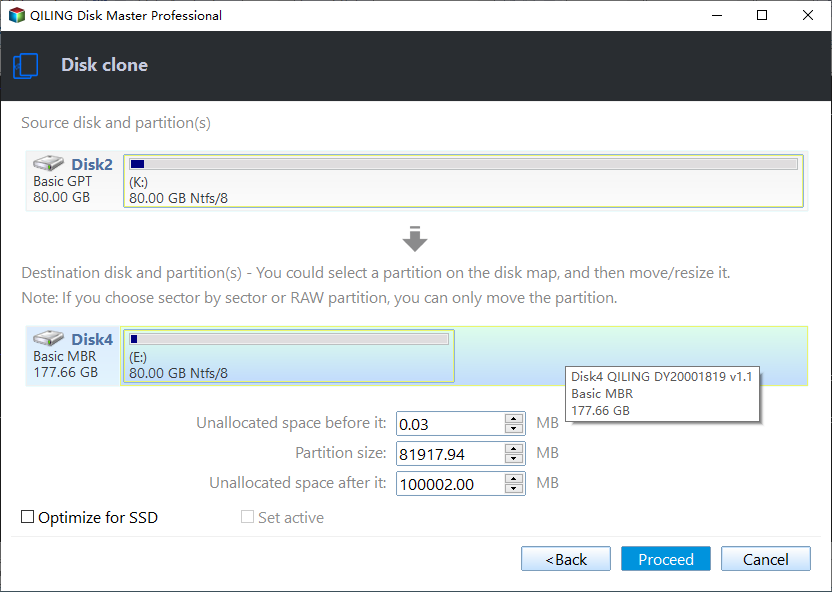
✩ Tip: Except for "SSD Alignment", there are two other options, namely, "Edit Partitions" and "Sector by sector clone", which can be used for cloning a disk to a larger one, but not simultaneously.
👉 "Edit Partitions" allows users to optimize unallocated space or convert disk types between MBR and GPT, offering four options for customization.
- Copy without resizing partitions: It will not resize the partition size.
- Add unused space to all partitions: It will redistribute the unused space to each partition of the target disk, taking into account the disk's size.
- Manually adjust partition size: It allows you to extend unallocated space to any partition on the destination disk as you want.
- Convert the destination disk from MBR (GPT) to GPT (MBR): If the source disk has a different partition style than the destination disk, it helps to convert the partition style of the destination disk, for example, cloning a GPT disk to an MBR disk.
👉 The "sector by sector clone" process involves cloning all sectors of the source disk, including blank and bad sectors.
Your turn
The easiest way to clone a hard drive is to use Qiling Disk Master Professional, which offers a user-friendly interface and simple operations, saving you time and effort. You can clone your disk to a larger one for increased capacity or to a smaller SSD, and the software also optimizes SSD performance with its 4k technology.
Install this software on your computer for powerful data and system protection. It allows creating a system image that can be restored in case of a disaster, even on dissimilar hardware. Additionally, it enables backing up disks, partitions, files, and scheduling backups, as well as creating bootable media.
Related Articles
- Easy & Free Way to Copy One Hard Drive to Another
- Easiest Way to Clone Laptop Hard Drive to External Hard drive
- How to Clone Laptop Hard Drive to Smaller SSD or New Drive?
- [Solved] How to Fix Windows Update Error Code 0x8024402c
Learn the key steps, checks, and practical tips for this related guide.
Products
Articles & Tutorials
- Data Recovery
- Data Backup
- File Recovery
- File Backup
- File synchronize
- System Backup and Restore
- Disk and Partition Clone
- Technical articles
- Disk Master Help
- Windows Deleted File and Disk Recovery Tutorials
- Windows File and Data Recovery Tutorials
- More Windows Tutorials for Install, Security, Files, and PC Tips
- Windows Boot, Repair, and Recovery Environment Tutorials
- Windows Backup Tutorials
- Windows Restore Tutorials
- Windows Clone and Migration Tutorials
- Windows Server Backup, Recovery, and Management Tutorials
- Windows Disk, Partition, and Storage Management Tutorials