HDD to HDD Copy Software: Clone One Hard Drive to Another
Quick Navigation:
- User Case: How Do I Copy HDD to HDD?
- Best HDD to HDD Copy Software for Free
- #1. Directly Clone HDD to HDD (Non-system Disk)
- HDD to HDD Cloning Step-by-step Guide
- How to Boot from Cloned Drive Correctly
- #2. Backup & Restore HDD Image (System Disks)
- Step 1. Create A Disk Image for HDD
- Step 2. Create A Bootable USB Drive
- Step 3. Restore HDD Image from WinPE
- Conclusion
User Case: How Do I Copy HDD to HDD?
◐ Case 1: You're running out of storage on your gaming PC and want to add a larger data HDD for games, music, etc. You have your OS on a Samsung SSD, a 1TB Seagate HDD for games/music, and a new 2TB WD Blue HDD for backups. You'd like to copy everything from the Seagate to the WD, including Steam games. You can simply copy the game folders over to the WD, no specific software is needed. Just make sure to copy the entire folder structure to preserve the games' integrity. You can also use the built-in Windows File Explorer to copy files, or a third-party software like Qiling Disk Master if you prefer.
◐ Case 2: You want to clone the existing hard disk with Win10 OS and data to multiple other hard disks, ensuring they can boot with Win10 and have access to the same tools and data. Is that correct? If so, you can use a tool like Qiling Disk Master to create an exact copy of the original hard disk, including the OS and all data, to the other hard disks. These tools can also help you ensure the copied hard disks can boot with Win10 and have the same functionality as the original disk. Would you like me to elaborate on these tools?
The two users want to copy their data and operating system to a new hard drive, one due to running out of storage and the other for upgrading to a larger hard drive. They both want to transfer everything, including their data and Windows 10 OS, to the new drive.
The tool you need is a cloning software, such as Qiling Disk Master, which can help you easily copy all kinds of files, programs or operating systems in one HDD to another HDD you want intact. These software can clone the entire HDD, including the operating system, programs, and data, to the target HDD, preserving the original structure and content. This way, you can have an exact replica of your original HDD on the target HDD.
Best HDD to HDD Copy Software for Free
Qiling Disk Master The best disk cloning software is capable of copying all data from one disk to another intact, ensuring the computer can start normally after cloning. It allows live disk cloning, enabling you to clone a hard drive while working on the computer, and offers many brilliant features and options.
This free drive cloning software offers two methods for data migration: direct disk cloning and backup & restoring migration.
- #1. Directly disk cloning: You're allowed to clone non-system disks (data disk) from one drive to another directly in one interface, making it the easiest data migration approach.
- #2. Backup & restoring migration: You can migrate all disks, including system and data disks, to another drive manually, requiring more steps. Alternatively, you can upgrade to the Pro edition to directly clone the system disk.
Qiling Disk Master Standard is a free data migration software that supports all Windows PC operating systems, including Windows 11, 10, 8.1, 8, 7. It has earned a good reputation among Windows users worldwide and is worth trying. You can download this freeware and follow the detailed steps to clone an HDD to another HDD in Windows.
 Qiling Disk Master
- The device supports various storage options, including NVMe SSD, M.2 SSD, SATA SSD, HDD, USB, and SD card.
- Support Intelligent Cloning and Sector-by-Sector Cloning
- Support adjusting partition size during hard drive cloning
- Powerful backup and syncing software as well
#1. Directly Clone HDD to HDD (Non-system Disk)
Preparations:
✯ To clone a laptop hard drive with only one slot, connect the disk to your computer using a USB to SATA adapter, or install it directly into a hard disk bay on a desktop PC.
✯ If there are important data on the target drive, please ensure to back them up before proceeding with the formatting process. This will prevent any potential data loss and ensure that you have a copy of your important files.back up files The cloning process will overwrite all data in the destination.
HDD to HDD Cloning Step-by-step Guide
Step 1. To clone a hard drive, install and launch the hard drive cloning software Qiling Disk Master Standard. From the software, click on "Tools and utilities" and then select "Disk Clone" to initiate the hard drive copy process.
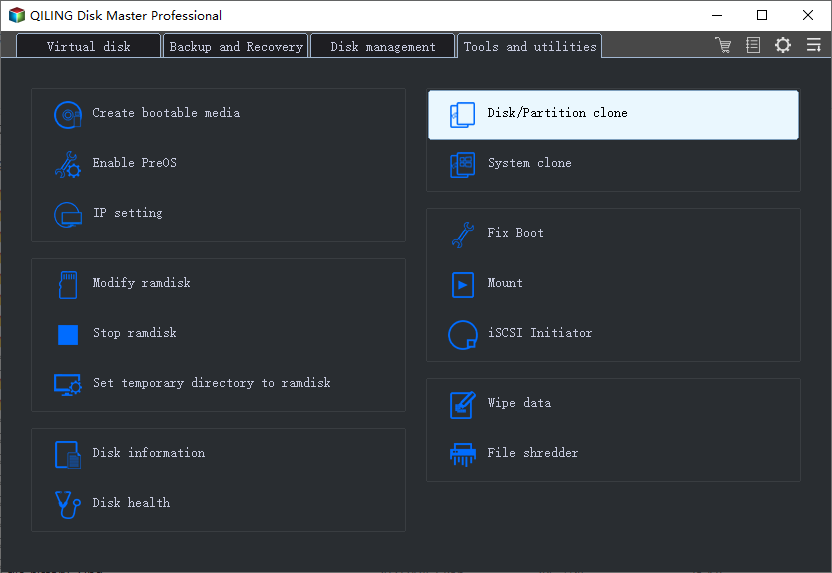
✨ Note: If you only want to clone the operating system, you can use the System Clone feature in the advanced versions.
Step 2. Connect the target external HDD to your computer. Select the original HDD on your computer as the source disk. Then, click Next.

Step 3. Select the new HDD as the destination disk and click Next.

Step 4. Check the operation summary and click Proceed to clone the original HDD to the new one.

Step 5. Wait until the process complete 100% and click Finish.
Notes✍: The method of how to Notes✍:
How to Boot from Cloned Drive Correctly
To boot from the cloned hard drive correctly, after cloning, you should disconnect the original hard drive, then connect the cloned hard drive to the computer. Turn on the computer and enter the BIOS settings (usually by pressing F2, F12, Del, or other keys). Set the cloned hard drive as the primary boot device, then save the changes and exit the BIOS settings. The computer should now boot from the cloned hard drive.
1. Restart your computer.
2. Press a specific key (usually F2, F8, F12, Del) to enter the BIOS Setup.
3. To boot from a cloned disk, click on the "Boot" option and set the cloned disk as the first boot device in the BIOS settings. This will allow the system to recognize the cloned disk as the primary boot device.
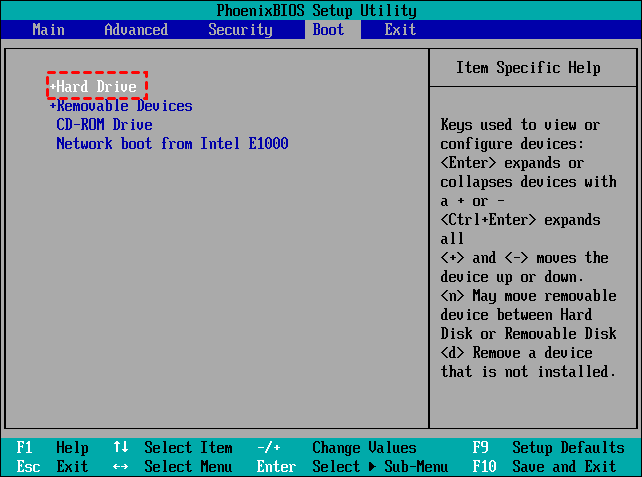
Tips: You can directly replace the old hard drive with the new one and boot from the cloned drive.
#2. Backup & Restore HDD Image (System Disks)
This method involves three steps: backing up, booting with WinPE, and restoring, and requires a USB flash drive and a storage path for the backup image, necessitating the installation of Qiling Disk Master Standard.
Qiling Disk Master StandardFor Windows PC users worldwide, there are several free data migration software options available. These tools enable users to transfer data from one device or system to another with ease, making them ideal for upgrading or switching operating systems.
Step 1. Create A Disk Image for HDD
Launch the software, create a backup image using the Backup > Disk Backup feature, and follow the wizard to complete the operation, storing the backup image on a path accessible in WinPE, such as a network path or external drive.

Step 2. Create A Bootable USB Drive
Plug in your USB drive and make sure it can be detected. In Qiling Disk Master, go Tools > Create Bootable Media. Follow the wizard to complete the operation.

Step 3. Restore HDD Image from WinPE
1. To boot from the USB stick, shut down your PC, insert the bootable USB drive, and power it back on. Immediately start pressing the DEL, F2, or F10 key to enter the BIOS settings. Within the BIOS, navigate to the Boot tab and change the boot priority to the USB drive. Once you've made this change, press F10 to save and exit the BIOS settings, which will initiate the boot process from the USB stick.
2. After loading Qiling Disk Master Standard, you will see its main page. Click on "Select Image File" under the "Restore" tab, locate the image you previously stored, and follow the on-screen wizard to complete the restoration process.

To copy an HDD to another HDD using the free data migration software Qiling Disk Master, simply follow these steps: download and install the software, select the source and target disks, choose the files and folders to transfer, and finally, start the copying process. This method also applies when restoring Windows 11 to a new hard drive.
Conclusion
Since Windows doesn't have a built-in cloning feature, a third-party software like Qiling Disk Master Standard Edition is needed to clone HDD to HDD/SSD, allowing for a convenient and free disk to disk clone.
This software offers a convenient solution for personal use, completely free of charge. Its features are waiting to be explored, and with its Backup function, you can easily backup folders to a USB drive automatically. Try it out now!
Related Articles
- How to Clone HDD to External Drive with Freeware in Windows 10/8/7?
You can clone hard drive or SSD to external drive easily and boot successfully with the help of the best disk cloning software - Qiling Disk Master Professional. - Easiest Way to Clone Hard Drive to SSD without Reinstalling
HDD to SSD cloning offers a convenient way to upgrade your Windows 11/10 PC without having to reinstall the operating system from scratch. Valuable tips & tricks included. - Top 2 Ways to Copy/Transfer Data from One Hard Drive to Another
This guide explains Top 2 Ways to Copy/Transfer Data from One Hard Drive to Another with clear steps, key checks, and practical tips. - Restore Windows 10 or 11 System Image to New Hard Drive (2 Ways)
You will learn how to easily restore Windows 10/11 system image to new hard drive with Backup and Restore (Windows 7) or powerful backup software- Qiling Disk Master Standard. - How to: Clone Internal Hard Drive to External Hard Drive Step-by-Step
This guide explains How to: Clone Internal Hard Drive to External Hard Drive Step-by-Step with clear steps, key checks, and practical tips. - How to Clone Large HDD to Smaller SSD without Data Loss?
Use this guide for How to Clone Large HDD to Smaller SSD without Data Loss?, with cloning or migration steps, boot checks, and tips to keep data safe during the move.
Products
Articles & Tutorials
- Data Recovery
- Data Backup
- File Recovery
- File Backup
- File synchronize
- System Backup and Restore
- Disk and Partition Clone
- Technical articles
- Disk Master Help
- Windows Deleted File and Disk Recovery Tutorials
- Windows File and Data Recovery Tutorials
- More Windows Tutorials for Install, Security, Files, and PC Tips
- Windows Boot, Repair, and Recovery Environment Tutorials
- Windows Backup Tutorials
- Windows Restore Tutorials
- Windows Clone and Migration Tutorials
- Windows Server Backup, Recovery, and Management Tutorials
- Windows Disk, Partition, and Storage Management Tutorials