Best Pioneer SSD Clone Software: Move OS and Data Easily
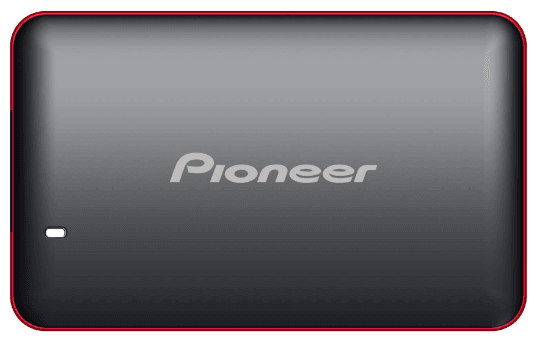
Choose a Pioneer SSD for your computer
To determine the right type of SSD to buy, it's essential to know about your computer. Start by asking yourself two key questions: What type of computer do you have (laptop or desktop)? And what type of interface does it have (SATA, PCIe, or M.
- What fits into my PC or laptop? (2.5-inch SSD, M.2 SSD, or both?)
- Your PC or laptop likely supports both SATA and PCIe NVMe interfaces. SATA (Serial Advanced Technology Attachment) is a traditional interface used for hard drives and solid-state drives (SSDs) that provide a slower but more compatible connection. PCIe NVMe (Peripheral Component Interconnect Express Non-Volatile Memory Express) is a newer, faster interface specifically designed for SSDs, offering improved performance and lower latency. Many modern systems support both interfaces, allowing you to choose the type of drive that best suits your needs, whether it's a balance between speed and compatibility or a focus on high-performance storage.
You can find the answers by reading your computer's user guide or searching for the device specs online. Following are some recommendations of different types of Pioneer SSD.
|
Product |
Form Factor |
Interface Type |
Capacity |
|
Pioneer APS-SL3N-256 |
2.5 Inches |
SATA III |
256 GB |
|
Pioneer APS-SL3N-1T |
2.5 Inches |
SATA III |
1 TB |
|
Pioneer APS-SE20G-256 |
M.2 |
PCIe NVMe |
256 GB |
|
Pioneer APS-SE20G-1T |
M.2 |
PCIe NVMe |
1 TB |
Does Pioneer SSD have cloning software?
After purchasing an appropriate SSD, the next step is to find a cloning tool to transfer everything from the HDD to the Pioneer SSD. Unfortunately, the Pioneer SSD does not come with cloning software, so you will need to find a third-party tool to assist with the cloning process.
If you're looking for a reliable Pioneer SSD clone software, I highly recommend Qiling Disk Master Professional for its reliable performance.
♬ Disk Clone: It enables the transfer of an entire operating system, installed applications, and personal files from one hard drive to another.
♬ System Clone: It allows you to clone the OS from one disk to another, making it easy to set up a separate SSD for the operating system and an HDD for storage.
♬ Partition Clone: It helps you copy a particular partition, such as an NTFS partition, FAT32 partition, or any other type, exactly as you want, without any modifications.
♬ Supported Devices: Qiling Disk Master supports cloning disks of various types and brands, allowing users to transfer data from an HDD to a SATA, M.2, or NVMe SSD from brands such as Samsung, WD, Crucial, and Pioneer.
♬ Supported OS: it is compatible with all editions of Windows 11/10/8.1/8/7/XP/Vista.
To clone a SSD, you can use a specialized SSD cloning tool. These tools can be downloaded and installed on your PC, and they will guide you through the cloning process.
How to clone HDD to Pioneer SSD easily
Connect your Pioneer SSD to your computer using a USB cable, ensuring it's securely plugged into both the SSD and the computer. Alternatively, if your computer has a Thunderbolt 3 port, you can connect the Pioneer SSD directly to the Thunderbolt 3 port using a Thunderbolt 3 cable. Make sure the SSD is properly seated and securely connected to the computer to ensure stable performance and data transfer.
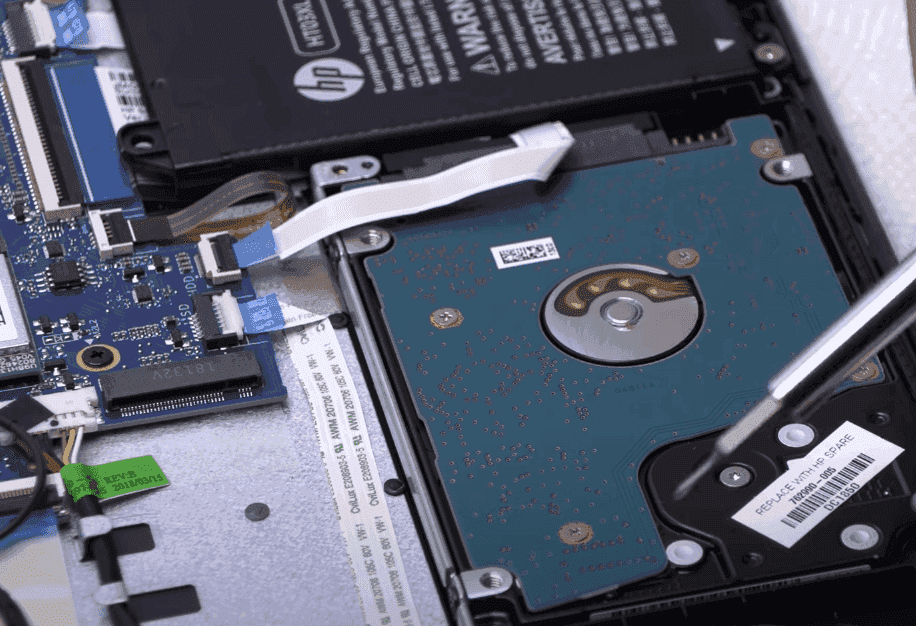
- If your computer has an extra drive bay, install the Pioneer SSD in it.
- If you have a single drive bay in your computer, you can use a SATA-to-USB or PCIe-to-USB adapter or enclosure to connect the Pioneer SSD externally.
Upgrading your computer's hard drive to a Pioneer SSD can be done without reinstalling the operating system by following these steps. First, ensure you have a compatible SSD and a computer that supports it.
Step 1. Launch Qiling Disk Master. Click Tools and utilities from the left panel and select Disk Clone.

Step 2. On the Source Disk page, click on the original hard drive on your computer and then click Next.

Step 3. On the Destination Disk page, click on the Pioneer SSD just connected and then click Next.

Step 4. To optimize SSD performance, enable SSD Alignment. Review the disk information for both the source (HDD) and destination (SSD) drives, then click Proceed to initiate the data transfer process between the two drives.

If the Pioneer SSD contains any partitions or data, the program will notify you that the existing partitions will be overwritten or deleted. To proceed, click OK after backing up any important files.
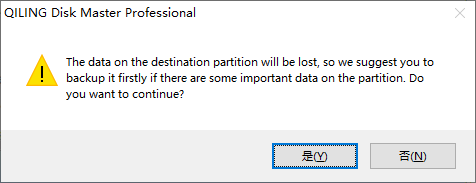
Step 5. Once the cloning process reaches 100%, click Finish. The time it will take depends on the interface of both disks and the data size on the old disk.
How to boot from the cloned Pioneer SSD
👉 If the Pioneer SSD is installed in a different drive bay, you can set it as the first boot device in the BIOS settings to prioritize its use.

👉 If the Pioneer SSD is connected externally, you should remove the old hard drive and install the Pioneer SSD in its place. This will allow your computer to boot successfully from the SSD.
FAQs about Pioneer SSD clone
1. Is Pioneer SSD good?
2. How do I transfer everything from my HDD to SSD?
Verdict
If you're looking for reliable Pioneer SSD clone software, Qiling Disk Master is a top choice. This software allows you to transfer everything or just your operating system from an old hard drive to a Pioneer SSD, and it also supports other brands like Samsung, WD, and Kingston. As a powerful cloning tool, you can also use it to clone a SSD to another SSD. Try Qiling Disk Master now to see its capabilities!
Related Articles
- How to Install an SSD without Reinstalling Windows 11, 10, 8, 7
Learn how to Install an SSD without Reinstalling Windows 11, 10, 8, 7 with clear steps, key checks, and practical tips. - How to Clone a Navigation SD Card with Free Tools
The Navigation SD Card is a memory card used in car navigation systems. You may clone Navigation SD Card for data recovery. Learn how to clone it efficiently from this page. - Cloning 1TB HDD to 500GB SSD Samsung and Making It Bootable
This article illustrates one more powerful SSD cloning software and the steps of cloning 1TB HDD to 500GB SSD Samsung without boot issues. Get them now! - The Best Free Crucial SSD Data Transfer Software
The best free Crucial SSD data transfer software can transfer data to Crucial SSD and ensure the cloned disk boot securely. Please keep reading.
Products
Articles & Tutorials
- Data Recovery
- Data Backup
- File Recovery
- File Backup
- File synchronize
- System Backup and Restore
- Disk and Partition Clone
- Technical articles
- Disk Master Help
- Windows Deleted File and Disk Recovery Tutorials
- Windows File and Data Recovery Tutorials
- More Windows Tutorials for Install, Security, Files, and PC Tips
- Windows Boot, Repair, and Recovery Environment Tutorials
- Windows Backup Tutorials
- Windows Restore Tutorials
- Windows Clone and Migration Tutorials
- Windows Server Backup, Recovery, and Management Tutorials
- Windows Disk, Partition, and Storage Management Tutorials