How to Clone a Navigation SD Card with Free Tools
About the Navigation SD Card in your car
Navigation SD Cards are used in GPS devices to store maps, points of interest and saved routes, aiding drivers with navigational data. They can be pre-loaded or loaded manually and are commonly used in car navigation systems from brands like Ford, Nissan, Mazda, Mercedes, and Toyota.
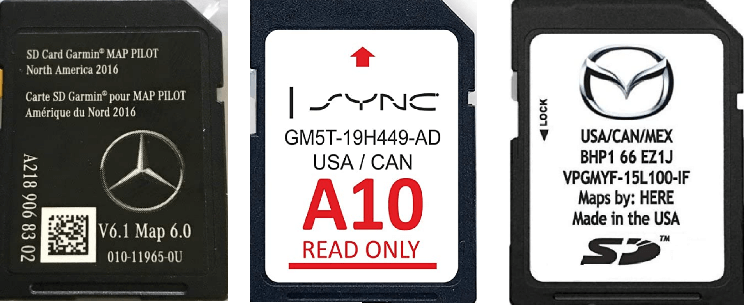
The necessity of cloning Navigation SD Card
You may need to clone your car navigation system's Navigation SD Card if you have a Navigation SD Card in your system. This is particularly necessary when you want to transfer the navigation system's data to a new SD card, replace a damaged or faulty SD card, or upgrade to a higher capacity SD card to avoid running out of storage space.
◈ Make a backup of the original SD card To restore the card in case of data corruption or data loss, you can use the backup copy of the card, if available. If not, you can restore the card from a backup of the entire system or database.
◈ Copy the original SD card to a faster SD card, thus making the whole system faster.
A reliable Navigation SD Card duplicator is necessary to make the backup/copy process smooth.
How to clone a Navigation SD Card in Windows easily
Here I'm going to introduce two effective tools for Navigation SD Card cloning. Just keep reading to get detailed steps.
Use Mazda Toolbox for Mazda Navigation SD Card copy
Mazda offers an application called Mazda Toolbox that allows users to back up and restore their Navigation SD Cards. To use the application, follow the provided guidance.
1. Connect the SD card to your computer and log in to Mazda Toolbox with your user account.
2. On the Home screen, click on the Settings button.
3. In the Settings menu, click on the Manage button.
4. To back up your device, click on the "Backup your device" button in the Manage menu.
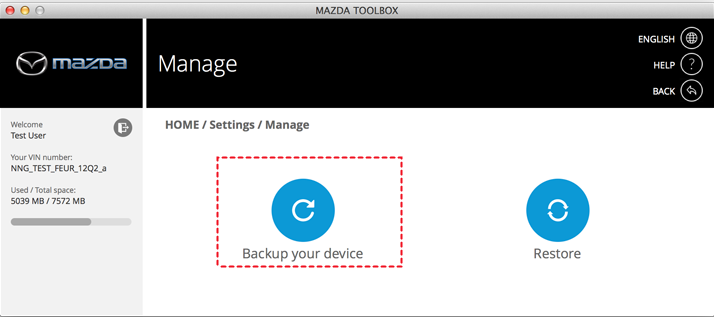
5. You can create a backup of your data by going to the "Backup" section in your account, selecting the data you want to back up, and then choosing a name for the backup. Wait for the backup task to complete, which may take some time depending on the amount of data being backed up. Once the backup is finished, you can view and manage your backups in the "Backup" section.
While Mazda Toolbox seems to make it easy to back up Navigation SD Cards, its functionality is limited to Mazda users and only supports Windows 10/8/7, with a minimum display resolution of 1024*768 and 10 GB free space required. If you're looking for a more superior tool, you may want to consider other options.
Use a handy freeware to clone Navigation SD Card of all kinds
Qiling Disk Master Standard, a top-rated free backup software for Windows, is here to assist with data protection and recovery needs.
- The software offers a "Disk Clone" feature that allows users to easily copy a Navigation SD Card to another card, making it ready for use without needing the restoration process.
- It has a feature called Disk Backup that allows you to create a disk image for a Navigation SD Card, which can be restored to a normal state from a backup image when problems occur, especially useful when the navigation system only supports the original SD card.
- It supports various Navigation SD Cards, allowing users to clone Mazda, Nissan, and Ford navigation systems, among others.
★ How to copy a Navigation SD Card to another SD card via Qiling Disk Master
Preparations:
▶ To use an SD card in your computer, you will need two SD card readers. If your computer only has one SD card slot, you will need one reader for the SD card and another reader to connect it to your computer.
▶ A Windows PC.
▶ Navigation SD Card cloning software (free download and install).
Step 1. To start the cloning process, connect both the Navigation SD Card and the target SD card to your computer, ensuring they are properly detected. Then, run Qiling Disk Master, click on the "Clone" option, and select "Disk Clone" from the available choices.

Step 2. Select the Navigation SD Card as the source disk and click "Next".

Step 3. Connect the target SD card to your computer and select it in the program. Click "Next" to proceed.

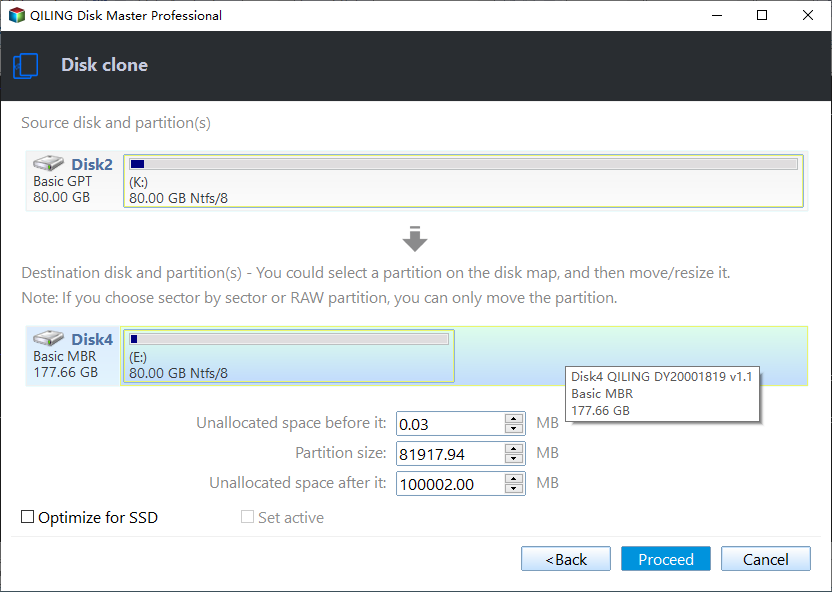
Step 4. To make an exact copy of the original SD card, select the "Sector by sector clone" option, confirm the operation, and then click "Proceed".
Note: If you're about to overwrite the destination SD card, be aware that all data on it will be completely erased. If the card contains important files, make sure to back them up before proceeding. This will ensure that your valuable data is safe and can be restored later if needed.
💛 Extra tip:
You may find the target SD card shows the wrong size after cloning an SD card to a larger card. To make full use of the disk capacity, try the following 2 practical options in the Edit Partitions feature (supported by the professional version).
👉 Add unused space to all partitions: The unallocated space will be redistributed to each partition on the target disk, taking into account the disk's size.
👉 Manually adjust partition size: It allows you to extend unallocated space to any partition on the destination disk as you want.
★ To backup and restore a Navigation SD Card using Qiling Disk Master, follow these steps: First, insert the Navigation SD Card into a computer and open Qiling Disk Master. Create a new backup task by clicking on the "Backup" button, selecting the SD Card as the source disk, and choosing a destination for the backup file.
1. To back up your Navigation SD Card, connect it to your computer, then open Qiling Disk Master and select the "Backup" option, choosing to save the backup image on a local disk, external drive, or USB drive.

2. When your Navigation SD Card malfunctions, you can restore it by going to "Restore" > "Select Task"/"Select Image File".

FAQs about Mazda Navigation SD Card
1. Can I transfer Mazda navigation SD card?
Mazda advises against swapping navigation system SD cards between vehicles for testing purposes, as it can link the SD card to the wrong vehicle's VIN.
2. How do I update my Mazda navigation SD card for free?
You can download the Mazda Toolbox from the MyMazda.com website and use it to get a free map update.
3. How to unlock Mazda navigation SD card?
To unlock the SD card, simply move the lock tab to the unlocked position. If the SD card is currently locked and installed, the navigation system will not function. By unlocking the SD card, you can ensure the navigation system operates as intended.
Verdict
You can clone a Navigation SD Card using a specific toolkit or a universal backup tool like Qiling Disk Master, which can also be used as bit copy software and CompactFlash card copier.
Cloning an NVMe SSD to a larger NVMe SSD is recommended for optimal performance, as it takes advantage of the faster transfer speeds of NVMe over SATA SSDs.
To clone disks on any computer, you can use Qiling Disk Master Technician or Technician Plus to create a portable version.
Related Articles
- Clone SD Card with Free Memory Card Cloning Software in Windows
- How to Clone Bootable CompactFlash Card Easily in Windows
- Samsung Data Migration Multiple Partitions Clone with Ease
- Best Way to Migrate Hard Drive to SSD in Windows 10/8/7
Learn the key steps, checks, and practical tips for this related guide. - Best Way to Copy Disk to SSD in Windows 10 (Secure Boot)
This guide explains Best Way to Copy Disk to SSD in Windows 10 (Secure Boot) with clear steps, key checks, and practical tips. - Free Download Disk Cloning Software for Windows 10 & 11
This guide explains Free Download Disk Cloning Software for Windows 10 & 11 with clear steps, key checks, and practical tips.
Products
Articles & Tutorials
- Data Recovery
- Data Backup
- File Recovery
- File Backup
- File synchronize
- System Backup and Restore
- Disk and Partition Clone
- Technical articles
- Disk Master Help
- Windows Deleted File and Disk Recovery Tutorials
- Windows File and Data Recovery Tutorials
- More Windows Tutorials for Install, Security, Files, and PC Tips
- Windows Boot, Repair, and Recovery Environment Tutorials
- Windows Backup Tutorials
- Windows Restore Tutorials
- Windows Clone and Migration Tutorials
- Windows Server Backup, Recovery, and Management Tutorials
- Windows Disk, Partition, and Storage Management Tutorials