Fixed: Samsung 850 EVO Data Migration Failed in Disk Cloning
Quick Navigation:
- Samsung 850 EVO Data Migration Failed
- Samsung SSD 850 EVO Data Migration Failed: Why and How to Fix?
- All-around Samsung 850 EVO Data Migration Software for Windows
- Steps to Clone Hard Drive to Samsung SSD EVO in Windows 10
- Conclusion
Samsung 850 EVO Data Migration Failed
To clone your old hard drive to the Samsung 850 EVO 120GB SSD, you can try using the Samsung Data Migration software again, but this time, try to clone only the used space of the old hard drive to the SSD, as the SSD is much smaller than the old hard drive. This might help avoid the defragmentation error. If you still encounter the issue, you can try to clone the hard drive to an external drive first, and then clone the external drive to the SSD. This might help you avoid the defragmentation error and successfully clone your hard drive. If you're still having trouble, you can try to use a different cloning software, such as Qiling Disk Master, to see if they can help you clone your hard drive successfully.
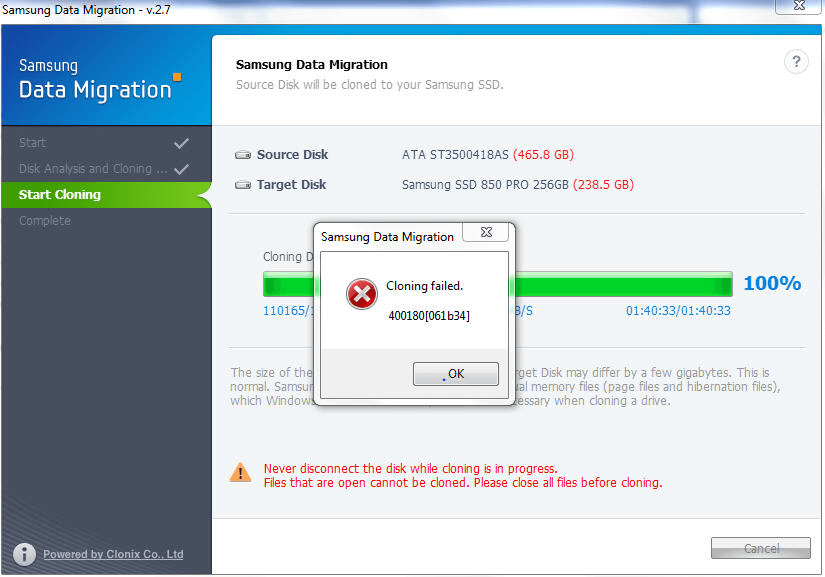
Many users are experiencing issues with the Samsung Data Migration tool failing to clone data, particularly with Samsung SSD 850 PRO or 840 PRO models. This can occur due to various reasons, including software glitches, hardware incompatibilities, or incorrect usage.
Samsung SSD 850 EVO Data Migration Failed: Why and How to Fix?
The Samsung Data Migration software may fail to clone in Windows 10, 8, 7, or XP due to several factors. To resolve the issue, ensure that the software is updated to the latest version. Additionally, checking the error message and finding its corresponding solution may also resolve the problem.
▶ An error occurred while adjusting partition size
Cloning failed due to inappropriate partition size on the original hard drive. Reboot PC, extend or shrink system drive slightly, and connect SSD via SATA or USB to start cloning.
▶ An error occurred while defragmenting the disk
The cloning process failed due to an error while defragmenting the disk, which could be related to either the original hard drive or the target Samsung 850 EVO. To resolve this, it's recommended to defragment the original hard drive or reset the Samsung SSD to its factory settings before proceeding.
▶ Failed to retrieve source information
If you're experiencing the "Failed to retrieve source information" error with Samsung Data Migration, it's likely because you're trying to clone from a larger hard drive to a smaller Samsung 850 EVO or from a non-Samsung disk to a Samsung SSD. To resolve the first issue, try deleting unnecessary files on the hard drive. For the second scenario, consider using a free Samsung 850 EVO data migration tool that's more compatible with the disk.
▶ Samsung Data Migration cloning failed in Windows 8
If you're experiencing cloning issues with Samsung 850 EVO on Windows 8, try right-clicking the Samsung Data Migration icon on your desktop, select "Troubleshoot Compatibility", and let Windows run a check to resolve the issue in Windows 8 compatibility mode.
▶ Other possible errors
If you're experiencing an error like Samsung Data Migration cloning failed due to bad sectors or other errors, try the following: Run a disk check on the source drive to identify and mark bad sectors, then retry the cloning process. If the issue persists, try running a full disk scan with Samsung's Magician software or a third-party tool like CrystalDiskInfo to identify and fix any issues.
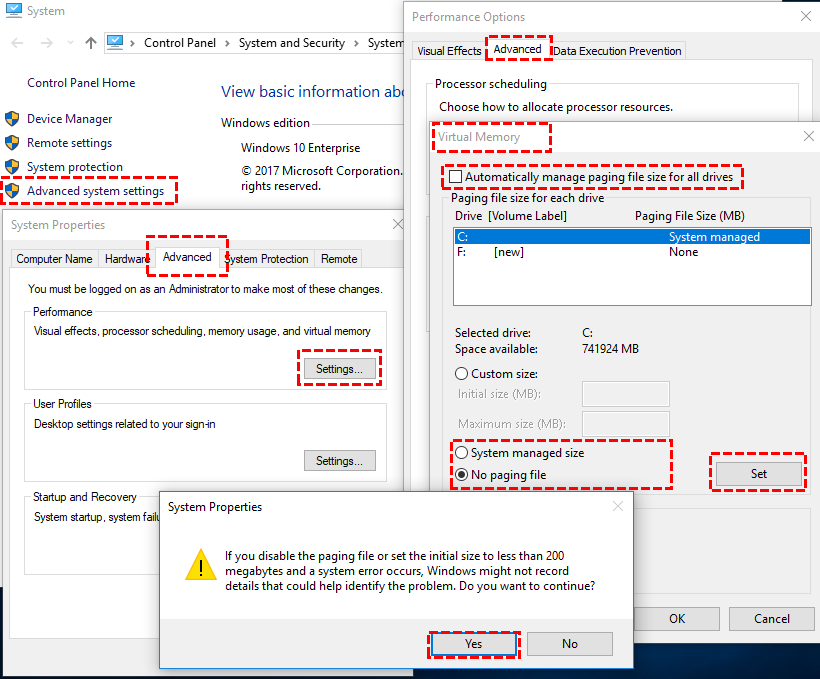
1. Disable the Page File:
• Right-click Computer
• Select Properties
• Select Advanced system settings
• Select the Advanced tab and then the Performance radio button
• Select the Change box under Virtual memory
• Uncheck Automatically manage paging file size for all drives
• The user selects "No paging file" and clicks the "Set" button, then confirms the warning pop-up window by clicking "Yes".
• Select OK to allow and restart
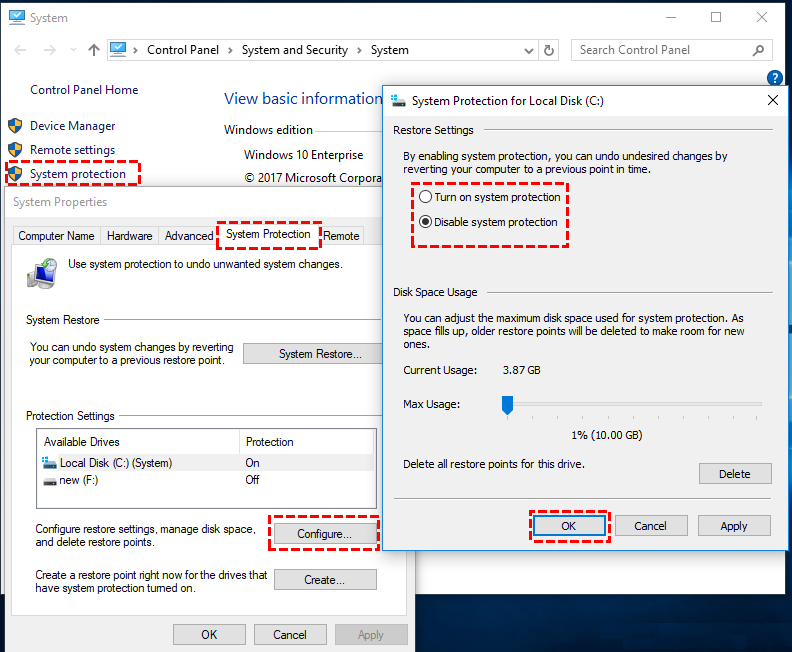
2. Disable Windows System Restore Points: Go to the "Properties" section of your computer, then click on "System Protection", and finally toggle off the "Restore Point Protection" option.
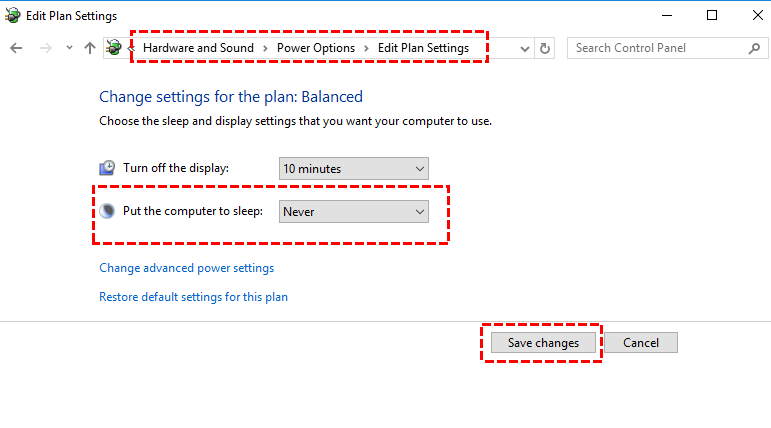
3. Disable Hibernation Files: To change the settings for when the display turns off, follow these steps: go to the Control Panel, then select Power Options, and finally choose when to turn off the display.](s
All-around Samsung 850 EVO Data Migration Software for Windows
If you're still experiencing cloning issues, you can try using Qiling Disk Master Standard for Samsung SSD cloning on Windows 11, 10, 8, 7, Vista, and XP. This alternative solution can help simplify the process.
This software allows you to clone a hard drive to a Samsung 850 EVO SSD or other SSDs, regardless of the hard drive brand. It also provides a solution to clone a hard drive to a smaller Samsung 850 EVO as long as the disk space is sufficient to fit all data. The freeware is available for download to explore its features.
Steps to Clone Hard Drive to Samsung SSD EVO in Windows 10
Before attempting to clone your Samsung 850 EVO drive, it's essential to back up any important data to a safe location to avoid potential data loss. Disk cloning itself won't cause data loss, but improper operations or unexpected situations might. If you encounter issues with Samsung Data Migration, you can try an alternative method to resolve the cloning failure. Would this assist you?
1. Connect the Samsung 850 EVO to your computer and ensure it's detected. If not, refer to the troubleshooting guide for Samsung 850 EVO not detected in Windows 10. Install and launch Qiling Disk Master Standard.
2. Click "Clone Disk" in the Tools and utilities page.

3. The cloning process involves selecting the source disk and clicking "Next" to proceed. This is the initial step in the cloning process, where the user needs to specify the disk from which the clone will be created. The next step would be to select the destination disk and configure any additional settings as required.

4. Disk 1 is the source disk. Select the Samsung 850 EVO SSD as the destination disk. Check "Optimize the performance of SSD" will improve SSD reading and writing speed as well as SSD lifespan.

5. Once you've previewed the virtual outcome, you can edit the partitions on the target SSD to your liking. Once you're satisfied, click "Proceed" to execute the pending operations.

6. To upgrade your computer's storage to a Samsung 850 EVO SSD, you should first shut down your computer. Next, swap the hard drive with the cloned Samsung 850 EVO SSD. Finally, boot your computer from the new drive.
◤ Reboot is required when cloning the system disk.
◤ The "Sector-by-sector Clone" method is a recovery technique that can restore formatted partitions or deleted files without overwriting any new data. This method allows for a complete, sector-by-sector copy of the original data, preserving its integrity, but it does not enable editing of the recovered partition.
◤ To resolve the issue of Samsung 850/840 PRO cloning failure, you can try the following strategy: first, make sure the source and destination drives are both in AHCI mode. If they are not, switch them to AHCI mode and try cloning again.
◤ The Standard Edition only supports cloning MBR data disks, but if you need to clone a system disk, convert between MBR and GPT, or clone between GPT partitions, you'll need to upgrade to a higher edition.the Professional Edition.
◤ Reformat the old hard drive If you're planning to use the new SSD as extra storage, it's essential to ensure that everything on the new SSD works perfectly before formatting. This means installing the operating system, drivers, and any other necessary software, and verifying that all hardware components are functioning correctly. Once you've confirmed that everything is working as expected, you can then format the SSD for use as extra storage.
Conclusion
Solving Samsung 850 EVO data migration failed issues with various computer settings is a good approach, but a powerful alternative SSD cloning tool, such as Qiling Disk Master, can also be a viable option. This tool can help you move your OS to a Samsung SSD.
Related Articles
- SanDisk Unveils 4TB Extreme Portable SSD V2 for Lightning-Fast On-The-Go Storage
If you would like to know about SanDisk 4TB Extreme Portable SSD V2 Review, this post will tell you all you need to know about SanDisk 4TB Extreme Portable SSD V2 with detailed information. - What Is Rufus? Your Best Answers in 2024
Review Rufus features and alternatives for creating bootable USB media in Windows. - Windows KB Update: KB3194798 | KB 3192441 | KB 3192440
This guide explains Windows KB Update: KB3194798 | KB 3192441 | KB 3192440 with clear steps, key checks, and practical tips. - How to Format 64GB SD Card for 3Ds Efficiently
Learn how to Format 64GB SD Card for 3Ds Efficiently with clear steps, key checks, and practical tips. - SSD Clone VS Fresh Install, Which Is Better?
This guide explains SSD Clone VS Fresh Install, Which Is Better with clear steps, key checks, and practical tips. - Freeware: SSD to SSD Clone in Windows 11, 10, 8, 7
With the Qiling Disk Master, you can perform SSD to SSD clone for free in Windows 11, 10, 8, 7. Only several clicks can make it done.
Products
Articles & Tutorials
- Data Recovery
- Data Backup
- File Recovery
- File Backup
- File synchronize
- System Backup and Restore
- Disk and Partition Clone
- Technical articles
- Disk Master Help
- Windows Deleted File and Disk Recovery Tutorials
- Windows File and Data Recovery Tutorials
- More Windows Tutorials for Install, Security, Files, and PC Tips
- Windows Boot, Repair, and Recovery Environment Tutorials
- Windows Backup Tutorials
- Windows Restore Tutorials
- Windows Clone and Migration Tutorials
- Windows Server Backup, Recovery, and Management Tutorials
- Windows Disk, Partition, and Storage Management Tutorials