Top 2 Transcend SSD Migration Tool Download and Guide
Need to Replace Hard Drive with Transcend SSD
Transcend SSDs are known for their reliability and performance, offering a range of products including 2.5 SSDs, M.2 SSDs, mSATA SSDs, and portable SSDs like the ESD400 USB3.0 Portable SSD.
Transcend SSDs are known for being low-power consuming and fast-responding, with capacities ranging from 32GB to 1TB, making them suitable for various needs.
When replacing an old hard drive with a Transcend SSD, a common issue is how to transfer data without losing it or reinstalling Windows. Fortunately, Transcend offers a simple solution with their SSD migration tool, which allows you to easily move everything from your old disk to your new Transcend SSD.

Transcend SSD Migration Tool Review and Download
After buying a Transcend SSD, it's essential to find an efficient tool to transfer data from your old hard drive to the new disk. To make this process seamless, you'll need a reliable Transcend SSD clone software that can handle the transfer efficiently. With so many options available, it can be challenging to determine which one is the best for your needs.
Transcend SSD Scope
Transcend, like Samsung, offers its own software for SSD products, called SSD Scope, which serves as both a data migration tool and an SSD maintenance program. Users who have purchased a Transcend SSD product will receive the Transcend SSD Scope software as part of their purchase.
This software, Transcend SSD Scope, offers various features such as viewing drive information, S.M.A.R.T. status, and performing diagnostic scans. It also enables secure erase, firmware updates, TRIM enable, health indicators, and system cloning. However, for data migration, it's recommended to use a different approach.
You can download SSD Scope in the official site.

- Many users have reported that Transcend SSD Scope sometimes fails to work for system clone, which can result in the source hard drive becoming inaccessible and the target SSD being unable to find any data. However, this seems to be a rare occurrence.
- When cloning the entire hard drive to a smaller Transcend SSD for upgrading, you may encounter an error message stating that the "Destination disk size must be larger than OS partition!"
- The Transcend SSD Scope does not support Windows XP operating system.
If your data migration process is being hindered by the points mentioned, it's a good idea to consider using reliable third-party cloning software for Transcend SSD migration.
Qiling Disk Master
Qiling Disk Master Professional is a backup and clone software that supports all Windows editions from XP to Windows 11.
▪ This software has no brand or model restrictions, allowing you to migrate data between any hard drives (HDDs) and solid state drives (SSDs) that are detected by Windows.
▪ Qiling Disk Master offers three cloning methods to cater to different user needs: Disk Clone, System Clone, and Partition Clone. This allows users to clone an entire disk, a system partition, or a specific partition on the disk, giving them flexibility and control over the cloning process.
▪ Qiling Disk Master supports two cloning modes: Intelligent Clone and Sector by Sector Clone. The Intelligent Clone mode enables cloning a larger hard drive to a smaller drive by copying only used sectors, making it possible to clone larger drives to smaller ones. On the other hand, the Sector by Sector Clone mode allows you to copy all sectors, including the hidden system reserved partition.
To install Qiling Disk Master, click the download button provided, which will initiate the installation process. Once downloaded, simply start the application to begin using it.
- The cloning operation can only be demonstrated in the trial version, so users should upgrade to enjoy full functionality.
- If you are running Windows Server, there's also a Server edition.
Use Transcend SSD Scope System Clone to Clone Disk
1. Connect your Transcend SSD and ensure it's recognized. Install Transcend SSD Scope on your computer.
- Notes:✎...
- Please clone all the running programs before starting cloning process.?
2. Open the Transcend SSD Scope, in the left panel, click System Clone.
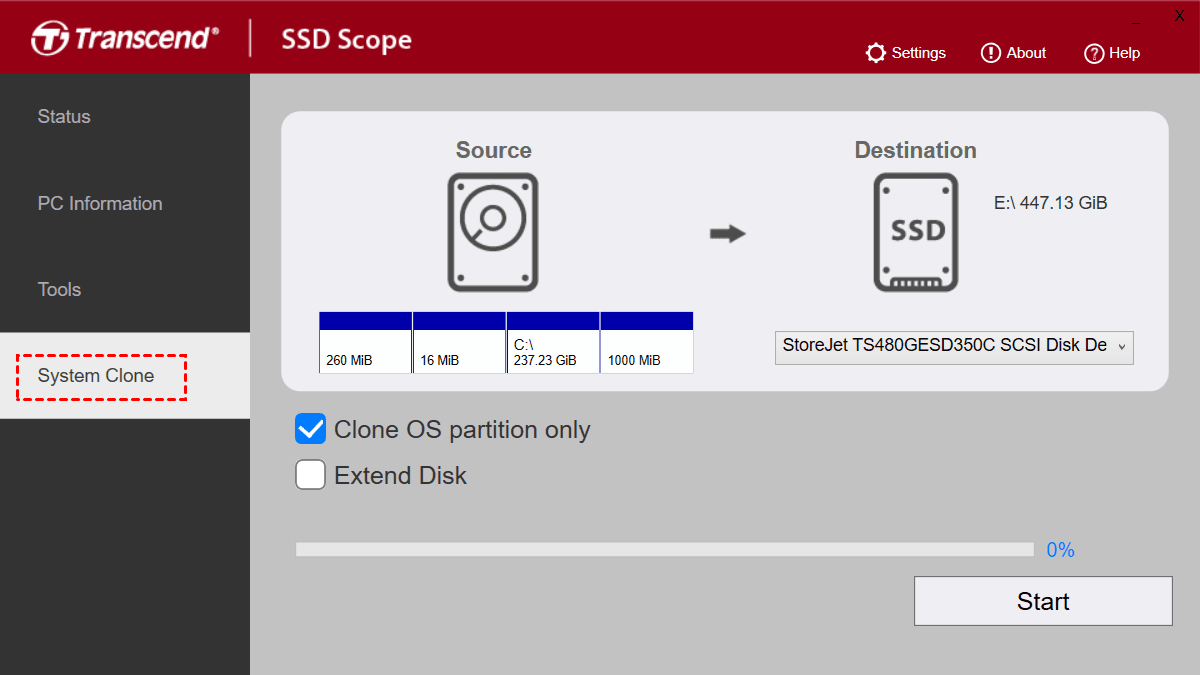
3. To select the correct SSD disk, click the Destination drop-down list, which will display all available SSD disks with sufficient free space. Then, choose the one that was previously connected.
4. In the lower left corner, you'll see two options: Clone OS partition only and Extend Disk.
- Uncheck the first option To clone a hard drive to a Transcend SSD, you can use software like Qiling Disk Master. These programs allow you to create a bit-for-bit copy of your entire hard drive, including the operating system, programs, and data, onto the SSD.
- If the SSD is larger than the original hard drive, tick the second option to extend the last partition to include the remaining SSD space. This will utilize the extra space on the SSD.
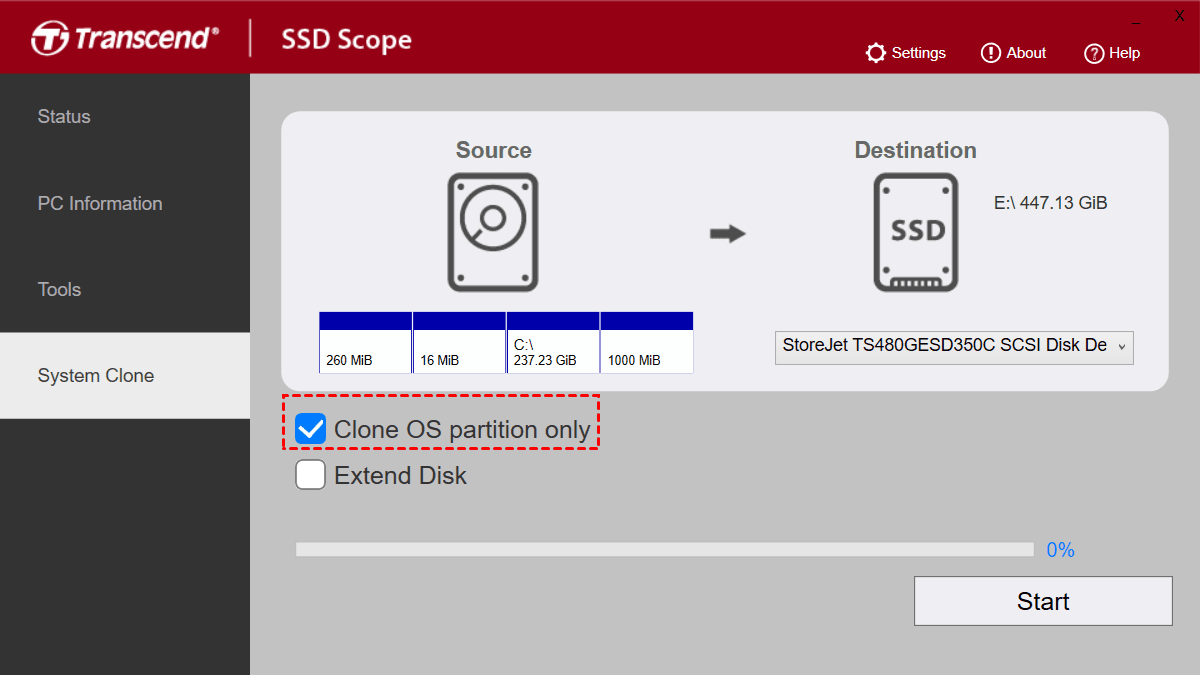
5. To start the cloning process, click Start. You will then be notified that all data on the Tanscend SSD will be erased, so click OK to proceed. If you have important data, please back them up first.
Use Qiling Disk Master for Transcend SSD Data Migration
This software clones only used sectors to the target disk, allowing you to successfully clone a HDD to an SSD in Windows 10, even if the SSD is smaller, as long as it has enough space to hold all the existing data on the source disk.
1. Connect the Transcend SSD to your PC via an extra disk bay or a USB-to-SATA cable, and then launch Qiling Disk Master.
2. To clone an entire hard disk, go to Clone > Disk Clone, while to move the OS drive to a smaller SSD, select System Clone.

3. Select the current hard drive as the source disk, and then click Next.

4. Select Transcend SSD as the destination disk. Then, click Next.

You will be warned that the destination disk you choose will be completely erased and replaced with the new data. To avoid losing important files, please back them up to a safe location before proceeding. If you're sure, click OK to continue.
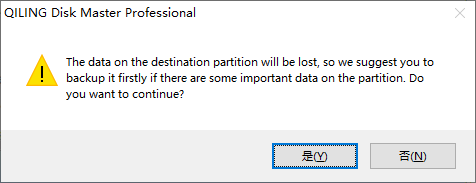
5. Check SSD Alignment to accelerate the reading and writing speed of SSD disk and prolong its life span when cloning a disk to SSD, then confirm all selected items and click Proceed.

- ★Tips:
- Edit Partitions: It supports two options: adding unused space to all partitions and manually adjusting partition size, which enables extending the remaining free space of an SSD disk.
- Sector by sector clone: This software clones all sectors of a hard drive to another, but if you uncheck it, it clones only the used part in Intelligent Clone mode by default.
- To replace the hard drive in a laptop, it's recommended to use the Backup & Restore method to ensure a successful boot. For more information and step-by-step instructions with screenshots, see the Sony laptop hard drive upgrade guide.
This Transcend SSD clone tool also supports cloning a hard drive with bad sectors. It offers a command line clone feature for advanced users, allowing them to clone a hard drive to a Transcend SSD in the Command Prompt.
Following are detailed steps to clone disk 0 to disk 1 and using partition alignment to optimize for Intenso SSD.
1. You can quickly open the Command Prompt on Windows by pressing the Windows key + R to open the "Run" window, then typing "cmd" and pressing Enter. This will open the Command Prompt where you can execute commands and perform various tasks.
2. To run DiskMasterUI.exe, simply type "cd" followed by the installation path of Qiling Disk Master, such as "cd C:\Program Files\Qiling Disk Master".
3. The command to start a clone task is: "DiskMasterUI /c /t Disk /s 0 /d 1 /a" which should be typed to initiate the cloning process.
Description:
*[/c]: means clone;
The term "clone" in the context of computer systems and storage devices refers to the process of creating an exact replica or copy of an existing system, disk, or partition. This includes disk cloning, which involves copying a hard drive or solid-state drive (SSD) to create an identical duplicate; system cloning, which involves copying the entire operating system, including installed applications and settings; and partition cloning, which involves copying a specific partition or section of a disk to another location.
*[/s]: means source disk;
*[/d]: means destination disk;
*[/a]: means partition alignment;
For more command line operations, please refer to Qiling Disk Master Command Help.
Summary
Transcend's SSD Scope migration tool, similar to Samsung's, sometimes fails to support cloning a larger hard drive to a smaller Transcend SSD, leaving users frustrated.
If you're looking for an alternative to Transcend SSD Scope, consider using Qiling Disk Master Professional. This software offers three cloning methods and two cloning modes, allowing you to clone all sectors or only used sectors of a system, disk, or partition. Additionally, it provides features like SSD Alignment and Edit Partitions, making it a useful tool for managing and cloning disk data.
Qiling Disk Master is not only a data migration tool, but also a data protector that allows you to back up hard drives without booting Windows, schedule backups, and protect system, partition, or specific files.
Related Articles
- Clone Old Hard Drive to New SSD/HDD without Reinstalling
- Clone UEFI GPT Disk to SSD Successfully and Secure Boot
- Best Free Alternative to XXClone for Windows 10/8/7
- Best Windows 10 Migration Tool (Two Ways Included)
- 3 Tips | How to Install Windows 7 on NVMe SSD for Laptop & PC
If you're unsure how to install Windows 7 on an NVMe SSD, this post can guide you. After reading, you'll learn 3 ways to install your Windows 7 on an NVMe SSD, making the process easier. - Super Easy | How to Install Windows After Replacing Hard Drive🔥
This is a detailed tutorial on how to install Windows after replacing hard drive. In this article, you will get how to install Windows after changing a laptop hard drive.
Products
Articles & Tutorials
- Data Recovery
- Data Backup
- File Recovery
- File Backup
- File synchronize
- System Backup and Restore
- Disk and Partition Clone
- Technical articles
- Disk Master Help
- Windows Deleted File and Disk Recovery Tutorials
- Windows File and Data Recovery Tutorials
- More Windows Tutorials for Install, Security, Files, and PC Tips
- Windows Boot, Repair, and Recovery Environment Tutorials
- Windows Backup Tutorials
- Windows Restore Tutorials
- Windows Clone and Migration Tutorials
- Windows Server Backup, Recovery, and Management Tutorials
- Windows Disk, Partition, and Storage Management Tutorials