Qiling Disk Master vs Macrium Reflect, Which One Suits Better?
Qiling Disk Master vs Macrium Reflect, Which One to Choose?
If you're looking to protect your computer with a powerful backup software, you have two popular Windows backup utility options: Qiling Disk Master and Macrium Reflect. Both are effective tools, but the choice between them depends on your specific needs and preferences. To help you decide, it's worth considering what features are most important to you, such as data protection, system recovery, and disk imaging.
Both Qiling Disk Master Standard and Macrium Reflect Free have their own advantages, and it's essential to consider them dialectically. The key difference between the two lies in their features and functionalities, which can be explored in more detail to determine which one suits your needs better.
Let's have glance at the content:
- Comparison | Macrium Reflect vs Qiling Disk Master
- Tutorial | Steps to Back up Hard Drive Using Free Qiling Disk Master
- Tutorial | Steps to Create Disk Backup with Free Macrium Reflect
- Conclusion
Comparison | Macrium Reflect vs Qiling Disk Master
Qiling Disk Master Standard is a free backup software that allows users to backup and clone entire hard disks, operating systems, partitions, files, and folders, as well as sync data in Windows PC systems, including Windows 11, 10, 8.1, 7, Vista, and XP (all 32-bit and 64-bit versions).
Macrium Reflect Free is the free version of Macrium Reflect, allowing users to backup and clone their hard disk, OS, or partitions in Windows PCs and WHS.
The following chart shows their similarities and differences in main aspects.
Compare the Free Editions
| Product | Qiling Disk Master Standard | Macrium Reflect Free |
| Specifications | ||
| Price | Free | Free |
| OS Supported | Windows PCs | Windows PCs & WHS |
| Backup Types | ||
| Files and Folders Backup | √ | - |
| Full Disk Backup | √ | √ |
| Incremental Backup | √ | - |
| Differential Backup | - | √ |
| Schedule Backup | √ | √ |
| Backup Destinations | ||
| Local or External Hard Disk | √ | √ |
| Removable Media | √ | √ |
| Network Share | √ | √ |
| CD/DVD | - | - |
| Features | ||
| Compression | √ | √ |
| Splitting | √ | √ |
| Encryption | - | - |
| Email Notifications | √ | - |
| Retention Policy | - | √ |
| File Synchronization | √ | - |
| Disk or Partition Clone | √ | √ |
| Disk or Partition Backup | √ | √ |
Chart 1: Qiling Disk Master Standard vs Macrium Reflect Free
Compare the Paid Editions
If you prefer to try the advanced editions of both backup software, you can take advantage of their 30-day free trials. Alternatively, you can compare the two options using the chart provided, which highlights the key differences between the two advanced editions.
| Product | Qiling Disk Master Professional | Macrium Reflect Home |
| Specifications | ||
| License | 1 PC / License | 1 PC / License |
| Price | from $39.95 | $69.95 |
| OS Supported | Windows PCs | Windows PCs & WHS |
| Backup Types | ||
| Files and Folders Backup | √ | √ |
| Full Disk Backup | √ | √ |
| Incremental Backup | √ | √ |
| Differential Backup | √ | √ |
| Schedule Backup | √ | √ |
| Backup Destinations | ||
| Local or External Hard Disk | √ | √ |
| Removable Media | √ | √ |
| Network Share | √ | √ |
| CD/DVD | √ | - |
| Features | ||
| Compression | √ | √ |
| Splitting | √ | √ |
| Encryption | √ | √ |
| Email Notifications | √ | √ |
| Retention Policy | √ | √ |
| File Synchronization | √ | - |
| Disk or Partition Clone | √ | √ |
| Disk or Partition Backup | √ | √ |
Chart 2: Qiling Disk Master Professional vs Macrium Reflect Home
Qiling Disk Master Standard offers several advantages over Macrium Reflect Free, including file synchronization, incremental backup, email notifications, and file and folder backup capabilities, providing a more comprehensive set of data protection features.
Macrium Reflect Free offers its own strengths, such as a retention policy to automatically delete old backup images and free up disk space, and differential backup, which allows for more efficient backup and storage management.
To protect your data from system failure, hardware failure, virus attacks, and ransomware, choose a suitable free backup software. You can create a disk backup in Windows 10 using Qiling Disk Master or Macrium Reflect Free, for example.
Tutorial | Steps to Back up Hard Drive Using Free Qiling Disk Master
To create a disk backup to an external hard disk in Windows 10, follow these steps: Connect the external hard disk to your computer, then go to Settings > Update & Security > Backup, and select the drive you want to back up. Choose the backup type, and click Next.
Step 1. Download, install, and run Qiling Disk Master Standard. Then, select Backup > Disk Backup.

Step 2. Click Disks to choose the Windows 10 hard disk as the source disk, then rename the Task Name if necessary.
Tip: You could backup multiple hard disks at the same time.
Step 3. Select the external hard disk as the destination to save the Windows 10 system image file.

Step 4. To schedule a backup, click on "Schedule", select a mode (Daily, Weekly, Monthly, Event Triggers, or USB plug in feature), and then go to "Backup Scheme" below to choose "Incremental Backup" under the Backup Method.

Tips:
The Event Triggers and USB plug in, and scheduled differential backup are premium features, available in Qiling Disk Master Professional or higher edition.
Options allows you to encrypt, split, compress, comment, use VSS, intelligent sector backup, enable email notification, etc. in addition to the premium feature of encrypting.
Scheme allows you to enable a backup scheme to automatically delete old backup images when the number of backups exceeds the specified amount.
Step 5. To automate the creation of a Windows 10 system image backup to an external hard disk, click the "Proceed" button, which will initiate the process of creating a system image backup on a regular basis.

Tutorial | Steps to Create Disk Backup with Free Macrium Reflect
Download Macrium Reflect Free and open the software to create disk backup in Windows 10. Launch Macrium Reflect Free, select the disk you want to backup, choose a backup destination, select the backup type, and click Next.
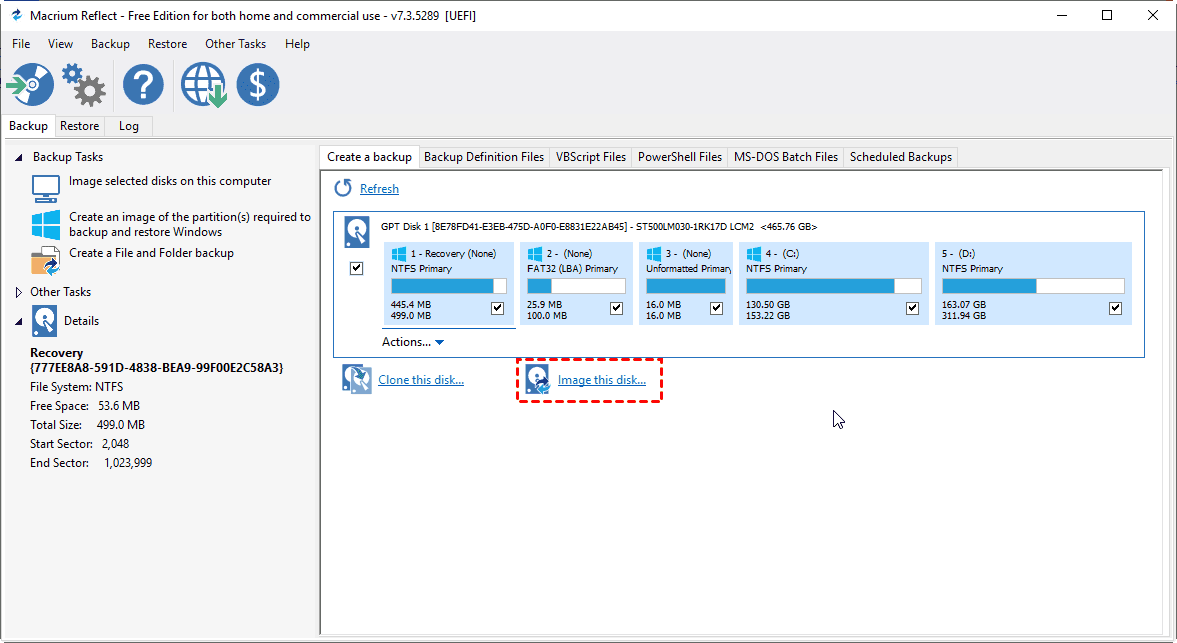
1. On the main window, click Image this disk....
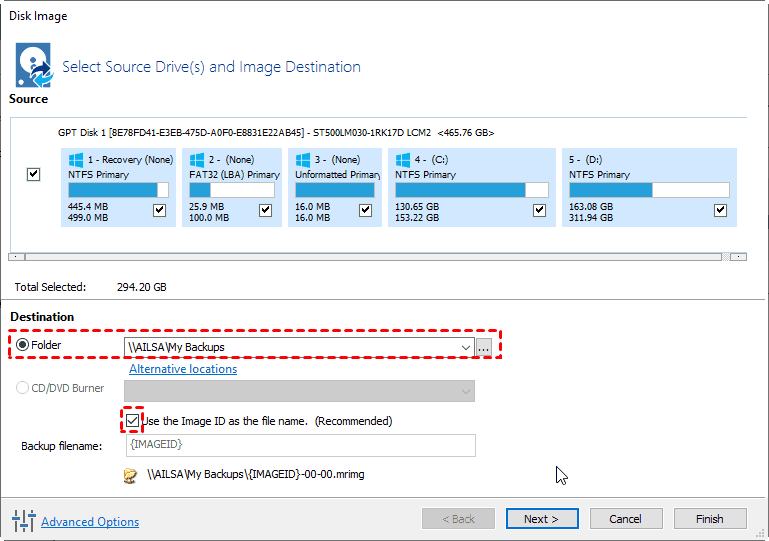
2. Choose a destination for the Windows 10 disk image, and select the option to use the Image ID as the file name, then click Next.
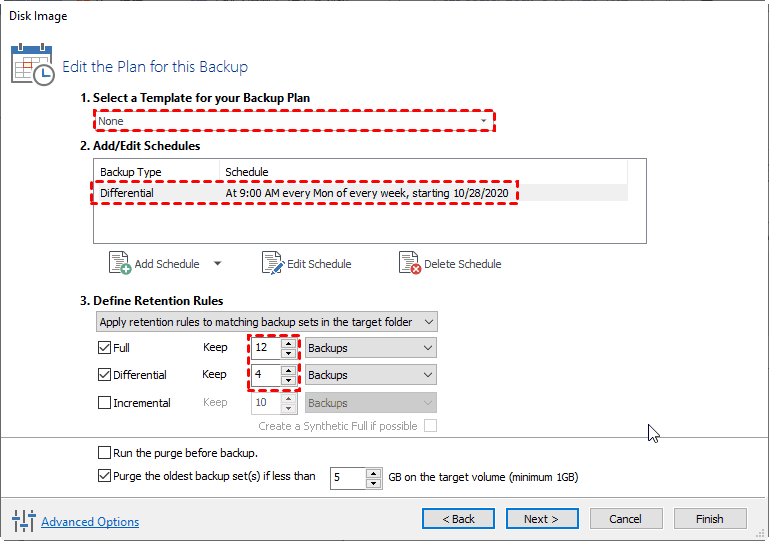
3. Edit the plan for this backup, and click Next >.
Select a template for your backup plan, there are 5 templates: None; Grandfather Father Son; Differential Backup Set; Incremental Backup Set; Incremental Forever.
> Add/Edit Schedules: To add a schedule to your backup, click the "Add Schedule" button and select the type of backup you want to run, which can be Full, Incremental (paid), or Differential. Then, set up the specific settings for that schedule.
To set retention rules, define the backups you want to keep. This involves specifying how long you want to retain your backups, such as daily, weekly, or monthly, and the number of backups to keep for each retention period.
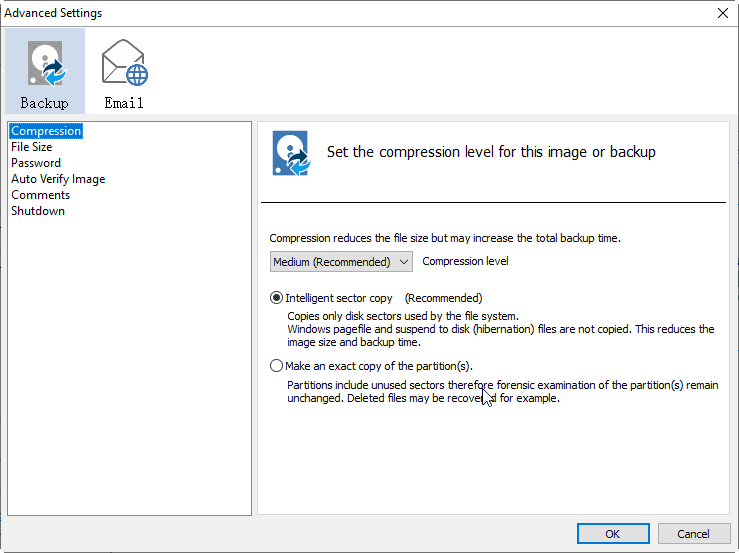
4. To access advanced options for a backup task, click on the "Advanced Options" button. This feature enables users to customize their backup process by selecting options such as using intelligent sector copy, creating an exact copy of the partitions, encrypting the disk image, adding comments to the backup task, and sending email notifications.
5. Preview the Windows 10 disk backup settings, and click Finish.
Conclusion
Both Qiling Disk Master and Macrium Reflect are popular backup and cloning software for Windows users, earning many loyal users over the years.
When choosing between the two, consider your specific needs and budget. Qiling Disk Master Professional offers a broader feature set at a lower price, including file synchronization, email notifications, and cloud backup. Macrium Reflect Home, while more expensive, provides a streamlined experience with strong disk imaging and retention capabilities. Both are reliable choices for protecting your data.
Related Articles
- 5 Ways to Fix Macrium Reflect Clone Failed Error [Proven to Work]
This guide explains 5 Ways to Fix Macrium Reflect Clone Failed Error with clear steps, key checks, and practical tips. - How to Clone Dynamic Disk in Windows 7/8/10 Effortlessly
You will learn how to easily clone dynamic disk (to HDD or SSD) in Windows 7 without losing data. And this applies to Windows 8, 10, 11. - Best Free Macrium Reflect Alternative in Windows 10/8/7
If you want to find a Macrium Reflect alternative to make up for its shortcomings, Qiling Disk Master is the best free solution with more complete features.
Products
Articles & Tutorials
- Data Recovery
- Data Backup
- File Recovery
- File Backup
- File synchronize
- System Backup and Restore
- Disk and Partition Clone
- Technical articles
- Disk Master Help
- Windows Deleted File and Disk Recovery Tutorials
- Windows File and Data Recovery Tutorials
- More Windows Tutorials for Install, Security, Files, and PC Tips
- Windows Boot, Repair, and Recovery Environment Tutorials
- Windows Backup Tutorials
- Windows Restore Tutorials
- Windows Clone and Migration Tutorials
- Windows Server Backup, Recovery, and Management Tutorials
- Windows Disk, Partition, and Storage Management Tutorials