How to Fix Locked SD Card and Recover Photos on Locked SD Card
When your SD card is write-If your SD card becomes locked or write-protected, it becomes inaccessible and you risk losing your files, including precious photos. However, you don't have to worry as there are effective ways to fix the issue and recover your photos and documents. You can unlock your SD card manually or remove the write-protection feature through your Windows or Mac device.
If the card is also blank or unsupported, see SD card unsupported file system fixes before formatting.
- Quick Navigation
- Part 1. How to Unlock SD Card
- Part 2. How to Recover Pictures Lost/Deleted on SD Card
Part 1. How to Unlock SD Card
Method 1. Slide the Lock Switch on the SD Card
Some SD cards come with a physical lock switch that can prevent access to the files on the device. Fortunately, you can remove the physical lock and write protection on the SD card. If you need to fix a locked SD card, follow the simple methods highlighted below to regain access to your files.
1. The left side of the SD card has a Lock switch, which can be used to secure the card.
2. Slide the Lock switch up to the unlock position to access the files in it. To lock the files again, slide the Lock switch down to the lock position.
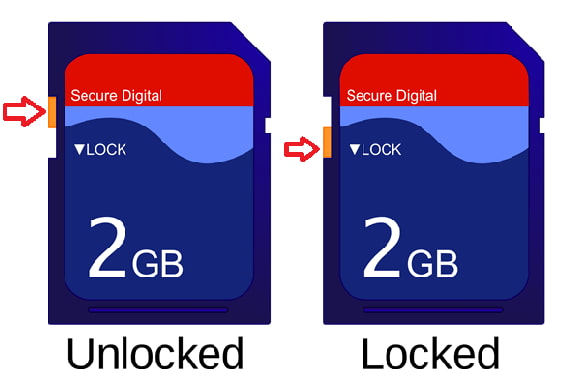
Check the lock switch on the SD card to ensure it is not loose, and consider replacing the SD card if it is. This should resolve the issue with the lock.
Method 2. Run Command Line on Windows PC to unlock SD Card
You can unlock your SD card on a Windows PC using the Command-Line to remove the write protection that's on the card. To do this, follow these steps: 1. Open the Command-Line, 2. Type in the command to unlock the SD card, and 3.
1. To insert the SD card into your PC, insert it into a card reader and connect the reader to your computer. Then, press the Windows key + R keys on your keyboard to open the Run dialog box.
2. To open the Command Prompt, type "CMD" in the search bar and click "OK".
3. When the window comes up, type "Diskpart" and click "Enter".
4. Next, type in "List disk" and click "Enter".
5. Select the disk associated with the SD card on your PC, and then click "Enter" to proceed.
6. Type in "Attributes disk clear readonly" and click "Enter".
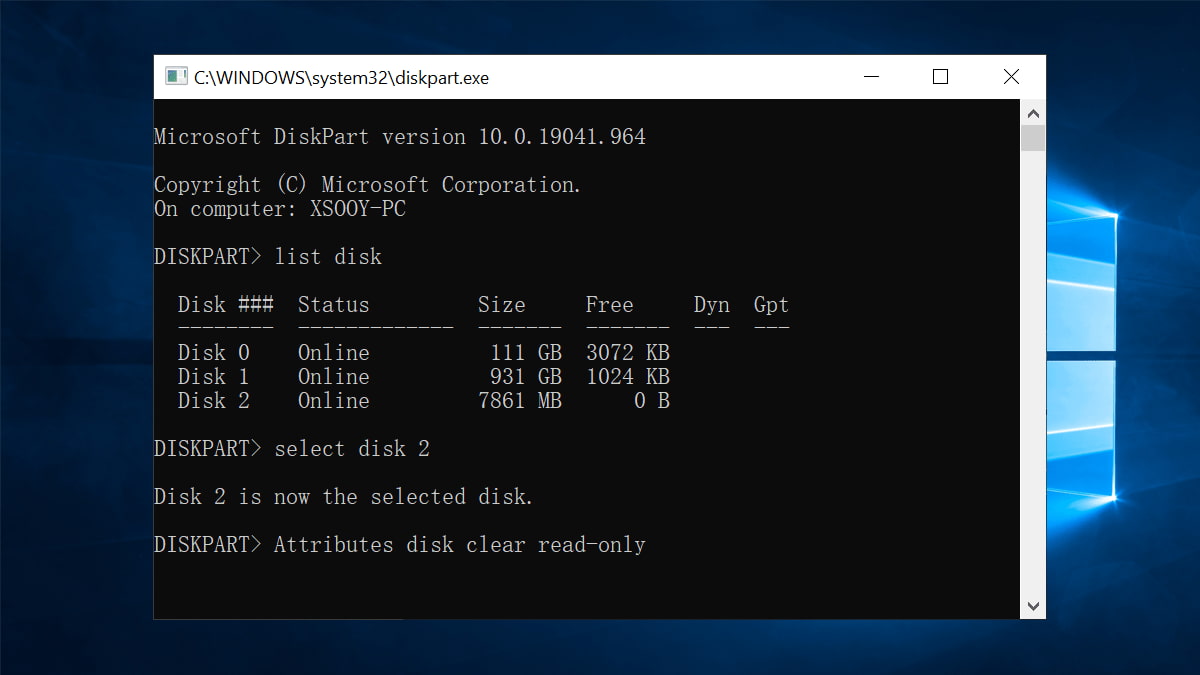
7. Exit the command line prompt by typing "exit" and pressing enter. Then, navigate to the SD card and check if you can view your photos.
Method 3. How to Unlock SD Card on Mac
To unlock an SD card on a Mac, you can use the Disk Utility app. This process allows you to unlock the card and also make changes to documents with read-only properties. First, connect the SD card to your Mac device. Then, open the Disk Utility app and select the SD card from the list on the left. Click on the "Erase" button and then select the "Quick Erase" option.
1. Connect the SD card to your Mac PC
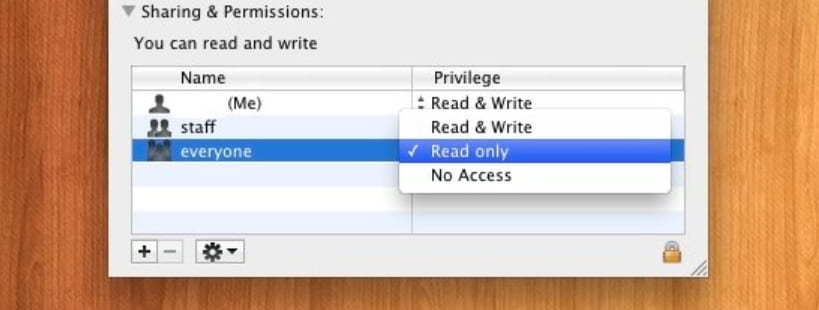
2. Right-click on a file on the SD card, select "Get Info", then under "Sharing & Permissions", find "Privilege" and locate "Read-only".
3. Click on the lock icon and provide the administrator password.
4. To enable editing, click the "Read-only" menu and select the "Read & Write" option from the dropdown. This change will allow you to make changes to the document.
If your SD card is locked due to an error, you can fix it using the First Aid feature on your Mac. To do this, follow the steps below.
1. To start the "Disk Utility" program, click on the "Go" menu and then select "Utilities".
2. To run the First Aid tool on your Mac, select the SD card from the list of available drives on your Mac PC and click on the "First Aid" tab on your system. This will initiate a diagnostic scan and repair any issues found.
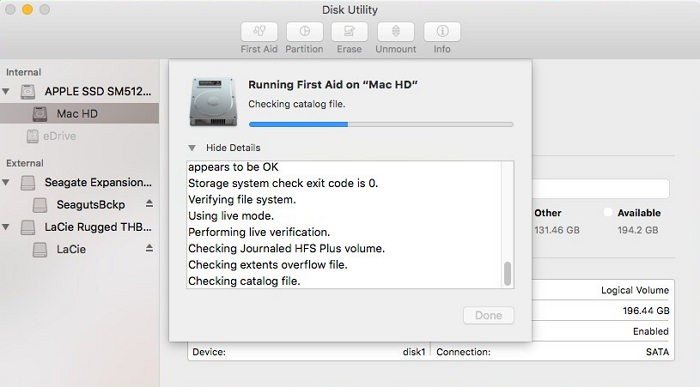
3. Click on "Run" to initiate the disk volume repair process, which will address errors and permissions.
4. Wait for it to finish and then click "Done".
If you're experiencing an issue with a locked SD card on your Mac, try restarting your computer and then ejecting the SD card from the Finder. If this doesn't work, you can also try using the Disk Utility app to repair the disk permissions and then try to eject the SD card again. If neither of these steps resolve the issue, you can attempt the next method to resolve the problem.
Method 4. Use Password to Unlock SD Card
If your SD card is locked with a password, this method is the best way to go. If you used 3rd-party encryption software to encrypt the card, you can decrypt it using the password. To fix a locked SD memory card with a password, follow these steps.
1. nsert the locked SD card into the source Smartphone and restart it.
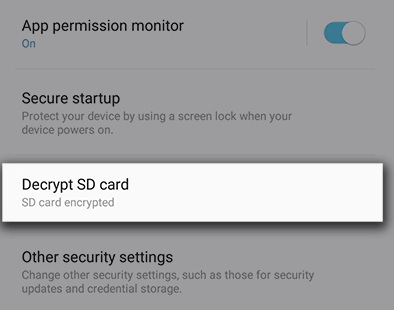
2. To access the lock screen and security settings, go to the "Settings" tab and click on "Lock screen & Security".
3. Click on "Decrypt SD Card" at the bottom of the menu.
4. To decrypt an SD card using a password, click on "Decrypt SD Card" and enter the password, then wait for the decryption process to complete, allowing you to access the SD card. It's recommended to keep the device charging throughout the process or ensure enough battery power before starting.
Method 5. Force Format SD Card
If your SD card is locked due to a virus, it may need to be formatted to work again, which will erase all data on the card.
You can recover lost data from a locked SD card by using a reliable data recovery tool. To fix a locked SD card, you can try force formatting it, which may restore access to your data.
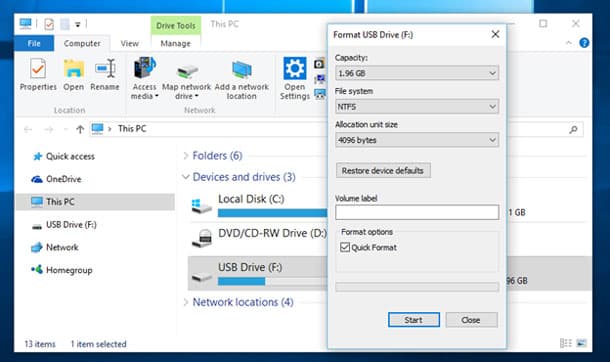
1. Insert the SD card into a card reader and then connect it to your computer system.
2. To format an SD card, open "My Computer", locate the SD card icon, right-click on it, select the "Format" tab, choose "Quick" from the drop-down menu, and click "OK".
Part 2. How to Recover Pictures Lost/Deleted on SD Card
If you format your SD card to unlock it, or accidentally delete or lose data on it through other means, there are still ways to recover the data. Tools like Deep Data Recovery software can help you retrieve your lost files, so be sure to check them out if you're in need of data recovery assistance.
What is Deep Data Recovery Software?
The Deep Data Recovery tool is a reliable and user-friendly solution for recovering data from any device, compatible with all operating systems, including Windows and Mac. Whether you've lost files of any type, this professional tool can recover them effectively, and is virus-free, making it a trustworthy choice.
Your Safe & Effective SD Card Recovery Software
- Recovers files from computer partitions and disks, as well as other removable devices such as USB flash drives, SD cards, camcorders, and more.
- The service provides a preview feature, allowing users to preview recoverable files before saving them.
- The best SD card file recovery software prevents data loss with an exceptional recovery vault, automatically resolving corrupted videos, pictures, and documents, among others.
- This software recovers data from various devices, including formatted drives, lost volumes, hard disk drives (HDD) and solid state drives (SSD), desktop and laptop computers, compact flash (CF) and secure digital (SD) cards, and digital cameras.
To recover data from an SD card, download a data recovery software, such as Deep Data Recovery, and follow the on-screen instructions to scan the SD card for recoverable files. Make sure to stop using the SD card immediately and not to save any new files to it to avoid overwriting the existing data. The software will then display a list of recoverable files, and you can select the ones you want to recover. Be aware that the success of the recovery process depends on the severity of the data loss and the quality of the recovery software used.
Step-by-step Guide on how to recover Data from SD Card
1. Download and install the Deep Data Recovery tool on your computer, which is compatible with all Windows versions, including Windows 11, 10, 8.1, 8, 7, and all macOS versions, but avoid saving it on the same partition as the deleted files.
2. Connect your SD card to your computer, launch the software, move your cursor to the target drive where files were deleted, and click "Scan" to start the recovery process.
3. After scanning, check the scanned results in the folders labeled "Deleted Files", "Other Lost Files", and "Existing Files".
4. Select the desired files to restore, then click "Recover" to locate the folder on your PC and save the files.

Having a locked SD card that prevents access to your photos and files can be frustrating, but the issue can be resolved. Fortunately, there are several methods that can help unlock your SD card and regain access to your files. This post outlines five different approaches to unlocking your SD card, each with detailed steps to guide you through the process.
The Deep Data Recovery tool offers a reliable solution for recovering lost or deleted files from SD cards, external devices, and computers. It can resolve locked SD card issues and enable users to recover photos and other files with ease.
Related Articles
- The Causes of GoPro SD Card Errors and How to Fix it
- Fix SD Card Is Blank or Has Unsupported File System
- How to Repair Corrupted Hard Drive
- Backup and Sync External Hard Drives with Google Drive
This page introduces an efficient way to back up and sync an external hard drive with Google Drive, whether from or to it. - Windows Server Backup Delete Old Backups Automatically
This guide explains Windows Server Backup Delete Old Backups Automatically with clear steps, key checks, and practical tips. - Delete Shadow Copies in Windows Server 2012 R2 (3 Ways)
You can learn how to delete shadow copies in Windows Server 2012 R2 with 3 effective methods, as well as one more powerful protect it and save disk space.
Products
Articles & Tutorials
- Data Recovery
- Data Backup
- File Recovery
- File Backup
- File synchronize
- System Backup and Restore
- Disk and Partition Clone
- Technical articles
- Disk Master Help
- Windows Deleted File and Disk Recovery Tutorials
- Windows File and Data Recovery Tutorials
- More Windows Tutorials for Install, Security, Files, and PC Tips
- Windows Boot, Repair, and Recovery Environment Tutorials
- Windows Backup Tutorials
- Windows Restore Tutorials
- Windows Clone and Migration Tutorials
- Windows Server Backup, Recovery, and Management Tutorials
- Windows Disk, Partition, and Storage Management Tutorials