Fix GoPro SD Card Error and GoPro SD Card Error Recovery
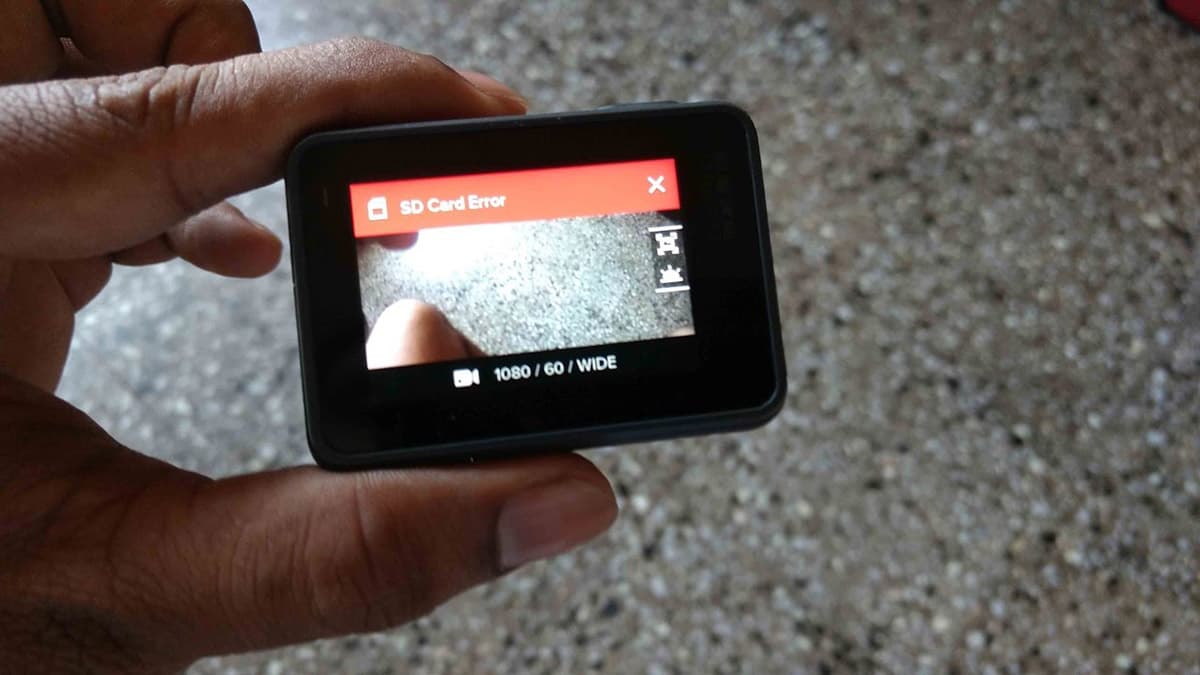
The GoPro Hero series, including the 7, 8, 9, and 10 models, often display "SD card error" and "No SD card" messages, leaving users frustrated. However, after investigating the issue, it's found that this is not a major problem and can be easily resolved by understanding the underlying cause and following the troubleshooting steps to fix the issue.
If the GoPro card contains deleted videos, this GoPro data recovery guide explains how to recover footage before formatting.
- Quick Navigation
- Part 1. The major 6 causes of GoPro SD card error and how to fix SD card error GoPro respectively
- Part 2. How to GoPro SD card error recovery
Part 1. The major 6 causes of GoPro SD card error and how to fix SD card error GoPro respectively
The GoPro 10/9/8/7 SD card error can be caused by 4 major issues, and it's essential to check your SD card carefully to determine the specific problem and take corrective action accordingly.
#1. Fix GoPro card is 'SD ERR' or 'SD ERROR'
- Backup all photos and videos to other drives
- Make sure the memory card and GoPro are connected properly
- Power on your GoPro
- Open "Settings"
- To delete all files and data from your SD card, select the recycle bin icon. This will initiate the deletion of all contents on your SD card, effectively formatting it.
- Exit this menu
#2. Repair GoPro SD Card Error of 'NO SD'
If the SD card is fully inserted into the GoPro and the same error is displayed after powering on, a Windows PC or Mac is required to resolve the issue with the "GoPro hero 10/9/8 SD Card Error".
Backup files on the SD card to the computer before deleting them. If the data is unnecessary, it can be ignored.
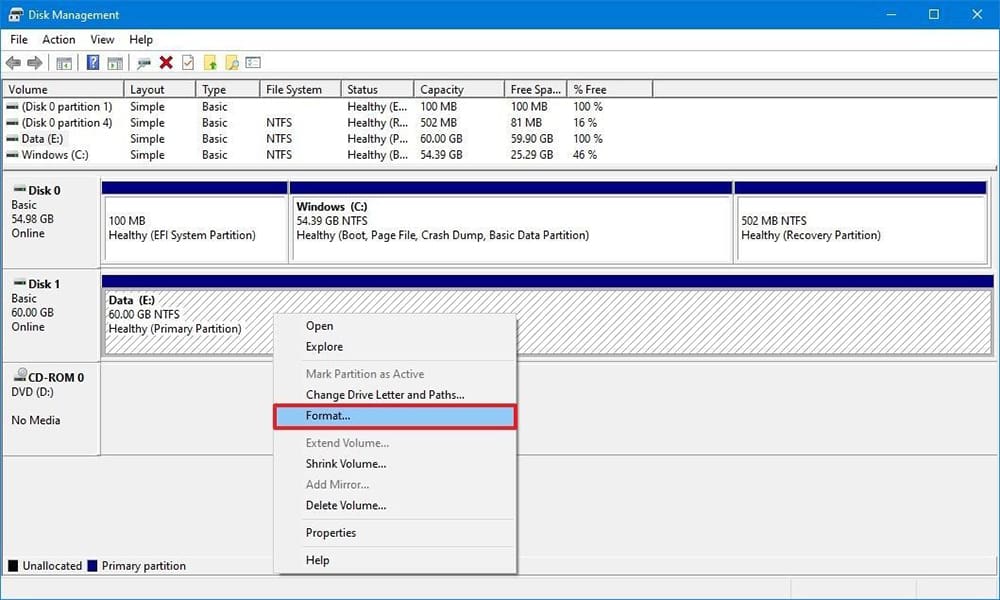
for Windows User
- Connect GoPro card to PC using card reader
- Hold "Windows + R" at the same time
- Type "cmd" and click the OK button
- In the window that opens, type "compmgmt.msc" and press Enter
- Click "Disk Management" in the list on the left
- Select GoPro SD Card in the list of drives
- Right-click and select "Format..." from the menu
- Select the file system as "FAT32"
for Mac User
- Connect the memory card to the Mac
- Open Disk Utility
- Select your GoPro card and click "Erase" at the top of the window.
- If the storage space is less than 32GB, select "MS-DOS (FAT)" in the "Format" menu. Otherwise, select "ExFAT".
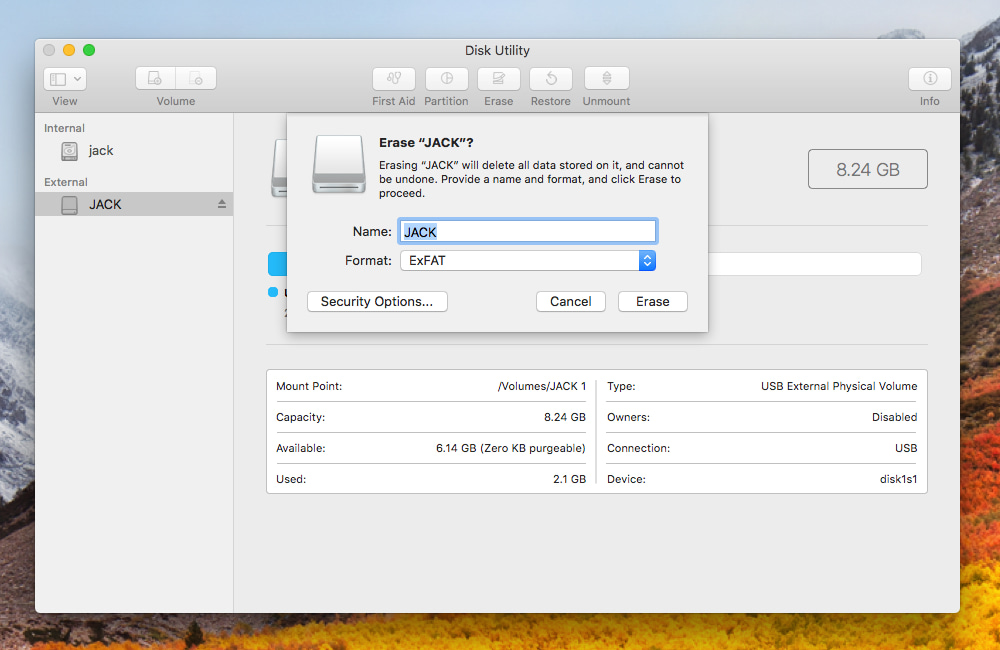
Once you've finished formatting the drive with the wizard, simply reconnect the drive to your GoPro.
#3. GoPro SD card is not properly formatted
You need to format the SD card before using it with your GoPro, especially if it was previously used in another camera or device. This process makes the card compatible with your GoPro.
- Copy GoPro SD Card data to computer
- Inset the SD card to your GoPro camera
- To enter the setup menu, press the front power button, then select the setup menu by pressing the top button, and finally press the front button until the trash can icon is highlighted.
- Select the "ALL/Format" option to wipe the SD card clean of all data, including any potential issues that may have caused the GoPro SD card error.
- After the GoPro's formatting process is complete, take a video or snap a photo to verify if the error has been resolved. This step is crucial to ensure the camera is functioning correctly after the formatting process.
#4. The GoPro SD card read and write speed is not fast enough.
GoPro users often encounter an SD card error after recording in high-resolution or high-frame rate modes. The only solution is to replace the old SD card with a new one.
#5. Firmware are not updated
When using an older GoPro model with a new SD card, it's common to encounter issues due to firmware incompatibility. Just like how computer firmware needs to be updated to keep the system running smoothly, GoPro cameras also require firmware updates to work properly with new SD cards. This ensures compatibility and optimal performance.
To update the firmware, connect your GoPro to a computer, determine your GoPro model, and download the firmware update from the provided link. Follow the instructions to install it.
#6. GoPro SD card is not clean
If your SD card has been used for months or years with a GoPro and suddenly stopped working, it might be due to dust buildup. To resolve this, clean the SD card with a soft cloth or a toothbrush, ensuring the dust is completely removed. Once the SD card is dry and clean, try inserting it back into the GoPro camera. This should resolve the issue.
Part 2. How to GoPro SD card error recovery
Among the 6 causes for GoPro SD error, fixing 3 of them may require deleting or losing existing videos and pictures on the GoPro SD card, risking data loss. If data is lost, you can try Deep Data Recovery, a professional tool designed to recover deleted files from GoPro on Mac/Windows PC.
Your Effective GoPro SD Card Error Recovery Software
- The app works with all types of SD cards and supports all video and photo formats shot on a GoPro, making it a versatile and user-friendly tool.
- The software has separate versions for Windows and Mac, allowing users to choose the correct one based on their computer's operating system.
- To recover lost videos and photos from a GoPro camera, simply connect the camera to your computer, scan the SD card, and preview the recovered data. This straightforward process will help you get back your lost files in just a few simple steps.
If you're experiencing errors with your GoPro SD card, you can download Deep Data Recovery to repair the issue now.
Related Articles
- Fix/Repair CHKDSK Is Not Available from RAW Drives
- Sandisk Corrupted SD Card Recovery
- Fix the Issue GOPro Won't Turn on
- Format SD Card for GoPro Hero 4/5 Sesssion
- [Fix] Convert External Drive to APFS Failed/Greyed Out/Not Available
- [Solved] Deleted File Not Showing in Recycle Bin
- Accidentally Deleted Recovery Partition? Fixed!
Learn the key steps, checks, and practical tips for this related guide.
Products
Articles & Tutorials
- Data Recovery
- Data Backup
- File Recovery
- File Backup
- File synchronize
- System Backup and Restore
- Disk and Partition Clone
- Technical articles
- Disk Master Help
- Windows Deleted File and Disk Recovery Tutorials
- Windows File and Data Recovery Tutorials
- More Windows Tutorials for Install, Security, Files, and PC Tips
- Windows Boot, Repair, and Recovery Environment Tutorials
- Windows Backup Tutorials
- Windows Restore Tutorials
- Windows Clone and Migration Tutorials
- Windows Server Backup, Recovery, and Management Tutorials
- Windows Disk, Partition, and Storage Management Tutorials