GoPro Recovery | How to Recover Deleted Videos from GoPro
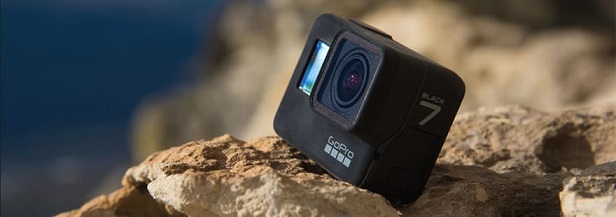
You might want to treat yourself like a photographer and capture amazing videos and photos with a GoPro camera, which is perfect for recording activities that require a lot of movement.
If the card itself reports an error, this GoPro SD card error guide explains what to check before recovery or formatting.
To get the most out of your GoPro device, you can do a lot more than just capture photos and videos. By exploring various tasks, you can unlock its full potential and enjoy a more immersive experience.
- Record your journey to better explore the place.
- Capture your sports activities with a GoPro, which can record you in action while doing sports like skateboarding, mountain climbing, or running.
- Give your family videos a new dimension by attaching straps to equipment of sports or toys and harnessing the GoPro, adding a fresh and exciting perspective to your home movies.
- This waterproof phone case allows you to capture your adventures while swimming, surfing, or engaging in any water-based activities, providing a clear and protected view of your surroundings.
- Share videos of your pets on social media to get a lot of comments and likes from friends and followers.
GoPro is a fun-The GoPro camera is a fantastic gadget, but with its abundance of goodness comes a wrong side. The videos and photos captured take up a lot of storage space, and you may need to remove them to make some more room for other stuff. If you accidentally lost your property, and we will guide you on how to recover deleted GoPro videos and more.
- Quick Navigation
- Part 1. What Caused My GoPro Videos to Lose
- Part 2: What to Do When You Delete a GoPro Video Accidentally?
- Part 3. Easy Way to Recover Deleted GoPro Videos
- Part 4: Ultimate Way to Get Back Deleted Videos from GoPro
- Part 5: Comparison of the Two GoPro Recovery Methods
- Part 6: Why Can't I Open a Recovered GoPro Video? How to Repair It?
- Part 7: Tips to Avoid Further Data Loss on GoPro Memory Card
Part 1. What Caused My GoPro Videos to Lose
"I have a GoPro Hero 10. While connected to my Mac via a USB digital cable, it automatically copied the files to a folder with today's date as the name. However, after then, I found there wasn't a video at all. The folder is 0 bytes, without any file. The worst thing is that after the copy, the actual video was deleted instantly. Is there a way to recover deleted videos from GoPro? Please help me!"
People who accidentally delete GoPro videos or photos often want to restore them from their SD card. This scenario arises from various reasons, including accidental deletion, and individuals seek to retrieve their lost media.
- Oh no, that's frustrating!
- The files were lost during the transfer due to a lack of a stable internet connection.
- Somebody accidentally deleted GoPro videos, photos, and more files.
- The GoPro camera's storage capacity is not being displayed correctly, showing "0" instead of the actual amount, and it's also unable to access the storage. This issue is likely due to a software glitch or a hardware problem, and it may be caused by a faulty SD card, corrupted data, or a malfunctioning camera.
Part 2: What to Do When You Delete a GoPro Video Accidentally?
To recover your GoPro videos, first, check if you have a backup of your data. If not, check the memory card for any deleted or corrupted files. You can try using data recovery software like Deep Data Recovery or Disk Drill to scan the card and recover any recoverable files. If the videos are still not recoverable, try using a specialized GoPro recovery software like GoPro Recovery or GoPro Video Recovery.
- To avoid losing your GoPro videos, make sure to stop using the SD card to prevent overwriting your data. This will help you retrieve your videos more easily.
- When looking for software to recover a video file, it's more challenging to find efficient video recovery tools compared to other file types, due to the different video file saving mechanisms.
If your GoPro camera's video files have been deleted, there's still hope to recover them if you act quickly and perform a correct GoPro SD card recovery.
Part 3. Easy Way to Recover Deleted GoPro Videos
If your precious records have gone missing, you can use Qiling data recovery software to recover them. This software can also help you initiate GoPro video recovery, providing a solution to your problem and keeping your worries at bay.
This comprehensive program helps retrieve photos, documents, videos, images, and audio from any internal or external disk, automatically repairing corrupted GoPro videos while scanning. It's designed to recover deleted videos from GoPro on both Mac and Windows PCs, utilizing perfect algorithms to give your files a soothing repair.
Your Ravishingly Working GoPro Data Recovery Software
- The software supports photos and videos in various formats, such as CR2, SR2, MPEG, and others, making it a versatile tool for multimedia management.
- You can easily recover deleted GoPro videos or files by following simple steps. This is helpful for situations like accidental deletion, RAW display on the drive, errors, or improper memory card removal.
- The device is highly versatile and can work with a wide range of storage cards, making it a convenient option for users who frequently switch between different types of memory cards.
- This software can recover deleted videos from various devices, including SD cards, hard disks, cameras, camcorders, and USB drives, and is compatible with both Windows and Mac operating systems.
How to Retrieve Deleted Videos from GoPro in Windows 11/10/8
- To get started, download the software and then proceed with its installation on your Windows PC.
- Connect GoPro with your computer
- The GoPro SD card is scanned by hovering the mouse over it and clicking the 'Scan' button.
- After scanning is complete, you can preview the recoverable videos.
- Once you locate your target, select them and click on the 'Recover' option to save them on your Windows PC.
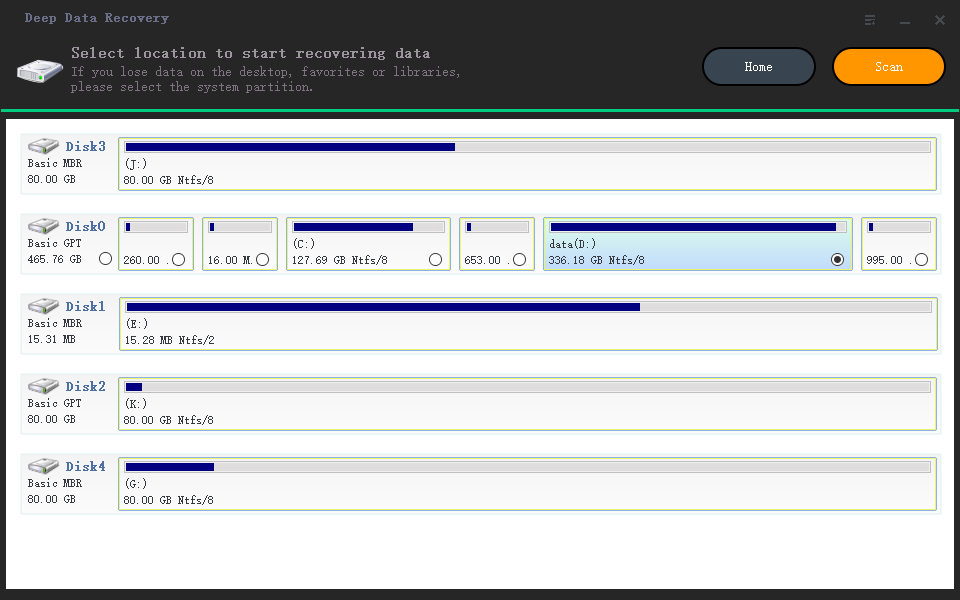
To shorten the scan time, go to the settings and uncheck the file types you don't need to scan.

How to Restore Deleted GoPro Videos on Mac
- Launch the Qiling data recovery software for Mac.
- Keep the 'Video' selected and hit the 'Next' button.
- Please select the GoPro SD card from the list of external devices connected to your Mac and click the 'Scan' button to begin the data recovery process.
- The scanning process takes a few minutes, after which files become available for display in the result window. To preview individual files, tap on the directory option on the left side.
- Select the GoPro videos you want to save and tap on the 'Recover' option to transfer them to your device.
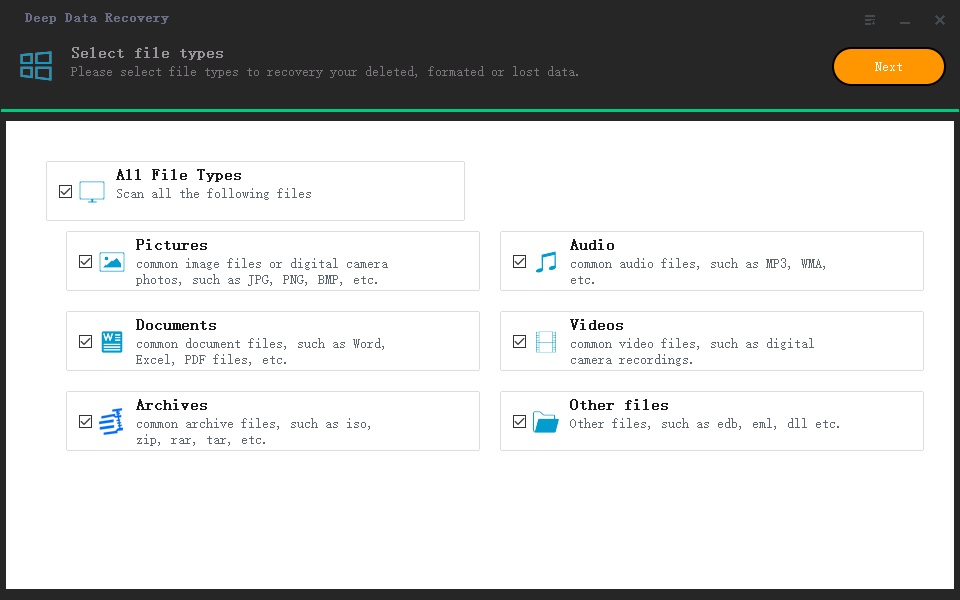
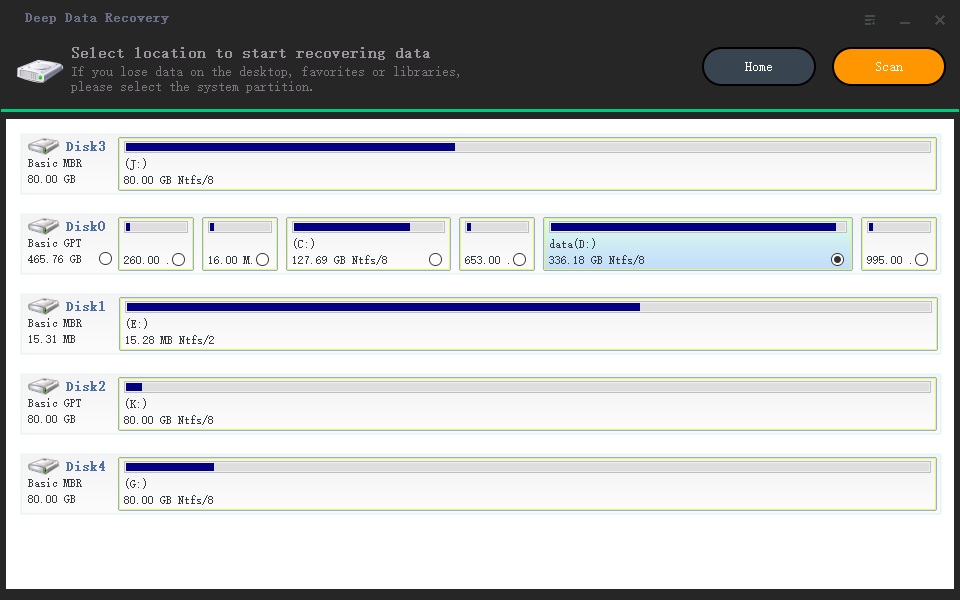
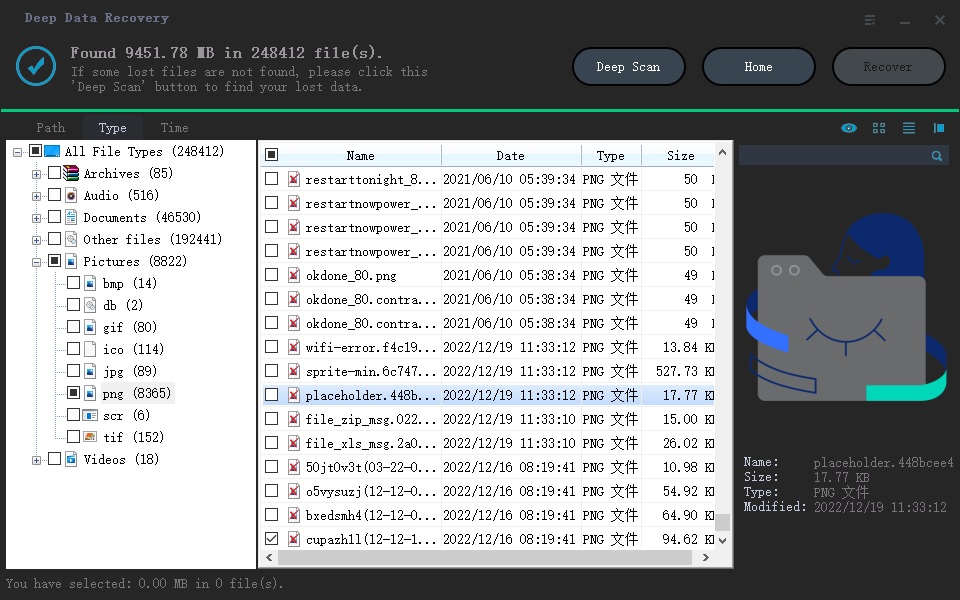
If you're unable to find the file you're looking for using the usual 'Quick Scan' mode, you can try switching to 'Deep Scan' mode. This mode may take longer to scan your GoPro, but it's more thorough and can help you locate the file you need.
Part 4: Ultimate Way to Get Back Deleted Videos from GoPro
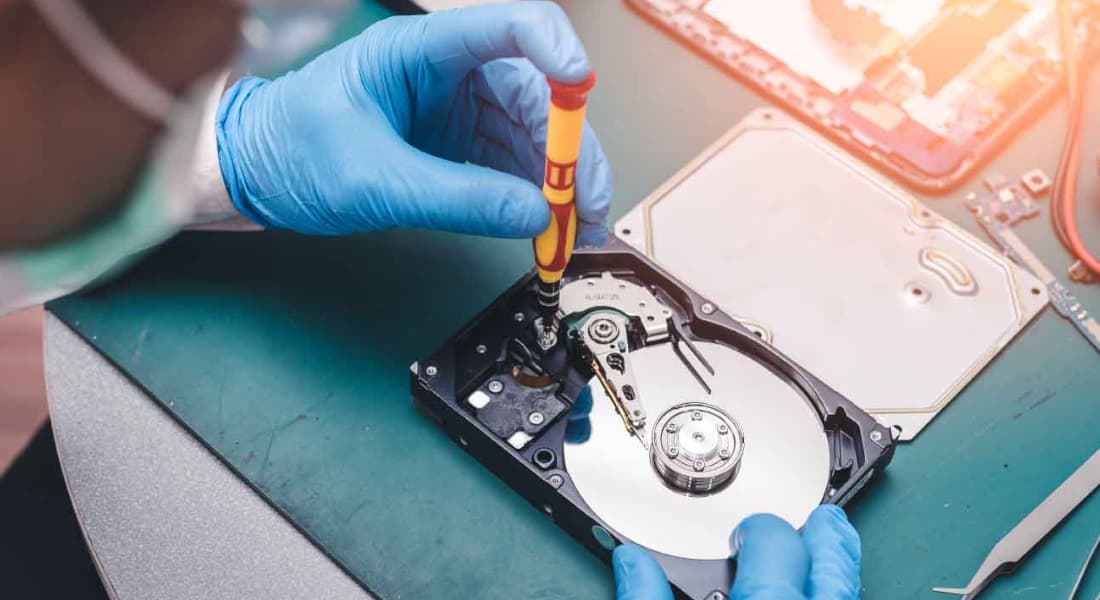
Due to the fragmented nature of video files, which are saved as multiple smaller files, recovering them can be challenging. If any of these fragmented files are damaged or corrupted, it can be difficult to recover the entire video, making it tough for most recovery software to successfully retrieve the file.
If you've lost important videos from your GoPro, consider contacting your local provider for data recovery services. This can be a viable option for retrieving your precious footage.
Part 5: Comparison of the Two GoPro Recovery Methods
- Deep Data Recovery
- Data Recovery Services
- Other Undelete Tools
- Repair corrupt video
- Number of recovered videos
- Unlimited
- Different quantity, different price
- Unlimited
- Time Spent
- Within 30 minutes
- 3-5 Days
- Within 60 minutes
- Use again
- Privacy leak
- Possible
- Price
- Cheap
- Very expensive
- Moderate
Part 6: Why Can't I Open a Recovered GoPro Video? How to Repair It?
When videos are lost, people often turn to professional data recovery software to retrieve them. However, even after successful recovery, the restored videos may fail to play due to various reasons.
- The video size/format is incorrect
- The recovered files are incomplete, with only fragments of the video found, such as some scenes or moments are missing.
- Video files are damaged during the process of loss
- The video has been overwritten
Solution
If the suffix of the video file is incorrect, you can try to change it directly. For example, changing .swf to .mp4.
If the video is the right size and only plays for a while, then you can try the repair software below to help you.
- VLC Media Player
- DivFix++
- Fix.video
- Digital Video Repair
- MP4 Video Recovery Tool
- DivXRepair
If the videos are overwritten with new data or the repair software can't help, they may be permanently corrupted. So, it's a good idea to backup your videos to keep them safe.
Part 7: Tips to Avoid Further Data Loss on GoPro Memory Card
If you don't want to have to recover deleted videos from your GoPro, it's a good idea to have a regular backup of your videos and photos, so you can avoid the hassle of trying to recover them.
Step 1, importing GoPro videos to Windows/Mac
- Connect your SD card for GoPro to your computer
- To copy the GoPro camera's DCIM folder to your PC, follow these steps: Open the GoPro camera on your PC, navigate to the DCIM folder, and copy it. This will allow you to access and utilize the contents of the folder, such as photos and videos, on your PC.
- The SD card contains two main folders: MISC and DCIM. The DCIM folder holds the videos and photos.
- Select the video files you need and copy them to your computer/other drives.
Step 2, Choose a method to back up your GoPro videos
If you don't want to lose your GoPro videos, back up your files regularly to avoid having to recover deleted videos from GoPro. This will prevent the mistake of losing your memories.
- Using a USB stick as a backup option for your GoPro content is a convenient, portable, and cost-effective solution. It allows you to easily transfer and store your files, such as photos and videos, in a small and lightweight device that can be taken with you wherever you go. This makes it an ideal choice for travelers, adventurers, or anyone who wants to have a reliable backup of their GoPro footage without having to worry about space or cost.
- Use an external hard drive to back up your GoPro footage separately, as it offers ample space for storing large files.
- Mac users can use Time Machine to automatically backup their external hard drive until it reaches its storage capacity.
- Use third-party cloud storage options like Google Drive, iCloud, Dropbox, etc. that offer free and paid versions, or charge extra for additional storage.
- Use Network-Attached storage is a good option if you're ready to invest a lot of money, have multiple PCs at home, and want to save files from various sources, such as GoPro videos, automatically and wirelessly, including with tablets and phones.
Conclusion
GoPro cameras are designed for rugged use, but their SD cards can be fragile, sometimes resulting in lost photos or videos. To avoid this, users may delete large videos to make space for new ones, or accidentally delete precious memories. In such cases, Deep Data Recovery software can be a lifesaver, helping to recover lost data and prevent the loss of cherished moments.
FAQ
-
When you delete a file, it's not actually erased, but rather its state is changed, making it invisible to the user and others, but still occupying space on the device until it's overwritten or deleted permanently.
-
Even if you haven't backed up your GoPro videos, you can still recover them using professional recovery software. If you've saved new data since deleting the videos, the chances of successful recovery are lower, so it's best to start retrieving them as soon as possible.
-
Deep Data Recovery software is the best option to get deleted files back due to its convenient use and advanced algorithms that find and combine fragmented data.
-
You can use free GoPro recovery software like Qiling Free Data Recovery to recover up to 2GB of data for free, which can also repair damaged files.
-
If you encounter GoPro prompts such as NO SD, SD ERR, or SD ERROR, you may need to format the SD card. After formatting, all data will be lost, but you can still use Deep Data Recovery to retrieve the deleted data.
-
If you accidentally delete a file, you can recover it with the help of recovery software, as long as you don't continue to use the device.
Related Articles
- Reset GoPro Hero to Factory Settings Without Data Loss
- How to Recover Deleted Files Not In Recycle Bin
- Recover Deleted Videos from Canon Camera
- Tech Specification of Deep Data Recovery for indows/Mac
List Deep Data Recovery for Windows/Mac supports system, file types and devices. - How to Find Missing Drives on Windows 10/11?
Learn how to Find Missing Drives on Windows 10/11 with clear steps, key checks, and practical tips. - How to Recover Deleted Files from External Hard Drive Free
You will learn 6 effective methods and how to recover deleted files from external hard drive step by step. Besides, this article also include the possible reasons, disk problem signs and protection tips.
Products
Articles & Tutorials
- Data Recovery
- Data Backup
- File Recovery
- File Backup
- File synchronize
- System Backup and Restore
- Disk and Partition Clone
- Technical articles
- Disk Master Help
- Windows Deleted File and Disk Recovery Tutorials
- Windows File and Data Recovery Tutorials
- More Windows Tutorials for Install, Security, Files, and PC Tips
- Windows Boot, Repair, and Recovery Environment Tutorials
- Windows Backup Tutorials
- Windows Restore Tutorials
- Windows Clone and Migration Tutorials
- Windows Server Backup, Recovery, and Management Tutorials
- Windows Disk, Partition, and Storage Management Tutorials