Fix/Repair CHKDSK Is Not Available for RAW Drives
Quick Navigation:
- Why CHKDSK is not available for RAW drives
- Method 1: Recover data from the RAW drive first
- Method 2: Check the RAW drive connection
- Method 3: Format the RAW drive to NTFS or FAT32
- Method 4: Recreate the partition if formatting fails
- Tips to avoid RAW drive errors again
When you run CHKDSK on a damaged partition, external hard drive, USB drive, or SD card, Windows may show the error message: "The type of the file system is RAW. CHKDSK is not available for RAW drives." This means Windows cannot recognize the file system, so CHKDSK cannot check or repair it in the usual way.
If the drive contains important files, recover them first with RAW to NTFS recovery without formatting.
A RAW drive often appears when the file system is corrupted, the drive is unplugged improperly, the partition table is damaged, or the storage device has bad sectors. Before trying to repair the RAW drive, recover important files first. Formatting may fix the file system, but it will erase existing data on the drive.
Why CHKDSK is not available for RAW drives
CHKDSK works with recognizable Windows file systems such as NTFS, FAT32, and exFAT. If a drive becomes RAW, Windows cannot read its file system metadata correctly. As a result, CHKDSK has no valid file system structure to scan, so the command stops with the RAW drive error.
You may see this problem in Disk Management, File Explorer, or Command Prompt. The drive may ask to be formatted before use, show 0 bytes, or refuse to open. In this case, do not format it immediately if you still need the files stored on it.
Method 1: Recover data from the RAW drive first
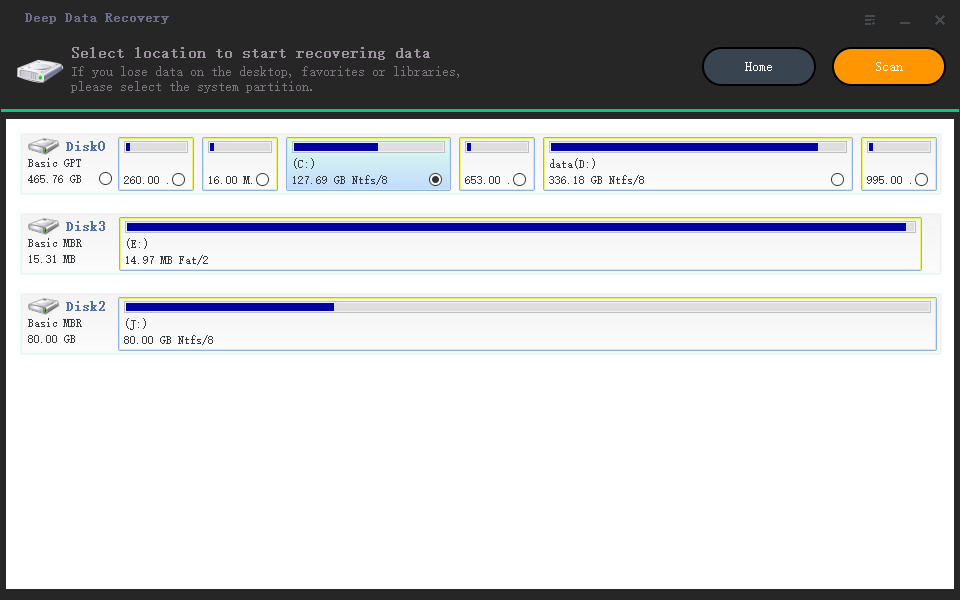
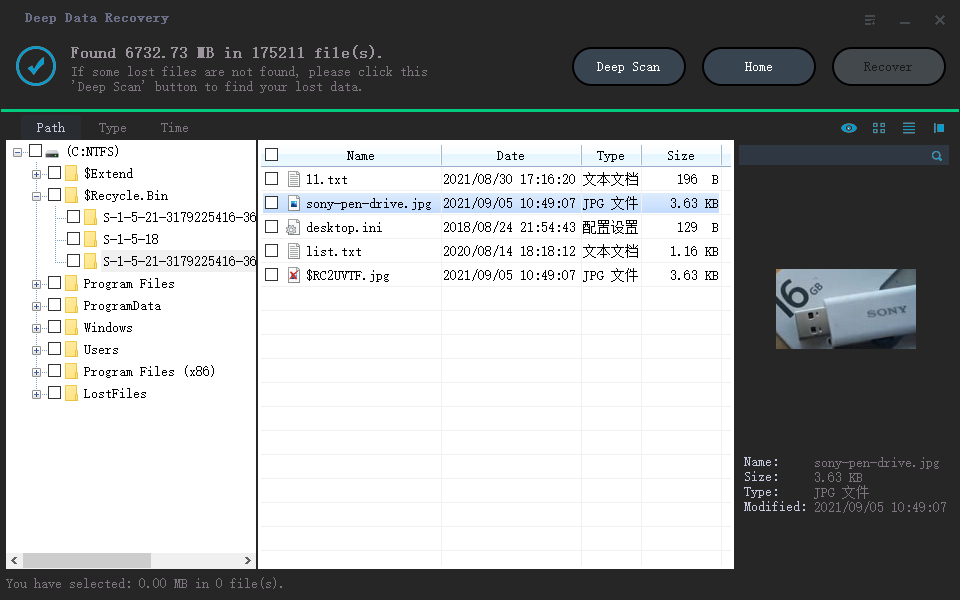
The safest way to fix CHKDSK is not available for RAW drives is to recover data first, then repair the drive. Deep Data Recovery can scan RAW partitions, hard disks, external drives, USB drives, and memory cards to find recoverable files.
Follow the guide below to recover files from a RAW drive before formatting it.
- Download and install the data recovery software on your Windows computer. Do not install it on the RAW drive.
- Open the software, select the RAW drive or partition where files were lost, and start scanning.
- Preview the found files, select what you need, and recover them to another safe drive.
After confirming that your important files are saved to another location, you can continue with the repair methods below.
Method 2: Check the RAW drive connection
If the RAW drive is an external hard drive, USB drive, or SD card, a poor connection may cause Windows to read it incorrectly. Before making changes to the partition, try these quick checks.
- Reconnect the drive to another USB port.
- Use another USB cable or card reader if available.
- Connect the drive to another computer to see whether it can be recognized.
- Open Disk Management and check whether the drive size is displayed correctly.
If the drive still shows as RAW but the capacity looks normal, the file system is probably damaged. You can format it after data recovery.
Method 3: Format the RAW drive to NTFS or FAT32
Formatting creates a new file system and usually fixes the RAW state. This method is effective, but it removes files from the drive, so make sure you have recovered or backed up important data first.
- Press Win + X and choose Disk Management.
- Right-click the RAW partition and choose Format.
- Select a file system, such as NTFS for hard drives or FAT32/exFAT for removable devices.
- Click OK and wait for the formatting process to finish.
If Windows cannot complete the format, you can also try formatting the drive in File Explorer or with DiskPart. Be careful to select the correct disk before running any command.
Method 4: Recreate the partition if formatting fails
If the RAW partition cannot be formatted, the partition itself may be corrupted. In this situation, delete the damaged partition and create a new simple volume in Disk Management. This operation removes the partition, so use it only after recovering needed files.
- Open Disk Management.
- Right-click the RAW partition and choose Delete Volume.
- Right-click the unallocated space and choose New Simple Volume.
- Follow the wizard to assign a drive letter and format the volume.
After recreating the partition, Windows should recognize the drive normally, and CHKDSK can work again on the new NTFS, FAT32, or exFAT file system.
Tips to avoid RAW drive errors again
RAW drive errors can happen suddenly, but careful use can reduce the risk. Always eject external drives safely, avoid interrupting formatting or file transfer, keep your computer protected from malware, and check storage devices when they start making unusual noises or frequently disconnecting.
For important files, keep an extra backup on another disk or cloud location. You can use Qiling Disk Master to back up files, partitions, disks, and Windows system data regularly.
In short, CHKDSK cannot repair a RAW drive because Windows cannot read the file system. Recover your files first, then format or recreate the partition to make the drive usable again.
Related Articles
- How to Recover Data from RAW USB Drive
- Recover RAW Partition without Losing Data
- How to Format RAW Drive to NTFS/FAT32
- 7 Ways to Fix Windows 11/10 Freezes Randomly
- Fix Windows 10 Update Error Code 0x80070002
Products
Articles & Tutorials
- Data Recovery
- Data Backup
- File Recovery
- File Backup
- File synchronize
- System Backup and Restore
- Disk and Partition Clone
- Technical articles
- Disk Master Help
- Windows Deleted File and Disk Recovery Tutorials
- Windows File and Data Recovery Tutorials
- More Windows Tutorials for Install, Security, Files, and PC Tips
- Windows Boot, Repair, and Recovery Environment Tutorials
- Windows Backup Tutorials
- Windows Restore Tutorials
- Windows Clone and Migration Tutorials
- Windows Server Backup, Recovery, and Management Tutorials
- Windows Disk, Partition, and Storage Management Tutorials