Fix Files or Folders on Desktop Not Opening in Windows
Why desktop files or folders cannot open
Desktop files may fail to open because file associations are broken, a shortcut points to a missing location, permissions changed, the file is corrupted, Windows Explorer is frozen, or the Desktop folder is redirected to OneDrive or another unavailable path.
Method 1. Restart Windows Explorer
Step 1. Press Ctrl + Shift + Esc.
Step 2. Select Windows Explorer.
Step 3. Click Restart.
Step 4. Try opening the desktop file again.
Method 2. Check whether it is a broken shortcut
Step 1. Right-click the desktop item and choose Properties.
Step 2. If there is a Shortcut tab, check the Target path.
Step 3. If the target does not exist, search the computer for the original file.
Step 4. Create a new shortcut after finding the real file.
Method 3. Repair file association
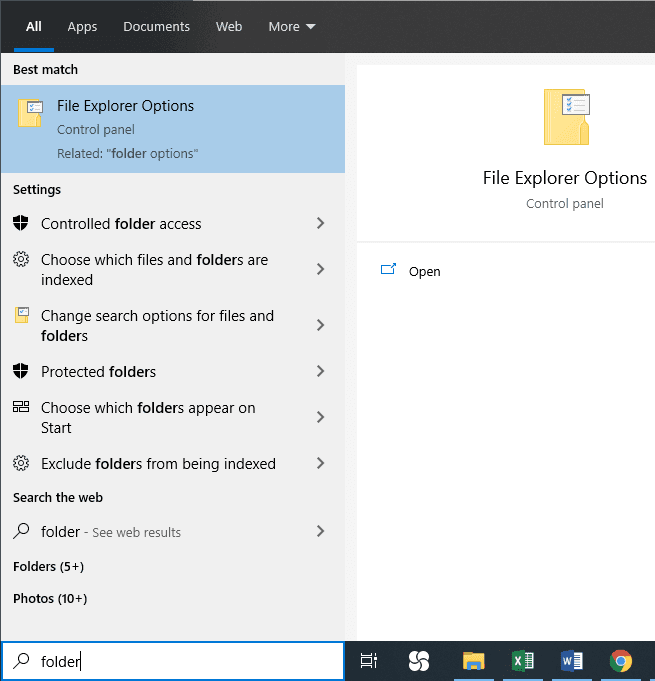
Step 1. Right-click the file and choose Open with > Choose another app.
Step 2. Select the correct app.
Step 3. Check Always use this app and click OK.
Step 4. If the app is missing, reinstall or repair it.
Method 4. Check permissions
Step 1. Right-click the file or folder and choose Properties.
Step 2. Open the Security tab.
Step 3. Select your account and check permissions.
Step 4. Use Advanced to change ownership if the file belongs to an old account.
Method 5. Run system file checks
Step 1. Open Command Prompt as administrator.
Step 2. Run sfc /scannow.
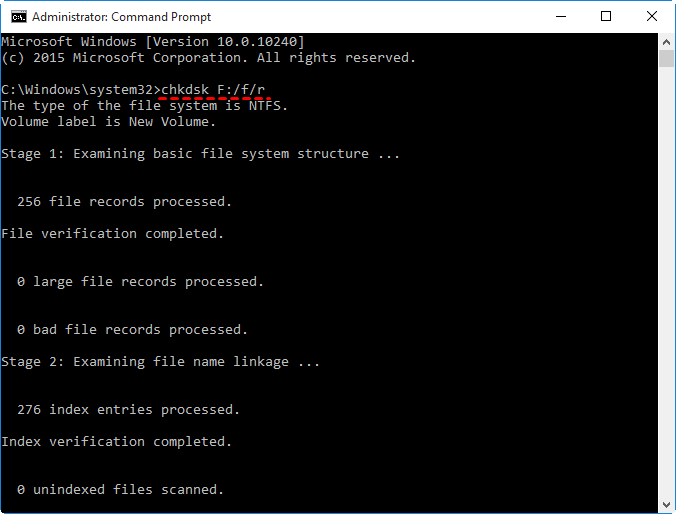
Step 3. Then run DISM /Online /Cleanup-Image /RestoreHealth.
Step 4. Restart the PC and test again.
Method 6. Recover desktop files if they are damaged or deleted
- Use Restore previous versions on the file or Desktop folder.
- Check File History or OneDrive recycle bin.
- Use recovery software if the original file was deleted.
 Deep Data Recovery
Deep Data Recovery can scan the desktop location for deleted or lost original files when only broken shortcuts or damaged copies remain.
Related Articles
-
Deleted File Not in Recycle Bin | Proven Fixes
Learn why deleted files may bypass Recycle Bin and how to restore them with File History, Backup and Restore, or recovery software. -
Recover Files from Empty Recycle Bin in Windows
Recover files after Recycle Bin is emptied or bypassed, and learn safer ways to restore deleted data in Windows. -
How to Show Hidden Files in Windows 10
Use Windows settings to show hidden files and troubleshoot missing folders before running recovery software.
Products
Articles & Tutorials
- Data Recovery
- Data Backup
- File Recovery
- File Backup
- File synchronize
- System Backup and Restore
- Disk and Partition Clone
- Technical articles
- Disk Master Help
- Windows Deleted File and Disk Recovery Tutorials
- Windows File and Data Recovery Tutorials
- More Windows Tutorials for Install, Security, Files, and PC Tips
- Windows Boot, Repair, and Recovery Environment Tutorials
- Windows Backup Tutorials
- Windows Restore Tutorials
- Windows Clone and Migration Tutorials
- Windows Server Backup, Recovery, and Management Tutorials
- Windows Disk, Partition, and Storage Management Tutorials