How to Get Back a Lost Partition in Windows
A lost partition may appear as unallocated space, RAW, missing drive letter, or an unknown partition. The safest response is to stop writing to the disk.
Understand the problem
Lost partitions can result from accidental deletion, failed resizing, partition table damage, malware, or disk errors. Recreating the partition before recovery can overwrite important records.
- Confirm the disk, partition, file system, Windows version, boot mode, or update state before making changes.
- Back up or recover important files before conversion, deletion, formatting, cleanup, reimage, or boot repair.
- For boot-related work, check BIOS or UEFI mode, boot order, system partition status, and recovery media first.
Use Windows built-in tools
Check the disk carefully.
- Open Disk Management and note the disk number, size, and missing area.
- Do not initialize, format, or create a new volume on the lost partition space.
- Assign a drive letter only if the partition still exists and looks healthy.
- Recover files first if the partition is deleted, RAW, or unallocated.
- Recreate the partition only after important files are safe.
Use Qiling tools for guided steps
 Deep Data Recovery
Recover files from a lost, deleted, or unallocated partition before rebuilding it.
Function. Recover files with Fast Scan
Step 1. Stop writing new data to the disk area where the partition was lost. If possible, install Deep Data Recovery on another drive.
Step 2. Launch Deep Data Recovery and choose Fast Scan first. Fast Scan can locate recently lost files before deeper partition recovery is needed.
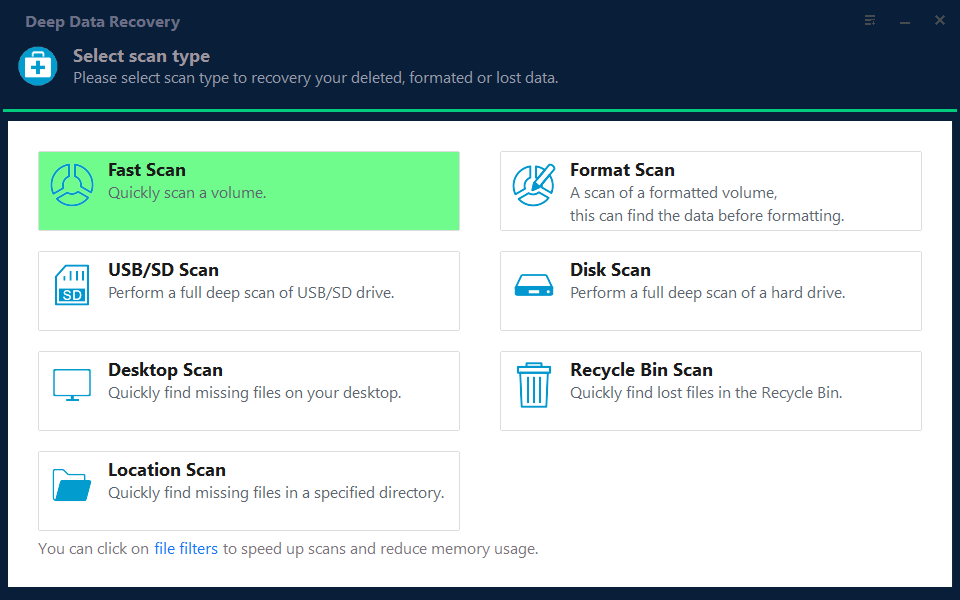
Step 3. Select the disk area where the partition was lost as the scan location. If the exact folder is missing, scan the whole partition.

Step 4. Wait for the scan to complete. Use file type, name, path, and date filters to narrow the results.
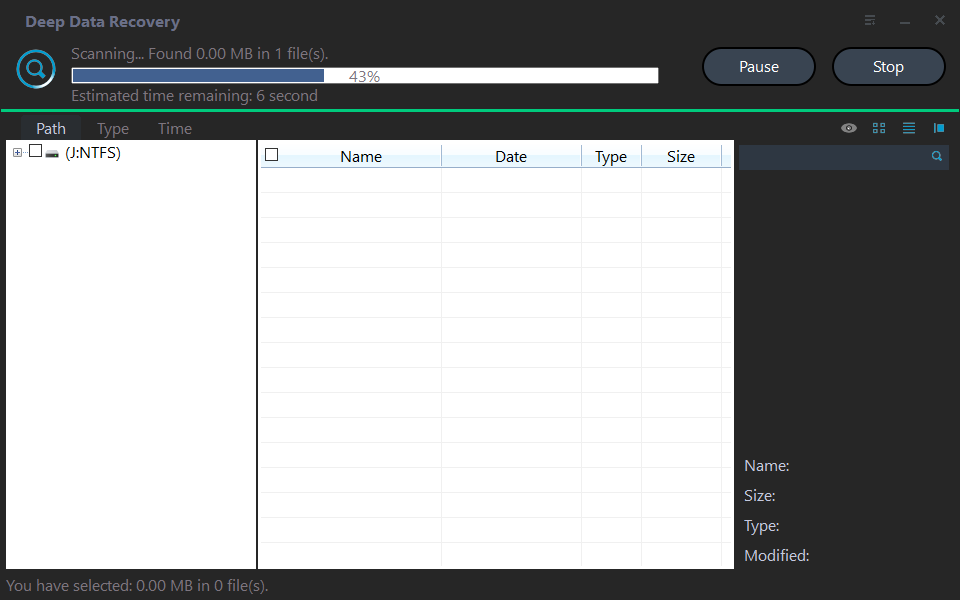
Step 5. Preview files, select the items you need, and recover them to another disk or external drive.

Function. Create a partition with clear settings
Step 1. Back up important data on the disk after recovery. If no unallocated space exists, shrink a partition first.
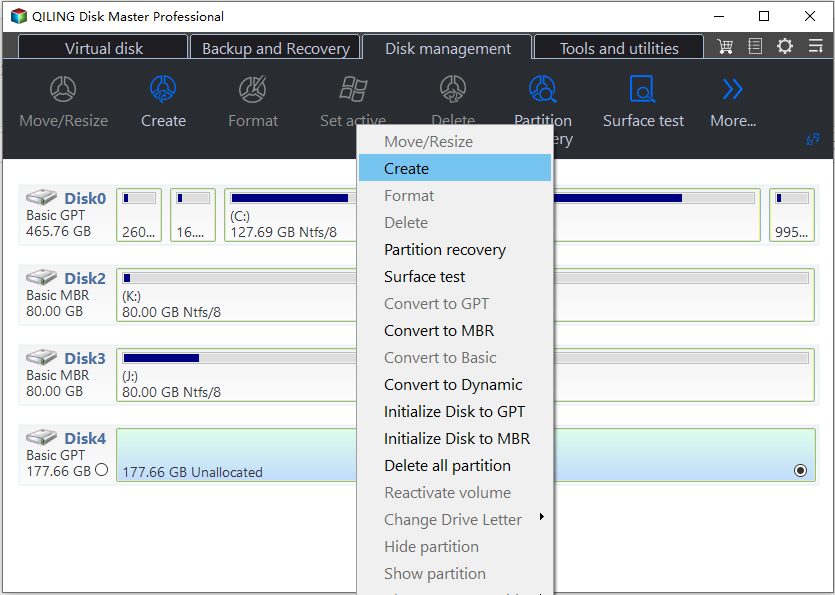
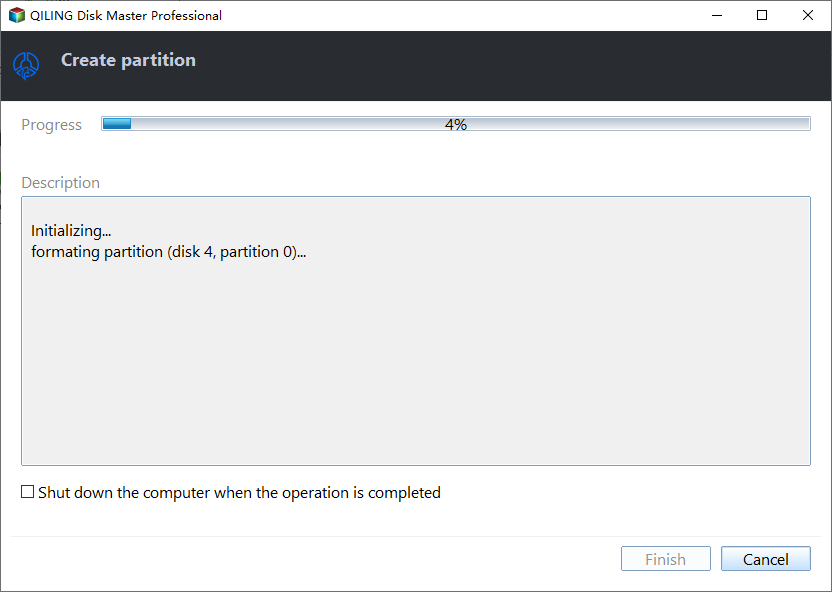
Step 2. In Qiling Disk Master, right-click unallocated space on the disk after recovery and choose Create Partition.
Step 3. Set the size, drive letter, file system, and label for a replacement partition for restored data.
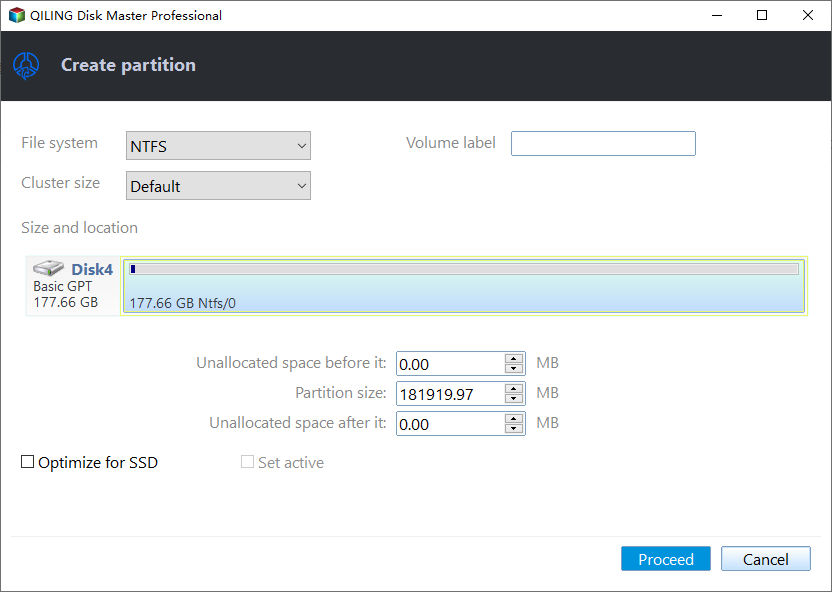
Step 4. Check the preview and click Proceed. After completion, confirm the partition in File Explorer.
Check the result
After recovery and rebuild, open the restored files and check Disk Management for a healthy partition with the correct file system.
Related Articles
-
Recover Partition Table
Recover files and repair partition table problems after a partition disappears. -
Unallocated Partition Recovery
Recover files before creating a new volume in unallocated space.
Products
Articles & Tutorials
- Data Recovery
- Data Backup
- File Recovery
- File Backup
- File synchronize
- System Backup and Restore
- Disk and Partition Clone
- Technical articles
- Disk Master Help
- Windows Deleted File and Disk Recovery Tutorials
- Windows File and Data Recovery Tutorials
- More Windows Tutorials for Install, Security, Files, and PC Tips
- Windows Boot, Repair, and Recovery Environment Tutorials
- Windows Backup Tutorials
- Windows Restore Tutorials
- Windows Clone and Migration Tutorials
- Windows Server Backup, Recovery, and Management Tutorials
- Windows Disk, Partition, and Storage Management Tutorials