[Free] How to Recover Deleted Files from Recycle Bin with Ease
- Question - Can you recover deleted files deleted from Recycle Bin?
- How to recover permanently deleted files from Recycle Bin
- Recover deleted files from Recycle Bin on Windows 10 without software
- How to recover permanently deleted files from Recycle Bin with Backup
- ▶ Solution 1. Recycle Bin recovery with the Previous Version
- ▶ Method 2. Recover deleted files from Recycle Bin after empty using File History
- ▶ Method 3. Restore deleted files from Recycle Bin with Backup and Restore
- ▶ Method 4. Restore deleted files from Recycle Bin with OneDrive
- Recover deleted files from Recycle Bin using CMD
- Recover deleted files from Recycle Bin before empty
- ▶ Method 1. Recover deleted files from Recycle Bin using Ctrl + Z
- ▶ Method 2. Restore deleted files from Recycle Bin directly
- Bonus tip - How to avoid data loss in Recycle Bin effectively
- How to make better use of Recycle Bin
- Frequently asked questions about Recycle Bin recovery
- Conclusion
When your hard disk runs out of free space, emptying the Recycle Bin might seem like a quick fix, but it can lead to deleting important files. Fortunately, it's still possible to recover permanently deleted files from the Recycle Bin with the right steps. This post explains why you can recover deleted files from the Recycle Bin and provides a step-by-step guide on how to do it easily.
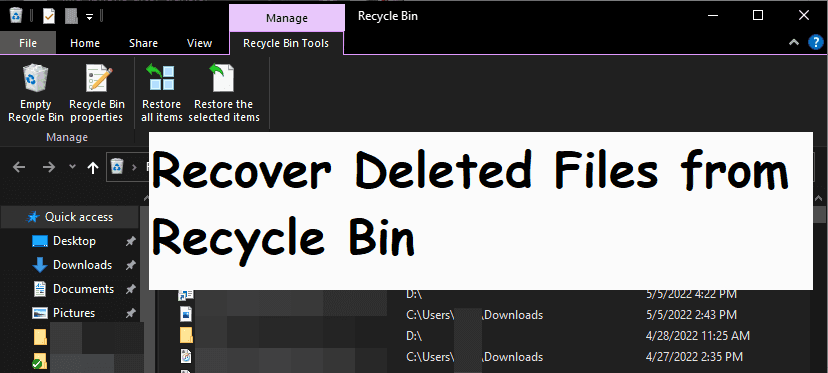
Question - Can you recover deleted files deleted from Recycle Bin?
You can recover deleted files from the Recycle Bin, as it stores all deleted files from the local disk until it's emptied. However, if you empty the Recycle Bin or permanently delete files, they can no longer be recovered.
Unfortunately, once you've emptied the Recycle Bin, the files are gone forever. However, if you act quickly, you might be able to recover some deleted files using data recovery software, such as Recuva or Deep Data Recovery Wizard. These tools can scan your computer's hard drive for deleted files and potentially recover them. The sooner you run the software, the better chance of recovery. Be aware that the effectiveness of these tools depends on various factors, including the type of file, the condition of your hard drive, and the amount of time that's passed since the deletion.
After emptying the Recycle Bin or permanently deleting files, you may think that the deleted files are gone for good. However, these files are still recoverable because they haven't been immediately removed from the disk. The storage space they occupied is simply marked as available, allowing new data to be stored on it. To recover the deleted files, you just need to stop using that space and avoid overwriting it.
We can recover files from the emptied Recycle Bin because of the way it stores deleted files. Effective solutions include using backup software, checking the Recycle Bin regularly, and using a third-party file recovery tool. Tips to prevent loss include emptying the Recycle Bin periodically, using a secure deletion method, and being mindful of file deletion.
How to recover permanently deleted files from Recycle Bin
If you've emptied the Recycle Bin and need to recover the deleted files, using data recovery software is a simple and effective solution. Unlike advanced backups or specialized computer skills, this method doesn't require any expertise, making it accessible to all users. A good option for this is Deep Data Recovery, which features an intuitive interface that makes the process smooth and easy to navigate.
- Easy-to-operate. Recover lost/deleted data from Windows within 3 easy steps.
- All-inclusive. Apply to comprehensive data loss scenarios in Windows.
- High-speed. Recover lost data at a high speed & recovery rate.
- Highly-compatible. Windows 11/10/8/7 and Windows Server support various file systems, including NTFS, FAT32, exFAT, and ReFS.
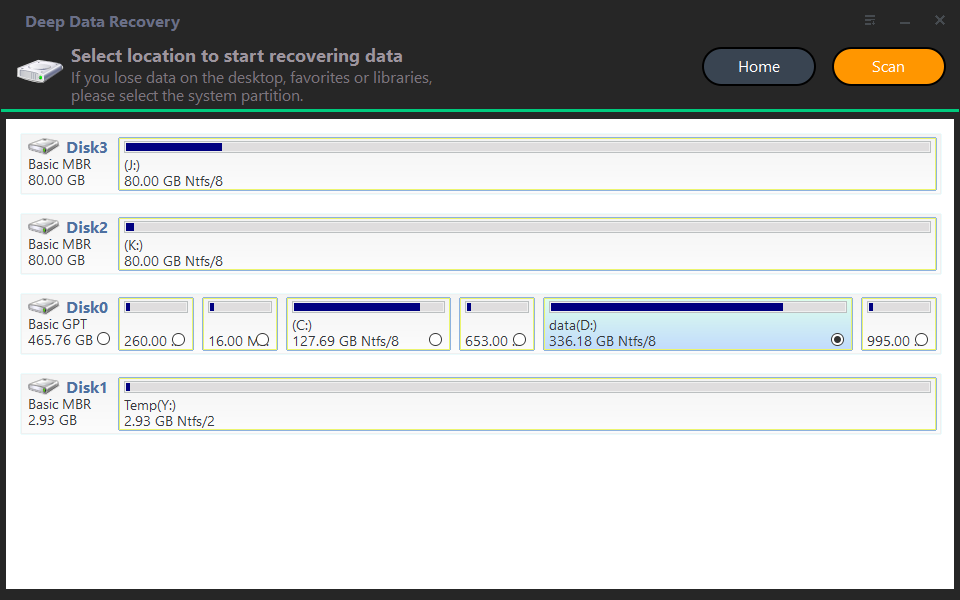
Step 1. Locate the drive where the deleted files are stored.
To recover data from a corrupted drive, download and install Myreocver, then move the mouse to the target drive and click the "Scan" button.
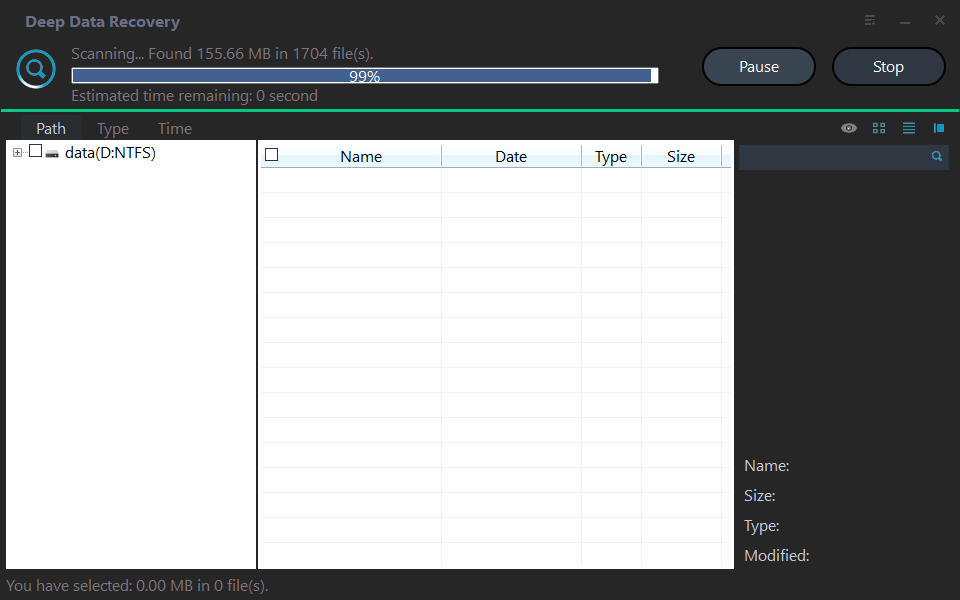
Step 2. Waiting for scanning results.
The software automatically initiates a quick scan and a deep scan on the selected drive, identifying all deleted and missing files. It allows searching for deleted files or folders, and filters can be used to target specific data based on type, modification date, and size.
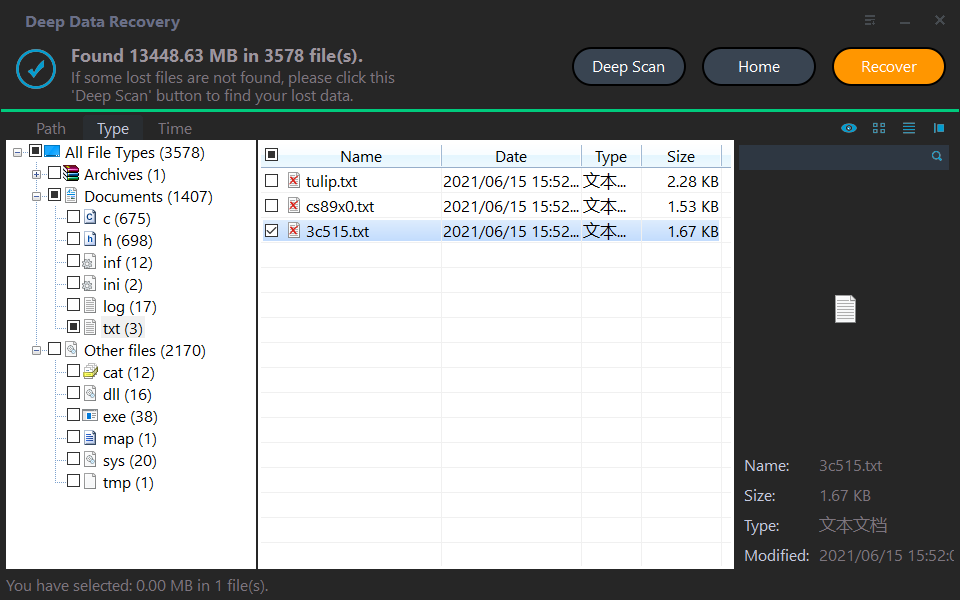
Step 3. Select the files you need to recover and click Recover files.
To recover deleted files from the Recycle Bin after emptying, check the Recycle Bin folder and click "Recover files" to select the files you want to recover, which will show the number of files and file size to recover.
Notes:
✦ Don't recover deleted files to their original location, as this will overwrite the space where the deleted files were stored, making the recycle bin recovery fail.
✦ It also supports SD card data recovery or recovery of other devices like a USB flash drive.
Recover deleted files from Recycle Bin on Windows 10 without software
Windows File Recovery is a freeware tool that can recover deleted files, even from the Recycle Bin after it has been emptied. It supports Windows 10 and later versions, but requires users to learn about its various recovery modes and switches, which can be found in the article "How to use Windows File Recovery".
✍ Overview of recovery mode corresponding to scenarios and file system:
|
File system |
Scenarios |
mode |
|
NTFS |
Deleted recently |
Regular |
|
NTFS |
Deleted for a while |
Extensive |
|
NTFS |
Formatted disk |
Extensive |
|
NTFS |
Corrupted disk |
Extensive |
|
FAT and exFAT |
Any |
Extensive |
✍ Overview of switches to narrow your scanning range:
|
Switches |
Meaning |
Supported mode(s) |
|
/n |
To filter the scan range, you can specify the file name, path, type, or other attributes to search for a specific file. This allows you to narrow down the scan results to only include the desired file, making it easier to locate and manage. |
All |
|
/y: |
Recover specific extension groups. |
Signature |
|
/k |
Recovers system files. |
NTFS Segment |
|
/u |
Recovers undeleted files, for example, from the Recycle Bin. |
NTFS Segment |
✍ Steps to check file system of your drive:
To recover deleted files, press the Windows key + E to open File Explorer, then navigate to This PC. Right-click on the drive where the deleted files were located and select Properties.
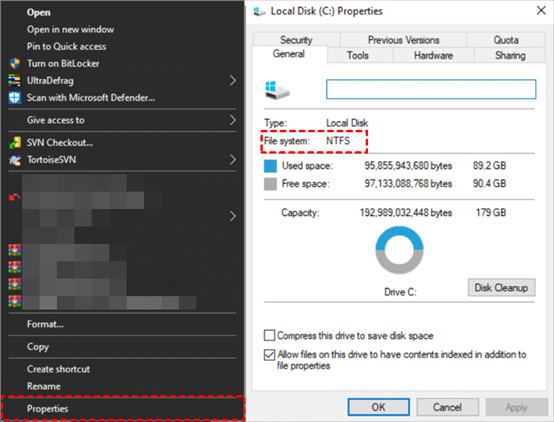
Both Regular Mode and Extensive Mode are available on PCs that use the NTFS File System. If a PC doesn't use NTFS, WINFR's Extensive Mode can be used instead.
Step 1. Go to Microsoft Store to Get Windows File Recovery.

Step 2. To recover deleted files on Windows, run Windows File Recovery as an administrator and input the command line using the syntax: `winfr [source] [destination] [options]`. This command allows you to specify the source drive or volume where the deleted files are located, the destination drive or volume where the recovered files will be saved, and various options to customize the recovery process.
winfr source-drive: destination-drive: [/mode] [/switches]
To recover zip files from the Recycle Bin under C: drive to E drive, you can use the following commands: `compact /u /a C:\$Recycle.Bin` and then `copy C:\$Recycle.
winfr C: E: /extensive /n \C:\Recycler\*.zip
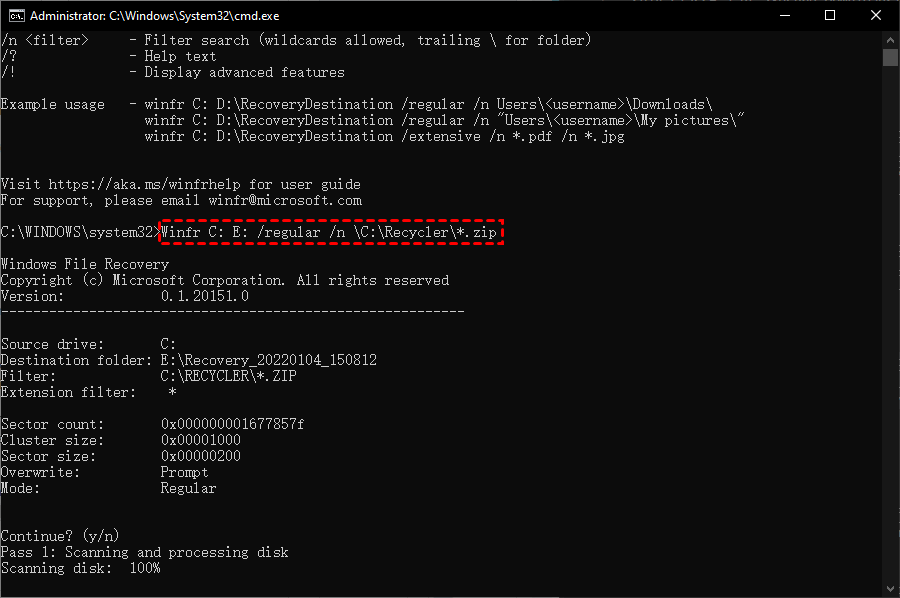
Step 3. Wait for the recovery to complete. Once done, a folder named "Recovery_(date and time)" will be generated in the destination.
Notes:
✦ The source and target drives must be different.
How to recover permanently deleted files from Recycle Bin with Backup
If you regularly back up your files, you can recover deleted files using Windows features like Previous Version, File History, Backup and Restore, and OneDrive.
▶ Solution 1. Recycle Bin recovery with the Previous Version
You can also recover deleted files by restoring previous versions of files or folders if you empty the Recycle Bin regularly and have enabled system restore with available system restore points, aside from using data recovery software.
Step 1. Start File Explorer/This PC. Locate the folder which is used to save the deleted file.
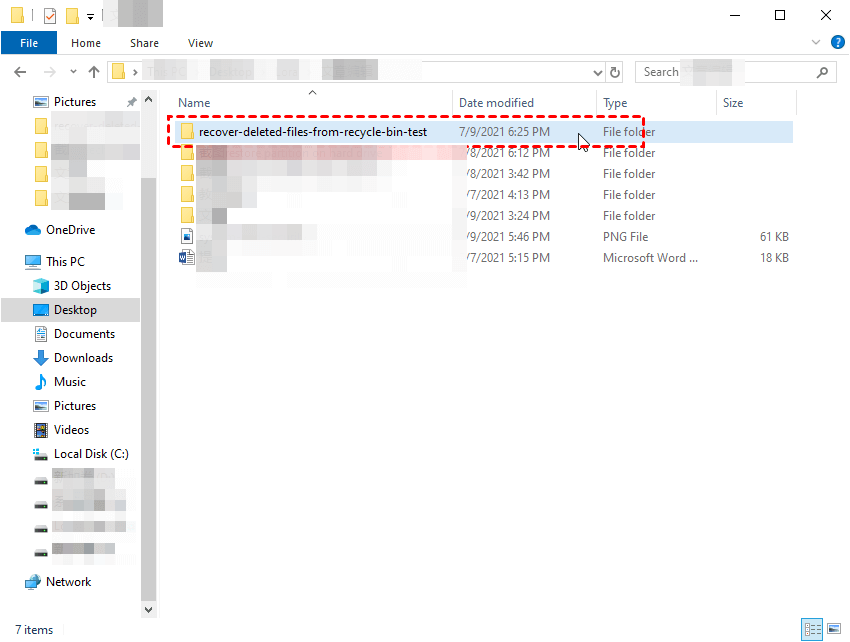
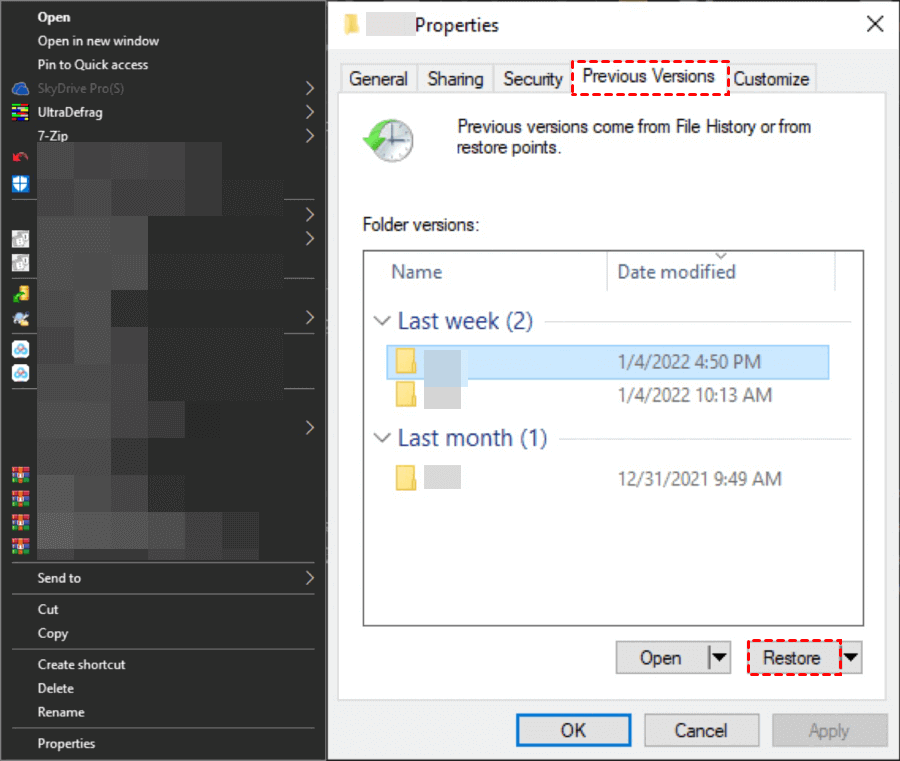
Step 2. Right-click it and then select Properties > Previous Version.
Step 3. To restore deleted files, select the folder version that was current just before you deleted the files, and click "Restore" to recover the deleted files to their previous state.
Tip: This method also helps to recover deleted Word documents after permanent deletion. It uses a combination of algorithms and machine learning to identify and restore deleted files, including Word documents, from the recycle bin and other storage locations.
▶ Method 2. Recover deleted files from Recycle Bin after empty using File History
If you have used file history to create a copy of your deleted files, you can recover them from the Recycle Bin after emptying it in Windows 10 or 11. However, if you haven't used file history, you won't be able to recover the deleted files.
Step 1. Go to Control Panel > System and Security and click File History.
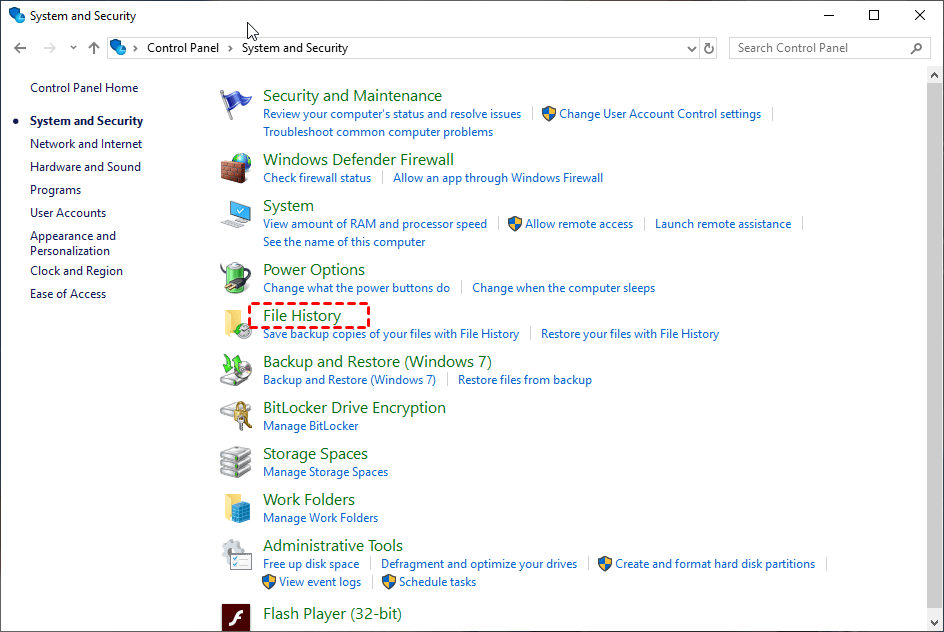
Step 2. Select Restore personal files. It will open a file history recovery window.
Step 3. To recover deleted files, click the left arrow to locate the files in the Recycle Bin, and then click the "Restore to original location" icon to restore the files to their original location.
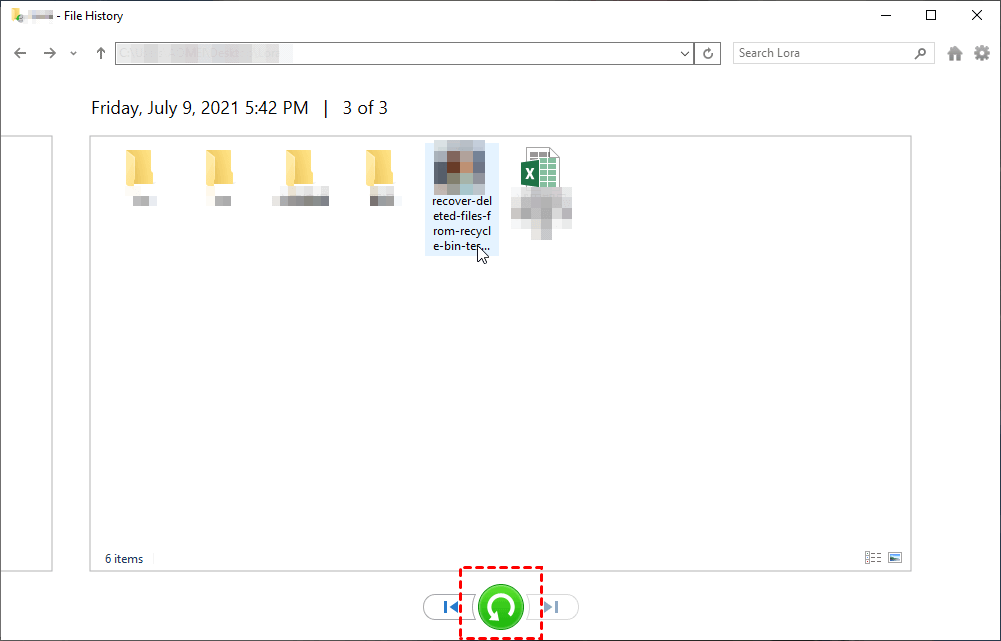
Notes:
This method will also be helpful to retrieve deleted Excel files not in Recycle Bin.
If you need to back up files with more flexible options, consider using Qiling Disk Master Standard.
▶ Method 3. Restore deleted files from Recycle Bin with Backup and Restore
The Backup and Restore utility in Windows is a built-in tool that helps users back up and restore files. It was initially introduced in Windows 7 and has been retained in subsequent versions, including Windows 8, 10, and 11, with the name "Backup and Restore (Windows 7)". This utility can be useful for creating a file backup in advance.
Step 1. Navigate to Control Panel > System and Security and select Backup and Restore (Windows 7). Then, click Restore my files.
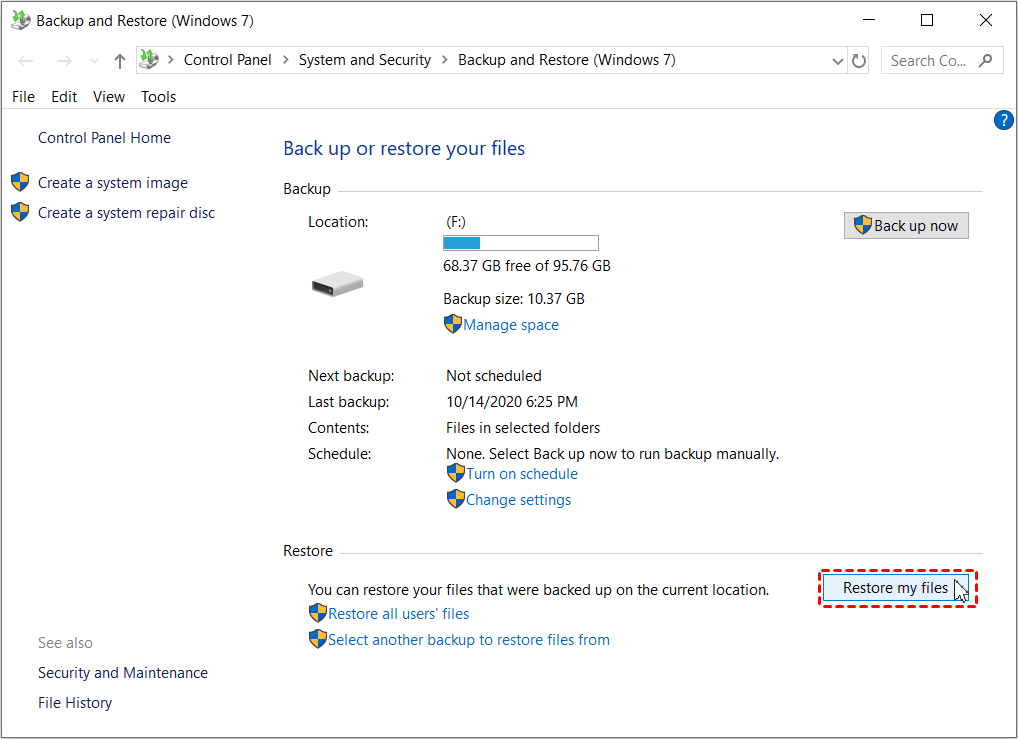
Step 2. In the Restore Files window, you can search or browse for files and folders to restore.
- Search: To restore deleted files, you can use a file recovery software like Deep Data Recovery Wizard. First, download and install the software, then launch it and select the drive where the deleted files were located.
- Browse for files: Navigate to the folder that contained the deleted files, select the files you need, and continue.
- Browse for folders: select the entire folder with deleted files.
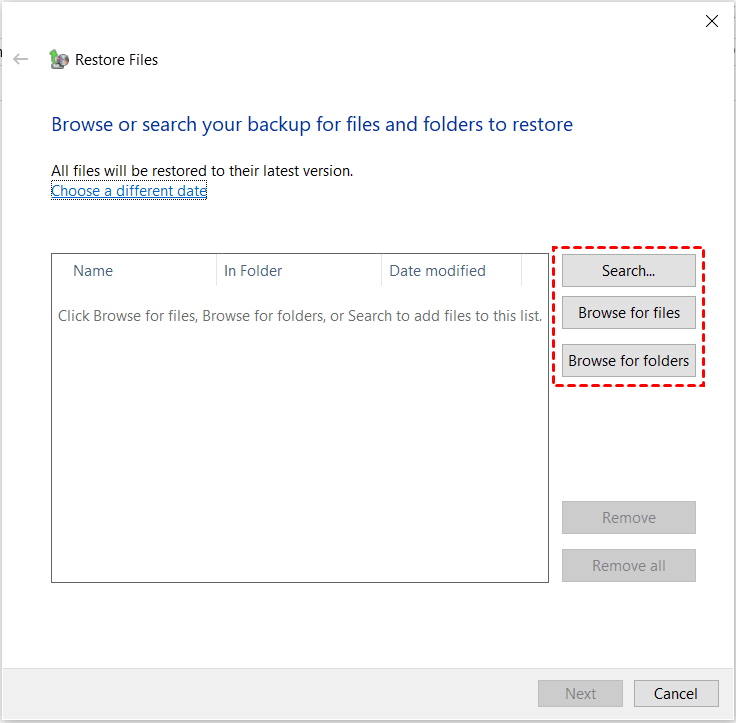
Step 3. Select a location to restore deleted files from the Recycle Bin, choosing either the original location or browsing to a new location, and then click Proceed.
▶ Method 4. Restore deleted files from Recycle Bin with OneDrive
Windows 10 users who utilize OneDrive for cloud backup may be able to recover deleted files from the Recycle Bin by checking if they have been synced to OneDrive, even after emptying the Bin.
Step 1. Go to https://onedrive.com/ and log in with your Microsoft OneDrive account.
Step 2. Navigate to the folder containing deleted files, select the desired file, and click the 'Download' button to restore it from the Recycle Bin.
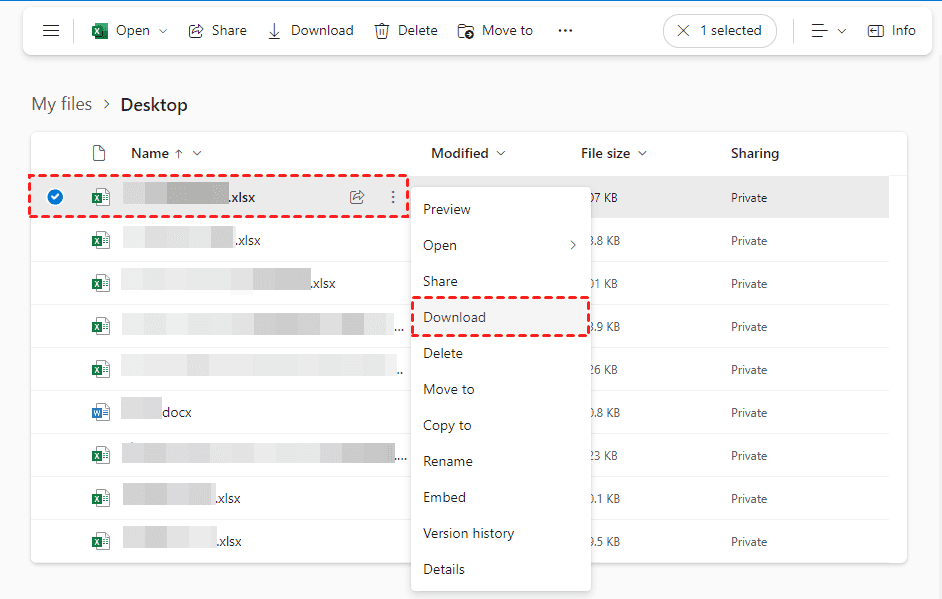
Tip: To restore multiple files, select them all and click the Download button at the top.
Recover deleted files from Recycle Bin using CMD
To display and restore hidden folders, use the `attrib` command with the `+h` option to show hidden files and folders, and the `-h` option to hide them again, and the `+r` option to restore read-only files and folders. For example, you can type `attrib +h` in the Command Prompt to display hidden files and folders, and `attrib -h` to hide them again.
Step 1. Type cmd in the search box and select it with administrator priority.
Step 2. Type chkdsk /f C: and press Enter. It will automatically scan disk errors and fix the error it found.
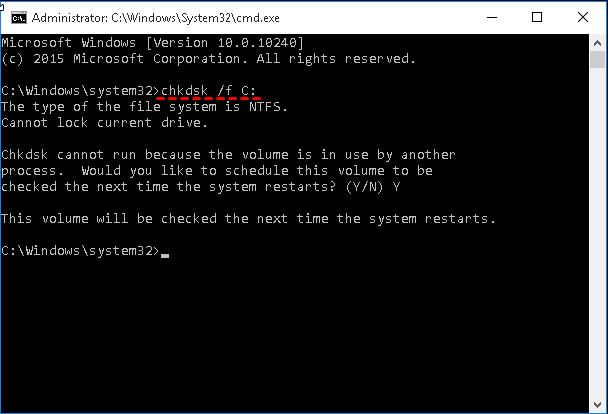
Note: The drive letter for the drive containing deleted files in the Recycle Bin is typically designated as the drive letter where the operating system stores temporary files, which is usually the C: drive. However, this can vary depending on the user's settings and the specific configuration of their computer. If you're looking to access deleted files in the Recycle Bin, you can try checking the C: drive, but it's always best to verify the actual location by checking your computer's file system or the properties of the Recycle Bin itself.
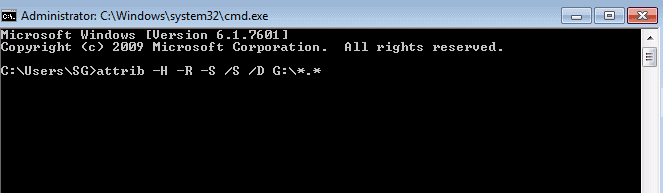
Step 3. Type ATTRIB -H -R -S /S /D C:*.* and press Enter to display hidden folders with deleted files.
Recover deleted files from Recycle Bin before empty
If you still haven't emptied the Recycle Bin, you can easily and quickly restore deleted files using one of the following two options.
▶ Method 1. Recover deleted files from Recycle Bin using Ctrl + Z
If you've removed unwanted files in File Explorer or other file managers and now regret it, you can press Ctrl+Z to undo the deletion, which can be used across the entire Windows system to reverse the last change.
Step 1. Open File Explorer. Press and hold the Ctrl key and press the Z key.

Step 2. Release both keys. It will restore files deleted accidentally.
Step 3. Repeat the previous steps if you want an earlier version.
Note: This method works only before restarting and on a local drive, but it's not effective if you removed a file from a flash drive. If that's the case, it's recommended to seek assistance to reverse the deletion.
▶ Method 2. Restore deleted files from Recycle Bin directly
If you still don't empty the Recycle Bin or permanently delete files in it, you can directly restore files deleted from Recycle Bin. Alternatively, if the deleted files are still within the recycling period (1 day, 14 days, 30 days, or 60 days), you can restore them.
Step 1. Double-click Recycle Bin icon to open it.
Step 2. Locate the deleted files in Recycle Bin.
Step 3. Right-click the deleted files in the Recycle Bin and select Restore to move them back to their original location, or go to the Manage tab and click Restore the selected items.
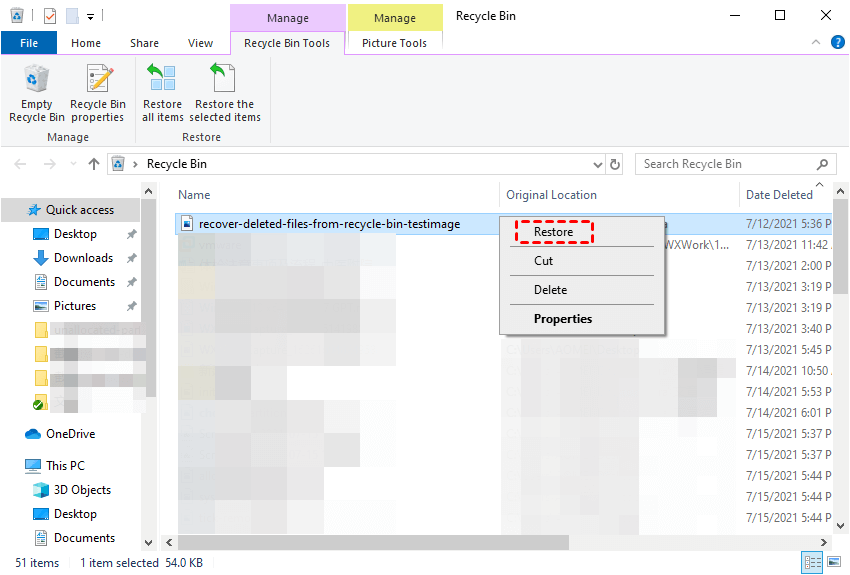
After recovering deleted files from the recycle bin, go to the original location where the files were deleted and verify if all of the recovered files are indeed present there.
Bonus tip - How to avoid data loss in Recycle Bin effectively
The Recycle Bin is a temporary storage for deleted files on a local disk, allowing users to restore deleted files if it's not emptied. To avoid losing data, follow these tips:
- Maintain your system drive regularly. The primary Recycle Bin folder is stored on the system drive, so if the drive is physically damaged, access to the Recycle Bin folder will be lost.
- Keep more space for Recycle Bin. Windows only reserves a certain amount of storage space for Recycle Bin and if the deleted files exceed that space, they won't be added to the Recycle Bin.
- Don't use your storage device heavily after deleting files in Recycle Bin until you recover them.
- Create a backup copy of your important data. To keep all data on your computer safe, create a system image backup using free backup software like Qiling Disk Master Standard, which is available for Windows 10 and 11.

- Don't use system cleanup until necessary. Using Disk Cleanup or other tools to perform a system cleanup will empty the Recycle Bin, making it harder to recover deleted files from it.
- Keep antivirus software turn on. If your system is infected with a virus or malware, you will lose access to your files, making it harder to recover deleted ones.
- Use a UPS. A UPS (uninterruptible power supply) is a backup power source that provides emergency power during temporary power outages, giving you time to safely save your data and prevent file corruption.
How to make better use of Recycle Bin
- Enable deletion confirmation. To change the Recycle Bin settings, right-click the Recycle Bin icon, select Properties, go to the General tab, and check the box next to "Display delete confirmation dialog." Then, save the changes.
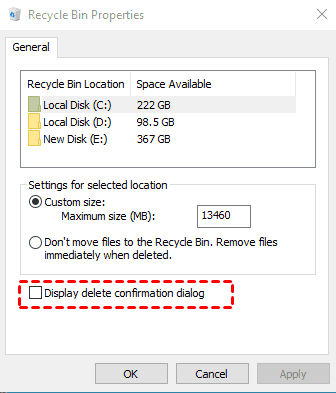
- Be sure the option "Don't move files to the Recycle Bin". The "Remove files immediately when deleted" option is not selected in the Recycle Bin Properties window, which means that when files are deleted, they will be moved to the Recycle Bin instead of being permanently deleted. This is the default behavior, but it can be changed to permanently delete files when they are deleted.
- Allocate more space for Recycle Bin. Go to the Recycle Bin Properties window, check Customize Size and increase its value, then click OK and Apply.
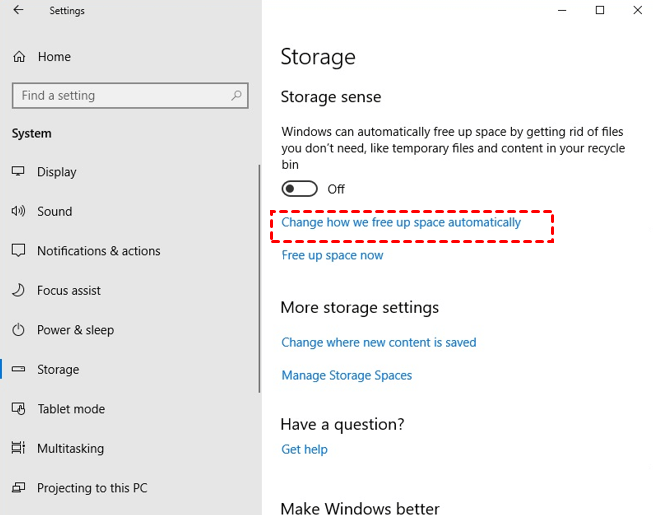
- Change retention period to longer. Windows keeps files in the Recycle Bin for 30 days or until its space is exceeded, but you can change it to a longer period by adjusting the automatic space freeing settings.
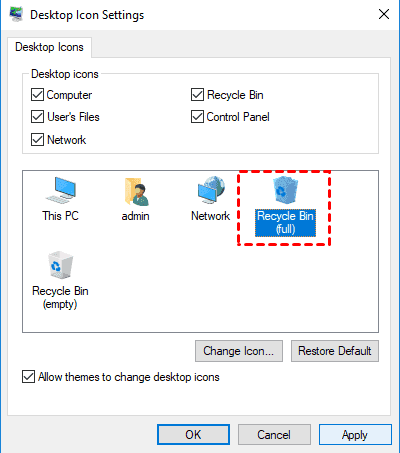
- Show or Hide Recycle Bin. To change the desktop icon settings, go to Start, then Settings, then Personalization, then Themes, and finally Desktop icon settings. From there, you can select the Recycle Bin and click Apply.
- Don't use shortcut keys (Shift) to delete files. If you use the Shift key to delete files, they will be permanently deleted and not moved to the Recycle Bin.
Frequently asked questions about Recycle Bin recovery
✍ How to recover deleted files from Recycle Bin after empty
Restoring deleted files after emptying the Recycle Bin can be achieved through various methods, including Previous Version, Attrib command, and different backup software. Additionally, data recovery software can be used, but it's essential to note that backup software requires making a duplicate copy before deleting files, ensuring they can be recovered if needed.
✍ Where do deleted files go after emptying the Recycle Bin?
If you empty the Recycle Bin and delete files, they still exist on your local disk. However, if you overwrite the space occupied by deleted files, recovering them will be more difficult unless you have a backup or powerful data recovery software.
✍ Is the Recycle Bin permanent?
Yes, the Recycle Bin folder remains permanently on your Windows system, where all deleted files are moved to. It will remain until the files are manually emptied or the space is exceeded, which typically happens within 30 days.
✍ How to undo emptying the Recycle Bin?
To undo deleted files in the Recycle Bin, create a backup using software like File History, Backup and Restore (Windows 7), or Qiling Disk Master Standard, ensuring a copy of the deleted files is saved, allowing for restoration from the backup.
✍ Why can't I find a deleted file in Recycle Bin?
If you can't find deleted files in the Recycle Bin, it might be because you've emptied it, permanently deleted them, or set the option to remove files immediately instead of moving them to the Recycle Bin.
✍ Does Recycle Bin have a history?
To check deleted files in the Recycle Bin, open it from the desktop or Start menu. You can review deleted items, restore needed files, or use file recovery software if the Recycle Bin has already been emptied.
Conclusion
This article provides 9 effective methods to recover deleted files from the Recycle Bin in Windows 7, 8, 10, and 11, even after emptying it. It also offers tips on how to prevent file loss in the Recycle Bin and make the most of its features.
To prevent data loss, create a file backup using a reliable backup software like Qiling Disk Master Standard, which allows automatic backup tasks and advanced editions can even delete old backup images to free up space.
Related Articles
- Troubleshoot Windows 11 Not Showing Up in Windows Update
Microsoft has released Windows 11, but you're not receiving the upgrade notification on your computer. To fix this, you can try updating Windows 10 to the latest version, checking for any system requirements, and running the Windows 11 upgrade manually. - Windows 11 vs Windows 10: Differences in Features, Performance, Gaming, and More
Microsoft's new operating system, Windows 11, is now available for download and installation, with Windows 10 users eligible for a free upgrade. - Word Cannot Complete the Save Due to a File Permission Error Mac/Windows 10
Microsoft Word is unable to save files due to file permission errors, which can be resolved through various methods, and it also provides information on recovering unsaved and deleted Word documents. - XLS VS XLSX | What's the Real Difference of .xls VS .xlsx [Full Guide]
This guide explains XLS VS XLSX | What's the Real Difference of .xls VS .xlsx with clear steps, key checks, and practical tips. - How to Recover Files from Corrupted Micro SD Card
When a micro SD card becomes corrupted, it can be due to various reasons, and recovering files from it is crucial. In such situations, a Micro SD card corrupted recovery tool can be used to retrieve files from the corrupted card. - How to Recover Files from Crashed Windows 7
If you want to recover data from crashed Windows 7, learn how to use a system crash data recovery tool to restore different types of files.
Products
Articles & Tutorials
- Data Recovery
- Data Backup
- File Recovery
- File Backup
- File synchronize
- System Backup and Restore
- Disk and Partition Clone
- Technical articles
- Disk Master Help
- Windows Deleted File and Disk Recovery Tutorials
- Windows File and Data Recovery Tutorials
- More Windows Tutorials for Install, Security, Files, and PC Tips
- Windows Boot, Repair, and Recovery Environment Tutorials
- Windows Backup Tutorials
- Windows Restore Tutorials
- Windows Clone and Migration Tutorials
- Windows Server Backup, Recovery, and Management Tutorials
- Windows Disk, Partition, and Storage Management Tutorials