How to Restore Previous Version of Files (4 Ways)
- Is It Possible to Recover Previous Version of File?
- How to Restore Previous Versions in Windows 10 or 11
- Method 1: Restore Previous Version of File with Windows Feature
- Method 2: Restore Previous File Version from Cloud Backup
- Method 3: Restore a File to Previous Version with Data Recovery Software
- Method 4. Restore Previous Version of Existing File in Temp Folder
- Next Step: Backup Your Files to Keep Multiple Versions
- FAQs
- Conclusion
You can't restore the previous version of a file like you can recover a deleted file, because saving a file overwrites the current version. However, the old version may still be available through other means. Fortunately, there are four methods that can help you recover the previous version of a file, which will be discussed in this article.
Is It Possible to Recover Previous Version of File?
I had a document that was fairly important to me which was several pages long. After being away for a week I found that about 70% of the document was missing. Can I get its previous versions in some ways?
- Question from Openoffice
Windows allows users to automatically save old versions of files through restore points or File History, enabling them to restore previous versions, such as finding a previous version of a Word document.
If you have a file backup, you can recover old versions of your files, or try data recovery software if you deleted a folder containing old files, or check the Temp folder.

How to Restore Previous Versions in Windows 10 or 11
Here are the two situations where you need to get back old version of a file: when you accidentally delete or modify a file, or when you want to compare different versions of a file. In both cases, you can easily restore previous versions in Windows 10 or 11. These methods are also applicable to Windows 7, 8 and 8.1.
- You modified the file or accidentally saved over Word documents, Excel files, PPT files, or other files, but regret it several days later.
- You deleted a folder containing old file.
Method 1: Restore Previous Version of File with Windows Feature
To restore a previous version of a Word document, go to File > Info > Manage Versions > Restore Previous Versions. Alternatively, you can also right-click on the file, select Properties, and then click on the Previous Versions tab. From there, you can select the desired version and click Restore to go back to that version. This method allows you to revert to a previous state of the document without affecting other files.
Step 1. Go to the folder containing modified or overwritten files. Right-click the folder and click Properties. Then, select Previous Versions.
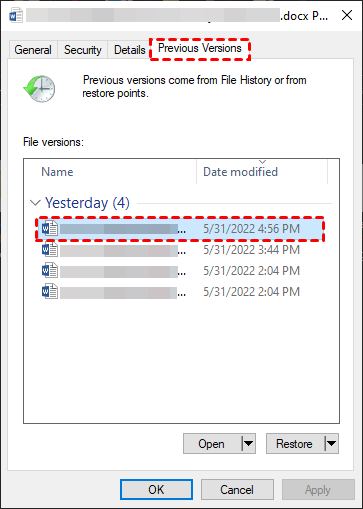
Note: In Windows 11, select Show more option first and then Restore Previous Versions, while in other versions you can directly select Restore Previous Versions in Step 1.
Step 2. You can select a previous version of a file from the version history, or click "Open" or "Open in File History" to view the selected file version.

Note: If the "Open" option is grayed out, it indicates that the file was created using File History, and you won't be able to preview its content.
Step 3. After confirming the file version you want, click Restore or Restore To… to restore a previous version of the file. If you want to restore the file to a specific location, select Restore To… .

Notes:
- The restored file will replace the current one, and this action cannot be undone. If you want to preserve the current version, use the "Save as" option and give it a different name.
- If the Restore button is greyed out, you can't restore a previous version of the file or folder to its original location, but you might be able to open it and save to a different location.
- This method also works for restoring old versions of Excel files, PPT files and more.
Method 2: Restore Previous File Version from Cloud Backup
If Method 1 doesn't work, you can try cloud backup services like OneDrive, Google Drive or Dropbox if you subscribe to them, which will save older versions of a file for about a month.
In Dropbox:
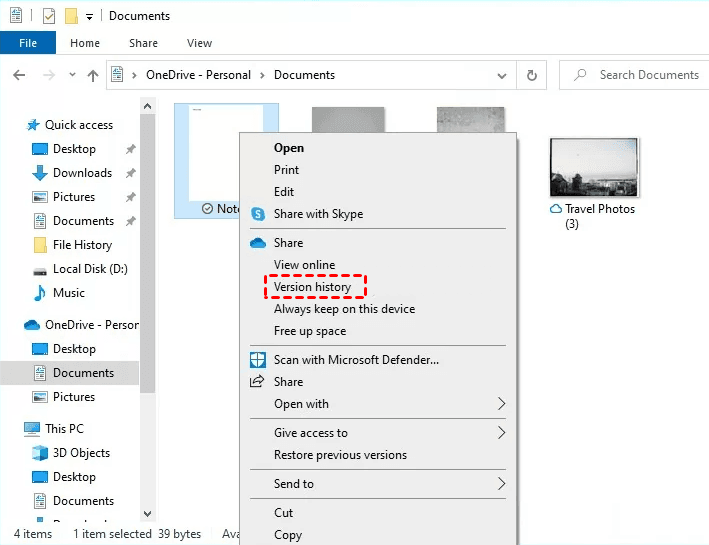
To restore a previous version of a file, select the file you want to restore and click on "Version History". Then, select the desired file version from the list and click "Restore" to retrieve the old version.
In Google Drive:
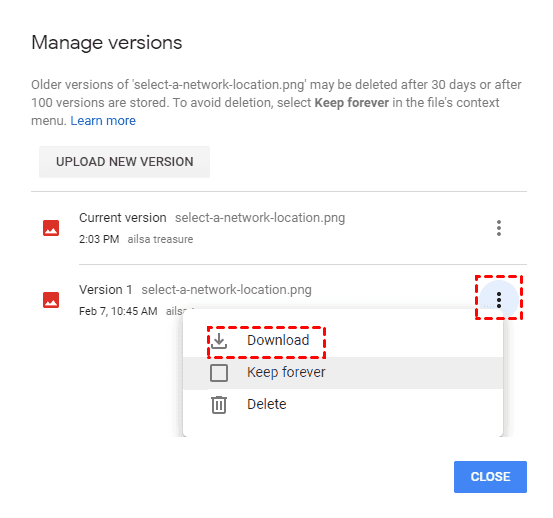
Go to My Drive, select the file with a previous version, click Manage Versions, and you can view a list of version history.

To restore a specific file version, select the desired file version, click the three-dot icon, and then click Download.
In OneDrive:
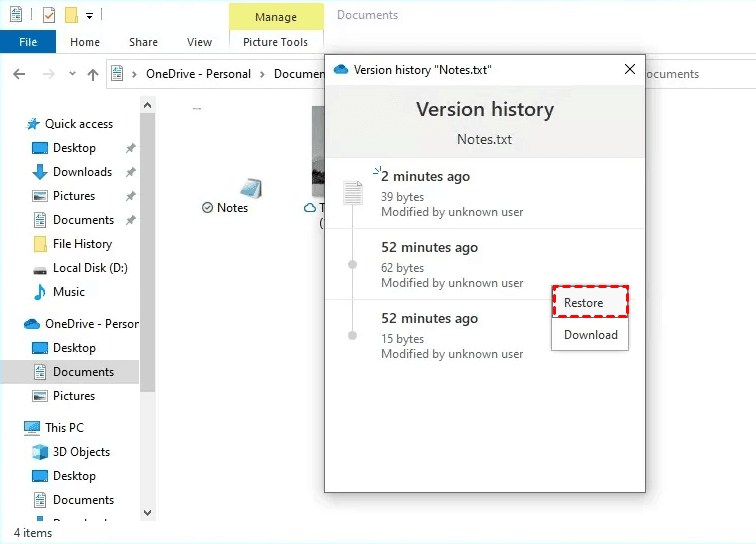
OneDrive saves older versions of Office file formats like .docx, .pdf, etc. To restore a previous version, right-click the file or folder, select "Version History", hover over the desired version, click the three-dot icon, and select "Restore" to revert the file to its previous state.
Method 3: Restore a File to Previous Version with Data Recovery Software
If you've deleted a folder containing old files, you can use reliable data recovery software to retrieve the old versions. A great option is Deep Data Recovery, which can recover a wide range of file types, including Word documents, Excel files, and PPT files, among over 200+ file types, on Windows 7, 8, 10, 11, and Windows Server.
- The software offers two advanced scanning methods: Quick Scan and Deep Scan. These methods enable the recovery of missing or deleted folders, including old files, making it easier to recover lost data.
- Filter specific files quickly The system should be able to recover lost data immediately once it's found, without waiting for the scanning process to complete.
- When recovering files or folders, keep the original file name, format, quality, and path intact to ensure the recovered items are usable and functional. This helps maintain the integrity and authenticity of the recovered data.
- Recover lost files from various storage devices, including hard drives, solid-state drives, USB drives, SD cards, and more, with a high success rate and fast speed.
To quickly retrieve your old files, download the data recovery software, which allows free recovery of files up to 500 MB, and upgrade to recover unlimited files.
Step 1. Install Deep Data Recovery, hover over the disk or partition containing the folders, and click Scan.
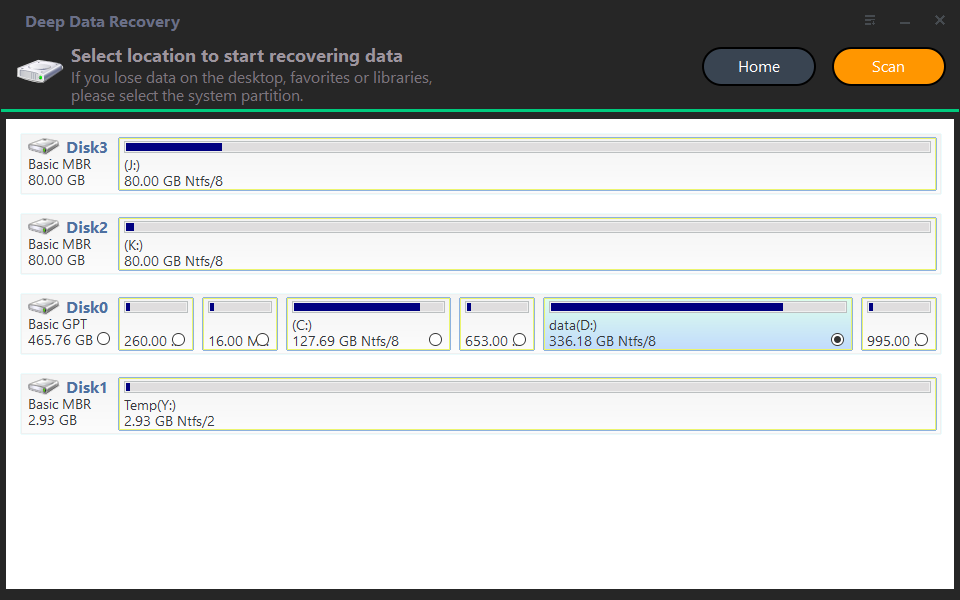
Step 2. The software will automatically scan deleted or lost folders in the selected drive, allowing you to preview the scanned data as it goes, and directly restore the files you need without having to wait for the final scan result.
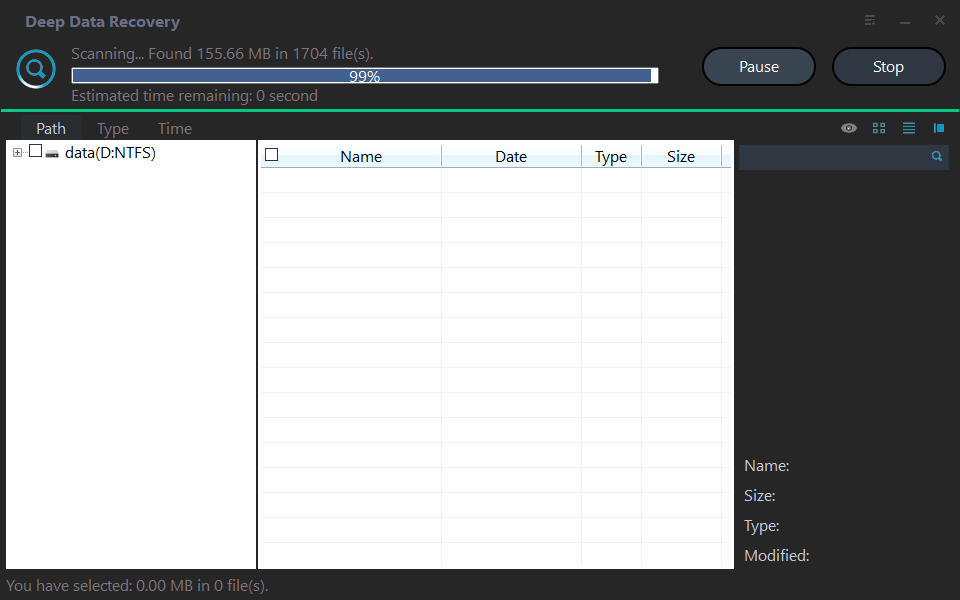
Here are the 3 options to search for Illustrator files with Filter:
- Type: The program will display all file types in the local drive, including images, videos, documents, emails, web pages, and compressed files, among others.
- Data Modified: The calendar supports various time frames, including today, yesterday, the last 7 days, the last 30 days, and custom time periods, providing flexibility in viewing and managing events and tasks.
- Size: This feature enables you to filter file sizes in various ranges, including less than 128KB, 128KB to 1MB, 1MB to 512MB, and files larger than 512MB, with the option to set a custom size range as well.
To recover a Word document to its previous version, click on "Filter" and select "Documents". Then, enter "DOCX" in the search box, which will list all deleted Word documents, allowing you to recover the desired version.
Step 3. Choose the folder containing old files and click Recover.

Notes:
- Deep Data Recovery will display the number of files to be recovered and their total size.
- To recover deleted files, store them in a new location instead of the original one to avoid overwriting the space of the deleted folder, which could lead to data recovery failure.
- The software can recover files from various storage devices, including formatted hard drives, external hard drives, USB drives, and SD cards.
- Except for Windows 7, 8, 10, and 11, this software still supports recovering deleted files from Windows Server 2016, 2019, 2022, and other versions.
Method 4. Restore Previous Version of Existing File in Temp Folder
If a program crashes and you haven't saved your files, you can try looking in the Temp folder, where Windows and installed apps often store temporary files, which may be a backup of your unsaved work.
Step 1. Press Win + R and type %systemdrive%\Windows\Temp. Press Enter to access this folder.
Step 2. Type %userprofile%\AppData\Local\Temp in the Run window and press Enter.
Step 3. Search the folder to find your files. Right-click the folder and select Open with, then choose a program to open the file with.
Next Step: Backup Your Files to Keep Multiple Versions
Most file backup software allows you to keep multiple versions of files, as long as you enable features like scheduled backups to run automatically. By default, it will only back up changed files after the first full backup, and create a duplicate copy at each scheduled interval.
Qiling Disk Master Standard is a good choice for backup software. It allows for scheduling backups based on daily, weekly, monthly, or event triggers, as well as USB plug-in schedules, all of which are free. The software also supports backing up files to external hard drives, USB drives, and cloud storage services such as Google Drive, OneDrive, and Dropbox.
Step 1. Download and install Qiling Disk Master Standard, then click "Backup" and "File Backup" to back up your files.

Step 2. Set the Task Name to distinguish this backup task from others, then select Files or Folder to choose the files you want to back up.

Step 3. To use OneDrive, click "Select a cloud drive" and choose OneDrive. Once files are uploaded, OneDrive will automatically save previous versions.

Step 4 (IMPORTANT). Click Schedule Backup and enable Daily, Weekly, Monthly, Event triggers or USB plug in to back up your files automatically.

Step 5. Confirm the operation and click Proceed. This will enable incremental backup, which only backs up new or changed files at the scheduled time, keeping multiple versions of your files.
FAQs
✍ How to restore files to previous version on Mac
Apple's Pages, Numbers, and Keynote apps allow users to browse and restore previous versions of their files using the "Revert to" feature. Additionally, if you have a Time Machine backup, you can also restore files or folders from it.
✍ How to restore previous version of Excel file
Similarly, you can right-click an Excel file and select "Properties" or "Restore Previous Versions" from the context menu. Then choose the desired version and click "Restore". If you are unsure which version is correct, open it first to review the content before restoring.
✍ How to recover overwritten files no previous versions
If you can't find a previous version of a file in its properties, check if it's stored on a cloud drive like Google Drive, OneDrive, or Dropbox, as they automatically keep a previous version of your files.
Conclusion
In Windows, you can easily restore a previous version of a file if you've made changes, overwritten the file, or deleted a folder containing old files. Try reverting to the previous version first, and if that's not possible, you can use reliable data recovery software like Deep Data Recovery to recover deleted files.
After restoring the previous version of your files, it's a good idea to set up automatic file backups and save them on a cloud drive or external storage device using free backup software like Qiling Disk Master Standard. This way, you'll have an easier time recovering deleted files and can access previous versions of your files if needed.
Related Articles
- [Stepwise Guide]: How to Recover Deleted Files on Windows
The article offers four methods to recover deleted files on Windows 10 or 11, providing users with options to choose the method that suits them best. - How to Recover Deleted Partition in Windows 11, 10, 8, 7?
Follow this step-by-step guide on how to recover deleted partition in Windows 11/10. Some tested solutions are provided here, including repairing damaged/corrupted partitions. - How to Recover Files from Hard Drive Using CMD? Easy & Free!
Learn how to Recover Files from Hard Drive Using CMD Easy & Free! with clear steps, key checks, and practical tips. - How to Recover Files from Ransomware Attack [Full Guide 2022]
Learn four practical solutions for ransomware file recovery, including backups and available recovery options. - How to Recover Formatted HDD Data with Unformat HHD Software
Learn how to Recover Formatted HDD Data with Unformat HHD Software with clear steps, key checks, and practical tips. - Unformat Pen Drive Software to Recover Formatted Pen Drive
It will saves you multiple important files to unformat pen drive on Mac or Windows. In this article, we talk about how to use pen drive unformat software to recover files from formatted pen drive.
Products
Articles & Tutorials
- Data Recovery
- Data Backup
- File Recovery
- File Backup
- File synchronize
- System Backup and Restore
- Disk and Partition Clone
- Technical articles
- Disk Master Help
- Windows Deleted File and Disk Recovery Tutorials
- Windows File and Data Recovery Tutorials
- More Windows Tutorials for Install, Security, Files, and PC Tips
- Windows Boot, Repair, and Recovery Environment Tutorials
- Windows Backup Tutorials
- Windows Restore Tutorials
- Windows Clone and Migration Tutorials
- Windows Server Backup, Recovery, and Management Tutorials
- Windows Disk, Partition, and Storage Management Tutorials