Recover Documents from Recycle Bin in Windows
Can deleted documents be recovered?
Deleted Word, Excel, PDF, TXT, and other documents can often be recovered if the storage space has not been overwritten. The best method depends on whether the files are still in Recycle Bin, were emptied, or were deleted with Shift + Delete.
Method 1. Restore documents from Recycle Bin
Step 1. Double-click Recycle Bin on the desktop.
Step 2. Sort by original location, date deleted, or file type.
Step 3. Select the documents you need and click Restore.
Step 4. Open the original folder and confirm the files are back.
Method 2. Recover emptied Recycle Bin documents
If Recycle Bin is empty, stop saving new files to the same drive and scan it as soon as possible.
 Deep Data Recovery
Deep Data Recovery can scan the original drive for deleted documents after Recycle Bin has been emptied.
Step 1. Open Deep Data Recovery and select Fast Scan to quickly search for deleted documents.
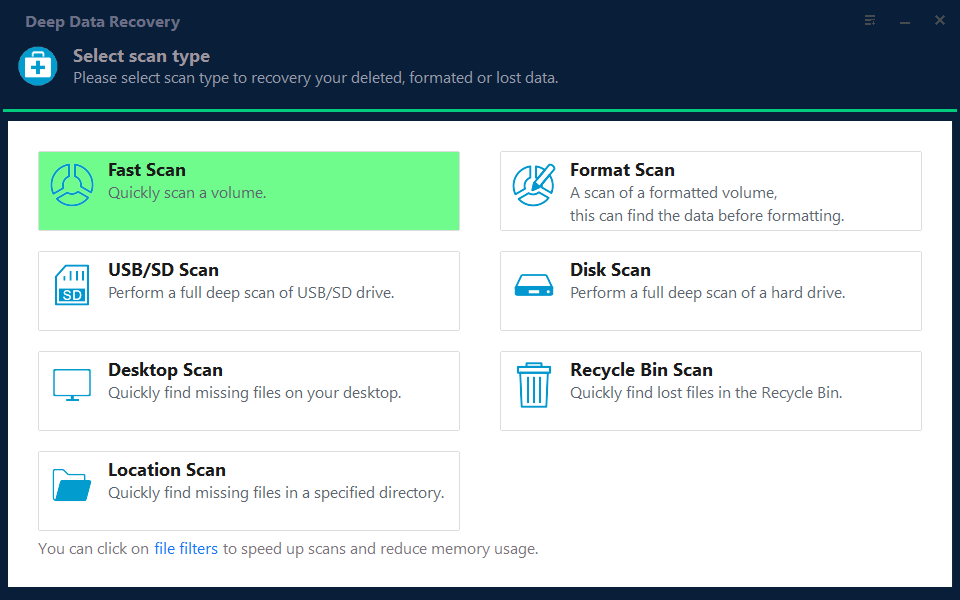
Step 2. Select the drive where the documents were stored. Do not select the separate drive where recovered files will be saved.

Step 3. Start the scan and wait for recoverable files to appear. Let the scan finish if the documents do not appear in the early results.
Step 4. Filter by document type or search by file name, preview important files when available, and select the documents you need.

Step 5. Click Recover and save the documents to another healthy drive. Do not recover them to the original drive until the recovery is complete.
Method 3. Restore from File History or backup
Step 1. Open the folder that originally contained the document, such as Documents, Desktop, or a project folder. If the folder no longer exists, open its parent folder instead.
Step 2. Right-click a blank area in the folder, select Properties, and open the Previous Versions tab. A listed date means Windows has a saved version from File History, backup, or a restore point.
Step 3. Select a version from before the document was deleted, then click Open first. Check that the document is present and opens correctly before choosing Restore.
Step 4. To restore through File History, search Windows for Restore your files with File History. Browse with the left and right arrows until you find the required date and folder.
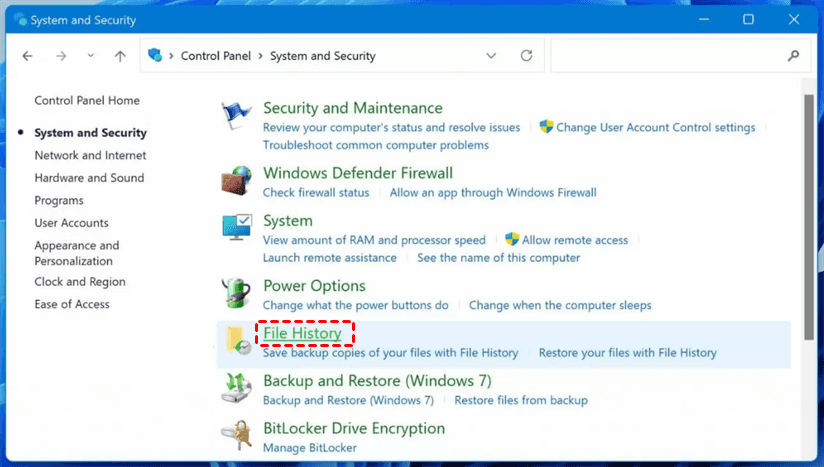
Step 5. Select the document and click the green restore button. Restore it to the original folder, or copy it to a different folder first if you need to avoid overwriting a newer file.
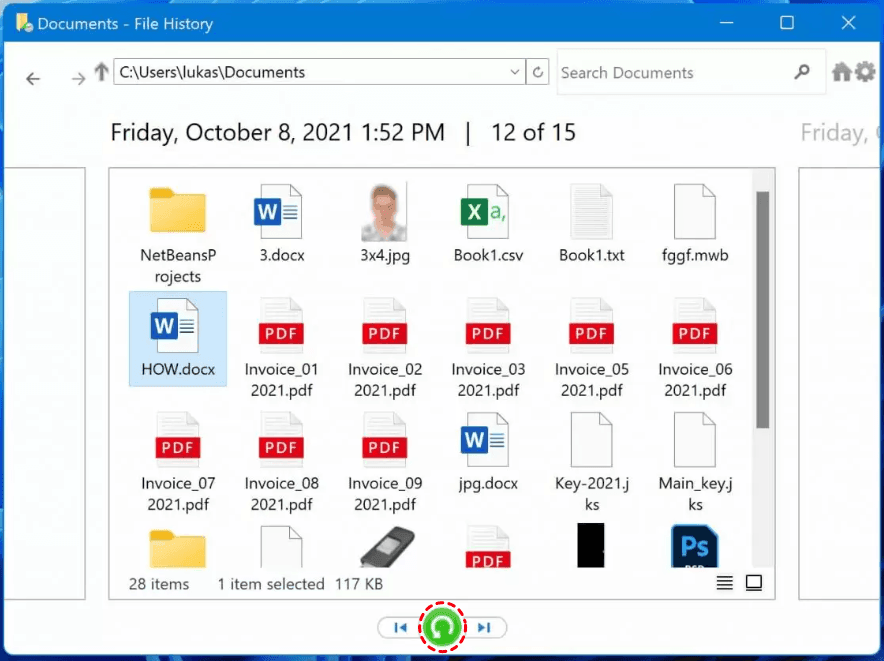
Step 6. Open the recovered document and save a second copy to another drive or cloud folder so it is protected from another accidental deletion.
How to avoid losing documents again
Turn on File History, sync work folders to a cloud service, and keep at least one offline backup for important documents. For work files, save versions with clear names instead of overwriting the only copy.
Conclusion
Start with Recycle Bin, then backups, then recovery software. The sooner you stop writing new data to the original drive, the better the chance of recovering deleted documents.
Related Articles
-
How to Recover Deleted Files from Recycle Bin in Windows 7
Restore deleted files from Recycle Bin or recover them after emptying it. -
Deleted File Not in Recycle Bin | Proven Fixes
Find why deleted files may bypass Recycle Bin and how to recover them. -
Backup Files and Folders in Windows
Protect documents with file backups to reduce recovery risk. -
Fix Recycle Bin Shows Empty But Is Not in Windows 10/11
Find documents when Recycle Bin appears empty or does not show files you expect. - Accidentally Emptied Recycle Bin: Recover Deleted Files
Recover files after accidentally emptying the Recycle Bin by stopping disk writes, checking backups, and scanning the original drive.
Products
Articles & Tutorials
- Data Recovery
- Data Backup
- File Recovery
- File Backup
- File synchronize
- System Backup and Restore
- Disk and Partition Clone
- Technical articles
- Disk Master Help
- Windows Deleted File and Disk Recovery Tutorials
- Windows File and Data Recovery Tutorials
- More Windows Tutorials for Install, Security, Files, and PC Tips
- Windows Boot, Repair, and Recovery Environment Tutorials
- Windows Backup Tutorials
- Windows Restore Tutorials
- Windows Clone and Migration Tutorials
- Windows Server Backup, Recovery, and Management Tutorials
- Windows Disk, Partition, and Storage Management Tutorials