Fix Recycle Bin Shows Empty But Is Not in Windows 10/11
Why Recycle Bin shows empty but is not
Recycle Bin may look empty even when it still uses disk space or should contain deleted files. Common causes include File Explorer cache, hidden protected files, a corrupted Recycle Bin database, Storage Sense cleanup, or a desktop icon that does not refresh correctly.
If the deleted files are important, recover or check them before resetting Recycle Bin, because resetting may remove existing items.
Method 1. Refresh and open the real Recycle Bin folder
Step 1. Open Recycle Bin and press F5.
Step 2. Press Win + R, type shell:RecycleBinFolder, and press Enter.
Step 3. If files appear, select them and click Restore the selected items.
Step 4. If it still appears empty, continue with the next method.
Method 2. Show hidden and protected files
Step 1. Open File Explorer and click View > Options.
Step 2. Select Show hidden files, folders, and drives.
Step 3. Temporarily clear Hide protected operating system files.
Step 4. Open the root of each drive and check $Recycle.Bin. Restore files carefully and then turn protected file hiding back on.
Method 3. Reset corrupted Recycle Bin
Step 1. Search for cmd, right-click Command Prompt, and choose Run as administrator.
Step 2. Run the following command for the affected drive:
rd /s /q C:\$Recycle.bin
Step 3. Repeat it for other drives if needed, such as D:\$Recycle.bin.
Step 4. Restart the computer. Windows will create a new Recycle Bin automatically.
Method 4. Restore the Recycle Bin desktop icon
Step 1. Right-click the desktop and choose Personalize.
Step 2. Open Themes > Desktop icon settings.
Step 3. Check Recycle Bin and click Apply.
Step 4. If the icon still displays incorrectly, restart Windows Explorer in Task Manager.
Recover files if Recycle Bin is really empty
 Deep Data Recovery
Deep Data Recovery helps recover deleted files when Recycle Bin is empty, corrupted, or cannot display deleted items correctly.
Step 1. Select the drive where the deleted files were originally stored.
Step 2. Run a full scan.
Step 3. Filter by file type or search by file name.
Step 4. Save recovered files to another disk.
Prevention tips
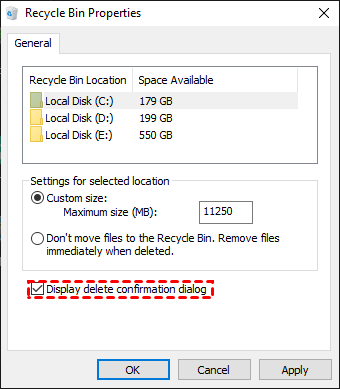
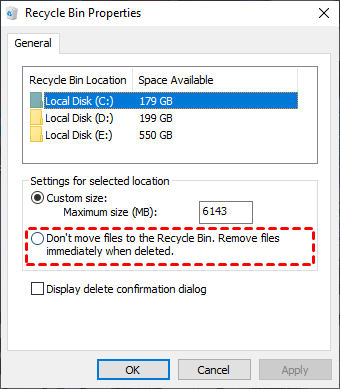
- Do not set Recycle Bin to remove files immediately.
- Enable delete confirmation.
- Check Storage Sense cleanup settings.
- Keep regular backups of important folders.
Related Articles
-
Deleted File Not in Recycle Bin | Proven Fixes
Learn why deleted files may bypass Recycle Bin and how to restore them with File History, Backup and Restore, or recovery software. -
Recover Files from Empty Recycle Bin in Windows
Recover files after Recycle Bin is emptied or bypassed, and learn safer ways to restore deleted data in Windows. -
How to Show Hidden Files in Windows 10
Use Windows settings to show hidden files and troubleshoot missing folders before running recovery software.
Products
Articles & Tutorials
- Data Recovery
- Data Backup
- File Recovery
- File Backup
- File synchronize
- System Backup and Restore
- Disk and Partition Clone
- Technical articles
- Disk Master Help
- Windows Deleted File and Disk Recovery Tutorials
- Windows File and Data Recovery Tutorials
- More Windows Tutorials for Install, Security, Files, and PC Tips
- Windows Boot, Repair, and Recovery Environment Tutorials
- Windows Backup Tutorials
- Windows Restore Tutorials
- Windows Clone and Migration Tutorials
- Windows Server Backup, Recovery, and Management Tutorials
- Windows Disk, Partition, and Storage Management Tutorials