Seagate Partition Recovery: Restore Lost Partition and Files
Can you recover a lost partition on a Seagate drive?
Yes. If a Seagate external hard drive partition disappears, becomes unallocated, or asks to be formatted, the data may still exist until new data overwrites it. Stop using the drive and recover files before formatting or repartitioning.
Common causes of Seagate partition loss
- Accidental deletion in Disk Management or DiskPart.
- Interrupted formatting, resizing, or conversion.
- Partition table corruption after unsafe removal.
- Bad sectors, power failure, or USB connection problems.
- RAW file system or damaged volume information.
Method 1. Check Disk Management first
Step 1. Press Win + X and choose Disk Management.
Step 2. Locate the Seagate disk by capacity. Do not initialize or format it if Windows asks.
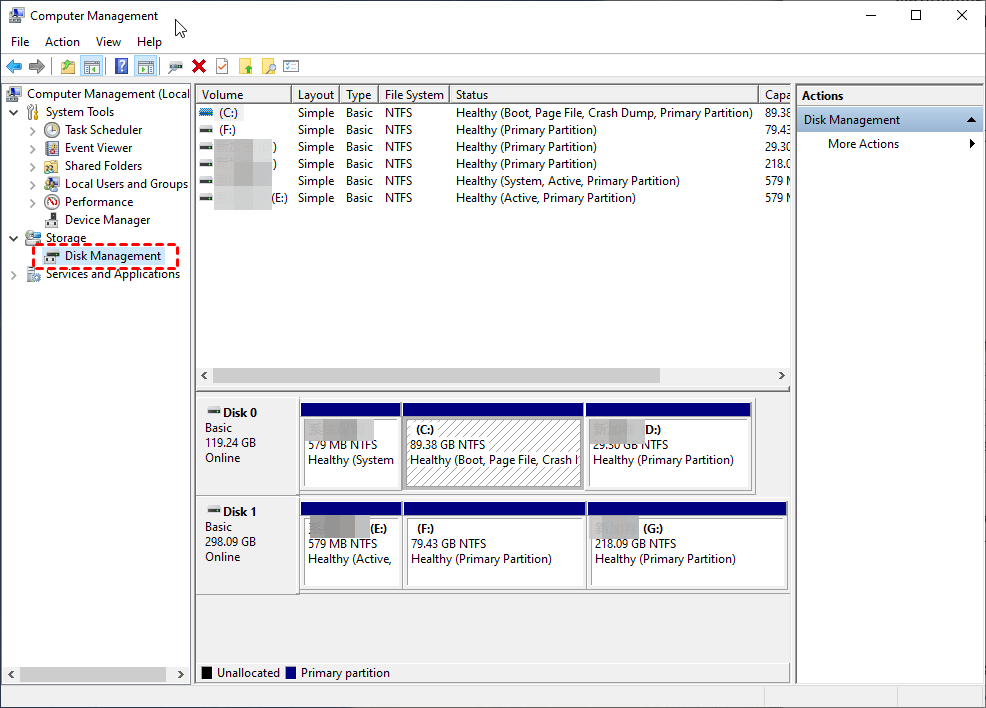
Step 3. If the partition has no drive letter, right-click it and choose Change Drive Letter and Paths.
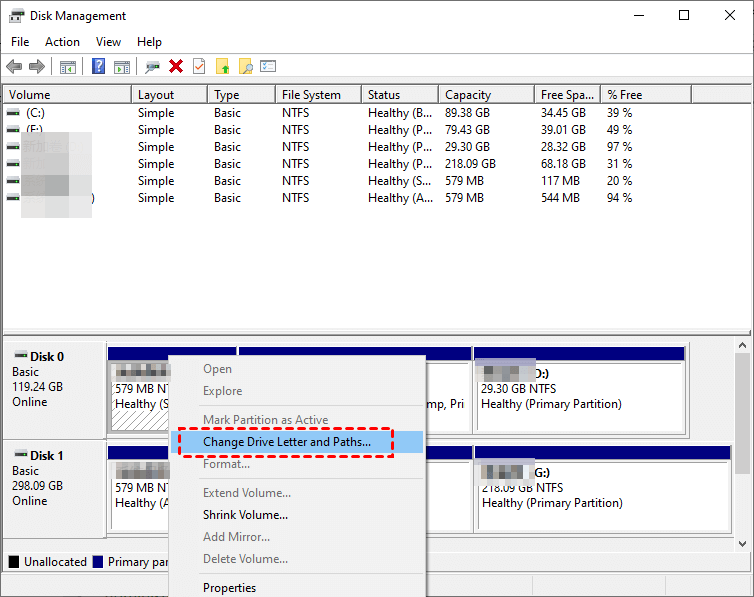
Step 4. Add a drive letter and check File Explorer.
Method 2. Recover files from the lost Seagate partition
 Deep Data Recovery
Use Deep Data Recovery to scan the Seagate drive before repairing or recreating partitions.
Step 1. Connect the Seagate drive directly to the PC with a stable USB port.
Step 2. Start Deep Data Recovery and select the Seagate disk or lost partition area.

Step 3. Run a full scan. Do not save recovered files back to the Seagate drive.
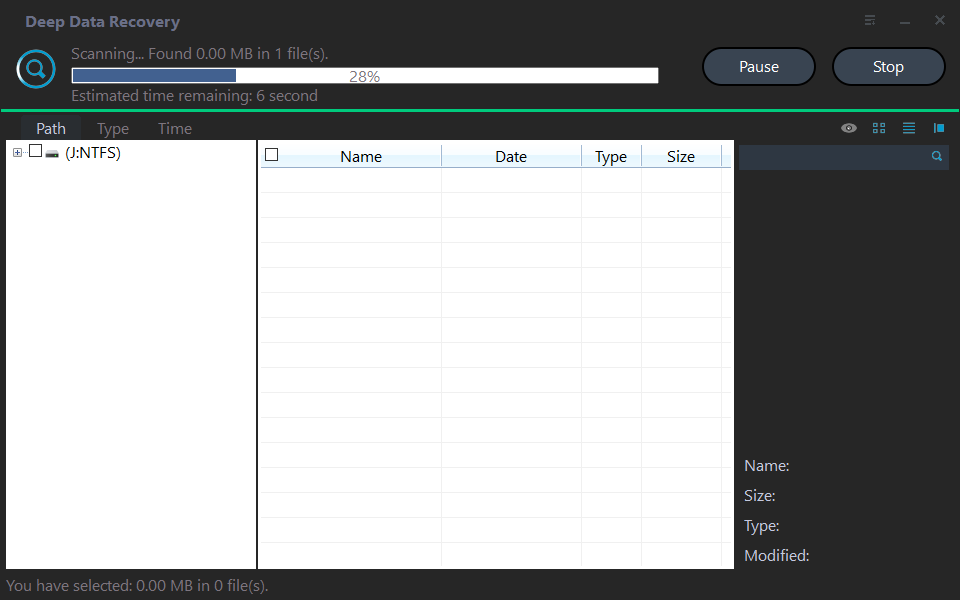
Step 4. Preview files, select needed folders, and recover them to another disk.

Method 3. Repair the Seagate partition after recovery
After files are safe, run chkdsk X: /f if the partition has a drive letter. If it is unallocated, create a new simple volume in Disk Management. If the disk has physical errors, replace it after copying data.
Prevention tips
- Eject the Seagate drive before unplugging it.
- Keep at least two backups of important files.
- Avoid resizing partitions during unstable power or USB connection.
- Check drive health when repeated disconnections occur.
Related Articles
-
Accidentally Deleted Recovery Partition? Fixed!
Learn how to handle deleted partitions and protect files before rebuilding partition structures. -
How to Recover a Deleted/Lost Partition on External Hard Drive
Recover missing partitions from external hard drives and avoid formatting before file recovery. -
Recover Data from RAW Drive Free
Restore files from RAW or inaccessible drives before repairing the file system. -
Seagate Partition Recovery Software for Windows
Follow a safe Seagate partition recovery workflow that restores files before the partition is rebuilt.
Products
Articles & Tutorials
- Data Recovery
- Data Backup
- File Recovery
- File Backup
- File synchronize
- System Backup and Restore
- Disk and Partition Clone
- Technical articles
- Disk Master Help
- Windows Deleted File and Disk Recovery Tutorials
- Windows File and Data Recovery Tutorials
- More Windows Tutorials for Install, Security, Files, and PC Tips
- Windows Boot, Repair, and Recovery Environment Tutorials
- Windows Backup Tutorials
- Windows Restore Tutorials
- Windows Clone and Migration Tutorials
- Windows Server Backup, Recovery, and Management Tutorials
- Windows Disk, Partition, and Storage Management Tutorials