[Full Guidance] How to Recover Data from HDD
The need to recover data from HDD
In computing, situations may arise where HDD data recovery is necessary due to factors like hardware malfunctions, accidental file deletions, or system failures, often resulting from HDD failure.
HDD failure can occur due to physical damage, logical errors, firmware issues, or human errors, with causes including drops, extreme temperatures, power surges, file system corruption, malware infections, and accidental deletions. Understanding the reason behind the failure is essential in determining the most suitable data recovery method.
When users lose data stored on their HDD, they can try to recover it using various methods. To do this, you can follow the steps provided to retrieve your lost data. This process typically involves using data recovery software or consulting a professional for assistance.
How to recover data from an HDD
For computer enthusiasts and professionals, data recovery becomes a top priority when dealing with an HDD. If you lose stored data, you can try these basic methods to recover it.
★ Method 1. Utilizing the Recycle Bin for HDD data recovery
When files are accidentally deleted, they are temporarily stored in the Recycle Bin, making recovery relatively straightforward.
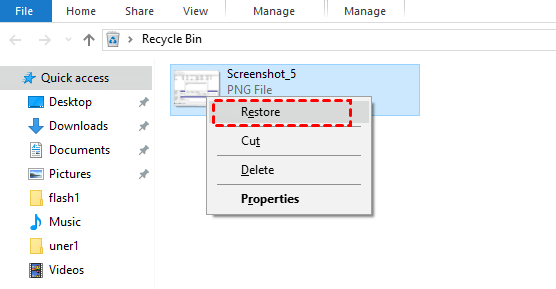
To recover deleted data from a hard drive, you can use the "Ctrl+Z" shortcut to undo the deletion, or locate the data in the Recycle Bin and click "Restore" to retrieve it.
Tips: However, it is essential to be aware of certain precautions before employing this method:
✍ Avoid emptying the Recycle Bin prematurely.
✍ Avoid using the "Shift+Delete" command, as it permanently deletes data without storing it in the Recycle Bin.
✍ Avoid deleting files and folders from an external hard drive, as deleted data from external drives does not get transferred to the Recycle Bin.
★ Method 2. Recovery HDD data with Windows File Recovery
Windows File Recovery is a command-line utility that helps retrieve deleted data from external hard drives, including mechanical hard drives. This tool, available in the Microsoft Store, requires Windows 10 version 2004 (May 2020 Update) or higher, as well as Windows 11. It allows users to recover various file types, such as pictures, documents, and videos, that have been accidentally deleted.
Notes:
✦ Before using this tool, it is essential to have a clear understanding of the specific file names, paths, keywords, or extensions involved in your data recovery process.
✦ Windows File Recovery supports file formats like JPEG, PDF, PNG, MPEG, Office files, MP3, MP4, and ZIP.
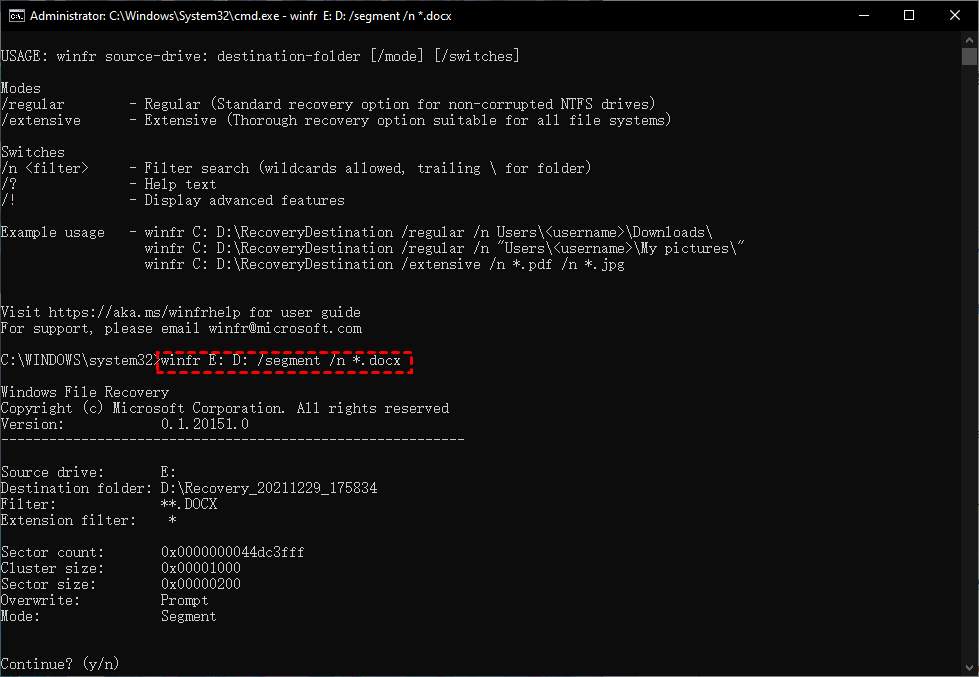
✦ To recover a file, use the command formula "winfr source-drive:destination-drive: [/mode] [/switches]".
✦ Before starting the data recovery task, you will be asked to choose a mode to scan files based on your condition: Default or Extensive. The Extensive mode includes two options: Signature and Segment. The Signature mode allows for the recovery of all lost files with their headers, while the Segment mode recovers files via NTFS file system records.
Step 1. To verify your Windows version, go to "Settings > System > About" and check the Version Number, making sure it is 2004 or higher.
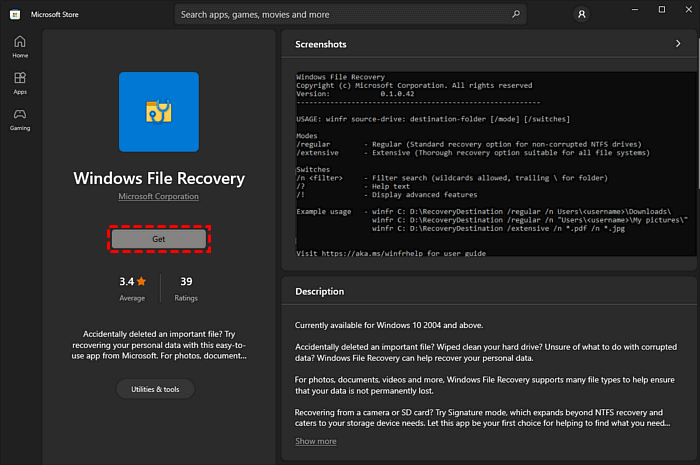
Step 2. To download the Windows File Recovery tool from the Microsoft Store, access the store and search for "Windows File Recovery". Select "Get" to download the tool.
Step 3. Launch the tool, and a Command Prompt window will appear. Select the default mode and input the winfr source-drive:destination-drive:[/mode][/switches] command, then press Enter.
A better alternative to recover data from HDD
To recover data from a hard drive (HDD), Qiling FastRecovery is an exceptional software that offers a successful retrieval of lost files, combining robust functionality with a user-friendly interface.
This software offers a user-friendly interface, allowing users to easily navigate and recover their lost files. It supports various file systems, including NTFS, FAT, and HFS, and can recover files from both internal and external hard drives.
➹ Advanced data recovery capabilities: This software can recover data from a broken hard drive by scanning the drive, identifying recoverable data fragments, and reconstructing the data, making it easy to solve the problem of recovering data from a broken hard drive.
➹ Data security emphasis: The software prioritizes the safety of recovered files by operating in a read-only mode, minimizing data loss and corruption risk, and ensuring the HDD's integrity.
Let's see how to recover data from dead HDD.
Step 1. To recover lost data, install and launch Qiling FastRecovery, then select the exact partition or disk where the data was lost and click the "Scan" button.

Step 2. The recovery tool starts scanning and searching for your deleted data. It first executes a "Quickly Scan" to quickly find your deleted data, and then proceeds to a "Deep Scan" to search for any other lost data.

Step 3. Once the scan is completed, all deleted files, recycle bins and Raw files will be displayed. Select the file you want to recover and click "Recover".

Step 4. Then, select a folder path to save your recovered files.
Step 5. Wait patiently for this process of recovering ends.
Last line
To recover data from a damaged HDD, you can find solutions here. This article discusses the methods involved in recovering data from the HDD, even when it has been damaged.
Related Articles
- 4 Ways for How to Recover Deleted Photos from Camera Memory/SD Card [2023]
4 ways to recover deleted photos from a camera memory SD card are: restoring from the "recently deleted" section, checking the "trash can" for recoverable photos, accessing a backup of the deleted photos, or using digital camera SD card recovery software to retrieve the lost images. - How to Recover Deleted Emails in Thunderbird
5 ways to recover deleted emails in Thunderbird are introduced here to help you learn how to recover deleted emails in Thunderbird, covering all the possible and useful ways. 1. - How to Recover Shift Deleted Files in Windows 7/8/10/11 in 4 Ways [2023]
To recover shift deleted files in Windows 11/10/8/7, you have four options: using File History, restoring from a previous version, recovering from a Windows backup, or employing specialized software. Choose the most suitable method to retrieve deleted files after a shift delete operation. - How to Recover Deleted Files from Recycle Bin in Windows 7
If you want to recover deleted files from the recycle bin in Windows 7 or restore the recycle bin itself, follow this step-by-step guide for Windows 7 recycle bin recovery. - How to Get Files from Damaged SD Card
Learn how to Get Files from Damaged SD Card with clear steps, key checks, and practical tips. - How to Back up System - Free Download Backup System Software
Backing up your system is an essential step in ensuring the security and integrity of your computer. It provides a safeguard against system crashes, data loss, and other potential issues that can arise due to hardware or software failures.
Products
Articles & Tutorials
- Data Recovery
- Data Backup
- File Recovery
- File Backup
- File synchronize
- System Backup and Restore
- Disk and Partition Clone
- Technical articles
- Disk Master Help
- Windows Deleted File and Disk Recovery Tutorials
- Windows File and Data Recovery Tutorials
- More Windows Tutorials for Install, Security, Files, and PC Tips
- Windows Boot, Repair, and Recovery Environment Tutorials
- Windows Backup Tutorials
- Windows Restore Tutorials
- Windows Clone and Migration Tutorials
- Windows Server Backup, Recovery, and Management Tutorials
- Windows Disk, Partition, and Storage Management Tutorials