Restoring Lost Data: Methods for Data Recovery on Windows OS
Why need to restore lost data?
Data loss can be a distressing experience, but there is hope when it happens unexpectedly. Whether it is documents, memories, or business information, losing data can have serious consequences, but there are ways to recover it.
Yes, there are methods to restore lost data. Various techniques and tools can be used to retrieve lost data, which will be discussed in the next parts.
What need to pay attention before the data recovering task?
Before recovering lost data on a Windows PC, it is essential to be cautious and follow some guidelines to ensure a successful recovery process. First, stop using the computer immediately to prevent overwriting the lost data.
★ Stop using the device
When you realize you have lost data, the first and most crucial step is to stop using the affected device right away. Whether it is a hard drive, SSD, USB flash drive, or memory card, continued use can overwrite the lost data, making it unrecoverable. By immediately halting all activities on the device, you increase the chances of successfully recovering your lost data.
★ Check backups
Before attempting more advanced data recovery methods, it is essential to check if you have any backups available. Regularly backing up your data is one of the most effective preventive measures against data loss, and having a recent backup of the lost files can allow for easy restoration without needing complex recovery techniques.
★ Check Recycle Bin or trash
If you have lost data on a computer, check the Recycle Bin (Windows) or Trash (macOS) first, as deleted files are often moved there and can be easily restored. However, if they have been permanently deleted or the Recycle Bin/Trash has been emptied, recovery might not be possible.
★ Remain calm and patient
Data recovery can be a lengthy and complex process, especially if significant data loss is involved. It is crucial to remain calm and patient throughout the recovery process, avoiding hasty decisions that might worsen the situation. With the right approach and tools, there is a good chance of successfully restoring lost data, even if it seems impossible at first. By taking a calm and methodical approach, you can increase the likelihood of a successful data recovery.
Two methods to recover lost data from your PC
If you cannot find the lost data in the Recycle Bin, you can try the following two methods to recover the target data and files.
▶ Method 1. Retrieve the lost data via the File History Backup
Windows offers File History Backup as a means to retrieve lost files. This feature allows recovery of deleted Documents, Videos, Music, Pictures, Desktop folders, and more. Here is how to restore data:
Tip: If you have previously backed up your files, this method can be effective.
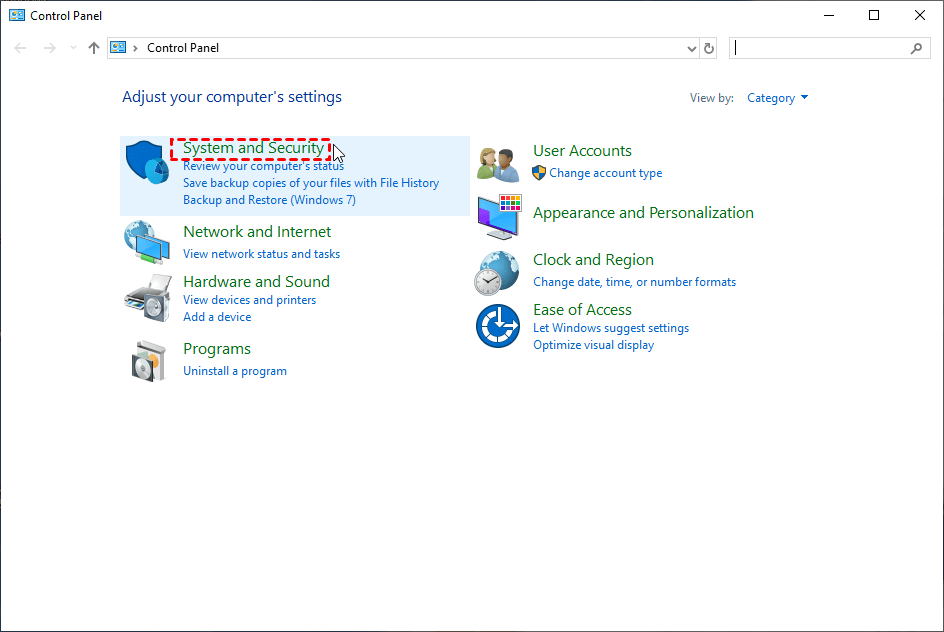
Step 1. Select the "System and Security" option from the "Control Panel".
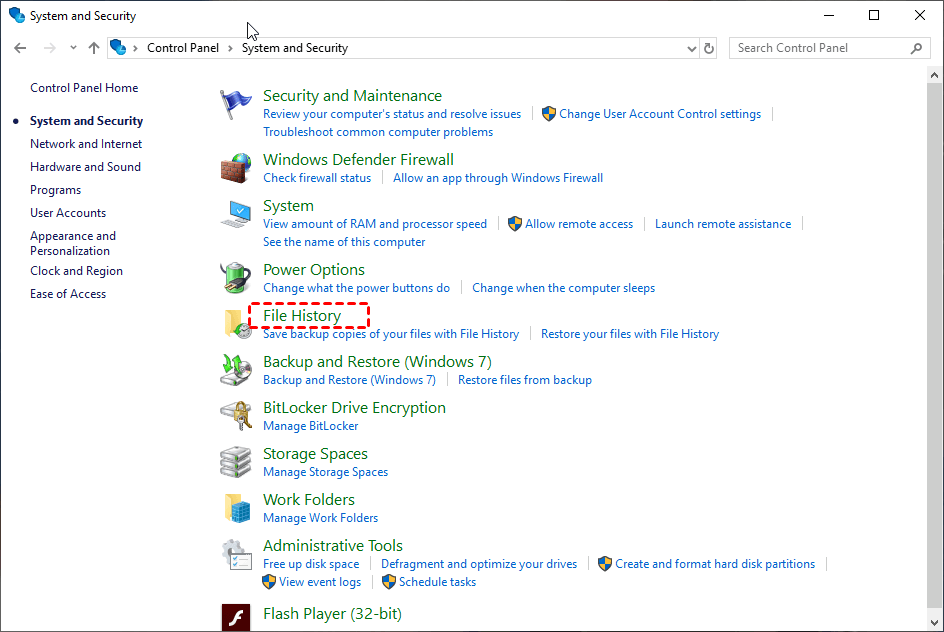
Step 2. To restore your files with File History, go to the "File History" tab and click on "Restore your files with File History".
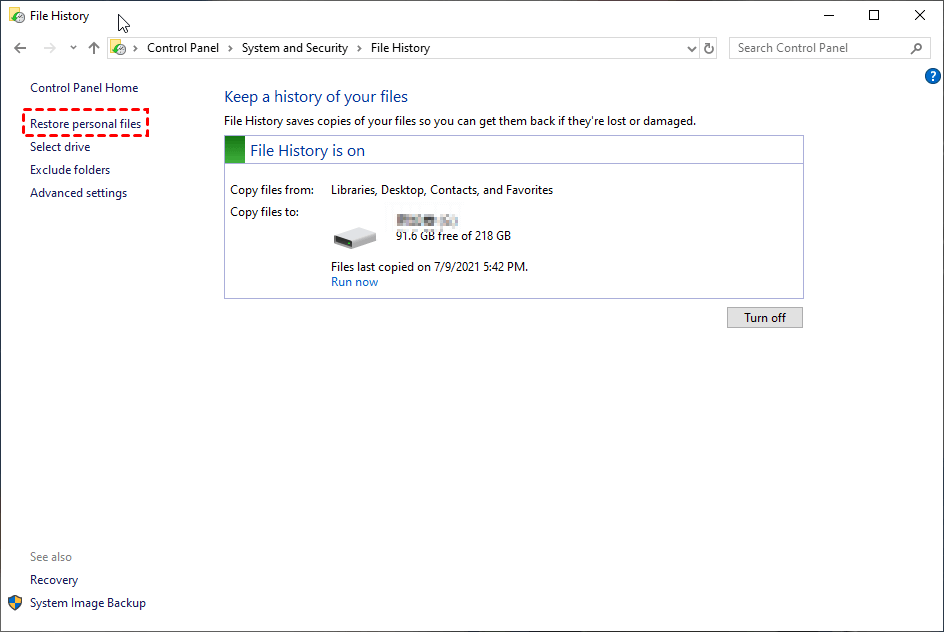
Step 3. Choose the "Restore personal files" option in the left panel.
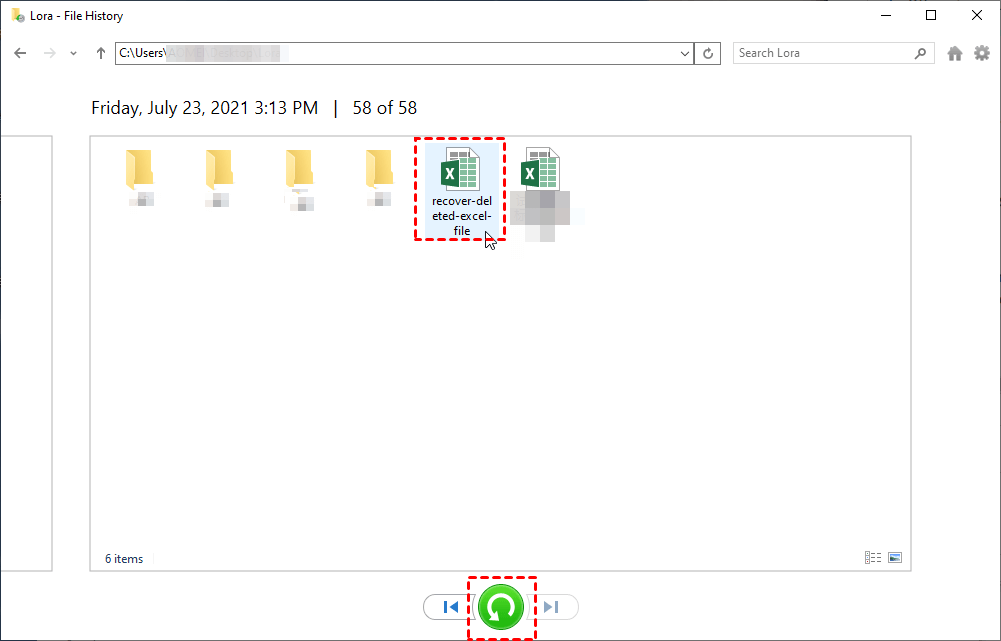
Step 4. To restore deleted files, click "Restore" and then select your desired destination from the right-click menu.
▶ Method 2. Perform restoring lost data task with third-party software
If you have a backup or file history, you can recover lost data by resetting your PC. However, if you do not have a backup, you may want to consider using a professional data recovery tool to help retrieve your lost data.
Qiling Disk Master Professional provides a "Recover Data" feature to retrieve lost data from various storage devices, including files, documents, photos, videos, and other types of files, regardless of whether they were deleted accidentally or lost due to formatting, partition deletion, or virus attacks.
With an intuitive graphical user interface, data recovery becomes effortless with just three simple steps, making it easy to recover data from various Windows storage media, including HDDs, SSDs, USB drives, and SD cards, at high speeds and with reliable results.
Users can use it without any malware, and it maintains a secure environment by refraining from displaying any malicious ads during running this tool. It can be compatible with Windows 11/10/8.1/8/7/Vista/XP, and also has a Server Version to help find lost data on Windows Server.
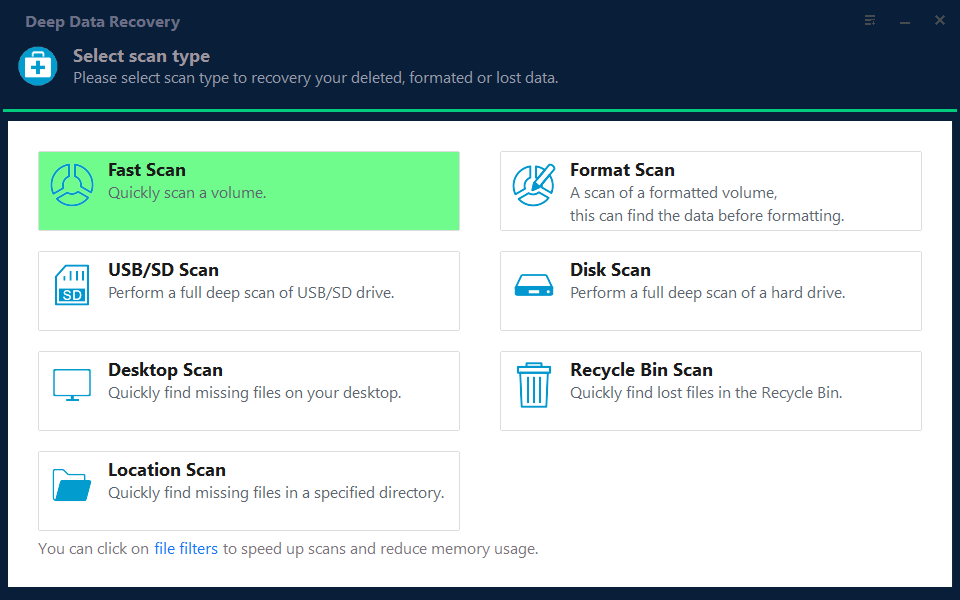
Step 1. Install and launch Qiling data recovery software. In the Main Tab, click on "Fast Scan".
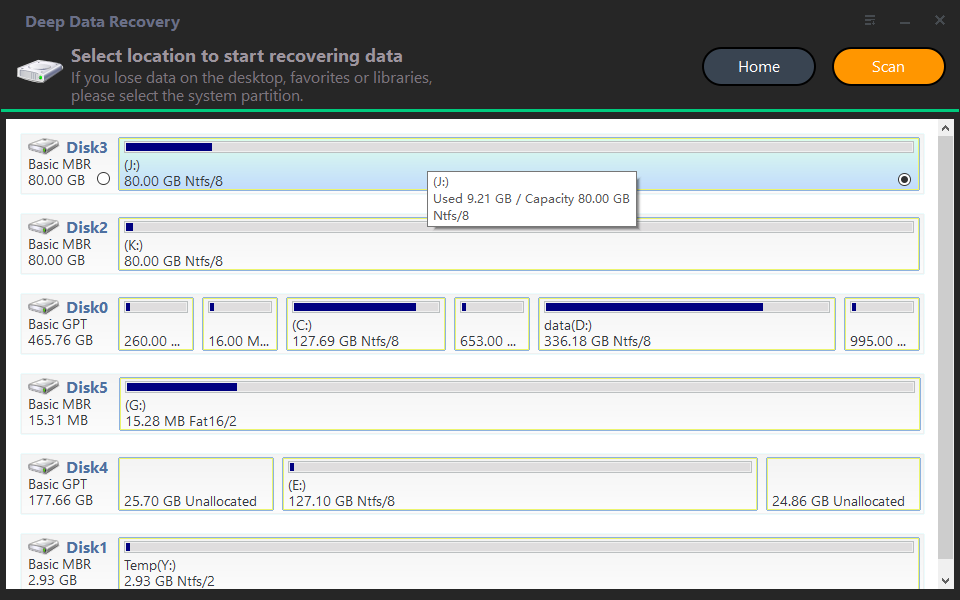
Step 2. The Recover Windows Data tool will be displayed, allowing you to select the partition location to start the data recovery process. Once selected, click on "Scan" to initiate the scan.
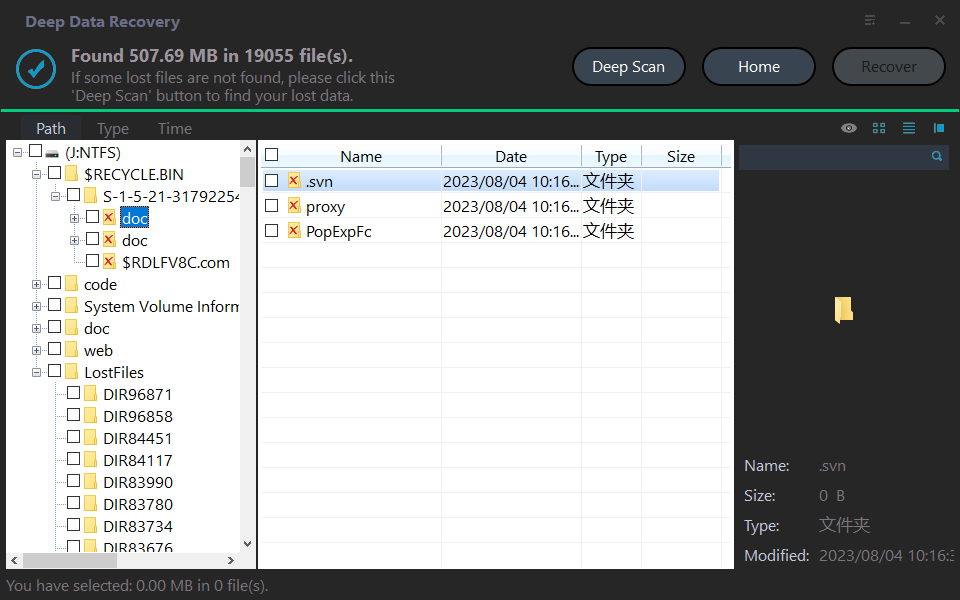
Step 3. After the scan is complete, you will see a list of all deleted files, recycle bin contents, and Raw files displayed. Simply select the files you want to recover and click "Recover" to retrieve them.
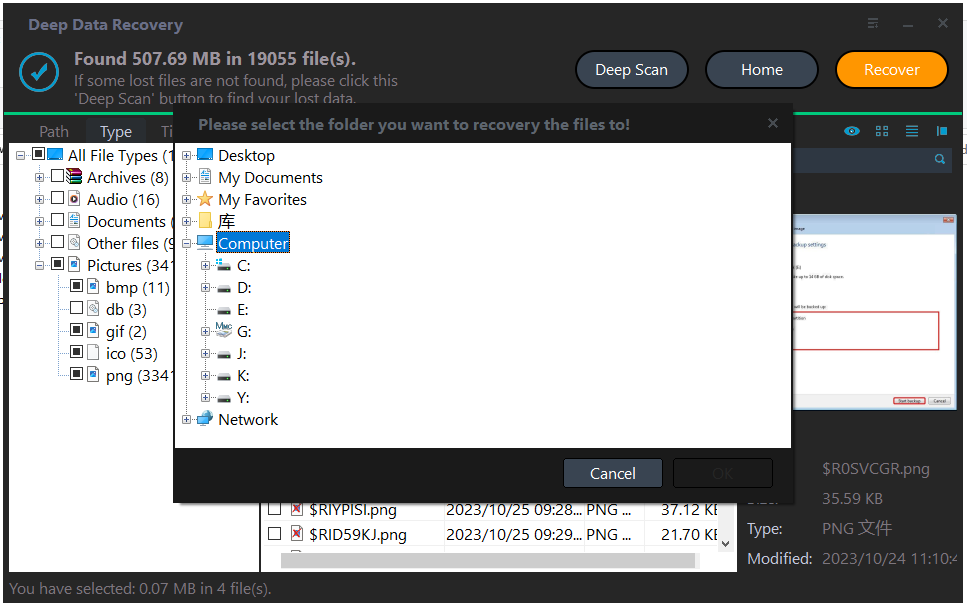
Step 4. To recover deleted files on a PC, select a folder path on your computer to save the recovered files, choosing a location that suits you best.
Step 5. Once you have successfully recovered your files, proceed to the path you chose to access and view your recovered files.
Verdict
Losing valuable data due to accidental deletion, hardware failure, or other unforeseen circumstances can be devastating, but there are steps you can take to increase the chances of restoring it successfully. By following the tips mentioned in this article, you can potentially recover your lost data.
Related Articles
- Solid State Drive Data Recovery: How to Retrieve Your Lost Files
This guide explains Solid State Drive Data Recovery: How to Retrieve Your Lost Files with clear steps, key checks, and practical tips. - The Best Data Recovery Software to Recover Deleted File
It is common to accidentally delete some important files on Windows computer. In such a case, you may want to find the professional data recovery software to recover deleted file. Here you will get a best file recovery tool and learn how to use it. - [Full Guidance] How to Recover Data from HDD
Learn how to Recover Data from HDD with clear steps, key checks, and practical tips. - Best Get Data Back Full Version Crack Alternative Free Download in 2022
Download best alternative software to replace Get Data Back full version crack and let the NTFS, FAT, FAT32, exFAT, EXT recovery software to get data back from all drives, USB memory stick and memory card. - How to Recover Data from Corrupted Windows 10
It is a disaster when your Windows 10 crashed with your data unsaved at all. This article tells you how to recover data from corrupted windows 10. - How to Recover Data from Damaged External Hard Drive
External hard drives are a popular storage solution for many users, offering a convenient way to store and transfer large files. However, like any other electronic device, they can be prone to damage, resulting in lost data.
Products
Articles & Tutorials
- Data Recovery
- Data Backup
- File Recovery
- File Backup
- File synchronize
- System Backup and Restore
- Disk and Partition Clone
- Technical articles
- Disk Master Help
- Windows Deleted File and Disk Recovery Tutorials
- Windows File and Data Recovery Tutorials
- More Windows Tutorials for Install, Security, Files, and PC Tips
- Windows Boot, Repair, and Recovery Environment Tutorials
- Windows Backup Tutorials
- Windows Restore Tutorials
- Windows Clone and Migration Tutorials
- Windows Server Backup, Recovery, and Management Tutorials
- Windows Disk, Partition, and Storage Management Tutorials