[Free Tutorial]: Disk Management Combine Partitions in Windows 11, 10, 8, 7
Why use Disk Management to combine partition?
Disk Management is a free Windows built-in tool that helps users create, delete, format, shrink, and extend volumes, making it useful for basic disk management tasks.
To combine two hard disk partitions with Disk Management, you cannot merge them directly. Instead, you delete one adjacent partition to create unallocated space, and then extend the target partition into that space. This can help resolve low disk space issues, but the deleted partition data must be backed up first.
This article explains how to combine partitions with Disk Management and also provides an alternative method when Disk Management cannot complete the task or when you want to avoid deleting a partition.
How to merge partitions with Disk Management on Windows PC
To merge two adjacent partitions in Disk Management, you cannot directly merge them. Instead, you can delete an adjacent partition to create unallocated space, which can then be merged with the target partition. To do this, follow these steps:
Step 1. To open Disk Management, press Windows + R, type in diskmgmt.msc, and then hit Enter.
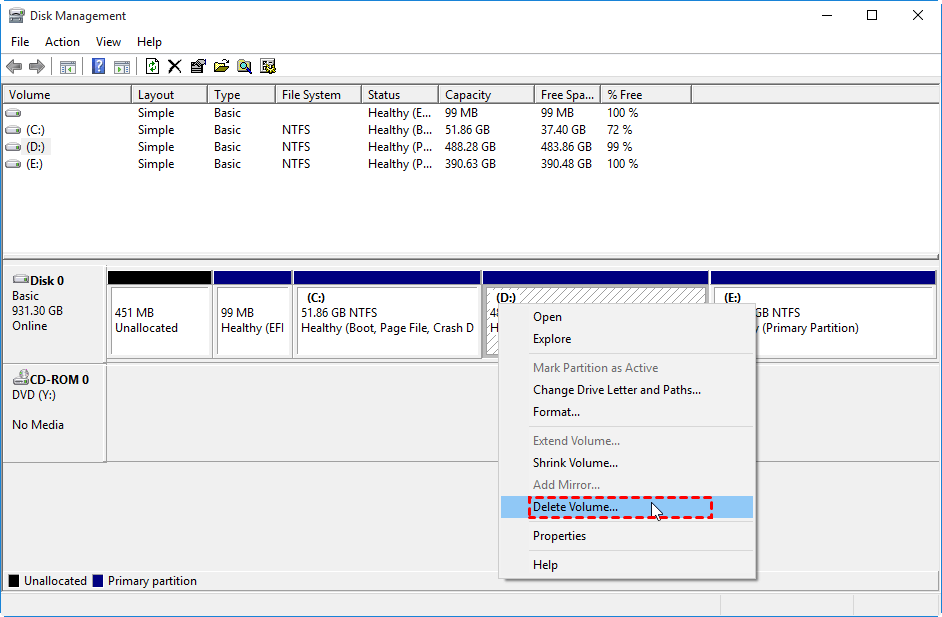
Step 2. Right-click the partition directly behind the target drive and choose Delete Volume. Please note that this partition will be deleted, so you should clone it to the external hard drive or back up its files in advance.
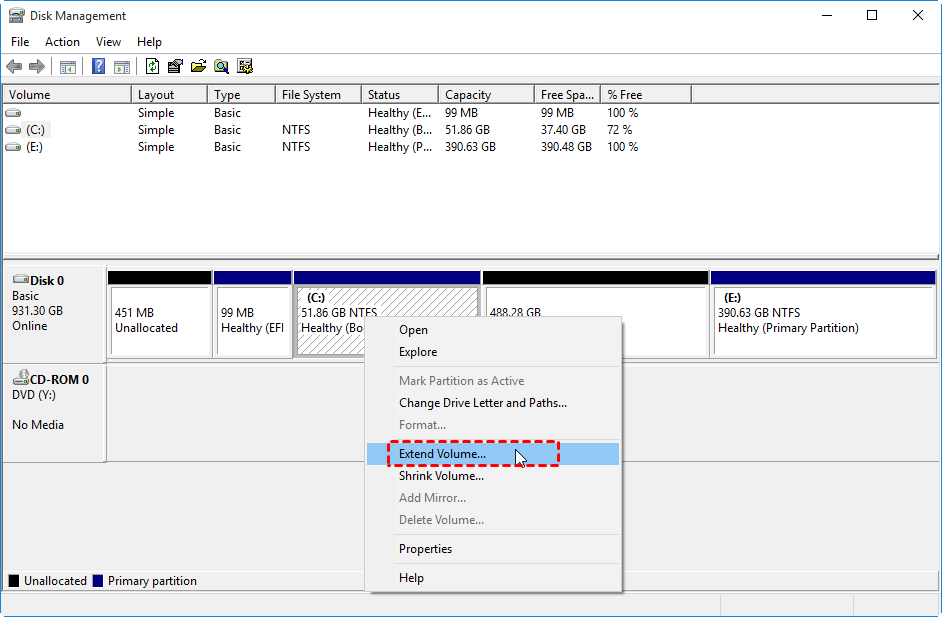
Step 3. Right-click the target partition you want to combine and select Extend Volume.
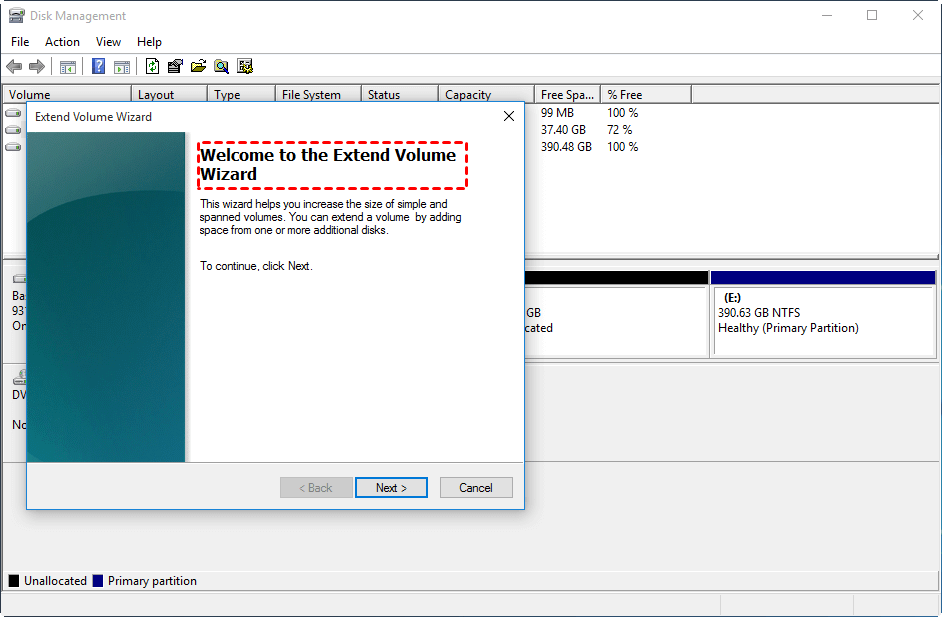
Step 4: Follow the Extend Volume Wizard and accept the default options if they match your plan. Disk Management will add the adjacent unallocated space to the target partition.
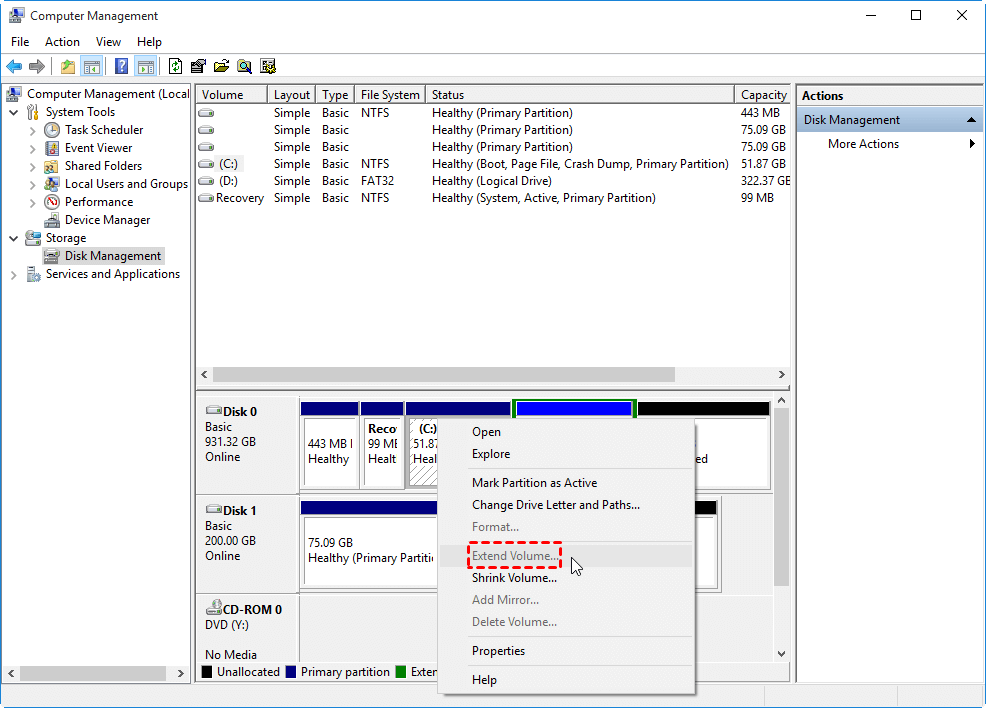
Warning: In Disk Management, the "Extend Volume" option will only be available if there is unallocated space directly to the right of the target drive. If there is no unallocated space next to the target drive, the "Extend Volume" option will be greyed out, preventing you from extending the volume. This means the unallocated space must be adjacent and to the right of the target drive for the extension to be possible.
Alternative to use Disk Management combine partitions
To combine partitions without deleting a partition first, use free partition management software. This is especially helpful when the unallocated space is not adjacent to the target partition or when Disk Management cannot extend the volume.
Qiling Disk Master Standard is disk/partition management software that helps solve complex disk problems, allowing users to merge adjacent partitions or add unallocated space more flexibly.
This software also provides Resize Partition, Create Partition, and other useful features. You can download it and learn how to combine partitions in Windows 11/10/8/7/Vista/XP.
Notes:
✍ This function can merge two partitions at a time, but can also merge multiple unallocated spaces simultaneously, regardless of their adjacency.
✍ Merging data partition into system drive is allowed, but not the other way around.
✍ If you want to complete these operations in Windows Server, please upgrade to Qiling Disk Master Server.
Step 1. Install and run the software. If the partition contains important files, back them up before changing the partition layout.

Step 2. Select the partition or unallocated space that you want to combine with the target partition, then click Proceed when prompted.

Step 3. If Disk Management-style merging is required, right-click the partition to be merged and select Delete after confirming the backup.
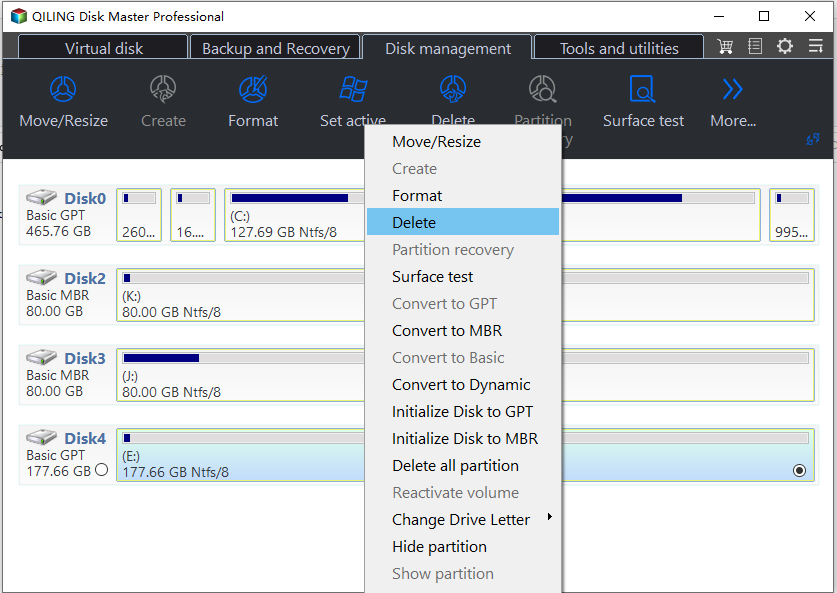
Step 4. Right-click the target partition and choose the "Move/Resize" option.
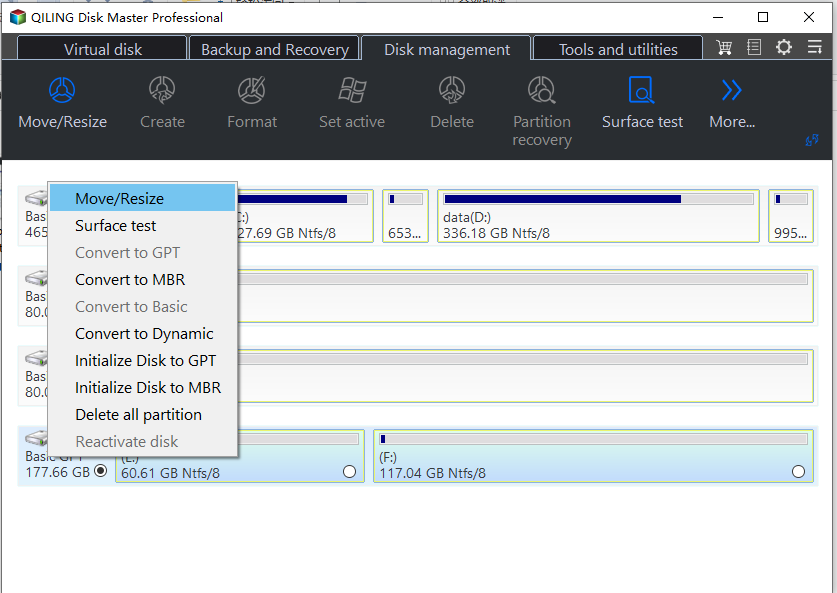
Step 5. Drag the partition border to include the unused space, then click the Proceed button.
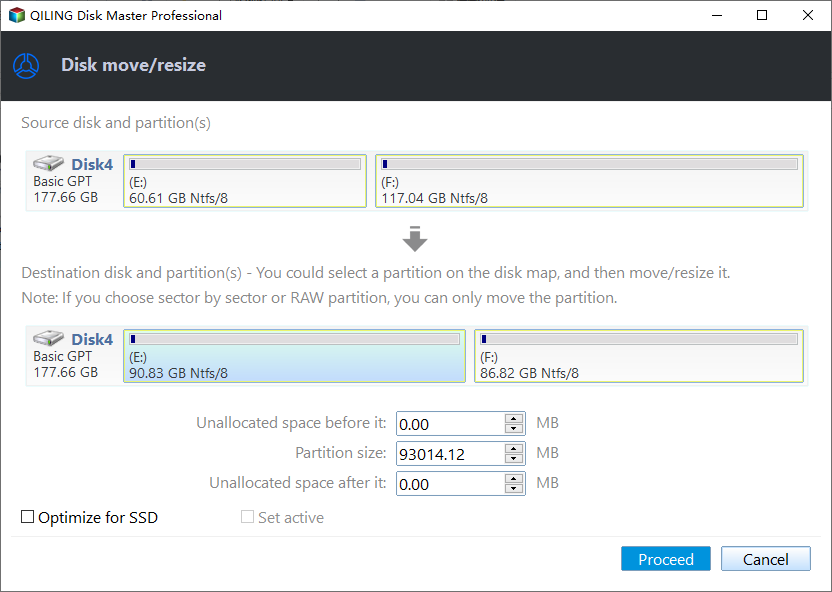
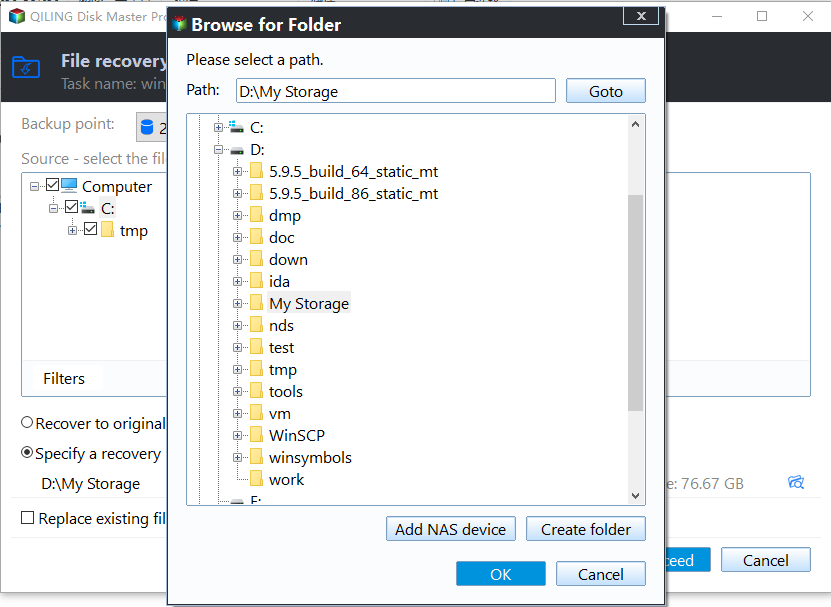
Step 6. Confirm the final partition layout and apply the pending operation. If you backed up files earlier, restore them after the merge is complete.
Summary
If you need to combine partitions in Windows, Disk Management works only when adjacent unallocated space exists behind the target partition. If there is no suitable unallocated space or you want a more flexible method, Qiling Disk Master Standard is a better option.
In addition to merging partitions, you can allocate free space from D drive to C drive, move installed programs to another drive, and convert the system drive from MBR to GPT.
Related Articles
- Diskpart: Delete Partition Force in Windows 11,10, 8, 7
You can use Diskpart to force delete a partition when you need to remove a hidden or system-protected partition on Windows 11, 10, 8, and 7. - Diskpart: Format Drive to NTFS in Windows 11, 10, 8, 7
This guide explains Diskpart: Format Drive to NTFS in Windows 11, 10, 8, 7 with clear steps, key checks, and practical tips. - Solved - "Virtual Disk Service Error: The Volume Size Is Too Big"
This guide explains Solved - "Virtual Disk Service Error: The Volume Size Is Too Big" with clear steps, key checks, and practical tips. - How to Format an External Hard Drive with Reliable Software?
Free download powerful formatting tool to help you format an external hard drive excellently, easily and securely. - 10 Fast Ways to Speed Up Windows 11 | How to Make Windows 11 Faster
Upgrading to Windows 11 can sometimes result in a slow computer, but there are ways to speed it up. Once you've completed the upgrade, you can try various methods to improve your PC's performance. - Why Is Windows Server Slow and Tips to Speed Up Windows Server in 2022
As a common user, one might wonder why Windows Server is so slow, and Qiling offers a chance to learn how to speed up Windows Server with simple tricks and tips.
Products
Articles & Tutorials
- Data Recovery
- Data Backup
- File Recovery
- File Backup
- File synchronize
- System Backup and Restore
- Disk and Partition Clone
- Technical articles
- Disk Master Help
- Windows Deleted File and Disk Recovery Tutorials
- Windows File and Data Recovery Tutorials
- More Windows Tutorials for Install, Security, Files, and PC Tips
- Windows Boot, Repair, and Recovery Environment Tutorials
- Windows Backup Tutorials
- Windows Restore Tutorials
- Windows Clone and Migration Tutorials
- Windows Server Backup, Recovery, and Management Tutorials
- Windows Disk, Partition, and Storage Management Tutorials