How to Wipe Partition and Erase Data Completely?
Wiping a partition with Qiling Disk Master can completely erase all data, making it unrecoverable by any data recovery solution. To do this, follow these steps: first, launch Qiling Disk Master and select the partition you want to wipe; next, choose the "Wipe" option from the context menu or the top toolbar; then, select the desired wiping method, such as a quick wipe or a deep wipe; finally, confirm your action and let Qiling Disk Master complete the wiping process.
Why need to wipe partition?
Wiping a partition is a good idea, especially if it contains sensitive or vital data such as bank account details and private information. Regularly wiping a partition can help erase private and sensitive info, but there are other reasons to do so as well, such as freeing up disk space, removing malware, or preparing a partition for reuse.
- Remove the data that you do not need any longer;
- To free up disk space by removing unnecessary data and preparing the partition for reuse;
- Restore the full capacity and repartition the hard disk;
- Eliminate some stubborn malware or viruses.
What is the difference between formatting and wiping a partition?
▸ Formatting a partition simply erases its partition table and removes links to all files, making the entire space writable. The deleted files remain on the drive and can still be recovered using file recovery software.
▸ Wiping a partition involves directly working on the file system level, effectively erasing all data, making it unrecoverable, and allowing for the reuse of the disk with no remnants of the old data.
How to wipe partition in Qiling Disk Master?
To wipe a partition, you can use the Qiling Disk Master Professional, which offers four different methods of wiping algorithms to securely and permanently erase all data on a partition. This process involves selecting the desired wiping algorithm, choosing the partition to be wiped, and confirming the action. The software then executes the wiping process, ensuring the partition is completely cleared of data.
Before you do
- Download and install Qiling Disk Master on a Windows computer.
- Connect the drive or partition to your computer.
- Backup your important data to an external drive or cloud storage before erasing the partition. This will prevent any accidental loss of files.
Wipe partition step by step
1. To wipe a partition using Qiling Disk Master Professional, launch the program and select the partition you want to erase. Right-click on the chosen partition and choose the "Wipe Partition" option from the context menu. This will initiate the wiping process.
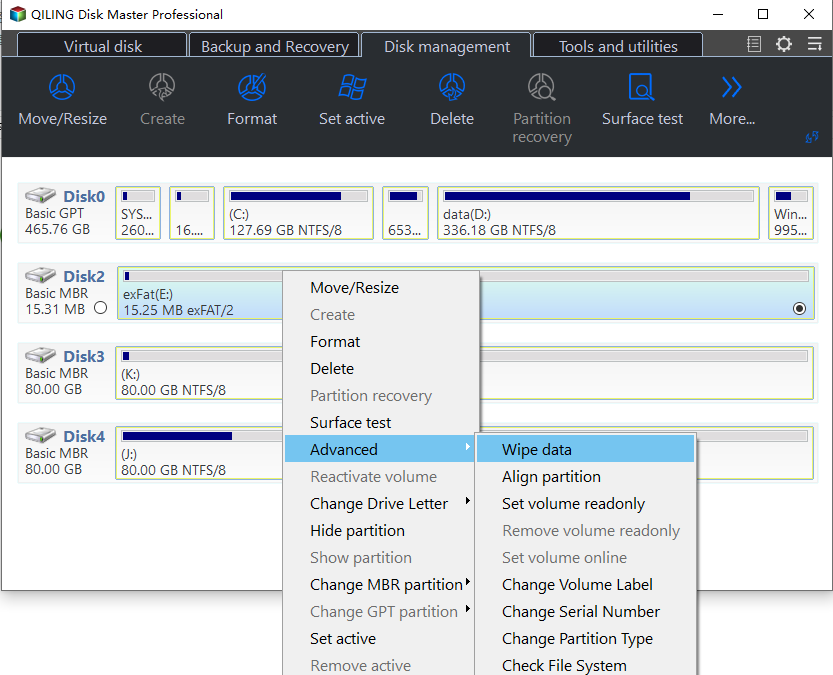
2. In the new window, select a wiping method based on your needs.
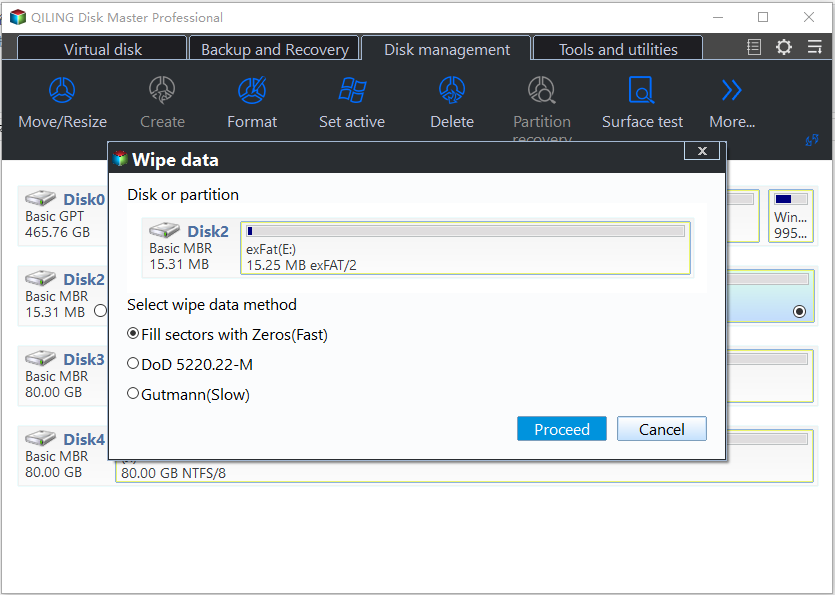
Notes:
- Fill sectors with Zero: wipe the partition contents by overwriting them with zeros.
- Fill sectors with random data: wipe the partition and overwrite existing contents with random data.
- DoD 5220.22-M: The process involves three steps: first, overwriting all addressable locations with binary zeroes; secondly, overwriting them with binary ones; and thirdly, overwriting them with a random bit pattern. This ensures that all data is securely erased and cannot be recovered.
- Gutmann: Overwrite the partition with a random character for the first 4 passes and the last 4 passes, and then from pass 5 through pass 31, overwrite with a complex pattern that changes every pass.
3. Please click "Proceed" to wipe the data.
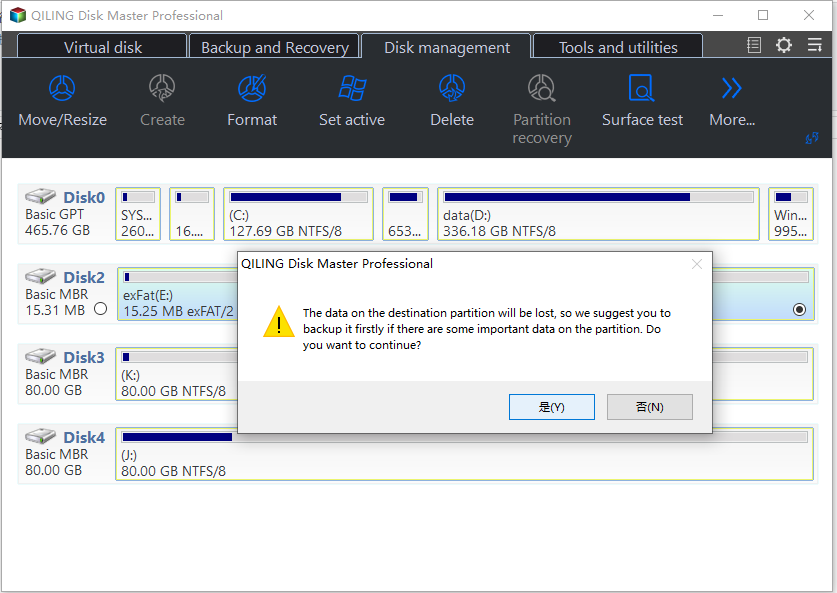
Conclusion
You can easily and quickly wipe a partition by following the steps outlined above. This feature is mainly used if you want to completely erase all data on a drive and then free up more free space.
Qiling Disk Master effectively wipes data on various types of disks, including hard drives and SSDs. In addition to its data wiping capabilities, the software also offers a "Quick Partition" feature that allows users to easily partition a hard drive or SSD into multiple sections with just one click.
Notes:
- Qiling Disk Master is a sector-level wipe software, which means it can only be used to wipe entire partitions or disks, not individual files. If you need to wipe a specific file, you should use a file-level wipe software instead.
- If you want to erase data on an SSD, you should not use the same method as for wiping a hard disk drive (HDD), but instead use the SSD Secure Erase feature in Qiling Disk Master.
FAQs:
Q: How long will it take to wipe a partition?
A: The time to wipe a partition varies greatly depending on several factors, including the wiping method chosen, the condition of the partition, and the amount of data present.
Q: Is data recovery from a wiped partition possible?
A: If the partition is wiped using a secure wiping method (such as DoD 5220.22-M or Gutmann), the data will be unrecoverable. It is essential to back up important files and folders beforehand.
Related Articles
- How to Write Zeros to Seagate Hard Drive Easily | 2 Ways
This page presents when writing zeros to Seagate hard drive is needed and how to zero fill Seagate in two easy ways. Both a full format and reliable Qiling Disk Master can help you. - Write Zeros to Toshiba Hard Drive with Powerful Software
Learn how to write zeros to a Toshiba hard drive when Toshiba does not provide a zero fill utility, using three practical methods to securely erase disk data. - Qiling Disk Master Doesn't Recognize Drives Correctly
Qiling Disk Master doesnt recognize the drives or doesnt recognize correctly - How to Convert Dynamic Disk to Basic without Data Loss in Windows
Learn how to Convert Dynamic Disk to Basic without Data Loss in Windows with clear steps, key checks, and practical tips. - How Do I Transfer My Avira to New Computer/Another Drive
To transfer your Avira product to a new computer, download Qiling Disk Master on your PCs and use it to transfer your data, applications, and account settings from one PC to another with simple clicks. - How to Transfer CS:GO to Another PC or Another Drive
Qiling Disk Master can help you transfer CS:GO or any other Steam game to another PC or drive easily. Stop making every effort to move CS:GO to another PC or drive, try Qiling game mover now.
Products
Articles & Tutorials
- Data Recovery
- Data Backup
- File Recovery
- File Backup
- File synchronize
- System Backup and Restore
- Disk and Partition Clone
- Technical articles
- Disk Master Help
- Windows Deleted File and Disk Recovery Tutorials
- Windows File and Data Recovery Tutorials
- More Windows Tutorials for Install, Security, Files, and PC Tips
- Windows Boot, Repair, and Recovery Environment Tutorials
- Windows Backup Tutorials
- Windows Restore Tutorials
- Windows Clone and Migration Tutorials
- Windows Server Backup, Recovery, and Management Tutorials
- Windows Disk, Partition, and Storage Management Tutorials