Change Drive Letter and Paths Greyed Out in Windows 10
The Change Drive Letter and Paths option may be greyed out for system partitions, EFI partitions, recovery partitions, unsupported file systems, or damaged volumes.
Understand the problem
Not every partition should have a drive letter. EFI, Recovery, and Microsoft Reserved partitions are normally hidden to protect Windows startup and recovery.
- Confirm the exact disk, partition, drive letter, file system, and capacity before changing anything.
- Back up or recover important files before formatting, deleting, converting, resizing, or recreating partitions.
- For boot-related changes, check BIOS or UEFI mode, boot order, and system partition status before editing disk layout.
Use Windows built-in tools
Use Disk Management and DiskPart carefully, and avoid assigning letters to protected system partitions.
- Open Disk Management and identify the partition type.
- If the partition is EFI, Recovery, or MSR, leave it hidden unless you have a specific repair reason.
- If it is a normal data partition, check whether the file system is RAW or unsupported.
- Use DiskPart assign letter=X only on a normal data volume.
- Back up or recover files before formatting a RAW partition.
Use Qiling tools for guided steps
 Qiling Disk Master
Recover or back up files before formatting or rebuilding a partition with no drive letter.
Function. Recover lost files with Fast Scan
Step 1. Stop using the partition that cannot receive a drive letter. Install Deep Data Recovery on another drive so new files do not overwrite deleted data.
Step 2. Launch Deep Data Recovery and choose Fast Scan first. This mode quickly checks recently deleted files and common file records.
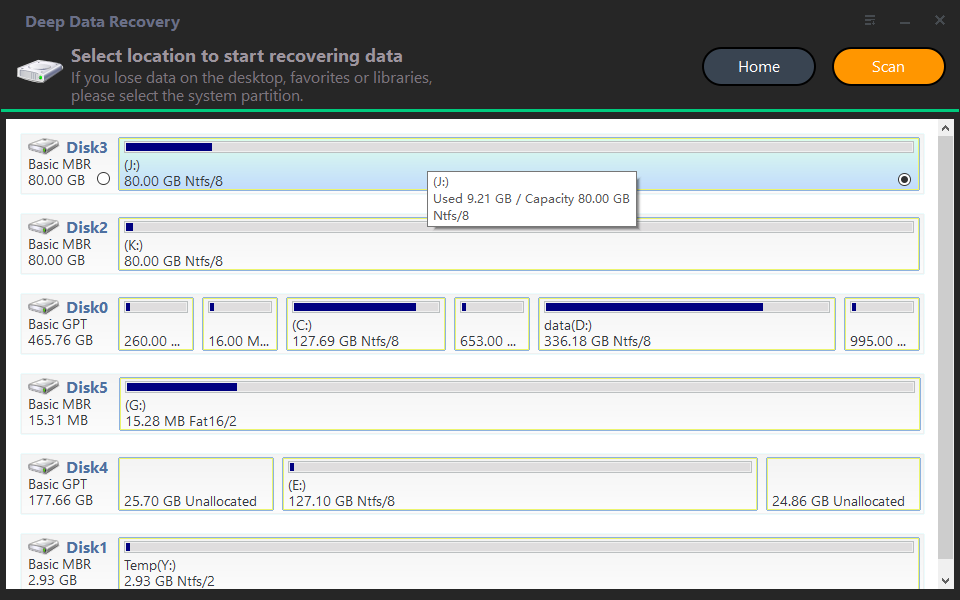
Step 3. Select the partition that cannot receive a drive letter as the location to scan. If you are recovering from the Recycle Bin, scan the original drive where the files were stored.

Step 4. Wait for the scan to finish. Use file type, name, path, and date filters to narrow the results.
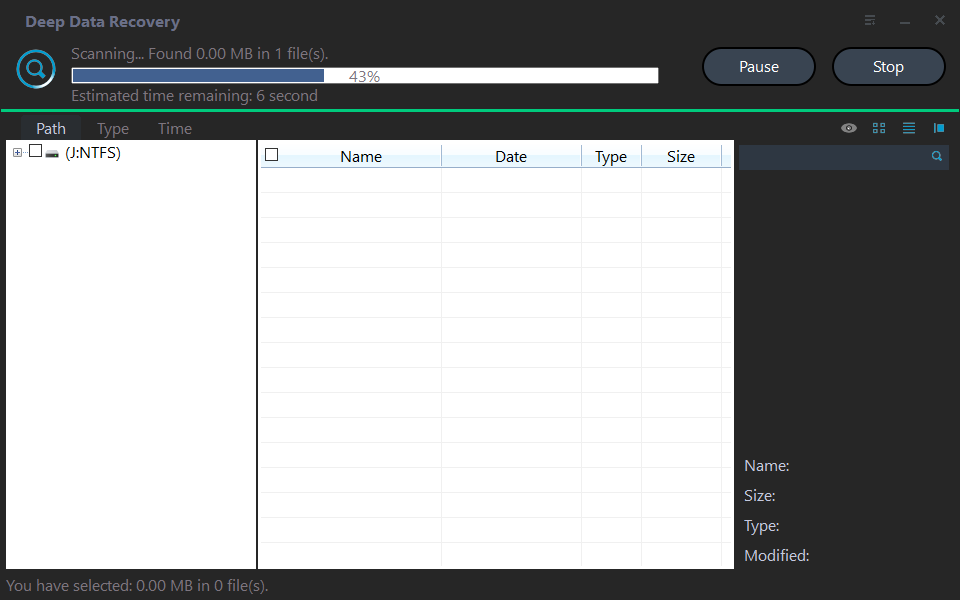
Step 5. Preview recoverable files, select the items you need, and recover them to another disk or external drive.

Step 6. Open several recovered files to confirm they are usable. If important files are missing, run a deeper scan before writing new data to the source drive.
Check the result
Open File Explorer and confirm the drive letter appears only for the intended data partition. Restart once to confirm the letter remains assigned.
Related Articles
-
Change Drive Letter
Change drive letters safely in Windows 11, 10, 8, and 7. -
Healthy Primary Partition No Drive Letter
Fix a healthy partition that appears without a drive letter.
Products
Articles & Tutorials
- Data Recovery
- Data Backup
- File Recovery
- File Backup
- File synchronize
- System Backup and Restore
- Disk and Partition Clone
- Technical articles
- Disk Master Help
- Windows Deleted File and Disk Recovery Tutorials
- Windows File and Data Recovery Tutorials
- More Windows Tutorials for Install, Security, Files, and PC Tips
- Windows Boot, Repair, and Recovery Environment Tutorials
- Windows Backup Tutorials
- Windows Restore Tutorials
- Windows Clone and Migration Tutorials
- Windows Server Backup, Recovery, and Management Tutorials
- Windows Disk, Partition, and Storage Management Tutorials