Convert Ext3 to NTFS Without Losing Data in Windows
Windows cannot directly convert Ext3 to NTFS in place. The safe workflow is backup, format, and restore.
Background and causes
Ext3 is a Linux file system. Windows may not read it without extra drivers, and direct conversion tools can risk data loss.
- Confirm the exact disk, partition, drive letter, file system, and capacity before changing anything.
- Recover or back up important files before formatting, deleting, converting, or recreating partitions.
- For boot-related changes, check BIOS/UEFI mode and boot order before editing disk layout.
Use Windows built-in tools
Use Linux or a reliable Ext3 reader to copy files to another disk first. Check hidden folders, user permissions, symbolic links, and application data before formatting. After the backup opens correctly from the destination, format the target partition as NTFS in Windows and copy files back.
Use Qiling tools for guided steps
 Qiling Disk Master
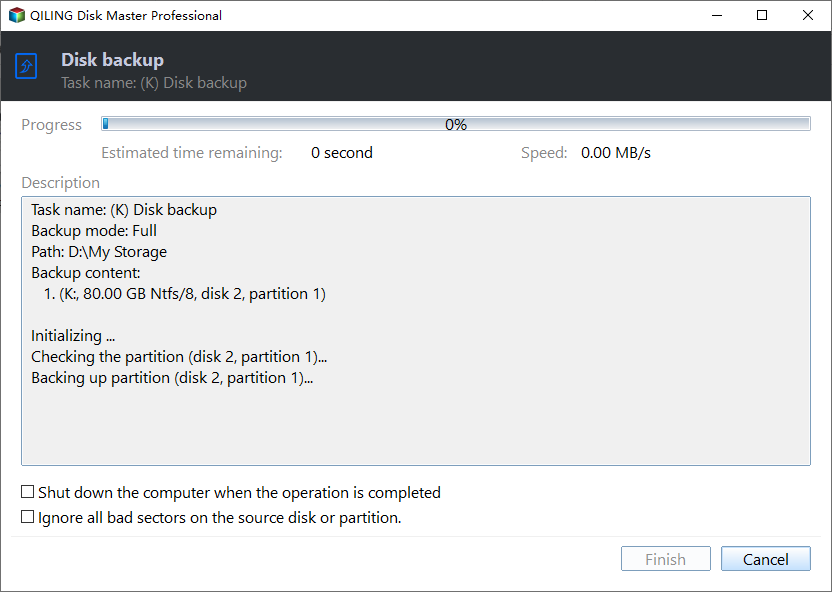
Back up files or the whole Ext3 partition before formatting it to NTFS.
Function 1. Choose the correct backup method
Use File backup if Windows or an Ext3 reader can show the files in the Ext3 partition. Use Disk/Partition backup if Windows can detect the partition but cannot open or list its files. In both cases, store the backup on another disk, external drive, NAS, or network location.
Situation 1. Windows can read files in the Ext3 partition
Use file backup when you can browse the Ext3 folders and confirm the files you need.
Step 1. Open Qiling Disk Master and go to Backup and Recovery. Click File backup.

Step 2. Select the folders or files copied from the Ext3 partition. If Windows cannot read the Ext3 partition directly, first mount it in Linux or use a reliable Ext3 reader, then add the accessible folders to the backup task.

Step 3. Choose a destination that is not the Ext3 partition you plan to format. An external drive or NAS is safer because it remains separate from the conversion target.

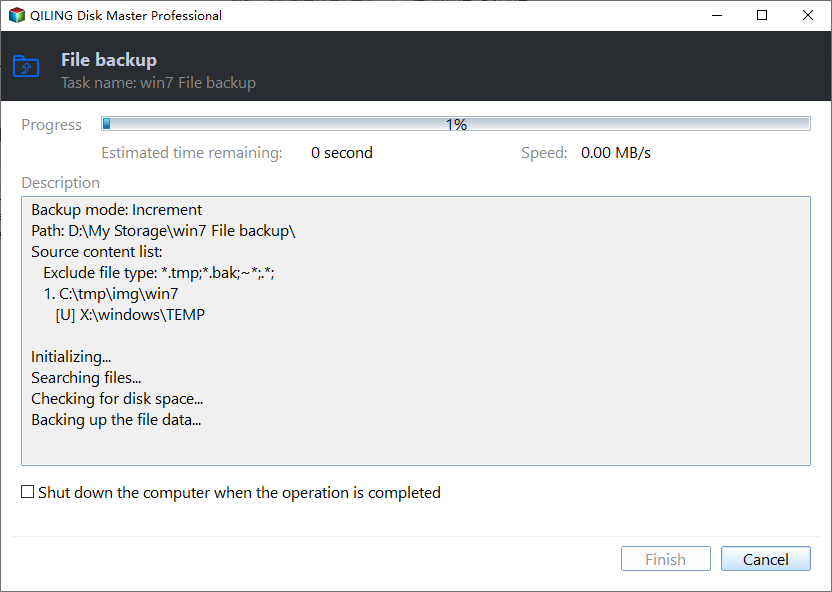
Step 4. Review the task name, source list, destination path, and available free space. Then click Proceed to start the file backup.
Situation 2. Windows detects the Ext3 partition but cannot read files
Use partition backup when the Ext3 partition is visible by size and location, but Windows cannot open it or show the file list. This keeps an image of the whole partition before formatting.
Step 1. Open Qiling Disk Master and go to Backup and Recovery. Click Disk/Partition backup.
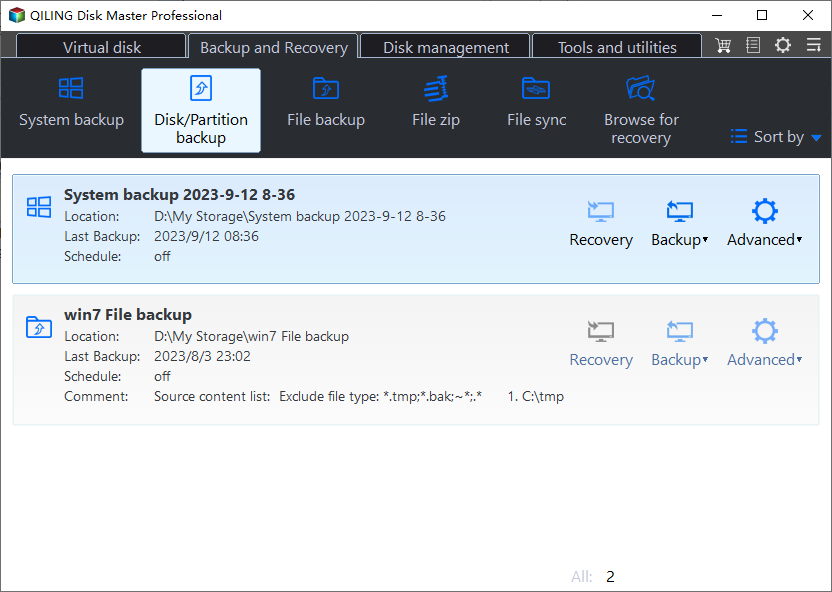
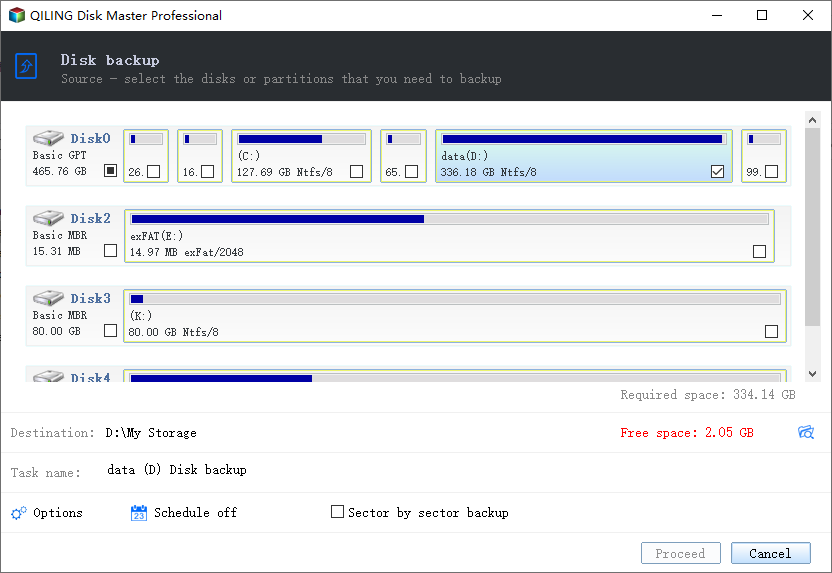
Step 2. Select the Ext3 partition by disk number, partition size, and position. Do not select the destination disk by mistake.
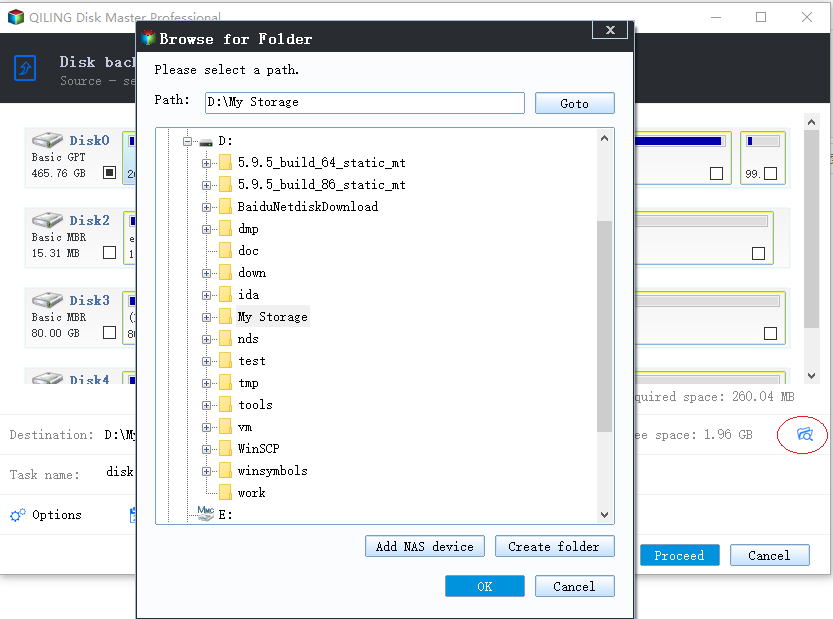
Step 3. Choose a backup destination on another disk, external drive, NAS, or network folder. Make sure the destination has enough free space for the partition image.
Step 4. Review the partition source and destination path, then click Proceed to start the partition backup.
Function 2. Format the partition as NTFS
After confirming that the file backup or partition backup is complete, format the original Ext3 partition to NTFS.
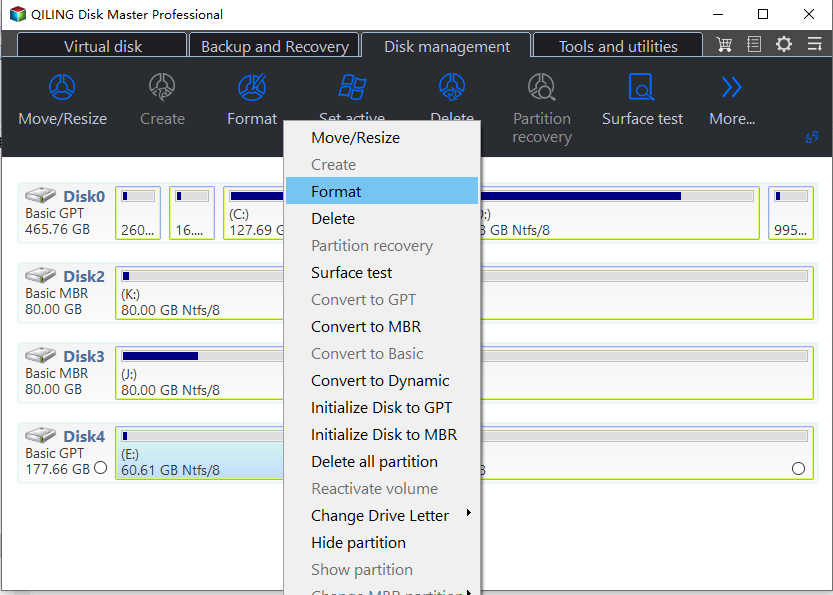
Step 1. Select the target partition and choose the format operation.
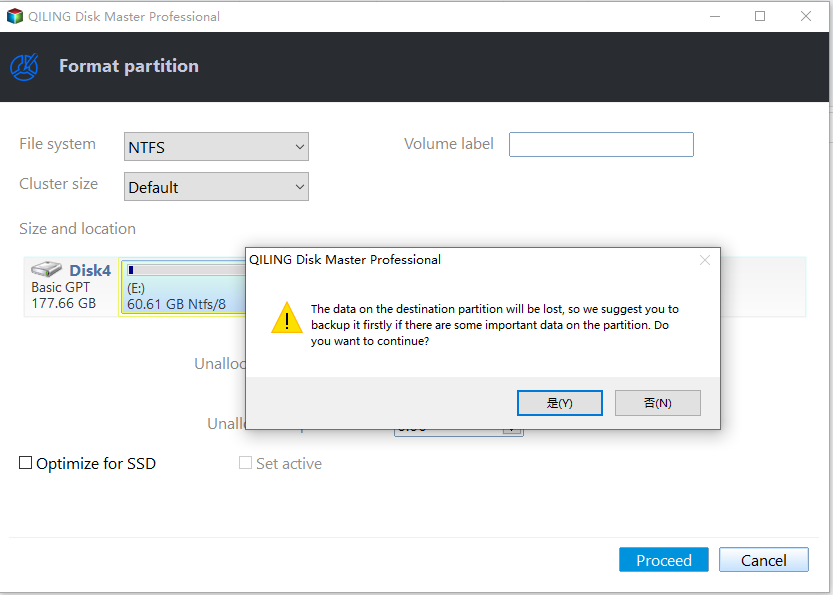
Step 2. Set the file system to NTFS, check the partition label if needed, and confirm that the selected partition is the old Ext3 partition.
Step 3. Review the pending operation and click Proceed to apply the NTFS format.
Function 3. Restore files to the NTFS partition
When formatting is complete, copy files from the backup destination back to the NTFS partition. Open several documents, archives, images, and application folders to confirm the restored data is usable before deleting the backup.
Check the result
Open restored files in Windows and keep the backup until you confirm all important folders are present.
Related Articles
-
How to Partition a Dell Hard Drive
Create, resize, and protect disk partitions without touching recovery partitions. -
We Could not Create a New Partition
Fix Windows Setup partition errors with boot-mode and disk-layout checks.
Products
Articles & Tutorials
- Data Recovery
- Data Backup
- File Recovery
- File Backup
- File synchronize
- System Backup and Restore
- Disk and Partition Clone
- Technical articles
- Disk Master Help
- Windows Deleted File and Disk Recovery Tutorials
- Windows File and Data Recovery Tutorials
- More Windows Tutorials for Install, Security, Files, and PC Tips
- Windows Boot, Repair, and Recovery Environment Tutorials
- Windows Backup Tutorials
- Windows Restore Tutorials
- Windows Clone and Migration Tutorials
- Windows Server Backup, Recovery, and Management Tutorials
- Windows Disk, Partition, and Storage Management Tutorials