[Tutorial]: Diskpart Delete Partition on Windows 11, 10, 8, and 7
Why need to delete partitions?
People usually want to delete a partition in Windows 11, 10, 8, 7 for two main reasons.
● Free up disk space: A partition can take up redundant data and occupy large storage space, such as a recovery partition, which can be copied to another drive or USB and then deleted to free up space.
● Better manage storage space: When dealing with multiple partitions on a hard drive, it can be challenging to manage them effectively. To simplify disk management, some people delete unnecessary partitions, create unallocated space, and then allocate it to other existing partitions. Before deleting a partition, it's a good idea to move applications from the current partition to another partition to avoid losing important data. This approach helps to declutter the disk and make it easier to manage.
Deleting partitions can be a straightforward process once you find the right solutions. Fortunately, there are practical ways to help with this task. To delete partitions, you can use the top 4 methods, which will be introduced in the following contents. These methods are designed to make the process easy and efficient.
How do I delete a partition in Windows 11, 10, 8, 7?
- Method 1: Using the Diskpart to delete partition
- Method 2: Using the Disk Management to delete partition
- Method 3: Using powerful third-party freeware to delete partitions
- Method 4: Diskpart alternative partassist.exe of Qiling Disk Master
▶ Method 1: Using the Diskpart to delete partition
Diskpart is a command-line tool for disk management on Windows, different from the traditional Disk Management. It allows users to perform various operations, including deleting partitions, using a series of command lines. Deleting partitions with Diskpart is a common practice, providing a convenient and efficient way to manage disk space.
1. To access Command Prompt in Windows, type "cmd" in the search box at the bottom left of the interface and press the "ENTER" key. This will open a new window where you can type commands and execute them.
2. Type "diskpart" and hit "ENTER" to run Diskpart. Then type the following commands one after the other and hit Enter:
● list disk
● select disk 1 (replace 1 with the disk number that contains the partition you want to delete)
● list partition
● select partition 1 (replace 1 with the partition number you want to delete)
● delete partition (delete partition override)
- delete partition: This command is used to delete normal partitions, such as data drives or partitions without OS-related files, like a data drive or a USB drive partition.
- delete partition override: This command is used to force delete a protected partition. Type "diskpart", then "select disk [number]", and then "delete partition override".
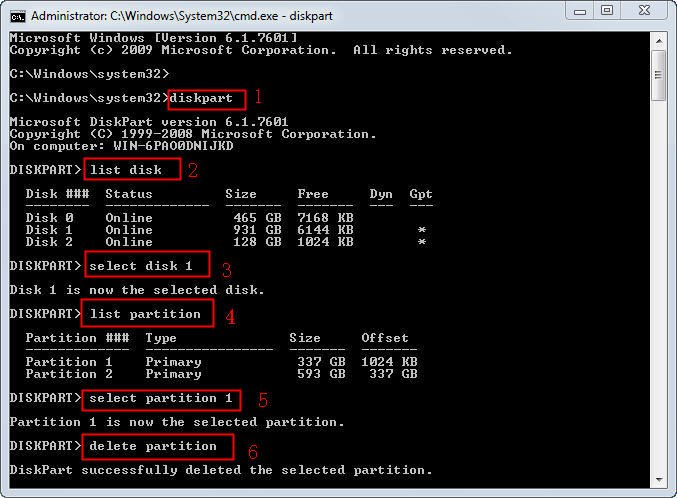
3. Type "exit" to go back to the desktop.
★ If you're using a dynamic disk, deleting a partition can delete all dynamic volumes on the disk. To avoid this, you can use the "delete volume" command instead. This will allow you to delete specific volumes without affecting the entire disk.
★ If you want to delete all partitions at once, please type "clean" after "select disk".
▶ Method 2: Using the Disk Management to delete partition
To delete a partition in Windows, open Disk Management by right-clicking "This PC" and selecting "Storage" > "Disk Management". Then, right-click the partition you want to delete and select "Delete Volume".
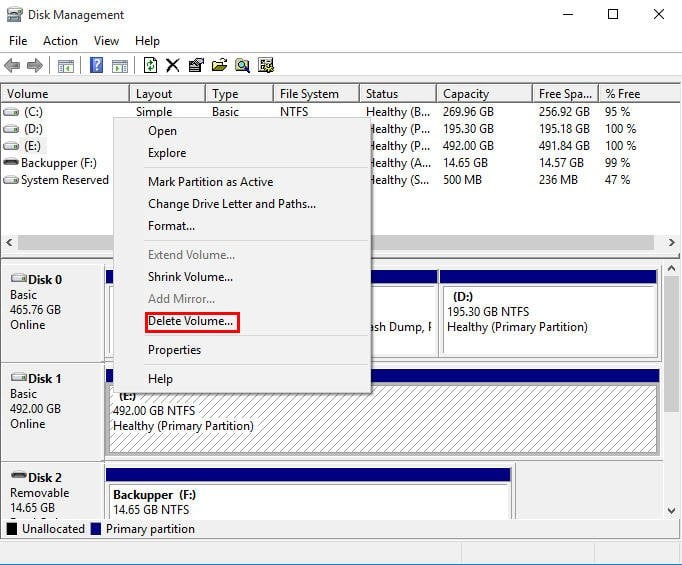
★ The partition that is set to be deleted shouldn't be the boot drive, or you will fail to delete the partition.
★ You can't remove the OS while it's still running.
★ To delete an extended partition, you need to first delete all the logical partitions within it, as they cannot be deleted individually.
★ On older versions of Windows, you can't delete partitions on removable devices like USB drives.
▶ Method 3: Using powerful third-party freeware to delete partitions
If you're having trouble deleting a partition with Diskpart, you can use Qiling Disk Master Standard to easily manage your hard disks and partitions, performing operations like creating, formatting, and deleting partitions.
- ★Notes:
- This tool allows you to create a bootable Win PE media that enables you to delete system partitions even when Windows prevents you from doing so.
- This tool allows you to delete a single partition or all partitions on your disk at once, making it easy to manage your disk space with just three clicks.
Step 1. Launch Qiling Disk Master to view your hard drives in a simplified interface, providing a clear environment for navigation and management.
Step 2. To delete a partition in the main tab, right-click the partition you need to delete and click the "Delete Partition" button.
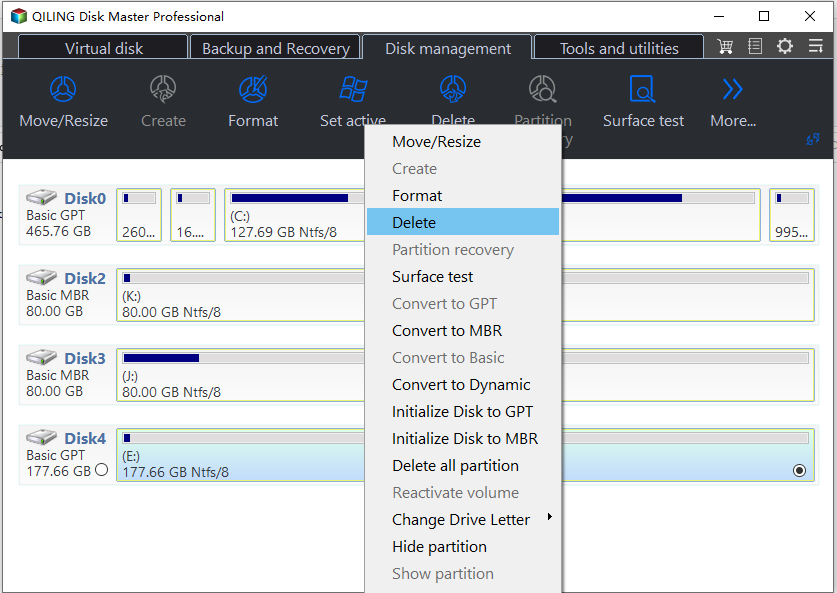
Step 3. After clicking Delete Partition, it will pop up a window to warn that the data will be lost. Click OK.
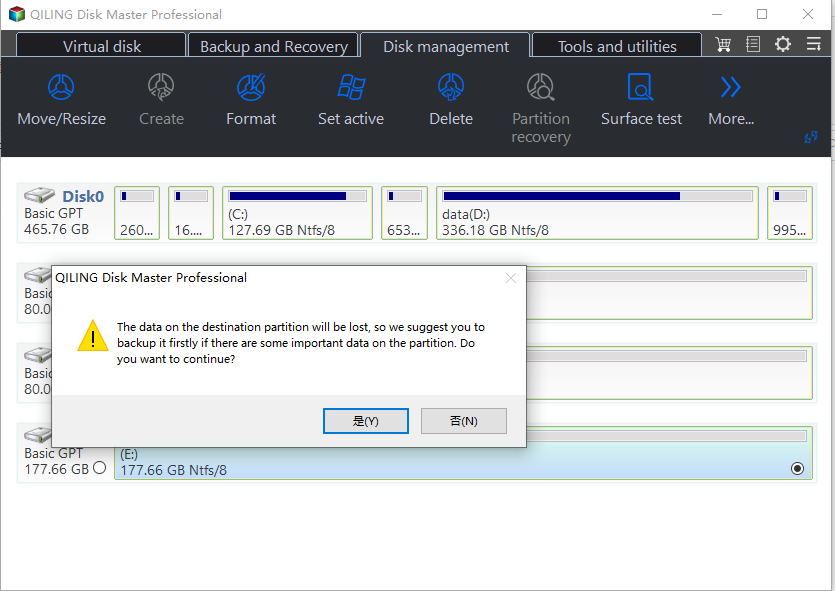
To confirm whether the partition has been deleted, you can go to Disk Management, right-click on the disk where the partition was located, and check the disk layout. If the partition has been successfully deleted, you will see the disk space available as unallocated space, and the partition will no longer be listed.
▶ Method 4: Diskpart alternative partassist.exe of Qiling Disk Master
To delete a partition, you can use third-party software like Qiling Disk Master, which offers a powerful partition management tool with command lines to manage disks after upgrading to the professional edition. This tool allows you to delete partitions using its command lines.
1. To run the Qiling Disk Master command-line tool, navigate to the installation directory by typing `cd C:\Program Files (x86)\Qiling Disk Master` in the Command Prompt, then press Enter.
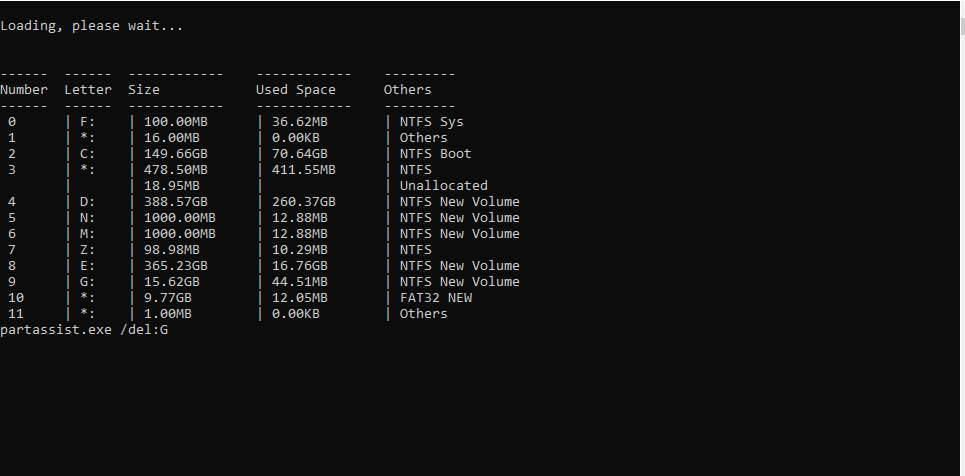
2. Type: partassist.exe /list:0
Then it will list all the partitions on your disk.

3. Type "partassist.exe /del:G" and press ENTER (replace G with the drive letter of the partition you want to delete). The operation will be executed. You can refer to the screenshot below:
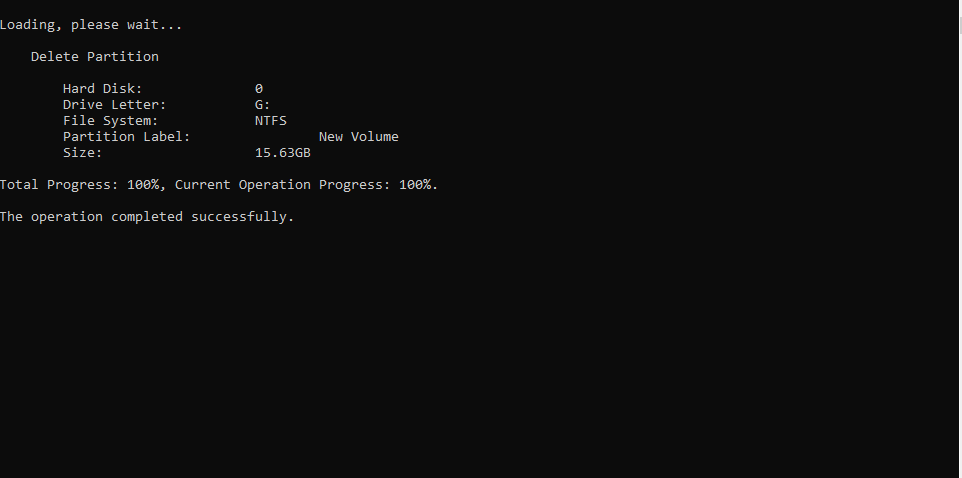
To delete all partitions on a disk using Partassist.exe, type "Partassist.exe /hd:0 /del:all" at the prompt. This command deletes all partitions on the specified disk.
Note:
> "/hd" followed by disk number, which starts with 0.
> "/del:0" and "/del:G" mean deleting the specified partition.
> "/del:all" means delete all the partitions on the disk.
Conclusion
You can use Diskpart, Disk Management, or Qiling Disk Master Standard to delete partitions, but Qiling is the most user-friendly and has fewer limitations, especially if you want to delete any partition. If you need to use it on a server, you can try the server edition.
Related Articles
- How to Format My 1TB Hard Drive to FAT32? 2024 Guide for Beginners
Briefly state the goal of this page, and call Windows users to follow this page to learn how to efficiently 1TB hard drive to FAT32 successfully. - How to Format Galaxy S5 SD Card [2024 Newest Solutions]
This passage will help you figure out the reasons for formatting the Galaxy SD card and offer three solutions to teach you how to format Galaxy S5 SD card on Windows, Mac, and Android. - Why Is Hogwarts Legacy Not Downloading on My PC? [Causes and How-To Fix]
This guide explains Why Is Hogwarts Legacy Not Downloading on My PC and provides clear steps, key checks, and practical tips. - Guide to Migrate OS to SSD for Windows 8.1 with Pictures
This page aims to provide a step-by-step guide for beginners to successfully migrate OS to SSD Windows 8.1, enhancing system performance and speed. - How to Unpartition a Hard Drive on Windows 11/10/8.1/8/7
You can unpartition a hard drive on Windows 11/10/8.1/8/7 using one of three methods: Disk Management, DiskPart, or Qiling Partition Master. This guide will walk you through the process of removing partitions from a hard drive using these tools. - 3 Most Effective Ways to Upgrade My PC | Easy PC Upgrade Guide
If your PC is old and running slowly, consider upgrading the hard disk, RAM, and graphics card to improve its performance. This can be a cost-effective way to breathe new life into your computer rather than replacing it altogether.
Products
Articles & Tutorials
- Data Recovery
- Data Backup
- File Recovery
- File Backup
- File synchronize
- System Backup and Restore
- Disk and Partition Clone
- Technical articles
- Disk Master Help
- Windows Deleted File and Disk Recovery Tutorials
- Windows File and Data Recovery Tutorials
- More Windows Tutorials for Install, Security, Files, and PC Tips
- Windows Boot, Repair, and Recovery Environment Tutorials
- Windows Backup Tutorials
- Windows Restore Tutorials
- Windows Clone and Migration Tutorials
- Windows Server Backup, Recovery, and Management Tutorials
- Windows Disk, Partition, and Storage Management Tutorials