How to Extend the C Drive in Windows 7 Without Losing Files
Windows 7 is no longer supported, so keep a current backup and plan an upgrade. If C: is low on space, first confirm that the disk itself has free capacity. Disk Management can extend C: only when usable unallocated space is immediately to its right on the same disk. Free space inside D: is not the same thing.
Inspect the layout and back up
Step 1. Press Win + R, run diskmgmt.msc, and identify the disk containing C:. Record the order of C:, recovery/OEM partitions, D:, and unallocated space. Do not delete a small boot or recovery partition to make room.
Step 2. Back up important files and, ideally, the whole system disk to another physical drive. Suspend BitLocker protection if it is enabled and retain the recovery key. Keep AC power connected during partition changes.
Method 1. Use Disk Management when space is adjacent
Step 1. Confirm an unallocated block sits directly after C: on the same disk. Right-click C: and choose Extend Volume.
Step 2. In the wizard, select the available disk and amount of space. Review the final size, click Finish, and wait for the operation. If Extend Volume is gray, recheck the partition order; space before C: or behind D: cannot be used directly.
Step 3. Reopen Disk Management and confirm the larger C: capacity. Restart if Windows asks, then verify important files.
Method 2. Move or resize a blocking partition
Use this route when D: or another movable data partition lies between C: and free space. Avoid moving OEM recovery or EFI partitions without a tested recovery plan.
Step 1. Open Qiling Disk Master and select the data partition immediately to the right of C:. Click Resize/Move.
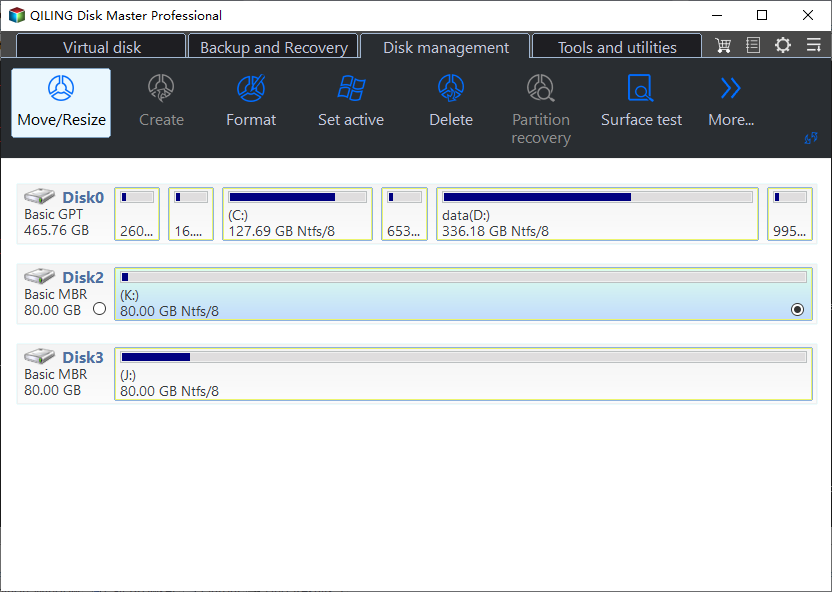
Step 2. In the graphical layout, drag the left edge of that data partition to the right to create unallocated space immediately after C:. If free space is beyond another partition, move that partition so the unallocated block reaches C:. Then select C: in the same layout and drag its right edge into the adjacent space. Review the proposed sizes of both partitions before confirming.
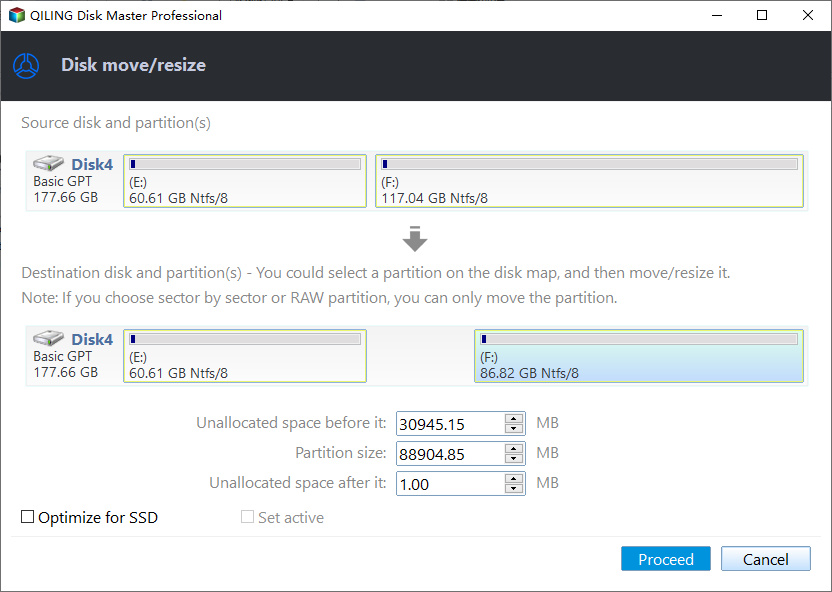
Step 3. Read the pending disk map from left to right. C: should be larger, and D: must still have room for its used files. If the preview crosses data or changes an OEM/EFI partition, cancel rather than deleting D:. Otherwise click Proceed, keep power connected through any restart, and verify Windows and both partitions afterward.
If extension is still unavailable
On MBR disks, logical-drive and extended-partition boundaries can also block a simple extension. Do not use destructive DiskPart commands to force the layout. Review the partition map and backup first; consider a larger replacement disk if the physical drive has no usable free space.
Related Articles
- Add Unallocated Space to the Windows 7 System Partition
See how partition placement affects extension. - Extend a System Partition
Compare resize and built-in Windows methods.
Products
Articles & Tutorials
- Data Recovery
- Data Backup
- File Recovery
- File Backup
- File synchronize
- System Backup and Restore
- Disk and Partition Clone
- Technical articles
- Disk Master Help
- Windows Deleted File and Disk Recovery Tutorials
- Windows File and Data Recovery Tutorials
- More Windows Tutorials for Install, Security, Files, and PC Tips
- Windows Boot, Repair, and Recovery Environment Tutorials
- Windows Backup Tutorials
- Windows Restore Tutorials
- Windows Clone and Migration Tutorials
- Windows Server Backup, Recovery, and Management Tutorials
- Windows Disk, Partition, and Storage Management Tutorials