Fixboot in Windows 10: When to Use It and What to Try Next
bootrec /fixboot is a specific recovery command, not a universal fix for every Windows 10 startup failure. A missing disk, an update rollback, and an EFI boot-file problem require different checks.
Record the message shown before Windows starts. Keep the BitLocker recovery key and a separate backup available before choosing a restore or reset option.
Start with the failure that actually appears
- If the disk is missing from firmware, inspect the hardware connection and storage controller before using boot commands.
- If the PC reaches a blue screen, record its stop code and any named driver.
- If failure followed an update, consider recovery's update-uninstall option rather than rewriting every boot record.
- If the error specifically concerns BOOTMGR, BCD, or boot files, identify the disk layout and firmware mode.
Disconnect nonessential USB storage and confirm the computer is starting the intended Windows disk. Preserve the original UEFI or legacy setting unless a planned conversion changed it.
Open Windows Recovery and try automatic repair
- Use Shift + Restart when the sign-in screen is available. Otherwise boot compatible Windows installation media.
- Select Repair your computer > Troubleshoot > Advanced options.
- Try Startup Repair and select the Windows installation if prompted.
- Record the result, remove the recovery USB, and test the internal disk.
- If automatic repair fails, return to Advanced options and open Command Prompt for inspection.
Use diskpart, list disk, and list volume, then exit. Check the actual Windows folder before assuming C: still identifies it.
Use Fixboot only for the appropriate boot-sector problem
On a confirmed legacy BIOS/MBR installation, bootrec /fixboot writes compatible volume boot code. bootrec /fixmbr addresses master boot code, while bootrec /scanos and bootrec /rebuildbcd concern discovered installations and boot configuration.
If Fixboot reports Access is denied, do not format the system partition as a reflex. Confirm that you identified the correct system partition and that the recovery environment matches the installation. On UEFI/GPT, examine EFI boot files and the BCDBoot route instead.
Follow the BCDBoot source-and-destination checks when copying boot files is the actual task. Marking a GPT partition active is not a valid alternative.
Reverse a recent system change when boot code is not the cause
In Advanced options, Uninstall Updates can remove an eligible recent quality update. Feature-version rollback is a separate option and may be unavailable. Match the choice to the change that preceded the failure.
System Restore requires a suitable earlier restore point. Review affected applications and keep current personal files protected. A restore point is not a complete file backup.
Use Reset this PC or reinstallation only after deciding how to preserve files and reinstall applications. Keeping personal files during a reset does not mean all programs and settings are retained.
Restore an existing Qiling image when other repairs fail
This route requires a compatible image created before the failure. A new download cannot invent a missing restore point.
Preparation. Prepare compatible Qiling recovery media on a working computer, save newer readable files, and connect the image storage to the affected PC.
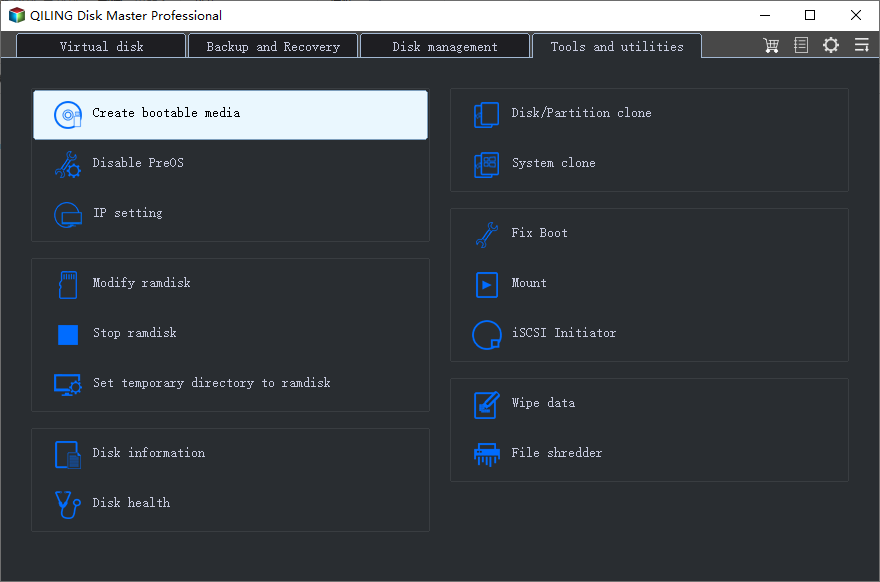
Step 1. Boot that media and choose the restore function. Select the known-good image and verify its date and source computer.
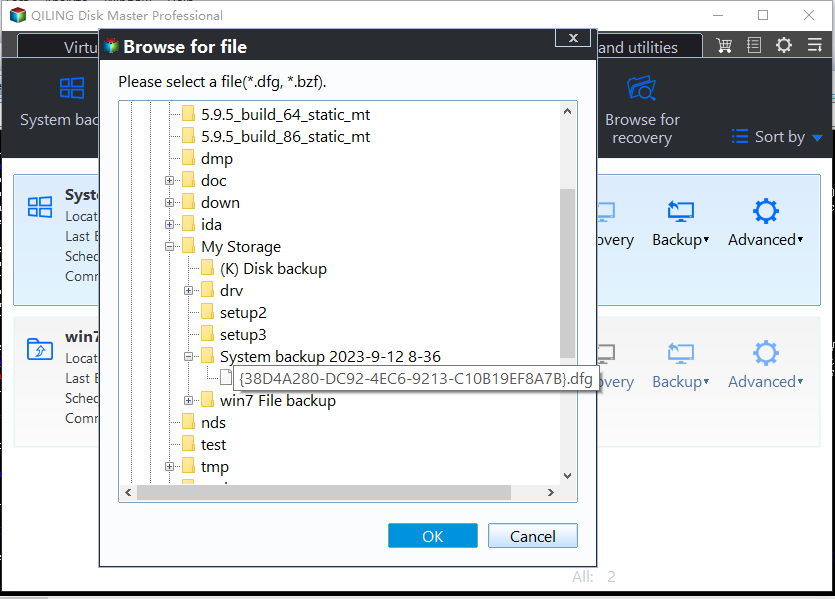
Step 2. Select the required system disk or partitions from the image and the correct destination disk. Review the overwrite scope carefully.
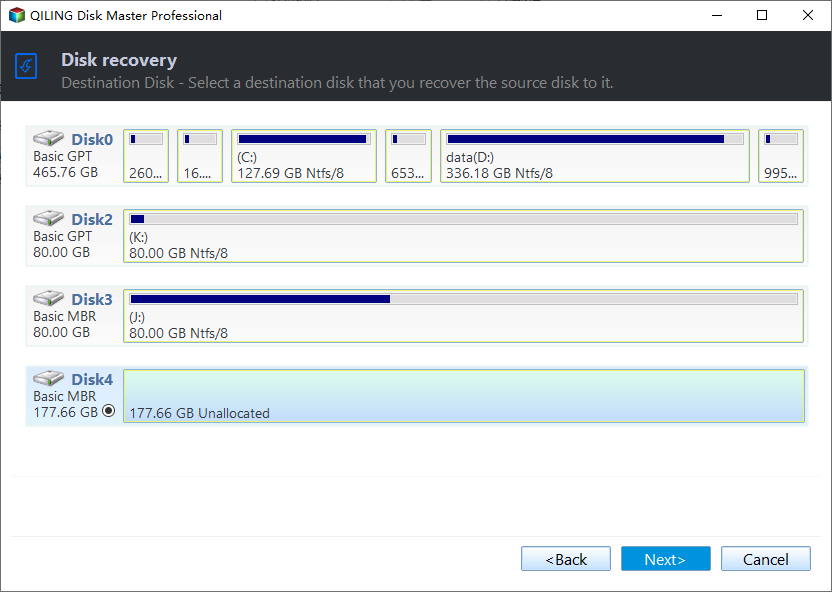
Step 3. Click Proceed after checking the layout. When restoration completes, remove the media and test startup, applications, and current files. Preserve the backup until normal operation is confirmed.
Related Articles
- Boot Sector Repair
Keep BIOS boot code and UEFI startup files separate. - BOOTMGR Is Missing
Diagnose a boot manager error before resetting Windows.
Products
Articles & Tutorials
- Data Recovery
- Data Backup
- File Recovery
- File Backup
- File synchronize
- System Backup and Restore
- Disk and Partition Clone
- Technical articles
- Disk Master Help
- Windows Deleted File and Disk Recovery Tutorials
- Windows File and Data Recovery Tutorials
- More Windows Tutorials for Install, Security, Files, and PC Tips
- Windows Boot, Repair, and Recovery Environment Tutorials
- Windows Backup Tutorials
- Windows Restore Tutorials
- Windows Clone and Migration Tutorials
- Windows Server Backup, Recovery, and Management Tutorials
- Windows Disk, Partition, and Storage Management Tutorials