Format SanDisk Cruzer 64GB to FAT32 in Windows
A 64GB SanDisk Cruzer may not show FAT32 in Windows Format because Windows limits FAT32 formatting for larger removable drives. You can still use FAT32 when a device, camera, game console, or older system requires it.
Understand the problem
Before formatting, decide whether FAT32 is really needed. FAT32 offers broad compatibility, but it cannot store a single file larger than 4GB. If you need large file support, exFAT is usually a better choice.
- Confirm the target disk, partition, drive letter, file system, and capacity before changing anything.
- Back up or recover important files before formatting, deleting, resizing, converting, or reinstalling Windows.
- For boot-related repairs, check BIOS or UEFI mode, boot order, and disk style before editing system partitions.
Use Windows built-in tools
Windows built-in tools can format small drives to FAT32, but a 64GB USB often shows exFAT or NTFS only.
- Open File Explorer, right-click the SanDisk Cruzer, and choose Format.
- If FAT32 appears, select it, choose Quick Format, and start the format.
- If FAT32 does not appear, do not repeatedly force commands before backing up files.
- Use exFAT instead when the target device supports it and you need files larger than 4GB.
Use Qiling tools for guided steps
 Qiling Disk Master
Format a large USB drive to FAT32 with a clear preview before applying changes.
Function. Format the SanDisk Cruzer 64GB USB drive with the needed file system
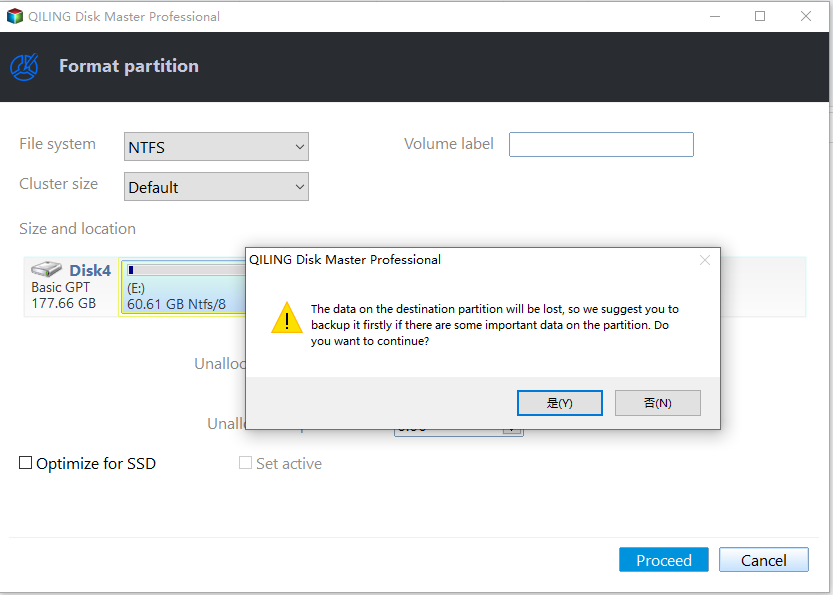
Step 1. Connect the SanDisk Cruzer 64GB USB drive and make sure Windows can detect it. Back up recoverable files first because formatting removes existing data.
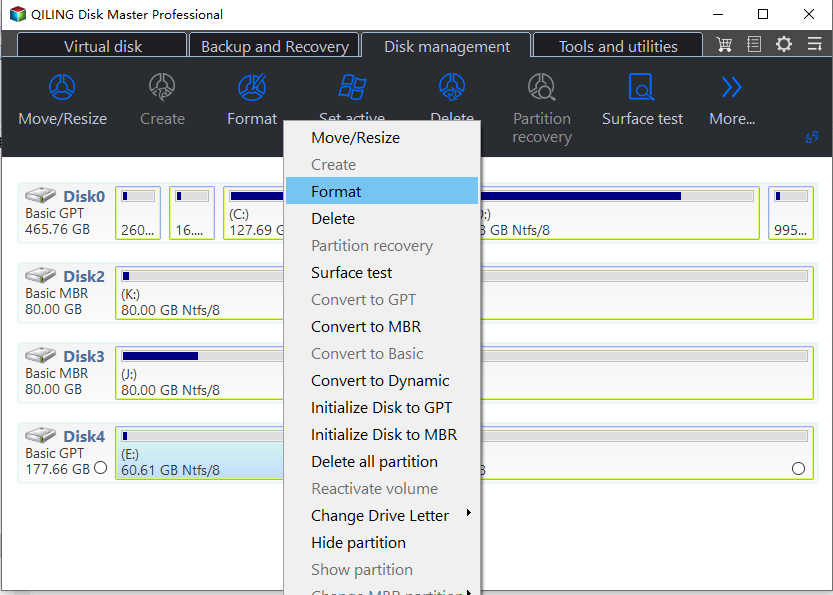
Step 2. Open Qiling Disk Master. Right-click the partition on the SanDisk Cruzer 64GB USB drive and choose Format.
Step 3. Enter a clear partition label, choose FAT32 as the file system, and keep the default cluster size unless you have a specific requirement.
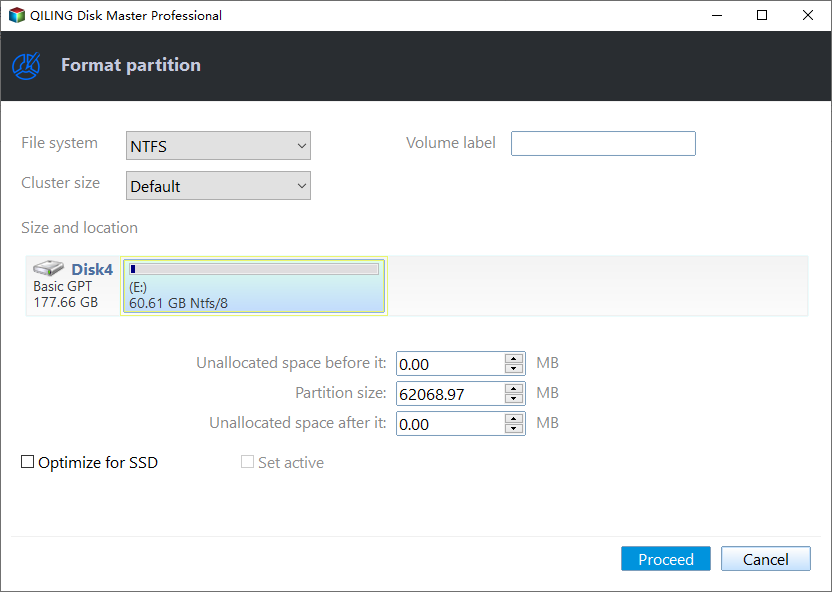
Step 4. Confirm the preview. If the correct partition is selected, click Proceed to apply the format operation.
Step 5. After formatting, reconnect the device and copy a small test file to confirm that Windows and the target device can read it.
Check the result
Open File Explorer, right-click the USB drive, and check Properties. Confirm that the file system is FAT32 and copy a small file to test read and write access.
Related Articles
- FAT32 USB Formatter
Format USB drives to FAT32 when Windows does not show the option. - FAT32 Option Not Available
Fix missing FAT32 format options in Windows without guessing the cause. - HP USB Format Tool for Windows 7 64-bit
Compare USB formatting options and back up the drive before choosing a FAT32 or other file system.
Products
Articles & Tutorials
- Data Recovery
- Data Backup
- File Recovery
- File Backup
- File synchronize
- System Backup and Restore
- Disk and Partition Clone
- Technical articles
- Disk Master Help
- Windows Deleted File and Disk Recovery Tutorials
- Windows File and Data Recovery Tutorials
- More Windows Tutorials for Install, Security, Files, and PC Tips
- Windows Boot, Repair, and Recovery Environment Tutorials
- Windows Backup Tutorials
- Windows Restore Tutorials
- Windows Clone and Migration Tutorials
- Windows Server Backup, Recovery, and Management Tutorials
- Windows Disk, Partition, and Storage Management Tutorials