HP USB Format Tool for Windows 7 64-bit: Safer Formatting Options
The name “HP USB format tool” is often used for an old utility, not a requirement for formatting every HP-branded flash drive. Unofficial downloads and compatibility claims are risky on Windows 7, which no longer receives security support. For most working USB drives, Windows' built-in format dialog is sufficient.
Check the USB drive first
Step 1. Insert the USB drive, open Disk Management, and verify its disk number, capacity, and current file system. If it shows 0 bytes or disconnects repeatedly, test another port or PC; software formatting may not fix the hardware.
Step 2. Copy every needed file to a separate disk. Choose FAT32 only for older devices that require it and accept its 4 GB single-file limit. Use NTFS for Windows-specific features or exFAT for large files on compatible devices.
Step 3. If you specifically need an HP utility, obtain it only from a trustworthy, currently maintained source and verify support for Windows 7 64-bit. Do not run an arbitrary mirror's executable as administrator.
Method 1. Format with Windows 7
Step 1. Unplug other removable drives. In Computer, right-click the USB drive whose capacity and label match Disk Management, then choose Format.
Step 2. Select the file system required by the target device, enter a label, leave Allocation unit size at Default, and use Quick Format for a healthy drive.
Step 3. Recheck the drive letter and capacity. Click Start, read the erase warning, and confirm only if the backup is complete. Wait for Windows to report completion.
Step 4. Safely eject and reconnect the USB. Confirm its size and file system, then copy and reopen a small test file. If this fails, check the USB hardware instead of repeating the format.
Method 2. Format with Qiling Disk Master
Step 1. Open Qiling Disk Master and select the USB partition by its disk number and size. Click Format Partition; do not select the computer's internal disk.
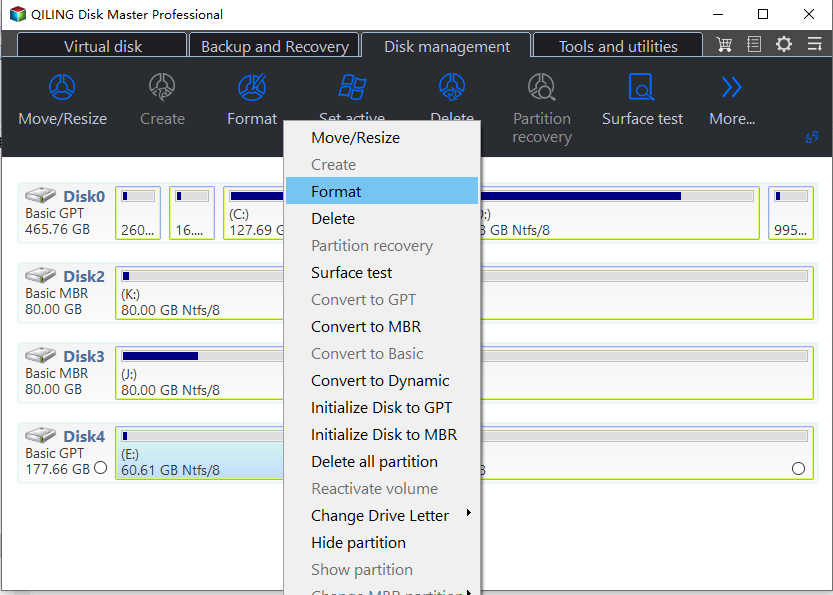
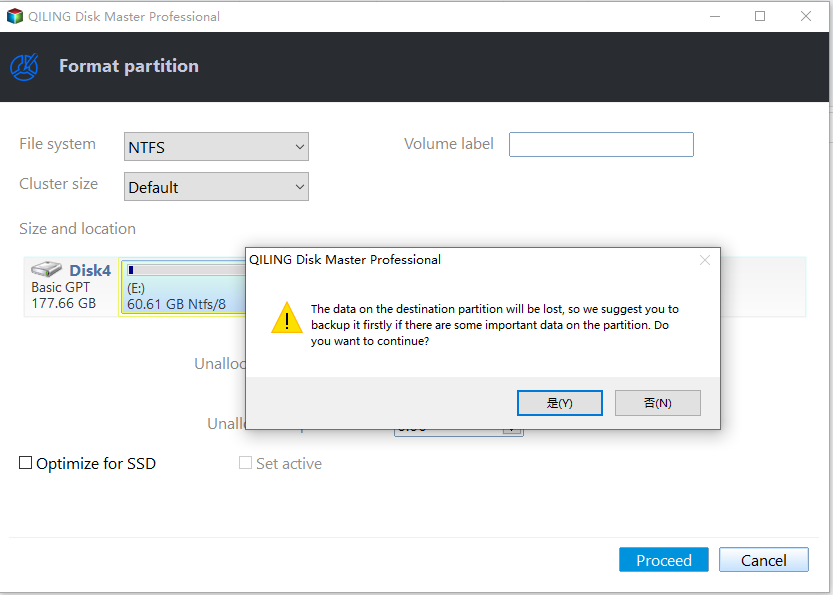
Step 2. Choose the label and appropriate supported file system. Review the pending operation and make sure the USB files have been backed up.
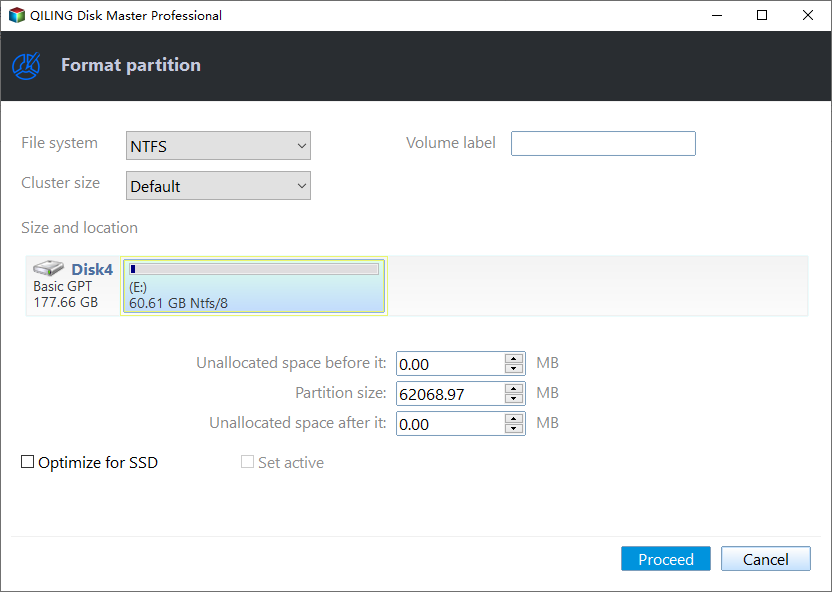
Step 3. Click Proceed to apply the change. Reconnect the USB and test copying and opening a small file.
If formatting is refused
Check for a physical write-protect switch or read-only status. A system or recovery partition should not be erased just to clear a warning. Repeated I/O errors or incorrect capacity point to a failing USB drive; replace it after attempting data recovery where needed.
Related Articles
- FAT32 Option Not Available
Understand why Windows does not offer FAT32 for some volumes. - Cannot Format in Disk Management
Troubleshoot a disabled or failed format operation.
Products
Articles & Tutorials
- Data Recovery
- Data Backup
- File Recovery
- File Backup
- File synchronize
- System Backup and Restore
- Disk and Partition Clone
- Technical articles
- Disk Master Help
- Windows Deleted File and Disk Recovery Tutorials
- Windows File and Data Recovery Tutorials
- More Windows Tutorials for Install, Security, Files, and PC Tips
- Windows Boot, Repair, and Recovery Environment Tutorials
- Windows Backup Tutorials
- Windows Restore Tutorials
- Windows Clone and Migration Tutorials
- Windows Server Backup, Recovery, and Management Tutorials
- Windows Disk, Partition, and Storage Management Tutorials