Hard Disk Partition Not Showing in Windows 8: Fixes
Why is a partition not showing?
A partition can disappear from File Explorer when it has no drive letter, is hidden, uses an unsupported or damaged file system, or belongs to a disk Windows has not initialized. Check Disk Management before formatting or deleting anything.
Method 1. Assign a drive letter
Step 1. Press Win + R, enter diskmgmt.msc, and press Enter.
Step 2. Locate the partition by capacity. If it is healthy but has no letter, right-click it and select Change Drive Letter and Paths.
Step 3. Choose Add, select an unused letter, and confirm. Check File Explorer again.
Method 2. Check hidden or RAW partitions
Step 1. Do not format a partition shown as RAW, unallocated, or hidden if it contains important data.
Step 2. Run chkdsk X: /f only when the partition has a letter and Windows recognizes its file system.
Step 3. Recover needed files to another drive before recreating, formatting, or changing the partition type.
Method 3. Initialize the disk or update the driver
Step 1. If the entire disk is marked Unknown or Not Initialized, confirm it is the correct empty or backed-up disk before choosing Initialize Disk.
Step 2. In Device Manager, update or reinstall the disk and storage-controller drivers, then reconnect the drive or restart Windows.
Step 3. Test another cable, port, enclosure, or computer if the disk disconnects or does not appear in Disk Management.
Method 4. Recover files before formatting the missing partition
 Deep Data Recovery
Scan a missing, RAW, or inaccessible partition and save recoverable files before making disk changes.
Step 1. Open Deep Data Recovery and choose Fast Scan. Use this mode first when the partition is missing, RAW, or not visible in File Explorer.
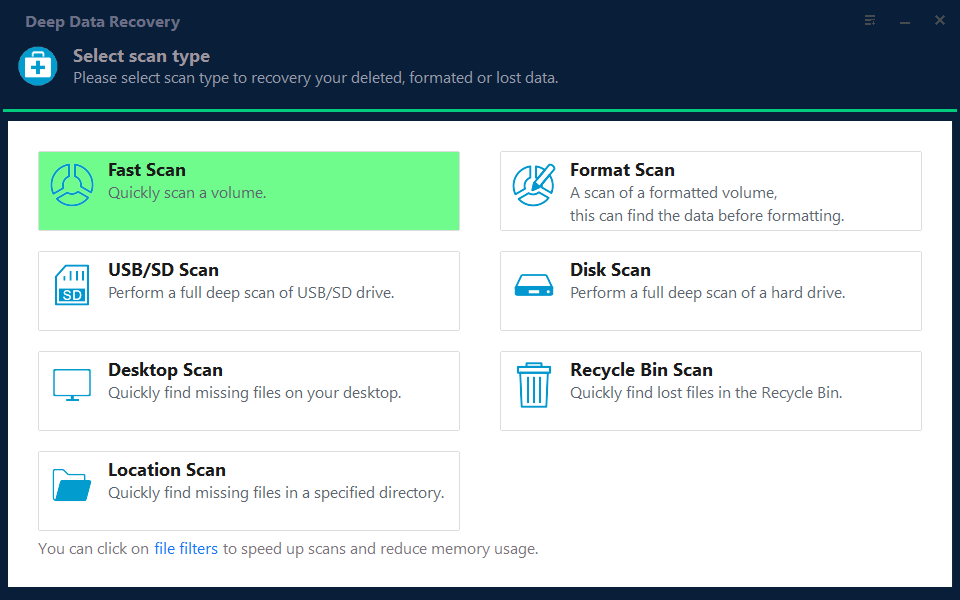
Step 2. Select the disk or partition that matches the missing Windows 8 volume by capacity, then start the scan.

Step 3. Wait for the scan result. Use path, file type, or keyword filters if many files are listed.
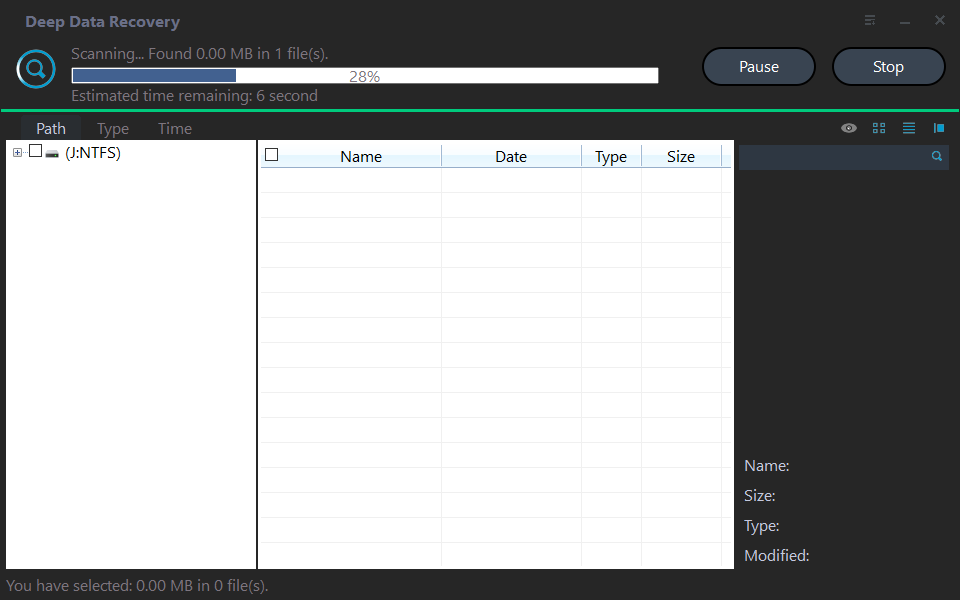
Step 4. Preview the found files, select what you need, and click Recover.

Step 5. Save recovered files to another healthy drive. After the files are safe, repair, format, or recreate the original partition.
Conclusion
Assigning a drive letter resolves many cases. When the partition is RAW or unallocated, prioritize data recovery before formatting or initializing the disk.
Related Articles
-
Data Recovery from Unknown Partition in Windows
Recover files from an unknown or inaccessible partition before formatting or rebuilding the disk. -
Restore Lost Partition on USB Drive
Check a missing USB partition, recover files first, and recreate the partition safely.
Products
Articles & Tutorials
- Data Recovery
- Data Backup
- File Recovery
- File Backup
- File synchronize
- System Backup and Restore
- Disk and Partition Clone
- Technical articles
- Disk Master Help
- Windows Deleted File and Disk Recovery Tutorials
- Windows File and Data Recovery Tutorials
- More Windows Tutorials for Install, Security, Files, and PC Tips
- Windows Boot, Repair, and Recovery Environment Tutorials
- Windows Backup Tutorials
- Windows Restore Tutorials
- Windows Clone and Migration Tutorials
- Windows Server Backup, Recovery, and Management Tutorials
- Windows Disk, Partition, and Storage Management Tutorials