Partition an SSD for Dual Boot Without Data Loss
Dual booting from one SSD can work well if each operating system has its own clean partition and enough free space. Planning the layout first prevents boot and storage confusion later.
Understand the problem
An SSD used for dual boot should have free space, a compatible boot mode, and a clear backup. Windows and Linux installers may create additional small boot or recovery partitions.
- Confirm the exact disk, partition, drive letter, file system, boot mode, or Windows version before changing settings.
- Back up or recover important files before formatting, deleting, resizing, converting, reinstalling, or cleaning a drive.
- For boot or installation tasks, check BIOS or UEFI mode, disk style, boot order, and device compatibility first.
Use Windows built-in tools
Create space before installing the second system.
- Back up the current Windows system and personal files.
- Open Disk Management and check free space on the SSD.
- Shrink the Windows partition to create unallocated space.
- Leave the unallocated space for the second OS installer, or create a new partition if required.
- Confirm UEFI or Legacy mode before installing another OS.
Use Qiling tools for guided steps
 Qiling Disk Master
Shrink the SSD and create a separate partition with a visible preview before installing another operating system.
Function. Resize or move the partition with preview
Step 1. Open Qiling Disk Master and check the disk map. Identify the SSD system partition by drive letter, capacity, file system, and position.
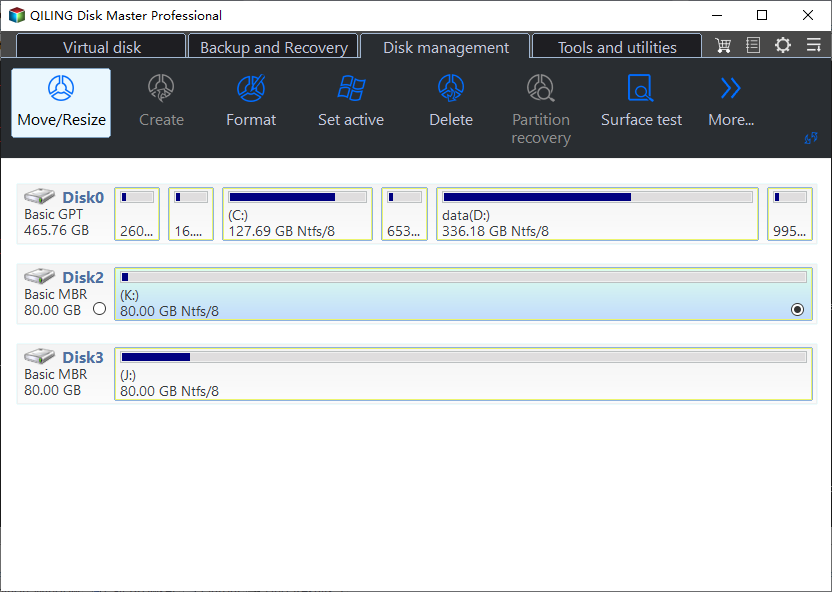
Step 2. Select the partition that needs adjustment and click Resize/Move. If another partition blocks the target space, move or resize it first in the preview.
Step 3. Drag the border or enter the exact size to create unallocated space for the second operating system. Keep enough free space for Windows updates, temporary files, and application data.
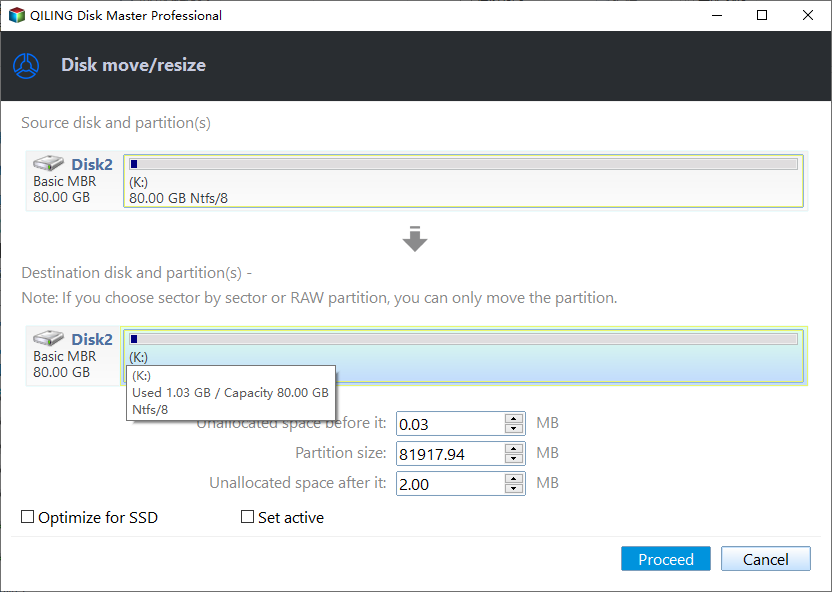
Step 4. Review the pending operations in order. Confirm that the correct disk and partition will be changed.
Step 5. Click Proceed and wait for the operation to finish. Do not interrupt the computer while partitions are being moved or resized.
Function. Create or rebuild a partition with clear settings
Step 1. Connect the SSD and back up important files. If there is no unallocated space, shrink an existing partition first.
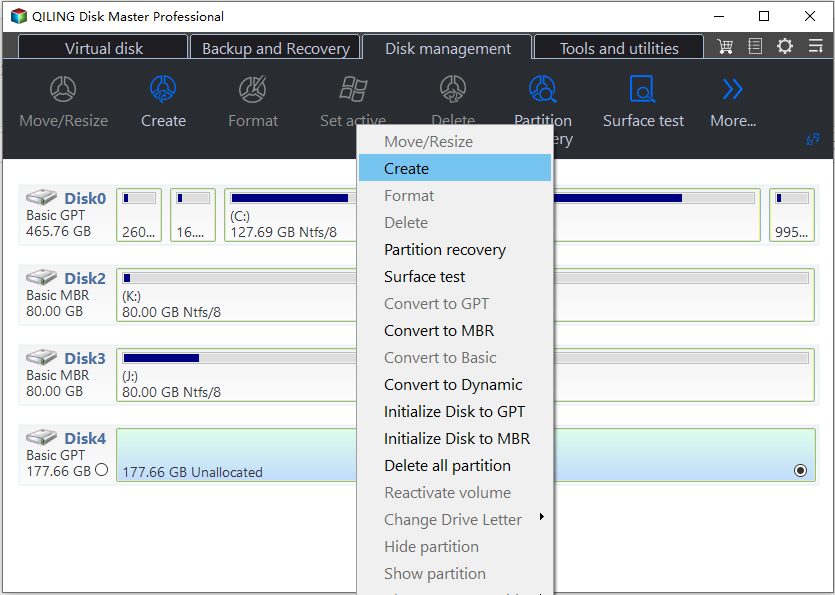
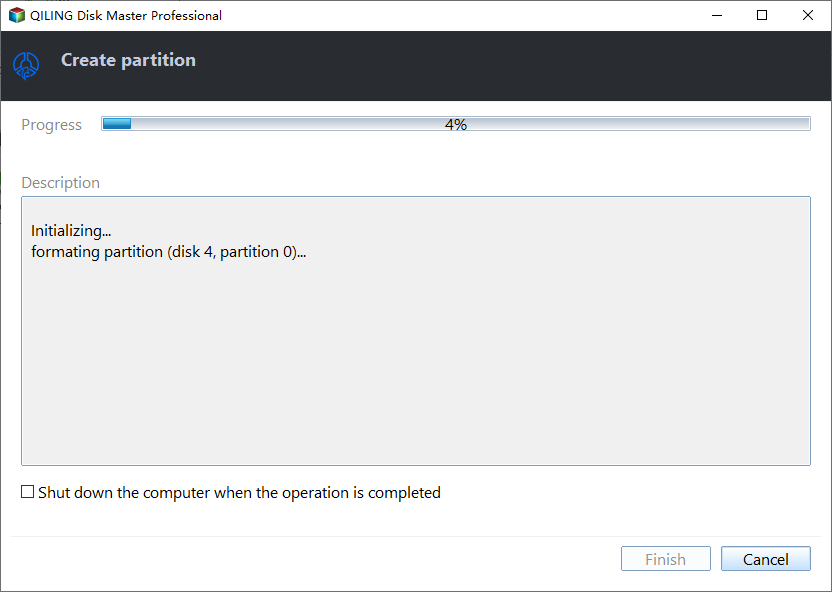
Step 2. In Qiling Disk Master, right-click the unallocated space on the SSD and choose Create Partition.
Step 3. Set the partition size, drive letter, file system, and label for a second operating system or shared data area. Use labels that make the partition easy to recognize later.
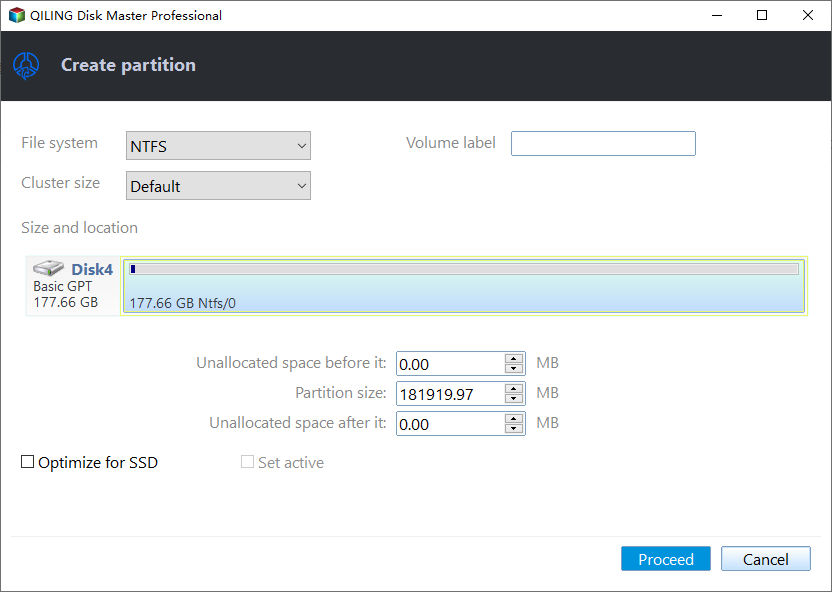
Step 4. Check the preview and click Proceed. After the task finishes, reopen File Explorer and confirm the new partition.
Check the result
After installation, test both systems from the boot menu. Confirm each system can access only the partitions it should use.
Related Articles
- Make Partition Bootable
Understand bootable partition basics before planning a dual boot SSD. - Selected Disk Is GPT
Fix installation style conflicts caused by GPT, MBR, UEFI, or Legacy mode. - Format a Drive as Ext4 from Windows
Prepare a Linux partition for dual boot with a verified backup and a careful GParted Live formatting workflow.
Products
Articles & Tutorials
- Data Recovery
- Data Backup
- File Recovery
- File Backup
- File synchronize
- System Backup and Restore
- Disk and Partition Clone
- Technical articles
- Disk Master Help
- Windows Deleted File and Disk Recovery Tutorials
- Windows File and Data Recovery Tutorials
- More Windows Tutorials for Install, Security, Files, and PC Tips
- Windows Boot, Repair, and Recovery Environment Tutorials
- Windows Backup Tutorials
- Windows Restore Tutorials
- Windows Clone and Migration Tutorials
- Windows Server Backup, Recovery, and Management Tutorials
- Windows Disk, Partition, and Storage Management Tutorials