Unable to Shrink C Drive in Windows: Practical Fixes
Windows may show little available shrink space even when C drive has plenty of free space. Immovable files are often the reason.
Background and causes
Page files, hibernation files, restore points, and file system metadata can sit near the end of C drive and block shrink operations.
- Confirm the exact disk, partition, drive letter, file system, and capacity before changing anything.
- Recover or back up important files before formatting, deleting, converting, or recreating partitions.
- For boot-related changes, check BIOS/UEFI mode and boot order before editing disk layout.
Use Windows built-in tools
Temporarily disable hibernation, reduce shadow copies, run disk cleanup, check file system errors, restart, and try Shrink Volume again.
Use Qiling tools for guided steps
 Qiling Disk Master
Shrink C drive with a clear size preview after reducing Windows blockers.
Function 1. Prepare C drive before shrinking
Use this function when Disk Management offers very little shrink space.
Step 1. Back up important files and close running applications.
Step 2. Temporarily turn off hibernation, reduce restore points or shadow copies, run Disk Cleanup, and restart Windows.
Step 3. Run a file system check if Windows reports disk errors, then try the shrink operation again.
Function 2. Shrink C drive with Qiling Disk Master
Use this function when Windows built-in shrink still cannot provide the size you need, or when you want to preview the change before applying it.
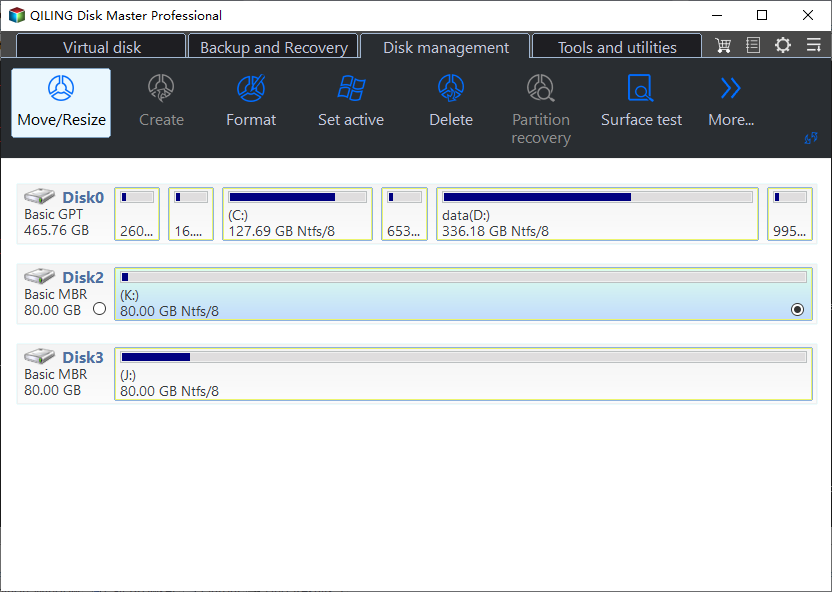
Step 1. Open Qiling Disk Master, select C drive, and click Resize/Move.
Step 2. In the resize window, drag the right border of C drive to the left, or type a smaller partition size manually. Leave enough free space for Windows updates and applications.
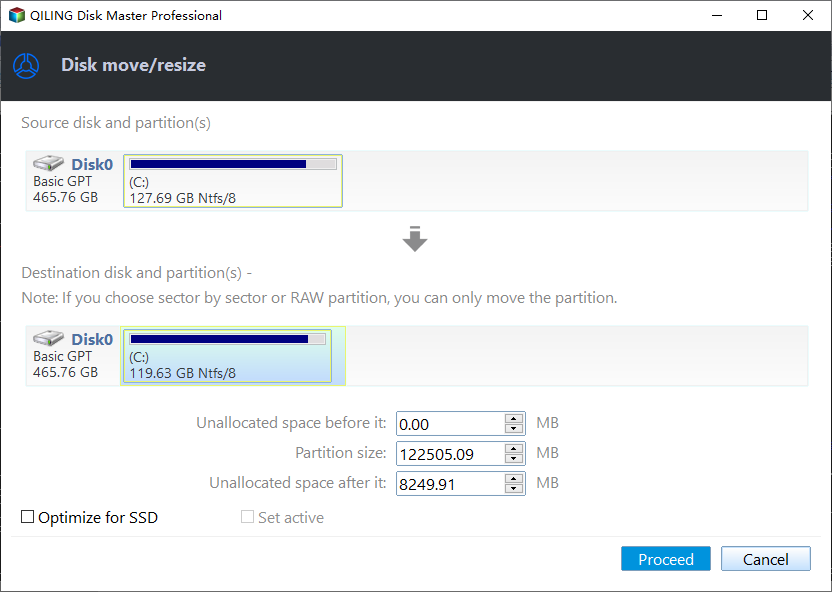
Step 3. Review the pending operation. If the new C drive size and unallocated space are correct, click Proceed.
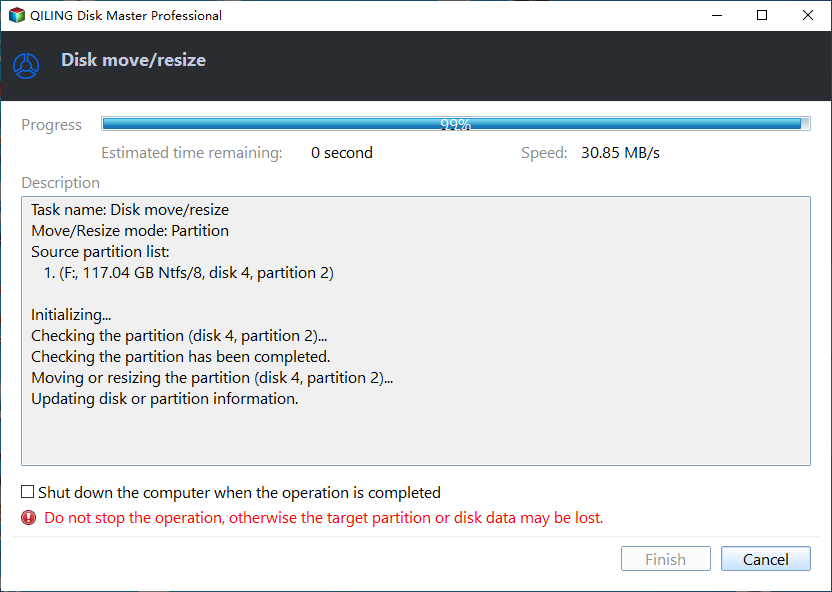
Check the result
After shrinking, turn needed protection features back on and confirm Windows starts normally.
Related Articles
-
How to Partition a Dell Hard Drive
Create, resize, and protect disk partitions without touching recovery partitions. -
We Could not Create a New Partition
Fix Windows Setup partition errors with boot-mode and disk-layout checks.
Products
Articles & Tutorials
- Data Recovery
- Data Backup
- File Recovery
- File Backup
- File synchronize
- System Backup and Restore
- Disk and Partition Clone
- Technical articles
- Disk Master Help
- Windows Deleted File and Disk Recovery Tutorials
- Windows File and Data Recovery Tutorials
- More Windows Tutorials for Install, Security, Files, and PC Tips
- Windows Boot, Repair, and Recovery Environment Tutorials
- Windows Backup Tutorials
- Windows Restore Tutorials
- Windows Clone and Migration Tutorials
- Windows Server Backup, Recovery, and Management Tutorials
- Windows Disk, Partition, and Storage Management Tutorials