How to Resize a VMware Windows Partition Safely
A VMware virtual machine may run out of space even when the host has free storage. Expand the virtual disk first, then resize the Windows partition inside the guest.
Background and causes
The guest OS sees added capacity as unallocated space. If the space is not adjacent to C drive, a partition move may be required.
- Confirm the exact disk, partition, drive letter, file system, and capacity before changing anything.
- Recover or back up important files before formatting, deleting, converting, or recreating partitions.
- For boot-related changes, check BIOS/UEFI mode and boot order before editing disk layout.
Use Windows built-in tools
Shut down the VM, expand the virtual disk in VMware settings, start Windows, and use Disk Management to extend the target volume when the space is adjacent.
Use Qiling tools for guided steps
 Qiling Disk Master
Resize the Windows partition inside the VMware guest after expanding the virtual disk.
Function 1. Extend the target partition when unallocated space is adjacent
Use this function after increasing the VMware virtual disk size and confirming that the new unallocated space is directly next to the partition you want to extend.
Step 1. Start the virtual machine, open Qiling Disk Master inside the guest Windows system, and select the partition that needs more space.
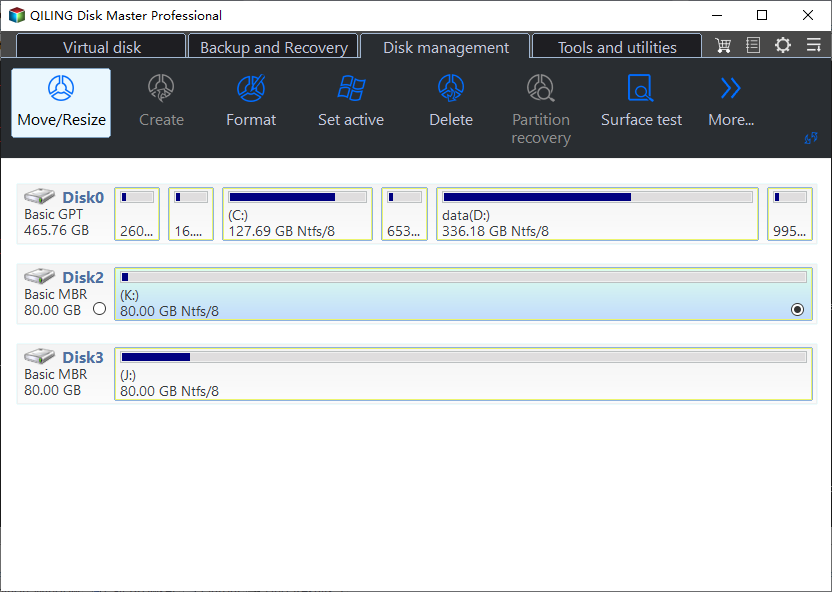
Step 2. Click Resize/Move, then drag the partition border toward the adjacent unallocated space or enter a larger size manually.
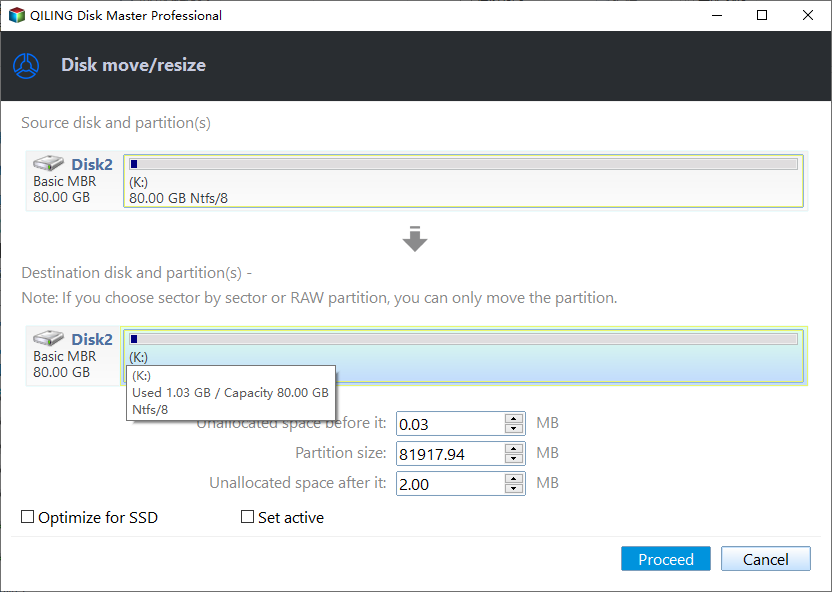
Step 3. Review the pending operation. If the target partition and new size are correct, click Proceed.
Function 2. Move space next to the partition first
Use this function when the expanded VMware space is on the same virtual disk but another partition is between the target partition and the unallocated space.
Step 1. Select the partition between the target partition and the unallocated space, then click Resize/Move.
Step 2. Move that partition so the unallocated space becomes adjacent to the partition you want to extend. Then extend the target partition into that space.
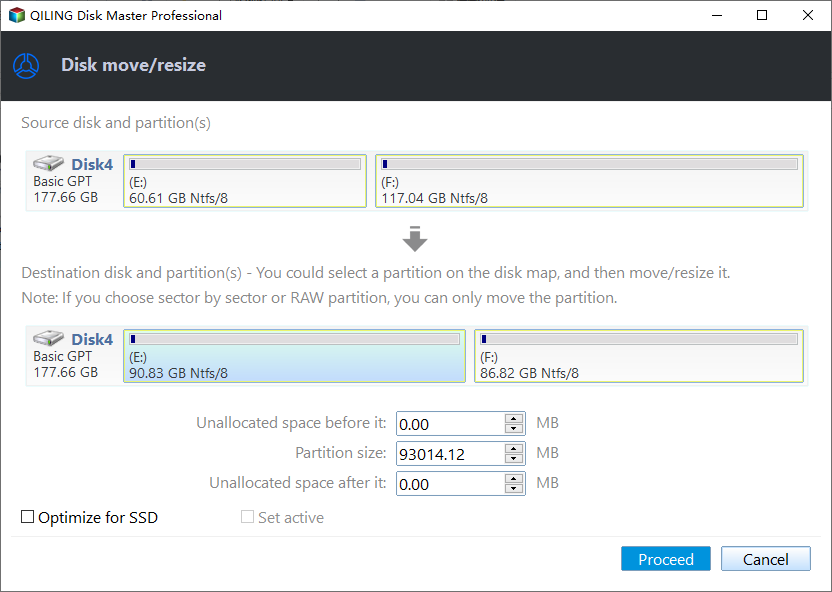
Step 3. Review all pending operations together, then click Proceed. Keep the VM powered on until the operation finishes.
Check the result
Confirm the guest partition shows the new capacity and that VMware snapshots or backups still work.
Related Articles
-
How to Partition a Dell Hard Drive
Create, resize, and protect disk partitions without touching recovery partitions. -
We Could not Create a New Partition
Fix Windows Setup partition errors with boot-mode and disk-layout checks.
Products
Articles & Tutorials
- Data Recovery
- Data Backup
- File Recovery
- File Backup
- File synchronize
- System Backup and Restore
- Disk and Partition Clone
- Technical articles
- Disk Master Help
- Windows Deleted File and Disk Recovery Tutorials
- Windows File and Data Recovery Tutorials
- More Windows Tutorials for Install, Security, Files, and PC Tips
- Windows Boot, Repair, and Recovery Environment Tutorials
- Windows Backup Tutorials
- Windows Restore Tutorials
- Windows Clone and Migration Tutorials
- Windows Server Backup, Recovery, and Management Tutorials
- Windows Disk, Partition, and Storage Management Tutorials