How to Backup Windows 10 Mail to External Hard Drive (3 Ways)
Need of Windows Mail backup
Windows Mail is a built-in email client included with Windows 10 and later versions. You can use it to receive, write, and send emails from your desktop. To keep your emails safe, back up Windows Mail to an external hard drive so you can recover messages after system crashes, data loss, or device damage.
- Protect emails from computer errors. Emails saved on your computer may be vulnerable to virus attacks, hard disk failures, system corruption, and other unexpected errors, potentially leading to data loss.
- Save email client space. If your email client is near its storage limit, consider backing up some emails to an external drive and deleting them from the client to free up space.
- Move emails to a new computer. To view your emails on a new computer, you can simply transfer the backed up emails from the external hard drive to the new computer, and they will be accessible.
3 easy ways to backup Windows 10 Mail to external hard drive
Although Windows Mail doesn't have an "Export email" option, you can still save your emails by using its "Save as" feature. Alternatively, you can add your email account to other email clients and then backup emails to an external hard drive.
Method 1: Backup Windows 10 Mail to EML files
1. Connect an external hard drive to your computer and make sure Windows recognizes it.
2. To backup an email message in Windows Mail, open the email client and select the message you want to backup. Right-click on the message and select "Save As" from the context menu.
3. Click the three dots icon and select Save as.
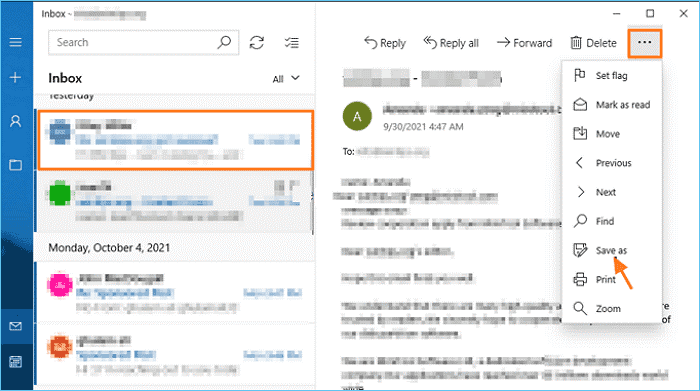
4. To save the EML file to an external hard drive, name the file, select the external hard drive connected to the computer, and click the "Save" button.
Method 2: Backup Windows mails via Outlook app
If you add your mail account to the Outlook desktop app, you can export email folders to a PST file and save the file to an external hard drive. This method is useful when you need to back up whole folders instead of individual EML messages.
1. Connect an external hard drive to your PC.
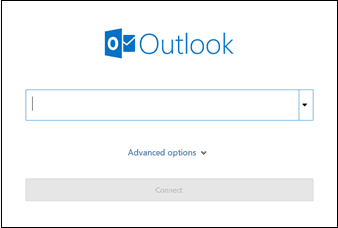
2. Launch the Outlook client, enter your email address, and click "Connect" to add the email account you wish to backup, which can include Outlook Mail, Gmail, Yahoo Mail, and iCloud Mail, among others.
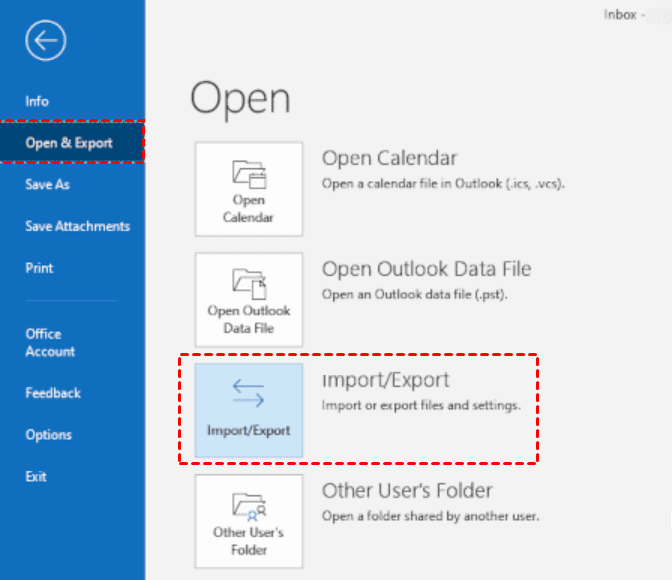
3. Click File > Open & Export > Import/Export in Outlook.
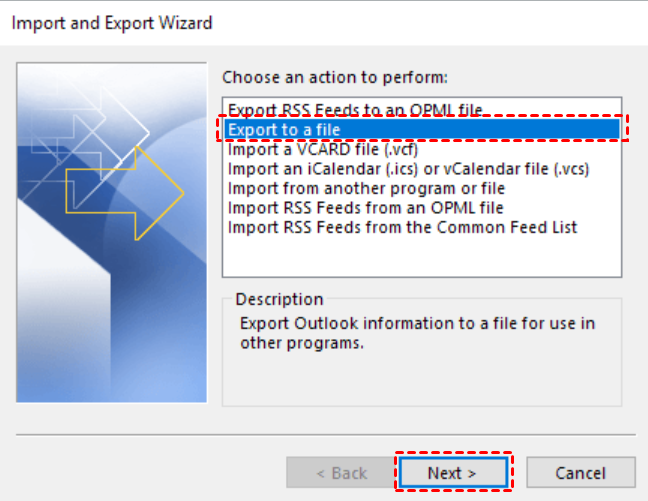
4. Click Export to a file, and then click Next.
5. Click Outlook Data File (.pst), and click Next.
6. Select the specific email folder to be backed up, check the box next to "Include subfolders", and click "Next".

7. To back up your data, click Browse to select the external hard drive as the destination path, then choose a name for the backup file and click Finish.
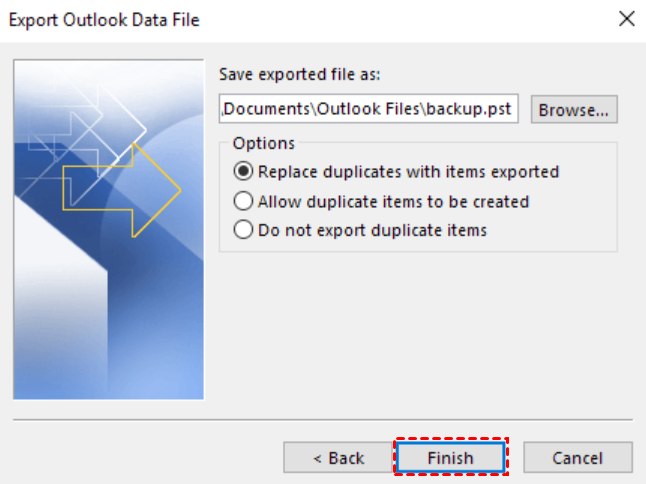
8. Enter and confirm a password to protect sensitive files, then click OK to export, or leave the password field empty if no protection is needed.
Method 3: Auto backup emails with best email backup tool
To automatically backup Windows mails, consider using Qiling Disk Master Professional, a top-notch email backup software that provides comprehensive solutions for backing up your emails.
- This tool enables you to backup various mailboxes, including Yahoo Mail, Gmail, Outlook Mail, Hotmail, and iCloud Mail, among others.
- This software allows you to backup your entire email mailbox or select specific folders, and even backup multiple folders at once.
- You can choose a local/external hard drive, USB flash drive, NAS device, or other backup storage devices to store your data.
- You can create automatic email backup using the "Schedule Backup" feature.
To backup emails to an external hard drive automatically, download and install Qiling Disk Master on your PC. Follow the steps below to set up the automatic backup process.
1. Connect an external hard drive to your PC, open Qiling Disk Master, click Backup and select File Backup.

2. Name this backup task as needed and click "Add Email Data".

3. To save the backup image, click the destination box, choose "Select a local path", and select the connected external hard drive.

4. To schedule a backup, click "Schedule Backup" and select a frequency such as daily, weekly, monthly, or event triggers.

5. Confirm your operation and click Proceed to run your first backup.
FAQs on Windows Mail backup
1. Is Windows Live Mail still available?
Microsoft discontinued Windows Live Mail in 2017, and it is no longer supported. If you're still using it, you can export your emails to an external hard drive by going to File > Export email > Email messages.
2. Where is Windows 10 Mail stored?
The Mail app on a Windows 10 system stores its data in a hidden folder located at C:\Users\[YourUsername]\AppData\Local\Packages\microsoft.windowscommunicationsapps_[RandomString]\LocalState.
Conclusion
To back up Windows 10 Mail to an external hard drive, use the "Save as" feature for individual emails. For whole folders or scheduled email backups, use the Outlook app or Qiling Disk Master Professional.
Related Articles
- How to Backup Outlook Emails to External Hard Drive (2 Ways)
Learn why you should back up Outlook emails to an external hard drive and how to complete the task with two practical methods. - Backup Windows 10 to External Hard Drive Securely (3 Ways)
Backing up Windows 10 to external hard drive is a good way to prevent hardware failures or system crashes. This post will show you how to prepare the external drive and execute the backup successfully. - How to Extend Volume in Windows 10 (2 Methods)?
Learn how to extend volume in Windows 10 with this article, which will demonstrate two methods to help you achieve this. - How to Force Delete Corrupted Folder Windows 10?
If you fail to delete a corrupted folder or file in Windows 11, 10, 8, 7, you can read this post to figure out why the corrupted folders or files cannot be deleted and how to force delete it in a secure way.
Products
Articles & Tutorials
- Data Recovery
- Data Backup
- File Recovery
- File Backup
- File synchronize
- System Backup and Restore
- Disk and Partition Clone
- Technical articles
- Disk Master Help
- Windows Deleted File and Disk Recovery Tutorials
- Windows File and Data Recovery Tutorials
- More Windows Tutorials for Install, Security, Files, and PC Tips
- Windows Boot, Repair, and Recovery Environment Tutorials
- Windows Backup Tutorials
- Windows Restore Tutorials
- Windows Clone and Migration Tutorials
- Windows Server Backup, Recovery, and Management Tutorials
- Windows Disk, Partition, and Storage Management Tutorials