Windows Convert to GPT Grayed Out? Solve it Easily!
Convert to GPT Disk Grayed Out in Windows Disk Management
An MBR-style disk is limited to about 2TB of usable space and up to four primary partitions. In contrast, a GPT-style disk supports larger disks, more partitions, and UEFI boot mode, which makes it more suitable for modern Windows systems such as Windows 11. It is also commonly required when upgrading from Windows 10 to Windows 11 through Windows Update.
The "Convert to GPT Disk" option in Disk Management is grayed out when trying to convert a disk to GPT, preventing users from making the conversion. This can be a frustrating issue, especially when attempting to convert a disk to GPT via Disk Management, a partition tool embedded in Windows.

Why is my convert to GPT greyed out and how to solve it?
The Disk Management tool cannot convert an MBR disk to GPT if there are existing partitions on it, so you need to back up data, delete all partitions, and then convert it.
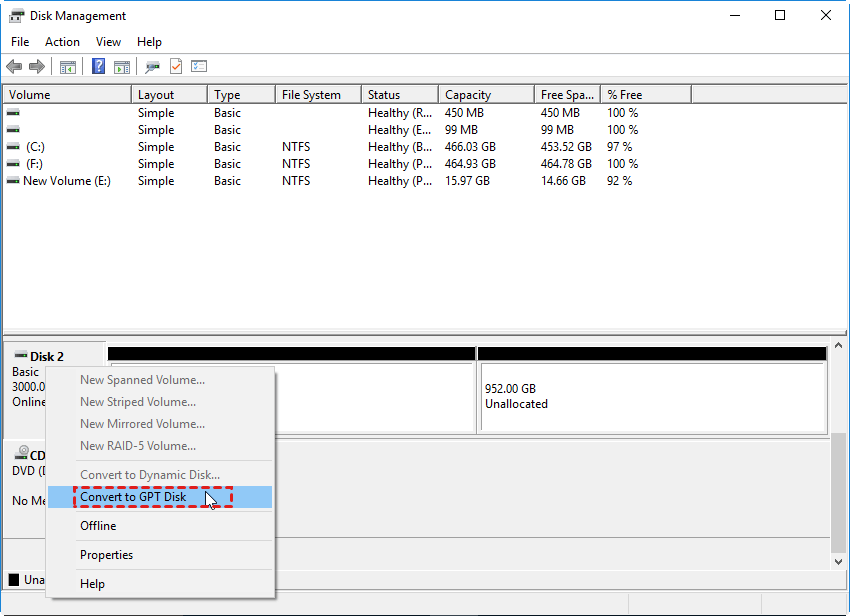
To convert a data disk to GPT or MBR, you can use Windows Disk Management after deleting all partitions on the disk. If you need to convert the system disk with Diskpart, you usually need to boot from installation media, press Shift+F10 to launch Command Prompt, and run the required commands outside Windows.
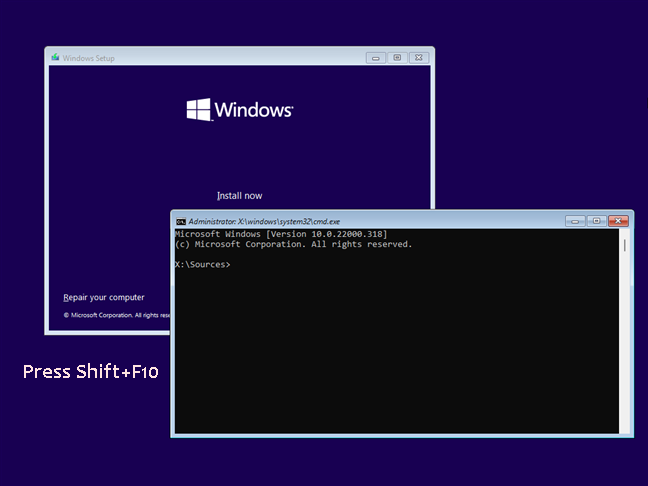
▶list disk This command will show you a list of all disks on your computer, allowing you to identify the disk number you'd like to convert to GPT, with disk 1 being used as an example in this guide.
▶select disk n (Diskpart will remind you that the disk n is selected)
▶clean (remove all partitions on the target disk)
▶convert gpt
Best way to evade "Convert to GPT Disk" greyed out issue (without data loss)
If you're experiencing the "Convert to GPT" greyed out issue in Disk Management, you can consider using Qiling Disk Master Professional, a safe and powerful partition manager that can convert MBR to GPT without deleting any partitions or data. This tool also allows direct conversion of system disks without needing to enter the WinPE environment, provided the computer can boot up successfully.
Qiling Disk Master offers advanced disk management features, including direct conversion to GPT/MBR, resizing, moving, and merging partitions, and making bootable devices, making it more powerful than Disk Management and compatible with Windows 11/10, 8/8.1, 7, Vista, and XP.
You can download the demo version of Qiling Disk Master Professional to try it out.
Step 1. Install and launch Qiling Disk Master Professional. Right-click the disk you want to convert and select "Convert to GPT" from the drop menu.
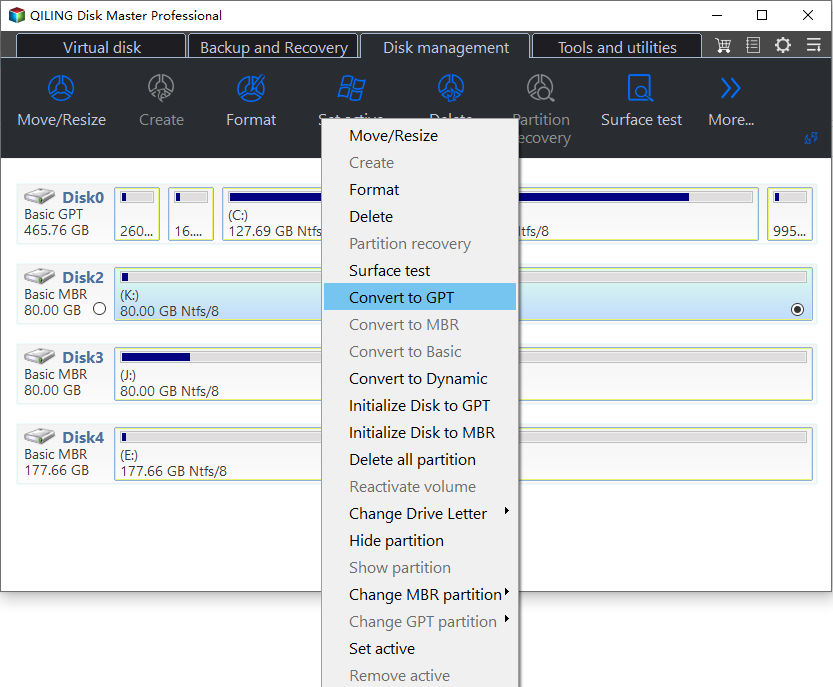
Step 2. Wait for a moment until the conversion finishes.
- ★Tips:
- If this feature is grayed out in Windows Server 2003, 2008, 2012, 2016, 2019, or 2022, consider using Qiling Disk Master Server Edition.
- When converting a system disk from MBR to GPT or vice versa, it's essential to enter the BIOS settings and change the boot mode to ensure the system remains bootable. This step is crucial, and for further details on BIOS and EFI (UEFI), refer to the article "GPT formatted disk legacy boot not supported".
- When converting between MBR and GPT disks on laptops, ensure the battery will last longer than the conversion process, plug your laptop into a wall socket to prevent shutdown issues.
- To protect your data, please do not stop/terminate the process once it has begun.
Conclusion
Windows users may need to convert from MBR to GPT, but in some cases, they may need to do the reverse, converting GPT to MBR. This is usually necessary when using older operating systems like Windows 2000, Windows 2003 32-bit, or Windows XP 32-bit, which don't support GPT formatted disks. If a GPT disk is used with these OS's, it will appear as a "GPT protective partition" and data access will be unavailable. Fortunately, Qiling Disk Master can also help convert GPT to MBR without losing any data.
Related Articles
- Fix "Disk Already Contains the Maximum Number of Partitions" Error [Step-by-Step Guide]
This article introduces a professional disk management tool to fix the - 2022 Tips to Fix 100 Disk Usage in Windows 7/8/8.1/10/11
When you are faced with disk usage 100 in Windows 7/8/8.1/10/11, you can follow the solutions here. You can fix Windows 7 100% disk usage and speed up your laptop and computer with ease. - What Is Disk Management and Its Features? Your Windows 11 Guide
Use Windows Disk Management to view, create, resize, and manage partitions more safely. - How to Fix Can't Download Windows 11 Error | 2022 Guide
If you face any issue while downloading Windows 11, there is a possibility that your PC isn't compatible. Here are a few common issues that you might be struggling with and some helpful solutions if your PC is compatible. - How to Format EFI Partition in Windows 11/10? [Your Guide Here 2024]
Formatting the EFI partition may cause boot problems, so only do it when necessary. Back up important data first and use a reliable tool. - How to Format eMMC Drive [2024 Full Guide]
Our simple and straightforward guide will walk you through the process of formatting eMMC drives, making it easy for beginners. Learn how to format eMMC drive and explore crucial steps, techniques, and tips to avoid mistakes, all in one comprehensive tutorial.
Products
Articles & Tutorials
- Data Recovery
- Data Backup
- File Recovery
- File Backup
- File synchronize
- System Backup and Restore
- Disk and Partition Clone
- Technical articles
- Disk Master Help
- Windows Deleted File and Disk Recovery Tutorials
- Windows File and Data Recovery Tutorials
- More Windows Tutorials for Install, Security, Files, and PC Tips
- Windows Boot, Repair, and Recovery Environment Tutorials
- Windows Backup Tutorials
- Windows Restore Tutorials
- Windows Clone and Migration Tutorials
- Windows Server Backup, Recovery, and Management Tutorials
- Windows Disk, Partition, and Storage Management Tutorials