Step-by-Step: Use DiskPart Convert MBR in Windows 11, 10, 8, 7
The Windows built-in Diskpart is a command-line program for disk management on Windows 11/10/8/7. It allows users to perform various actions on disks by typing specific syntax. This article focuses on using Diskpart to convert a disk from GPT (GUID Partition Table) to MBR (Master Boot Record).
- Brief introduction of MBR and GPT
- How to use Diskpart convert disk from GPT to MBR
- Free alternative to DiskPart: convert to MBR without deleting partitions
- Summary
Brief introduction of MBR and GPT
MBR (Master Boot Record) uses the standard BIOS partition table and only supports up to 4 primary partitions on a disk. If more partitions are needed, one of the primary partitions must be converted into an extended partition to create more logical partitions. Additionally, MBR disks are limited to supporting up to 2TB hard disks, making it unsuitable for larger storage needs.
GPT (GUID Partition Table) disk uses the Extensible Firmware Interface (EFI) and supports more than 4 partitions on a disk, breaking the 2TB hard drive size limitation. However, some older operating systems like Windows 95/98/ME, Windows NT4, Windows 2000, Windows 2003 32bit, and Windows XP 32bit do not support GPT partitions, requiring a conversion to Master Boot Record (MBR) disk for recognition.

Choosing between GPT and MBR is essential for ensuring your system recognizes the drive properly, as they have distinct features and functions. Making the right selection is crucial to maintain compatibility and optimize system performance.
Advantages of Using MBR over GPT
While the previous sections discussed converting to MBR, it's worth noting that MBR still has its advantages over the newer GUID Partition Table (GPT) scheme. Although GPT offers benefits, MBR remains a viable option in certain scenarios.
✿ Wide compatibility: MBR is compatible with various operating systems, including older versions of Windows, Linux, and macOS, making it a preferred choice for working with legacy systems or older hardware.
✿ Simplicity and ease of use: MBR has a simple structure, making it easy to understand and work with, especially for less experienced users, and its simplicity also contributes to its compatibility with a wide range of software and tools.
✿ BIOS support: MBR (Master Boot Record) is fully supported by traditional BIOS systems, making it essential for compatibility with older systems or BIOS-based computers.
✿ Smaller disk space requirements: MBR requires less disk space than GPT for its partitioning information, resulting in a slightly larger usable disk capacity.
✿ Bootloader flexibility: MBR has well-established bootloader systems, such as the Windows Boot Manager and GRUB, which provide efficient and reliable boot options, making it a preferred choice for dual-boot setups or systems requiring customized boot configurations.
GPT offers advantages such as larger disk sizes and improved data redundancy, but MBR remains a robust and widely compatible option, especially for older systems and certain use cases where simplicity and BIOS support are important.
How to use Diskpart to convert disk from GPT to MBR
Converting a GPT disk to MBR can be necessary in certain situations, such as system compatibility or personal preference. Although GPT has its advantages, MBR still has its uses. Fortunately, there are various methods to achieve this conversion, and one of the ways is by using Diskpart to convert the disk from GPT to MBR. This process allows for the modification of the disk's partition style, making it compatible with systems that only support MBR.
Note: To avoid data loss, always back up your files before making changes to your disk partitioning. This ensures the safety of your important files and prevents any potential loss.
To open Diskpart, press the Windows key + R to open the Run dialog box, then type "cmd" to open Command Prompt, and finally, type "diskpart" to open the Diskpart utility.
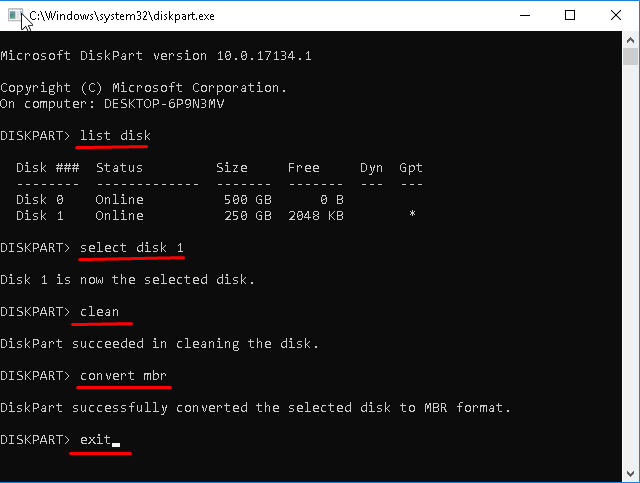
Follow these steps to convert a GPT disk to MBR using Diskpart:
✎ To list all the disks on your computer, type "list disk" and press Enter. This will show you which disk you need to convert.
✎ To select the disk, type "select disk 1" and press Enter, replacing "1" with the actual disk number you want to select.
✎ If this is an empty disk without any partitions on, you can skip this step. Simply type "clean" and press Enter.
✎ After selecting the disk, type "convert mbr" and press Enter, it will convert the GPT disk to MBR disk.
Warning:
To convert a GPT disk to MBR, or vice versa, you need to ensure the disk is empty, with no volumes or partitions on it. If there are data or volumes, backup your data and delete them before proceeding. This is a crucial step to avoid data loss. Once the disk is empty, you can safely convert it from GPT to MBR or vice versa.
Free alternative to DiskPart: convert to MBR without deleting partitions
Converting a disk from MBR to GPT or vice versa using DiskPart or Disk Management requires deleting all existing partitions on the selected disk, as the conversion will fail otherwise. To avoid this hassle, consider using a free tool like Qiling Disk Master Standard for Windows 11/10/8/7/Vista PC.
This utility offers a user-friendly graphical interface that makes it easy for those with little to no computer experience to use. It can convert disks between MBR and GPT without deleting partitions or data, giving users the flexibility to customize and optimize their storage configuration.
This software offers a hassle-free disk management experience, adapting to your needs and providing optimum disk performance and efficiency. It goes beyond conversion, offering a suite of functions to resize, merge, split, and create partitions, allowing you to organize your data in a way that suits your needs.
Tip: The Standard Version allows converting data disks between MBR and GPT, while the Professional Edition supports converting system disks from GPT to MBR or MBR to GPT.
Step 1. To convert a disk from GPT to MBR, launch the Qiling Disk Master, select the GPT disk, and click "Convert" at the top toolbar, then choose the "Convert MBR/GPT" option.
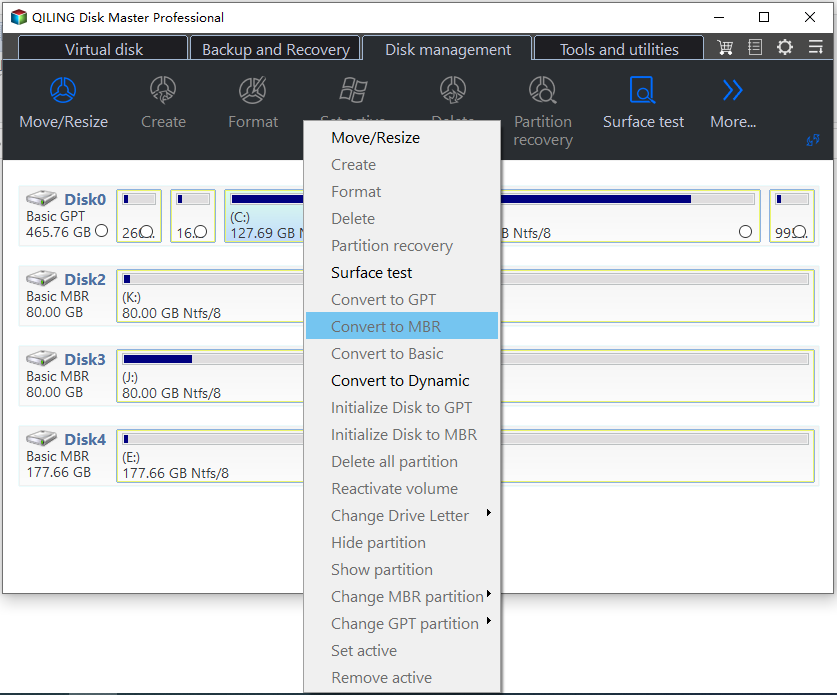
Step 2. Finally, waiting for a moment, the disk has changed into MBR.
To convert a boot disk without an operating system, you can create a bootable media and complete the conversion within the WinPE environment. After the conversion, you'll need to enter the BIOS settings to switch the boot mode from Legacy to UEFI or vice versa, ensuring the system can successfully boot from the converted disk.
Frequently Asked Questions about converting disk to MBR
✦ Can I convert back to GPT after converting to MBR?
To convert back to GPT, you would need to re-partition the disk, which would erase all existing data, including the operating system and any installed programs. This means you would have to reinstall everything from scratch.
✦ Are there any limitations to MBR?
MBR has limitations, such as supporting disks larger than 2 terabytes and systems requiring more than four primary partitions, making it unsuitable for larger disk sizes and complex partitioning needs.
✦ Can I convert to MBR without reinstalling the operating system?
Converting to MBR does not require reinstalling the operating system, but it's recommended to back up your data before making any changes.
✦ Can I convert a disk with existing data to MBR?
To convert a disk with existing data to MBR, you'll need to back up your data, then use Diskpart's "clean" and "convert mbr" commands. Be aware that this process will erase all data on the disk, so backing up is essential before proceeding.
Summary
Compared to using DiskPart to convert MBR, Qiling Disk Master Standard is much easier and simpler, allowing you to complete the task without losing data, even if you're a non-technician.
Apart from converting MBR and GPT, this tool also enables you to convert a dynamic disk to basic without data loss, convert primary and logical partitions without data loss, transfer an OS to an SSD, and more.
Related Articles
- Guide | Enable UEFI Secure Boot for Windows 11 Update
Enabling UEFI Secure Boot is one of the essential requirements for Windows 11 upgrade. This page gives a comprehensive introduction to UEFI Secure Boot and shows how to enable UEFI Secure Boot step by step. - [2 Simple Ways] How to Allocate a Hard Drive in Windows 11?
Learn how to Allocate a Hard Drive in Windows 11 with clear steps, key checks, and practical tips. - The Top Six Ways to Fix Windows 7 running slow
This guide explains The Top Six Ways to Fix Windows 7 running slow with clear steps, key checks, and practical tips. - 7 Easy Ways to Fix Windows 11 Stuck on Boot Screen
This guide explains 7 Easy Ways to Fix Windows 11 Stuck on Boot Screen with clear steps, key checks, and practical tips. - 2022 Best Two Useful Disk Utilities in Windows (11/10/8/7/Vista/XP)
This article provides a guide on using disk utility in Windows, covering the basics of what disk utility means and introducing two disk partitioning tools available for Windows users: Windows Disk Management and Qiling Partition Master. - Kingston Format Utility Format Fail 4/8/16/32/64/128 GB
If you're experiencing issues with the Kingston format utility failing to format your 4/16/32/64/128 GB Kingston DTSE9, Kingston Traveler G4, or Kingston DT50 USB pen drive, you may be encountering a problem with write protection or a Windows formatting issue.
Products
Articles & Tutorials
- Data Recovery
- Data Backup
- File Recovery
- File Backup
- File synchronize
- System Backup and Restore
- Disk and Partition Clone
- Technical articles
- Disk Master Help
- Windows Deleted File and Disk Recovery Tutorials
- Windows File and Data Recovery Tutorials
- More Windows Tutorials for Install, Security, Files, and PC Tips
- Windows Boot, Repair, and Recovery Environment Tutorials
- Windows Backup Tutorials
- Windows Restore Tutorials
- Windows Clone and Migration Tutorials
- Windows Server Backup, Recovery, and Management Tutorials
- Windows Disk, Partition, and Storage Management Tutorials