What is OneKey Recovery and How to Use It for Backup
- About OneKey Recovery
- Advantages and Disadvantages of OneKey Recovery
- How to create onekey rescue system in simple steps
- create factory recovery partition with Lenovo OneKey Recovery
- create factory recovery partition with Qiling Disk Master
- Further reading: The difference between onekey recovery and reinstalling system
- Summary
About OneKey Recovery
One Key Recovery is a preinstalled backup and restore software on brand computers like Lenovo, Acer, ASUS, HP, etc, contains a factory image of your computer. This software is usually stored in a hidden partition, which helps prevent accidental deletion or modification, ensuring the original settings and software remain intact.
The recovery partition allows you to restore your system to its factory settings in case of a system failure, and you can also take a backup and create a factory recovery partition for easy restoration. Additionally, most computer brands, such as Lenovo, provide a specific recovery key to boot your computer when it crashes, for example, F11 for Lenovo.
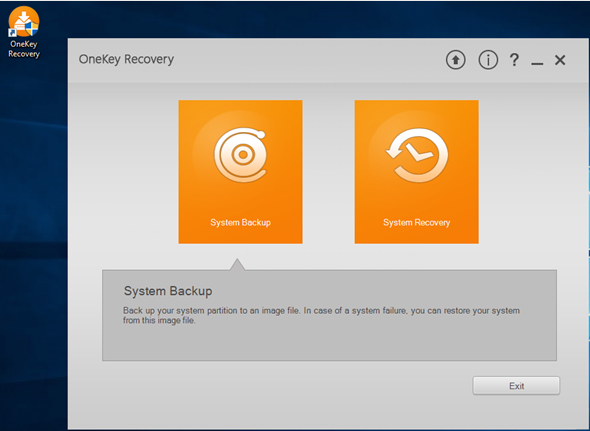
Besides using Brand's OneKey Recovery, you can also use third-party software like Qiling Disk Master, which offers additional benefits.
- This guide is applicable to all computer brands, not just one specific brand.
- This tool enables users to create backups of their system to a recovery partition or external devices like external hard drives, USB flash drives, CDs, or DVDs.
- It is able to compress or encrypt backup image.
- The software can automatically back up your system on a regular basis, such as daily, and also allows you to schedule backups for weekly or monthly intervals.
- The system supports both F11 or A recovery key and boot menu at the system startup.

Advantages and Disadvantages of OneKey Recovery
Onekey recovery is a system recovery tool that can restore a computer to its original factory settings or to a previously saved backup, depending on whether a backup was created. It's a useful tool for recovering a system, but it's not a substitute for regular backups. Onekey recovery has its pros and cons, but it can be a lifesaver when a system goes wrong. If you haven't created a backup, it can only restore to factory settings, but if you have a backup, you can restore to that point. It's a good idea to use onekey recovery in conjunction with regular backups to ensure maximum protection for your system.
The advantage of onekey recovery
- It's a good tool for beginners to learn computer basics, and also helps users back up their system, making it easy to recover in case of a computer crash.
- Reinstalling a computer system can be a lengthy and complicated process, requiring the use of DVDs/CDs, USB drives, or specific software. In contrast, reinstalling a computer system is a relatively simple and straightforward process that doesn't require any additional preparation or materials.
The disadvantage of onekey recovery
- Onekey recovery will occupy the space of your computer and restore the system that you backed up before from a hidden recovery partition, which contains the system image. When you start the recovery process, the system image will work, and the previously backed up system will be restored to drive C.
How to create onekey rescue system in simple steps
After learning OneKey Recovery, you may want to use it for backup and recovery. This tool, also known as Lenovo OneKey Recovery, allows you to create a system image and recover your computer to a previous state in case of a problem. You can also use third-party tools like Qiling Disk Master for similar functionality. By using OneKey Recovery, you can ensure that your system is properly backed up and can be easily restored if needed.
create factory recovery partition with Lenovo OneKey Recovery
1. To create a backup of your Lenovo system, start the Lenovo OneKey Recovery software and click on the "System Backup" option on the main page.
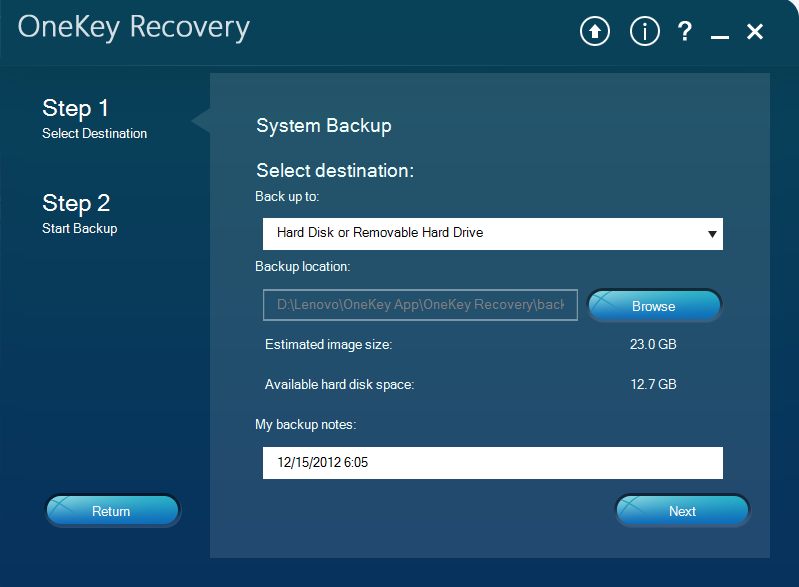
2. In Step 1, select the backup destination and click "Next". You can also type backup notes to distinguish the backup.
create factory recovery partition with Qiling Disk Master
Before backing up your system with Qiling Disk Master, please download it onto your computer first. Once downloaded, follow the steps below to proceed with the backup process.
1. Launch the software and click on the "System Backup" option at the left side.
2. To select the recommended backup option, choose "Backup system to Qiling Disk Master Partition" and click "Next".
Useful features you can use:
- Backup Options: You can set normal and high compress levels for the backup task to compress backup image, and also enable password protection to prevent unauthorized access.
- Scheduler: You can schedule a backup task to run regularly, such as daily, weekly, or monthly, to ensure you always have the latest installed items or saved data on your computer.
3. Choose a path on the hard drive to create a recovery partition and store a backup image, and then click "Proceed".

After the process, you can enable recovery key or boot menu in the backup settings. If your system crashes, you can recover it by clicking on the shortcut icon or repeatedly pressing "F11"/ "A" at system startup to start the recovery process.
To factory reset a Lenovo Desktop, follow the steps outlined previously. However, note that using the built-in OneKey Recovery software may have some limitations, and it's recommended to use a third-party tool like Qiling Disk Master for a more reliable system restore.
- If you reinstall your system, you won't be able to use it to recover your system.
- If you modify the size of a partition, you won't be able to use it to recover your system.
Further reading: The difference between onekey recovery and reinstalling system
Onekey recovery and reinstalling the operating system are often confused, but they're actually two distinct concepts. While reinstalling the OS can be a complex process, Onekey recovery is a much simpler and more straightforward way to restore the system to its original state.
- Reinstalling an operating system can be a time-consuming process, often taking longer than backing up the system. This is because reinstalling involves erasing and reconfiguring the entire system, including all installed software, drivers, and settings, which can be a lengthy process.
- After reinstalling your system, you'll have to reinstall all your programs. However, if you back up your system with OneKey Recovery, all the software on your system partition will be backed up too, and you won't have to reinstall anything. You can simply restore everything as it was.
Summary
This article introduces you to Brand OneKey Recovery, a software similar to Lenovo OneKey Recovery, and third-party options, and explains how to use them for backup. It's a helpful, simple, and convenient tool for beginners to protect their computer.
For advanced users, to protect unlimited PCs and servers or customize UI, try Qiling Disk Master Technician or Customization.
Related Articles
- Cannot restore the system partition
Compare the recovery image with the target partition layout. - How to Use Lenovo One Key Recovery in Windows 7/8/10
You will learn how to use Lenovo one key recovery to protect system and data on it and recreate partition or image when Lenovo OneKey Recovery not working. - Lenovo F11 Not Working Solved: Reactivate F11 Key to Restore System
You will learn how to fix Lenovo F11 not working in Windows 7/8/10/11 and reduce the impact of this issue. - Free and Easy DriveImage XML Alternative - Qiling Disk Master
This article introduces you to the best free and easy-to-use DriveImage XML alternative and how to schedule disk backup automatically in Windows 7, 8, 10, and 11. - 5 Best Disk Imaging Software for Windows 10/7 in 2022 | Paid & Free
Follow this guide to 5 Best Disk Imaging Software for Windows 10/7 in 2022 | Paid & Free, with backup options, storage tips, and recovery precautions. - Do You Backup Everything
This guide explains Do You Backup Everything with clear steps, key checks, and practical tips.
Products
Articles & Tutorials
- Data Recovery
- Data Backup
- File Recovery
- File Backup
- File synchronize
- System Backup and Restore
- Disk and Partition Clone
- Technical articles
- Disk Master Help
- Windows Deleted File and Disk Recovery Tutorials
- Windows File and Data Recovery Tutorials
- More Windows Tutorials for Install, Security, Files, and PC Tips
- Windows Boot, Repair, and Recovery Environment Tutorials
- Windows Backup Tutorials
- Windows Restore Tutorials
- Windows Clone and Migration Tutorials
- Windows Server Backup, Recovery, and Management Tutorials
- Windows Disk, Partition, and Storage Management Tutorials