How to Fix PSP Not Reading Games in Memory Stick
Some people still prefer to play games on their PSP despite the rise of mobile gaming, but they may encounter issues when their PSP fails to read games from the memory card. To resolve this problem and continue playing, you'll need to learn how to troubleshoot and fix the issue, which we'll cover in the following sections.
If files are missing from the memory stick, see memory stick file recovery before formatting it.
- Quick Navigation
- Part 1. How to Fix PSP Not Reading Games from Memory Card
- Part 2. How to Fix PSP Memory Stick without Losing Data
- Part 3. How to Format PSP Memory Stick
Part 1. How to Fix PSP Not Reading Games from Memory Card
If the file format is compatible with the PSP and the PSP is not reading games from the memory card, try placing the video game in the correct game folder. To do this, follow these simple steps.
- To turn on your PSP, press and hold the Power button until the PSP logo appears on the screen. Wait for the PSP to boot into the menu, which should take about 30 seconds to a minute.
- You can use a digital cable to connect your PSP with your computer.
- To enable the USB connection on the PSP, simply follow these steps: Connect your PSP to your computer using a USB cable. Wait for your computer to recognize the PSP, which will be indicated by a window appearing on your computer screen. Once this window appears, it means the connection is complete and you can proceed with the next steps.
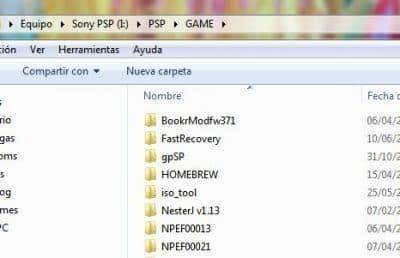
- To resolve the issue of the PSP not reading games, navigate to the folder where the games are stored, which is usually labeled as "GAME", "GAME150", or "GAME5XX". Move the game in question to a different folder to troubleshoot the problem.
- Disconnect the PSP from the computer.
- To troubleshoot the issue with your PSP game, start by running the game from the XMB on your PSP. If it works, you can proceed with playing. If not, check the condition of your PSP memory stick. If it's damaged, format the memory stick to resolve the issue. If formatting doesn't work, the memory stick may be faulty and needs to be replaced.
Part 2. How to Fix PSP Memory Stick without Losing Data
If your PSP's memory stick is malfunctioning or shows a "stop using the device" message, stop using the PSP immediately, retrieve your data, and format the memory stick to resolve the issue.
Deep Data Recovery is the best software to retrieve lost files on a PSP memory stick, allowing you to recover data regardless of the reason for its loss. Once recovered, you can safely format the PSP memory stick. To recover deleted files, follow these simple steps.
Download Deep Data Recovery to restore files from PSP.
- Select PSP memory stick to scan
- Preview and recover files from PSP
In the next window, you can see all hard drives are listed. Please find the PSP memory stick, select it and click "Scan", letting the software look for the lost or deleted files on PSP.

Wait until the scanning process is finished. After that, you can see all found files are categorized and listed on the left panel. Select the file type in the left panel and check the details on the right side. Once you find the target files, select them and click "Recover" to save them on your computer, not on the PSP memory stick to avoid data loss.

Part 3. How to Format PSP Memory Stick
- Push the Home button of PSP.
- After that, push the LEFT arrow key repeatedly until you're navigated to Settings.
- Press the DOWN arrow key until you see SYSTEM SETTINGS.
- To format the memory stick, press the X button and then push the DOWN arrow key until you see "Format Memory Stick".
- To format your iPhone, press and hold the Sleep/Wake button and the Volume Down button at the same time for at least 10 seconds, until the Apple logo appears. Then, let it finish the whole process.
If your PSP is not reading games from the memory card, try the above-mentioned tips to resolve the issue. To ensure your data is safe, consider backing up your files regularly using Qiling Disk Master. If you do lose any files, you can try using Deep Data Recovery to retrieve them, and the sooner you act, the better.
Related Articles
- [Solved] Pictures on SD Card Not Showing in Gallery
- [Solved] PS4 Not Recogizing/Reading External Hard Drive
- How to Fix the Problem of Cannot Format SanDisk SD Card
- How to Recover Data from Pen Drive Asking for Format
- Convert RAW to NTFS without Losing Data
- How to Recover Deleted/Lost Files on Memory Stick
- How to Use TestDisk Recover Files
- How to Fix USB Drive Not Formatted Error
- SanDisk Repair Tool to Repair SanDisk SD Card/USB/HDD/SSD
Products
Articles & Tutorials
- Data Recovery
- Data Backup
- File Recovery
- File Backup
- File synchronize
- System Backup and Restore
- Disk and Partition Clone
- Technical articles
- Disk Master Help
- Windows Deleted File and Disk Recovery Tutorials
- Windows File and Data Recovery Tutorials
- More Windows Tutorials for Install, Security, Files, and PC Tips
- Windows Boot, Repair, and Recovery Environment Tutorials
- Windows Backup Tutorials
- Windows Restore Tutorials
- Windows Clone and Migration Tutorials
- Windows Server Backup, Recovery, and Management Tutorials
- Windows Disk, Partition, and Storage Management Tutorials