How to Recover Previous Version of Excel File on Mac
Unfortunately, there isn't a straightforward way to restore a previous version of an Excel file on a Mac after overwriting and saving changes. However, you can try using Time Machine or a third-party backup service to restore a previous version of the file. If you have Time Machine enabled, you can go to the "Time Machine" menu and select "Enter Time Machine" to browse through previous backups of your Excel file. If you don't have Time Machine, you can also try using a cloud backup service like Google Drive or Dropbox to restore a previous version of the file.
If version history does not contain the workbook you need, this Mac Excel recovery guide explains AutoRecover and scan options.
Many people are concerned about losing the latest version of their Excel file on Mac, so they frequently press Command and S to save it. However, this can be a problem, especially when the Mac automatically changes the data in Excel without permission. Fortunately, it is possible to recover previous versions of an Excel file on Mac, and this can be done in Microsoft Excel for Mac 2011, 2016, and 2020.
- Quick Navigation
- Method #1. Press Command and Z to Recover Saved Over Excel File on Mac
- Method #2. Recover Previous Version of Excel File on Mac by Built-in Tool
- Method #3. Retrieve Lost/Deleted Excel Files on Mac with Software
Method #1. Press Command and Z to Recover Saved Over Excel File on Mac
On a Mac, if you're working on an Excel file or have kept the Excel opening all the time, you can try pressing Command and Z buttons at the same time to revert back to an older version of the Excel file. This method can be repeated multiple times to retrieve previous versions.
Method #2. Recover Previous Version of Excel File on Mac by the Built-in Tool
On a Mac, many software tools, including Excel, automatically save versions of documents whenever you perform actions like opening, duplicating, closing, or deleting them. If you need to restore a previous version of an Excel file, you can easily do so. To restore a previous version of an Excel file on Mac, you can follow these steps.
- Open the latest version of the Excel file.
- To recover a previous version of a document, go to "File" and select "Restore" from the drop-down menu. Then, choose "Restore to Last Saved to Recovering" from the sub-menu.
- To make it easier to navigate through all the versions of an Excel file, you can insert tick marks along the timeline. This will help you quickly identify and access specific versions, even if you have made many changes to the file.
- To find the previous version of the Excel file you need, go to the "File" menu, select "Info," and then click on the "Manage Versions" button. From there, you can choose the version you want to restore and select "Restore" to bring it back to your Mac.
- If you want to restore the current version to the previous one, click "Restore". If you want to save it to your Mac without overwriting the current one, press and hold the Option key and click "Restore a Copy".
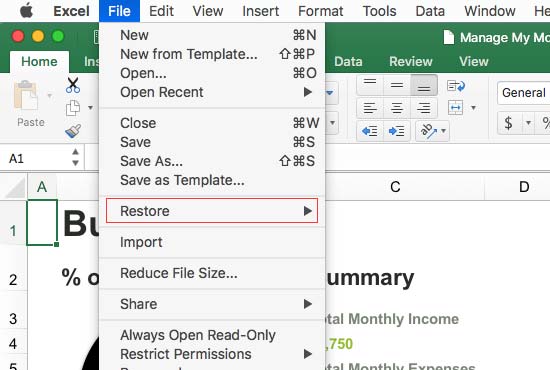
Save a previous version of an Excel file on Mac by opening the file, going to "File" > "Save As", and choosing a new location to save the file with a different name, allowing you to recover the previous version.
Method #3. Retrieve Lost/Deleted Excel Files on Mac with Software
If you only need to get back the previous version of the Excel file on Mac, I think method 2 will do. However, if the Excel file is lost or deleted, you can restore it only with the help of a professional tool, like Deep Data Recovery for Mac. In the following, how to find permanently deleted or lost Excel files on Mac with Software.
- Install Excel File Recovery Software for macOS
- Select Files to Scan
- Select Mac Drive to Scan
- Preview and save lost Excel files
Download Deep Data Recovery for Mac on your computer, a virus-free and trustworthy data recovery software designed for recovering Excel files on Mac, compatible with Excel and macOS Mojave and former versions.
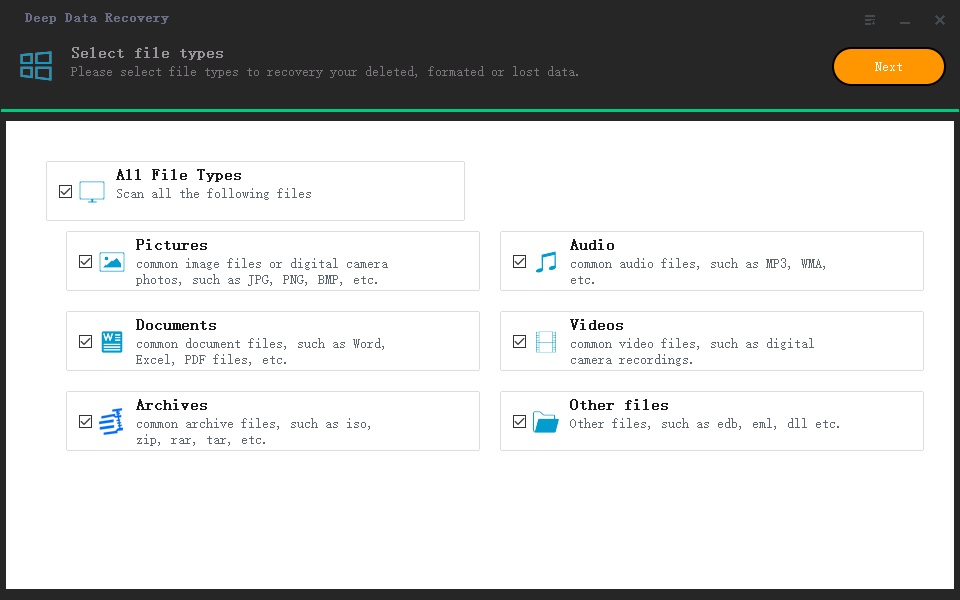
The software is set to scan for all supported file types by default, so you'll need to uncheck any unwanted file types, leaving only the "Documents" option selected, before clicking "Next" to proceed with the extraction of files.
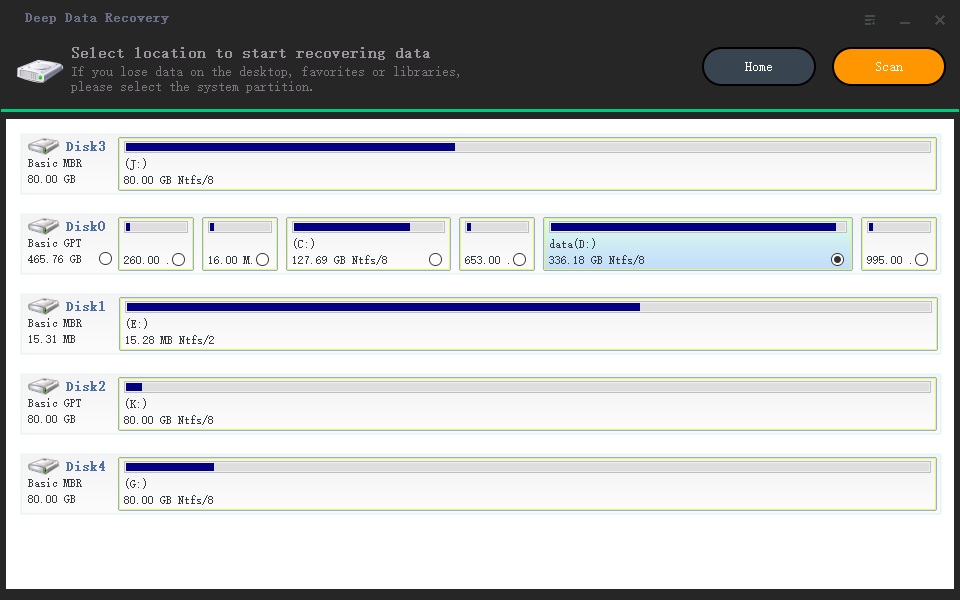
All hard drives of your Mac are listed in the main window, from which you need to select the one where the lost Excel file was located. Clicking "Scan" will initiate the software to scan your Mac for the Excel worksheets.
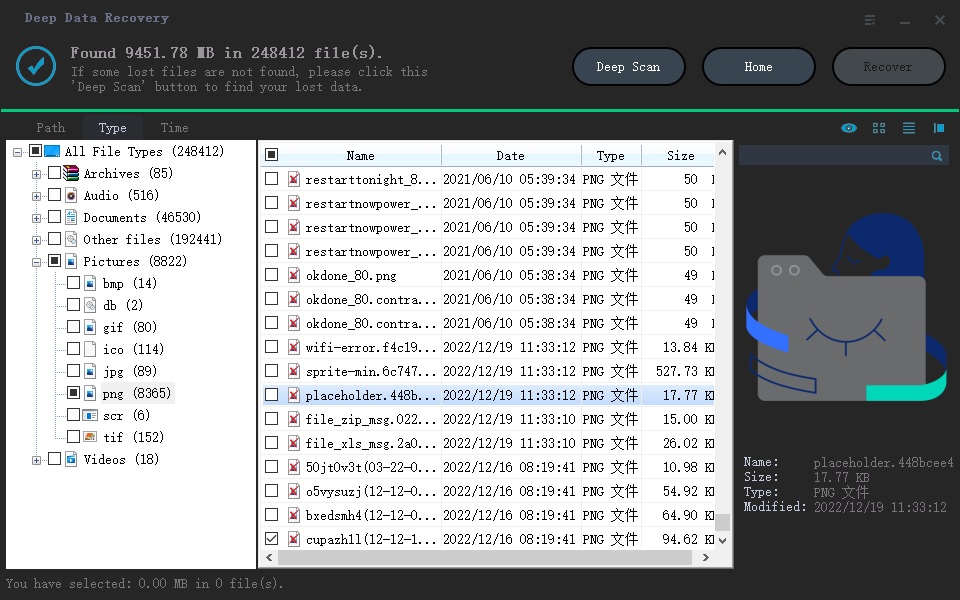
Free data recovery software can quickly scan your Mac for Excel files, listing all found worksheets in a result window. Simply select the desired file and click "Recover" to save it to your Mac again.
Related Articles
- How to Recover an Unsaved Excel File in Windows 11/10
- How to Recover Deleted Zip/Rar Files in Windows 11/10
- How to Recover XLS Files Free
- Recover Shift Deleted Excel Files
- Recover Unsaved/Deleted SketchUp Files
Products
Articles & Tutorials
- Data Recovery
- Data Backup
- File Recovery
- File Backup
- File synchronize
- System Backup and Restore
- Disk and Partition Clone
- Technical articles
- Disk Master Help
- Windows Deleted File and Disk Recovery Tutorials
- Windows File and Data Recovery Tutorials
- More Windows Tutorials for Install, Security, Files, and PC Tips
- Windows Boot, Repair, and Recovery Environment Tutorials
- Windows Backup Tutorials
- Windows Restore Tutorials
- Windows Clone and Migration Tutorials
- Windows Server Backup, Recovery, and Management Tutorials
- Windows Disk, Partition, and Storage Management Tutorials