How to Recover Deleted Photos/Files from CF Card on Mac/Windows PC
Quick Navigation:
- How Do I Restore Files from My CF Card on Mac?
- How to Recover Deleted Files from CF Card
- Is It Possible to Retrieve CF Card after Formatting?
- Can I Recover Data from Damaged CF Card?
- #1. Fix CF Card on Windows PC with CHKDSK
- #2. Fix CF Card on Mac with First Aid
- Is There Free CF Card Recovery Software Available?
- Your Safe & Free Data Recovery Software for CF Card
- How to Fix Photos and Videos in CF Card Cannot Be Opened?
Compact flash cards (CF cards) are commonly used in cameras and media devices to store photos and videos. However, their ease of use also makes them vulnerable to data loss, prompting many to ask how to recover deleted files on CF cards. This is because various scenarios can cause images, videos, and other data to be lost from CF cards, making file recovery a pressing concern.
If the same Canon camera uses an SD card instead of a CF card, this Canon photo recovery guide gives related recovery steps.
- You deleted the photos on the CF card accidentally.
- You experienced a data loss incident while transferring photos from a computer to a CF card, resulting in all the pictures being deleted. What happened was likely a software or hardware error that caused the transfer process to fail, resulting in the loss of your photos.
- The CF card has become inaccessible, and formatting is necessary to regain access to it.
- The CF card is corrupted.
- You formatted the CF card, causing all the files erased.
- The pictures in CF cards are corrupted and you can't open them at all.
- The CF card is damaged, and files are trapped there.
When you encounter the situation of deleted files on a CF card, it's essential to learn how to retrieve them. The CF card has played a crucial role in storing pictures and videos, making it a vital tool for photographers and videographers.
How Do I Restore Files from My CF Card on Mac?
When deleting files from a CF card on a Mac, there's no recycle bin to recover them from, and the deletion is permanent. If you've lost files due to deletion or other scenarios, the only way to recover them is by using file recovery software like Qiling Mac data recovery software, which can retrieve files from Mac internal disks and external hard drives, including CF cards. Here's an example of how to recover photos from a CF card on a Mac using this software.
Please download the right version of Deep Data Recovery for Windows or macOS.
How to Recover Deleted Files from CF Card
- Connect the CF card with your Mac, making sure it is recognized as an external disk. Open the Disk Utility app, select the CF card in the sidebar, and click the "Erase" button to format it as a Mac OS Extended (Journaled) volume.
- To recover data from a CF card on your Mac, download and install the CF card data recovery software on your device.
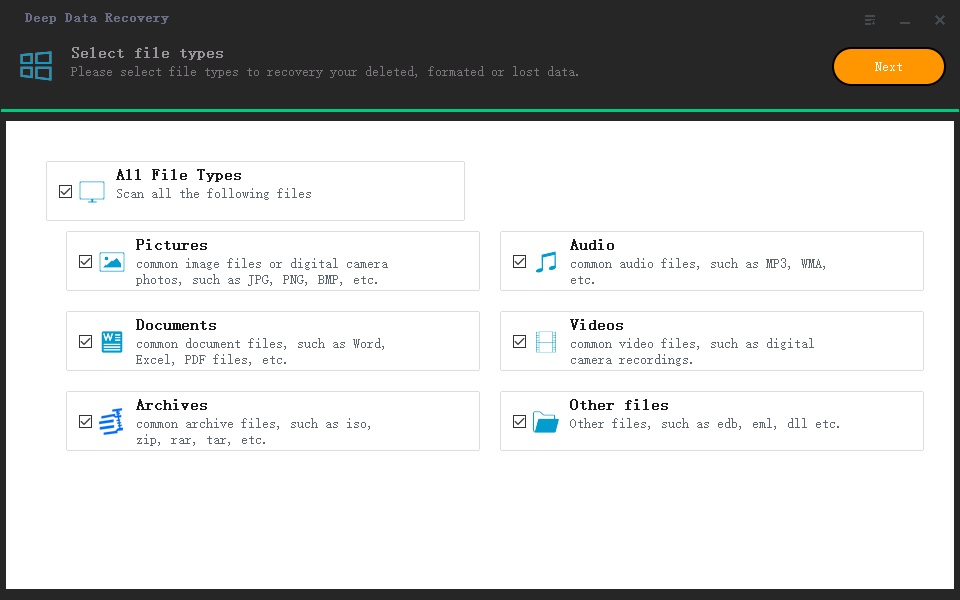
- Launch the CFast card recovery software and click "Next".
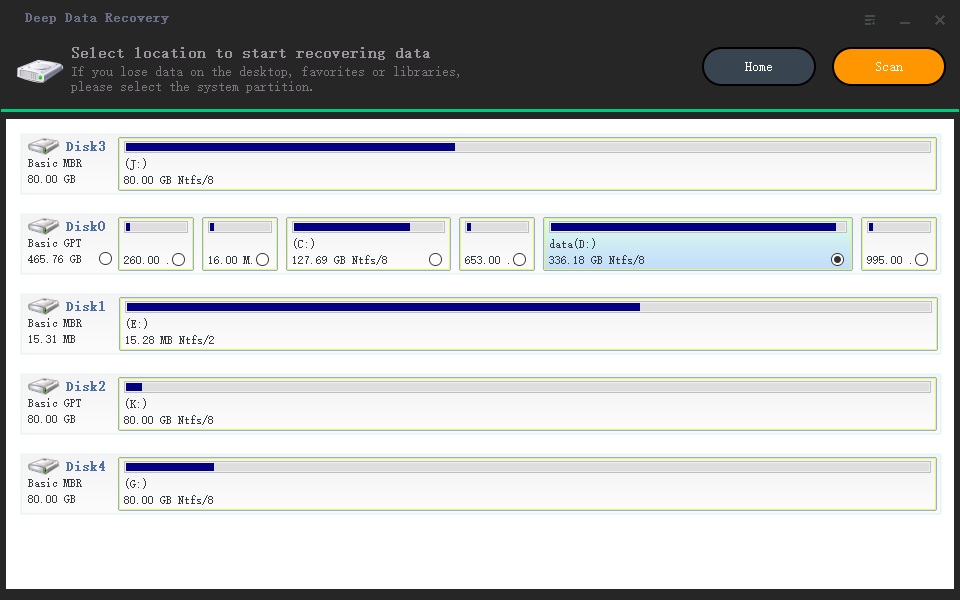
- Select the CF card as the target drive to scan for lost photos and click "Scan".
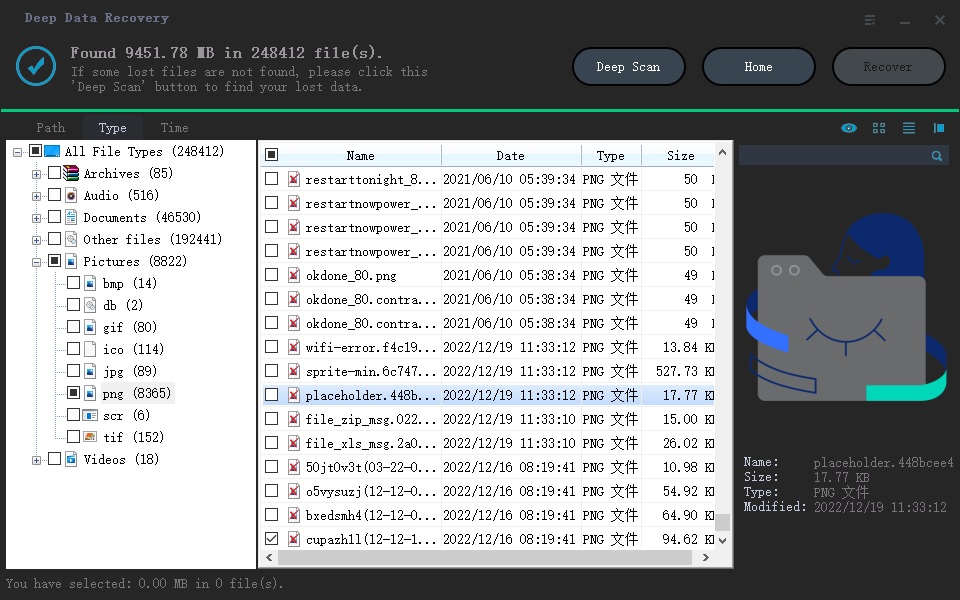
- After the scanning process is complete, the found files are sorted into categories. To preview and recover the found photos, click on the "Pictures" category, select the desired photos, and then click "Recover" to save them on your Mac.
The tool is safe to use to recover lost files. It is virus-free, only scans your CF card for missing files, and does not collect any personal data.
View and restore CF card videos/photos
Is It Possible to Retrieve CF Card after Formatting?
If you formatted a CF card, it's best to try and recover the files as soon as possible, as the chances of success are higher if you don't use the card again. This increases the likelihood of recovering files from the formatted CF card.
- Connect the CF card to computer (PC or Mac).
- Launch the CF card recovery software and select the CF card as the target drive to scan. Click on the "Scan" button to initiate the recovery process.
- After scanning, select the found files using filters, preview them, and when you've found the desired files, select them and click "Recover" to save the lost data.
Can I Recover Data from Damaged CF Card?
If your CF card is physically damaged, it's best to contact the manufacturer for assistance. They can help repair or replace the card, and take steps to protect the data on it. If the damage is systematic, you may be able to recover the data using specialized software or a data recovery service.
If your CF card is not recognized by your computer or you can't access it, try formatting it first to fix any errors or corruption. This may resolve the issue and allow your computer to recognize the card again.
#1. Fix CF Card on Windows PC with CHKDSK
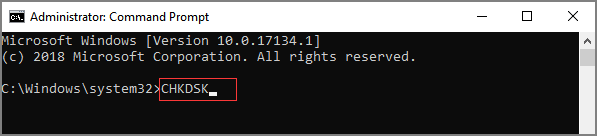
CHKDSK is a built-in Windows command-line tool that helps users fix partition and hard drive issues. To fix the CF card problem, you need to connect it with your Windows PC first. Then follow these steps.
- To run the Command Prompt as an administrator, type "cmd" in the search box at the bottom left and select Run as administrator.
- To run a disk check on your CF card, type the command "chkdsk F: /f" and press Enter, replacing "F" with the actual drive letter assigned to your CF card.
- Wait for the whole process to finish. And after then, if a pop-up asks you to restart your computer, do it.
#2. Fix CF Card on Mac with First Aid
If you have a Mac computer, use the Disk Utility First Aid to repair the CF card.
Launch Disk Utility, select the CF card, click First Aid, then click Run and Continue, and wait for the process to complete.
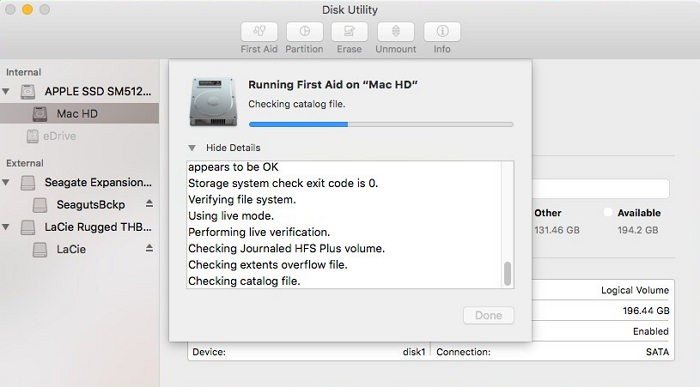
Fixing the corrupted CF card can be the best way to recover data from a corrupted CF card, and once it's fixed, all your data will come back and be accessible again.
Is There Free CF Card Recovery Software Available?
You can try Qiling Free Data Recovery, a free compact flash card data recovery software with advanced features.
Your Safe & Free Data Recovery Software for CF Card
- Use a CF card recovery software to restore up to 2GB of deleted or lost data from the CF card for free. The software can scan the CF card, identify the deleted files, and recover them in their original format.
- The tool supports over 1000 different file types, including images, videos, and files with various file extensions.
- Retrieve files from all the branded CF cards, including recover files from the SanDisk CF card.
- Use the software to repair and recover corrupted videos and photos from CF cards, making them playable again.
You can download the software to try it out. The process of using it to restore deleted files from a memory stick or recover files from a CF card is quite simple.
How to Fix Photos and Videos in CF Card Cannot Be Opened?
Photos and videos in CF cards can't be opened mostly because they're damaged, with some file information lost. To recover them, you can try the methods below.
- If you're unable to open the videos and photos, try using different software to access them, such as video and photo editing software like Photoshop. This may help resolve the issue.
- Use professional software like Deep Data Recovery to fix corrupted photos and videos on a CF card by scanning, collecting, and matching fragments for files, making it easier to retrieve them.
Related Articles
- 2023 HGST Hard Drive Recovery: How Do I Recover Data from HGST Hard Drive
Data loss issue is an occurrence that happens in Windows and Mac. Follow the recovery steps below. See the straightforward HGST hard drive recovery tool. More than that, you can get the HGST hard drive repair steps here. - How to Recover Data from 2TB External Hard Drive in Windows 11/10/8/7
about large amounts of data recovery. Here, we come up with a DIY recovery solution - Qiling data recovery software. It helps you recover data from a 2TB external hard drive or internal hard drive with simple steps. - Samsung Data Recovery: Recover Deleted Files from Samsung SD Card
This guide explains Samsung Data Recovery: Recover Deleted Files from Samsung SD Card with clear steps, key checks, and practical tips. - 4 Best Ways to Recover Deleted Files in Windows 11 Without Software
if you lose files in Windows 11. This post provides the four best ways to recover deleted files in Windows 11 without software. Read on to get more information. If you still prefer a data recovery tool, download and run Deep Data Recovery. - How to Undelete Partition in Windows 10/7/8/XP
Undeleting a partition in Windows 10, 8, 7, and XP is a relatively straightforward process. - DiskDigger Video Recovery or Undelete Videos from Windows PC/Android/Mac
This guide explains DiskDigger Video Recovery or Undelete Videos from Windows PC/Android/Mac with clear steps, key checks, and practical tips.
Products
Articles & Tutorials
- Data Recovery
- Data Backup
- File Recovery
- File Backup
- File synchronize
- System Backup and Restore
- Disk and Partition Clone
- Technical articles
- Disk Master Help
- Windows Deleted File and Disk Recovery Tutorials
- Windows File and Data Recovery Tutorials
- More Windows Tutorials for Install, Security, Files, and PC Tips
- Windows Boot, Repair, and Recovery Environment Tutorials
- Windows Backup Tutorials
- Windows Restore Tutorials
- Windows Clone and Migration Tutorials
- Windows Server Backup, Recovery, and Management Tutorials
- Windows Disk, Partition, and Storage Management Tutorials