How to Convert NTFS to FAT32 without Losing Data?
Why you need to convert NTFS to FAT32?
You can use a third-party software like Qiling Disk Master to convert NTFS to FAT32 without losing data or reformatting the partition. This process is also known as formatting a partition, but it will not erase any data on the drive. Alternatively, you can also use the built-in feature in Windows called "Disk Management" to convert the partition to FAT32.
If you need the opposite file system change, this FAT32 to NTFS conversion guide covers a related conversion path.
FAT32 is an older file system compared to NTFS, but it remains writable and readable on many operating systems, including DOS v7 and higher Windows versions. Its compatibility with DOS mode and Windows 9X makes it a suitable choice for accessing files in these environments. Additionally, FAT32 is compatible with popular game consoles like PS3, PS4, and 3DS, making it a desirable file system for some users who need to access files across different platforms. As a result, many users may prefer to switch from NTFS to FAT32 for its broader compatibility.
But all Windows built-You can't change NTFS to FAT32 using disk management tools like Disk Management, DiskPart, or Windows File Explorer, as they only allow reformatting, which would result in data loss. Therefore, you're likely looking for a way to convert NTFS to FAT32 without formatting or losing data on this drive.
Safe software to convert NTFS to FAT32 without data loss
Qiling Disk Master Professional offers a conversion tool, NTFS to FAT32 Converter, which allows for direct conversion between NTFS and FAT32 without reformatting and losing data. This tool is compatible with Windows 10/8/7/Vista/XP/2000 (both 32bit and 64bit). The process of changing an NTFS partition to FAT32 involves using this converter, which can be done without reformatting and losing data on the partition.
You can download the free demo version of the software for a trial before deciding to purchase it.
Further study: convert NTFS to FAT32 via Windows format tool
To convert a drive from NTFS to FAT32 without losing data, you can use a professional converter or the Windows formatting tools. If using the latter, it's essential to first back up your files and then follow the instructions. This will ensure that your data is preserved during the conversion process.
1. Open Windows Explorer and navigate to the drive you want to reformat from NTFS to FAT32.
2. Right click the drive and select the "Format" option from the context menu.
3. Select "FAT32" from the drop-down box under the "File System" section and tick the "Quick Format" option.
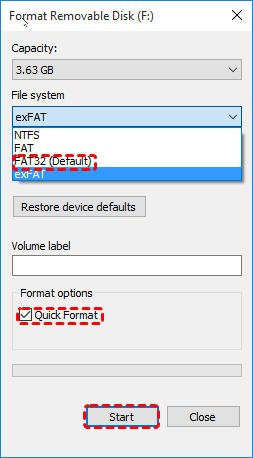
4. To start the re-formatting process, click the "Start" button. This may take a few minutes, depending on the size of your drive.
After the formatting process is completed, you can restore the backup to the FAT32 partition.
Note:
The FAT32 option will be unavailable in the drop-down box if the drive size you desire to format is larger than 32GB, a Windows limitation, but you can use Qiling Disk Master to format NTFS to FAT32 up to 2TB partition.
Summary
With Qiling Disk Master software, you can safely convert NTFS to FAT32 without losing data, and it also offers many other useful functions such as converting MBR and GPT without deleting partitions, transferring an OS to an SSD drive, aligning SSD partitions, cloning a hard disk, and more. This software is suitable for Windows users, including Windows Server 2003, 2008, 2012, 2016, who can use Qiling Disk Master Server to manage their disk partitions.
Related Articles
- Freeware to Copy NTFS Partition in Windows 10, 8, 7
When you want to copy NTFS partition to transfer data between two different drives, you can try the free Qiling Disk Master Standard. It can clone NTFS partition effectively in Windows 11,10, 8, 7. - NTFS VS. FAT32: What's the Difference and Which is Better?
In this post,we share much information about NTFS and FAT32 file systems and make an elaborate comparison. Besides, you can also learn how to realize the NTFS and FAT32 conversion without formatting or losing data. - How to Easily Format Micro SD Card from RAW to FAT32 in Windows 10/8/7?
If you want to format Micro SD card from RAW to FAT32, here we list two methods to help you successfully format Micro SD card from RAW to FAT32 in Windows 10/8/7. - How to Increase C Drive Space in Windows Server 2003 without Data Loss?
You can increase Server 2003 (R2) C drive space using Diskpart utility or Qiling Disk Master Server. - How to: Extend SSD Partition Windows 10 without DATA Loss
This article teaches you how to use professional and free third-party software to extend SSD partition in Windows 10. - How to Extend System Partition for Windows 10/8/7 and Windows Server?
Learn how to Extend System Partition for Windows 10/8/7 and Windows Server with clear steps, key checks, and practical tips.
Products
Articles & Tutorials
- Data Recovery
- Data Backup
- File Recovery
- File Backup
- File synchronize
- System Backup and Restore
- Disk and Partition Clone
- Technical articles
- Disk Master Help
- Windows Deleted File and Disk Recovery Tutorials
- Windows File and Data Recovery Tutorials
- More Windows Tutorials for Install, Security, Files, and PC Tips
- Windows Boot, Repair, and Recovery Environment Tutorials
- Windows Backup Tutorials
- Windows Restore Tutorials
- Windows Clone and Migration Tutorials
- Windows Server Backup, Recovery, and Management Tutorials
- Windows Disk, Partition, and Storage Management Tutorials